

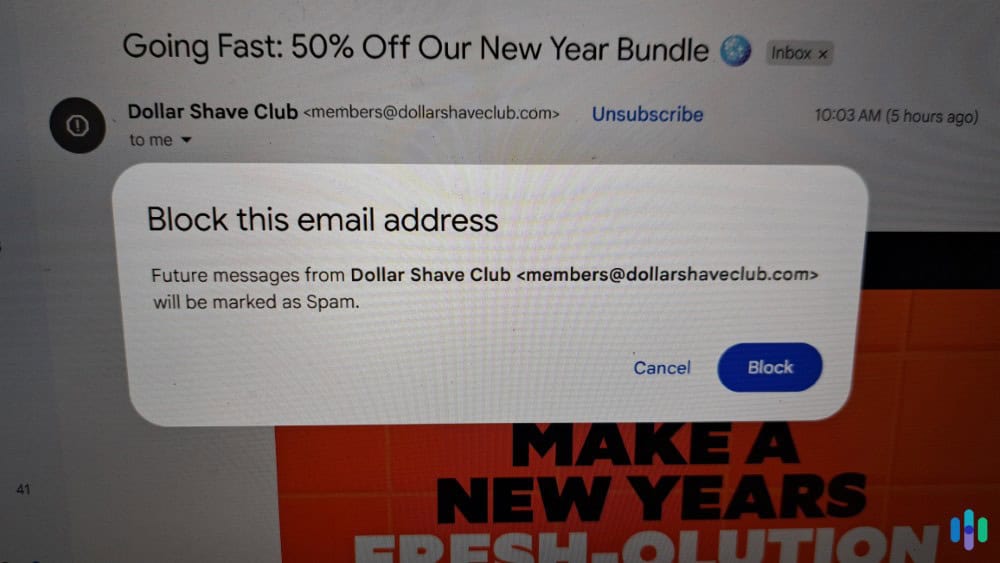
If you’re drowning in spam, dealing with an aggressive marketer, or simply want to cut off communication from someone, Gmail’s blocking feature is what you need. With it, you can manually block any email address. We’ll walk you through the exact steps to do this on both desktop and mobile devices. It takes less than five minutes. Let’s dig in.
Expert Inight: Do your kids manage their own email inboxes? You can help keep their inbox safe with a parental control app. They allow you to keep an eye on the emails your kids receive and send, alerting you if there’s any potentially sensitive or dangerous content being shared. Check out our roundup of the best parental control apps to find one that’ll work for you.
How to Block on Desktop
Blocking an email address on your computer is remarkably straightforward. Here’s the step-by-step process for two methods that work regardless of which browser you use.
Method #1: Block From an Open Email
If you’re currently reading an email and decide you want to block the sender, you can block them straight from that open email. Here’s the four-step process:
- Open an email from the sender you want to block.
- Click the three vertical dots in the upper-right corner of the email. It’s next to the reply arrow.
- Select “Block [sender name]” from the dropdown menu.
- Confirm you wish to block the sender when prompted with the notification banner at the bottom of your screen.
This method takes about 15 seconds and is perfect when you’re actively reading an annoying email. The moment you hit block, that sender’s future messages automatically bypass your inbox and head straight to spam.
Method #2: Block Without Opening the Email
If you don’t even want to open the email (smart move with suspicious messages), you can block right from your inbox view. Here’s how:
- Hover your mouse over an email in your inbox list.
- Check the small box that appears on the left side of the email.
- Click the three vertical dots icon that appears above your inbox.
- Select “Block [sender name]” from the dropdown menu.
This approach is especially useful when you’re doing inbox cleanup and want to block multiple problem senders in one session.
FYI: You can’t block multiple senders simultaneously in Gmail. However, this hover method can help speed up the process when trying to block several email addresses.
How to Block on Mobile
If you’re part of the almost half of people who use their phone to manage their inbox, don’t worry, you can block senders straight from the Gmail app as well.1 It just has a slightly different interface.
Step-by-Step Guide to Blocking on the Gmail Mobile App
- Open the Gmail app on your smartphone or tablet.
- Tap an email from the sender you want to block.
- Press the three vertical dots in the upper-right corner.
- Select “Block [sender name]” from the dropdown menu.
- Confirm the action when prompted.
The mobile interface is actually more intuitive than desktop for some users because the menu options are larger and easier to navigate. Just like on desktop, blocked emails immediately start routing to your spam folder.
>> Read About: How to Clear Your Gmail Search History in 2026
Why Block Email Addresses in Gmail?
Blocking email addresses serves multiple purposes beyond just decluttering your inbox. When you block a sender, you’re taking control of your digital security and mental bandwidth. With nearly 400 billion emails being sent and received on a daily basis, it’s become a necessity for managing your inbox.2
We recommend blocking email addresses in Gmail if the sender fits one of the following categories:
- Sends persistent spam that bypasses Gmail’s built-in filters.
- Ex-colleagues or contacts you no longer wish to hear from.
- You received suspicious messages that seem like phishing attempts.
- After unsubscribing, the sender still sends marketing emails.
Think of blocking as setting a boundary — it’s not rude, it’s practical digital hygiene.
Pro Tip: Before blocking legitimate businesses, try unsubscribing first using the link at the bottom of their emails. That way, if you decide you want to start receiving their emails again, you can easily resubscribe.
How to Unblock an Email Address
Let’s clear up some common misconceptions about blocking. When you block an email address in Gmail, the sender isn’t notified — they have no idea they’ve been blocked. Their emails will continue to technically reach Gmail’s servers, but they’ll automatically land in your spam folder instead of your inbox.
Since their emails go straight to your spam folder, you won’t receive any notifications about their emails. Once in your spam folder, the email will be deleted within 30 days if you leave it there. Of course, you can still check your spam folder to see any messages sent from blocked senders if you’d like. From there, you can remove it from the spam folder if you don’t want it to be automatically deleted.
One important technical note: blocking works at the email address level, not the domain level. If someone uses multiple email addresses, you’ll need to block each one individually. There’s no single “block all emails from this person” button if they’re using different accounts.
Heads Up: Blocking someone on Gmail only affects email — it doesn’t block the sender from contacting you through Google Chat, Google Meet, or other Google services. They could also reach out to you on social media, so we recommend blocking them on Instagram and other social media platforms as well.
Alternatives to Blocking
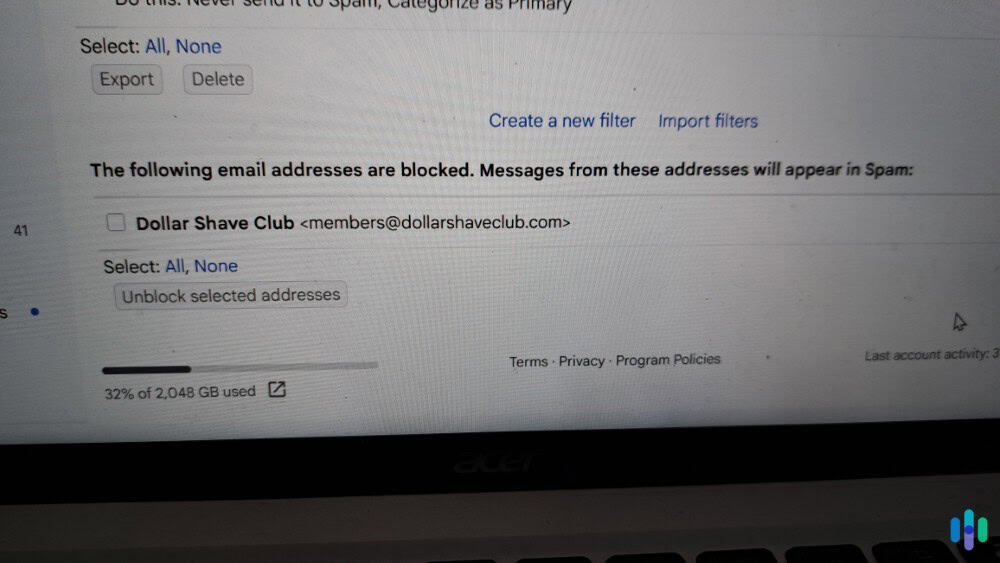
Unblocking someone is just as easy, if not easier, than blocking someone in the first place. Regardless of your reason for wanting to unblock a sender, here’s how to unblock people on desktop and mobile.
Unblocking on Desktop
Once you’re on the Gmail site, here’s how to unblock someone in five steps from a desktop:
- Click the gear icon in the upper-right corner of the Gmail interface.
- Select “See all settings” from the quick settings menu.
- Navigate to the “Filters and Blocked Addresses” tab.
- Scroll down to the “Blocked addresses” section.
- Find the email address you want to unblock and click the “Unblock” button next to that address.
If you need to, you can easily unblock multiple people at once by selecting each email and then pressing the “Unblock selected addresses” button instead of the “Unblock” button next to each individual email.
>> Check Out: How to Block and Unblock Someone on TikTok
Unblocking on Mobile
You don’t need to head over to your desktop to unblock someone. You can also unblock someone on the Gmail app in six steps:
- Open the Gmail app on your smartphone.
- Tap the menu icon in the upper-left corner of the app.
- Scroll down and tap “Settings.”
- Select your email account.
- Tap “Blocked addresses.”
- Find the address you wish to unblock and tap the “Unblock” button.
Once unblocked, emails from that sender will start appearing in your inbox again normally. However, emails that were sent while they were blocked remain in spam — unblocking isn’t retroactive.
Alternatives to Blocking
While blocking is effective, it’s not always the most sophisticated solution for managing unwanted emails. Gmail offers several other tools that might better fit your needs. The three tools we use the most for getting rid of unwanted messages include filters, the unsubscribe feature, and email reporting.
>> Learn More: What Can Someone Do with Your Email Address?
Creating Filters for Automated Management
Filters allow you to automatically sort, label, or delete emails based on criteria like sender, subject line, or keywords. Unlike blocking, filters let you impact emails from every sender, instead of just a single sender. For example, you could create a filter that archives all emails from a certain domain but doesn’t mark them as spam, keeping them accessible if you need them later.
Using the Unsubscribe Feature
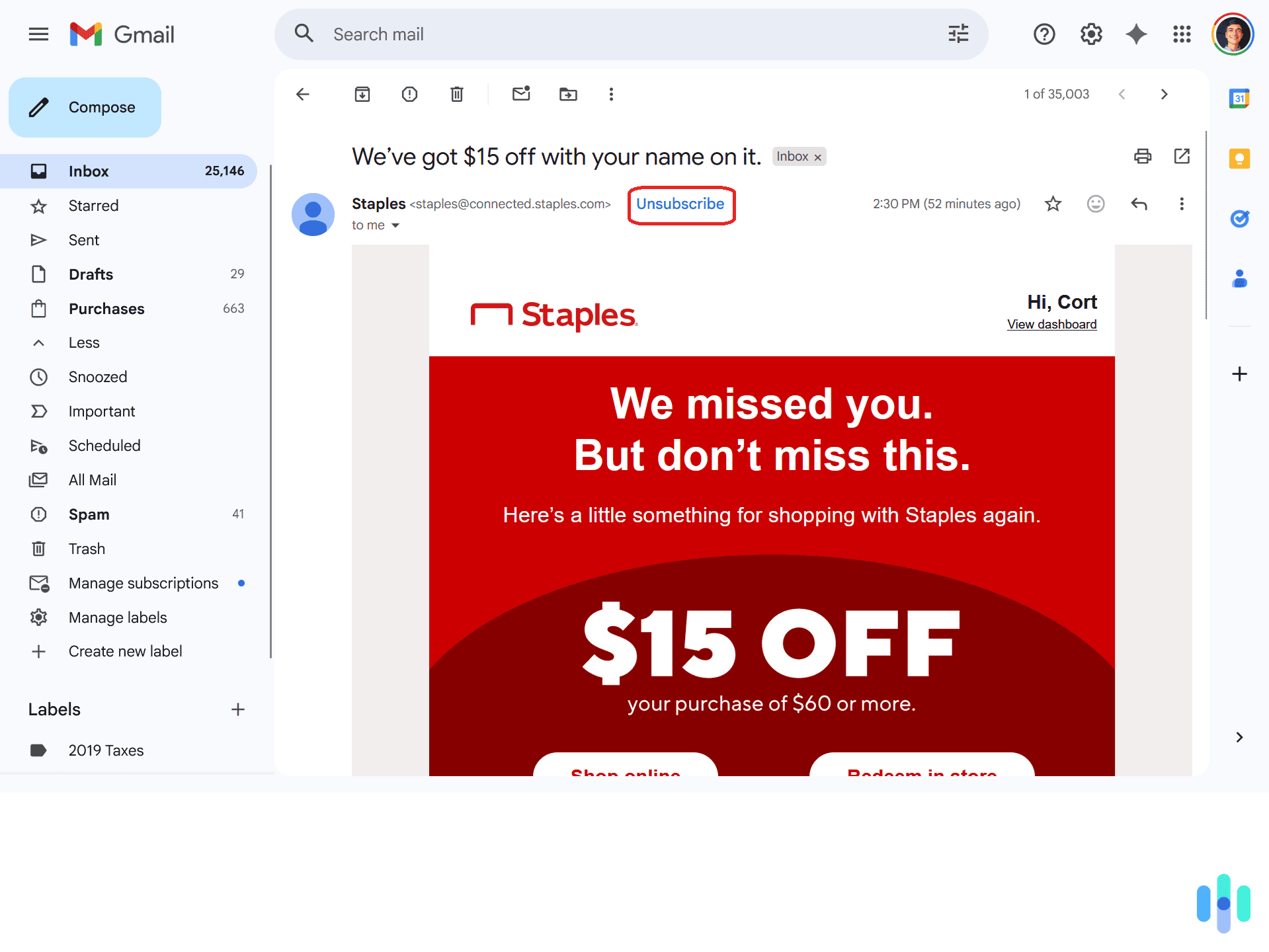
For legitimate marketing emails, Gmail displays an “Unsubscribe” link near the top of the message. This is more effective than blocking because it removes you from the sender’s list entirely. The CAN-SPAM Act requires commercial emails to include a functional unsubscribe mechanism that must be honored within 10 business days of the request.3
Reporting Phishing and Spam
If you’re dealing with malicious emails rather than just annoying ones, use Gmail’s “Report spam” or “Report phishing” options instead of blocking. These actions not only remove the email but also help train Gmail’s filters to stop spam emails for all users. When you report phishing, you’re contributing to Google’s machine learning systems that identify threats. If you receive phishing emails regularly, check out our phishing protection guide to stay safe.
>> Read More: How To Delete Personal Information from Google
Final Thoughts: Is Blocking on Gmail the Right Choice?
Blocking email addresses in Gmail is one of the simplest yet most effective ways to maintain control over your digital communication. Whether you’re dealing with persistent spam, unwanted marketing, or someone you’d rather not hear from, you can block them to automatically send their messages to spam in just seconds. The sender won’t even know you blocked them and you can easily unblock them if needed.
The key is knowing when to block versus when to use alternatives like filters, unsubscribe options, or spam reporting. For straightforward cases where you simply don’t want to receive emails from a specific address anymore, blocking is your best bet. However, if you want to prevent emails from more than just a specific address, filters will be the best option. For simple marketing emails, we recommend using the unsubscribe option and always report spam.
Frequently Asked Questions
-
Can a blocked sender tell they've been blocked?
No, Gmail doesn’t notify senders when they’ve been blocked, and their emails don’t bounce back. They’ll have no indication that their messages aren’t reaching your inbox unless they use an email tracker.
-
Does blocking delete previous emails from that sender?
No, blocking only affects future emails. All previous messages from that sender remain in your inbox or wherever they were originally filed.
-
Can I block an entire domain instead of individual addresses?
Gmail’s native block feature only works for individual email addresses. To block entire domains, you’ll need to create a custom filter using Gmail’s filter settings.
-
How many email addresses can I block in Gmail?
Google doesn’t publicly specify a limit, but users report being able to block hundreds or even thousands of addresses. For practical purposes, there’s no real limit you’ll hit.
-
Will blocking someone prevent them from seeing my emails?
No, blocking is one-directional. It only stops their emails from reaching your inbox. If you send them an email, they’ll still receive it normally.
-
What's the difference between blocking and marking as spam?
While you can unblock someone at any time, there’s a 48-hour waiting period before re-blocking. You can use alternatives like snoozing or unfollowing for short-term breaks.