

There are a lot of reasons to block someone on Instagram. Maybe it’s an ex who won’t stop viewing your Stories, a troll leaving nasty comments, or someone who just makes your feed feel less safe. Instagram is supposed to be your space, and sometimes protecting that space means setting firm boundaries. Approximately 58 percent of American students have experienced online harassment, with visual platforms like Instagram being common venues for unwanted interactions.1
Fortunately, Instagram gives you straightforward tools to control who can interact with you. Blocking and unblocking people takes just seconds once you know where to look, and it’s one of the most effective ways to maintain digital safety. Here’s how you do it.
Understanding Instagram Blocking Features
First, let’s clarify what blocking actually does. Instagram’s blocking feature is pretty comprehensive. The feature doesn’t just stop someone from commenting on your posts. When you block someone, you’re essentially making yourself invisible to them on the platform.
This differs from other privacy features Instagram offers. Restricting someone, for instance, limits their interactions without them knowing. Removing a follower disconnects them from your account without the full blocking measures. You can even make your Instagram private, which lets you approve all follower requests. According to Instagram’s parent company Meta, these different privacy controls are designed to give users granular control over their online interactions.
Pro Tip: If you’re unsure whether to block or restrict someone, we recommend starting with restricting. It’s the less severe option and gives you time to assess the situation.
How to Block Someone on Instagram
Instagram offers multiple ways to block someone. These are some of the most common ways.
Blocking Through a Profile
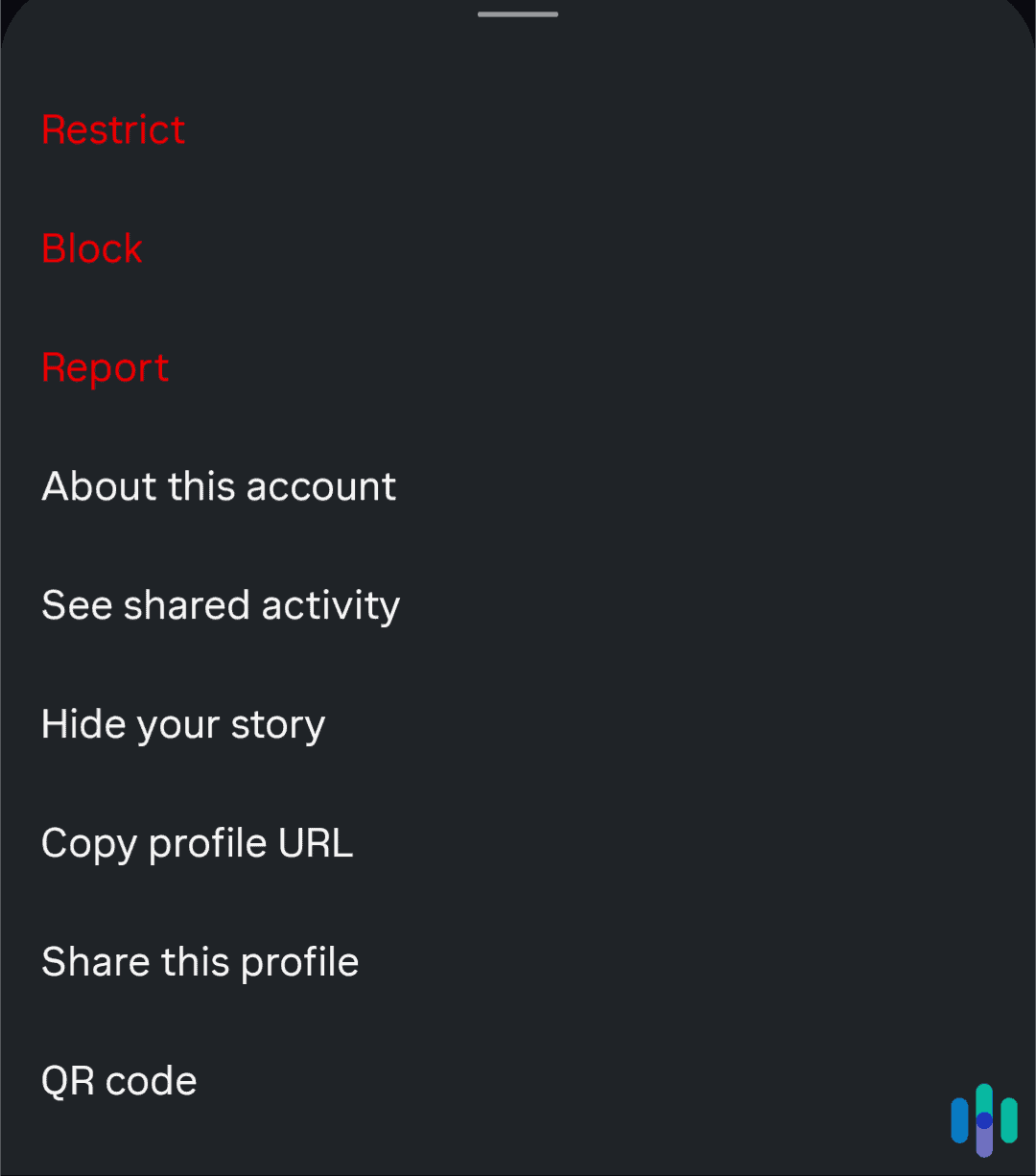
The most common method to block someone is directly from their profile. Here’s the straightforward process:
- Open Instagram and navigate to the profile of the person you want to block.
- Tap the three dots in the upper right corner of their profile page.
- Select “Block” from the menu that appears.
- Instagram will ask you to confirm.
- Tap “Block” again to finalize.
The whole process takes about five seconds, and it’s immediate. The person won’t be able to find your profile, see your posts, or contact you through Instagram.
Blocking Through Comments or Direct Messages
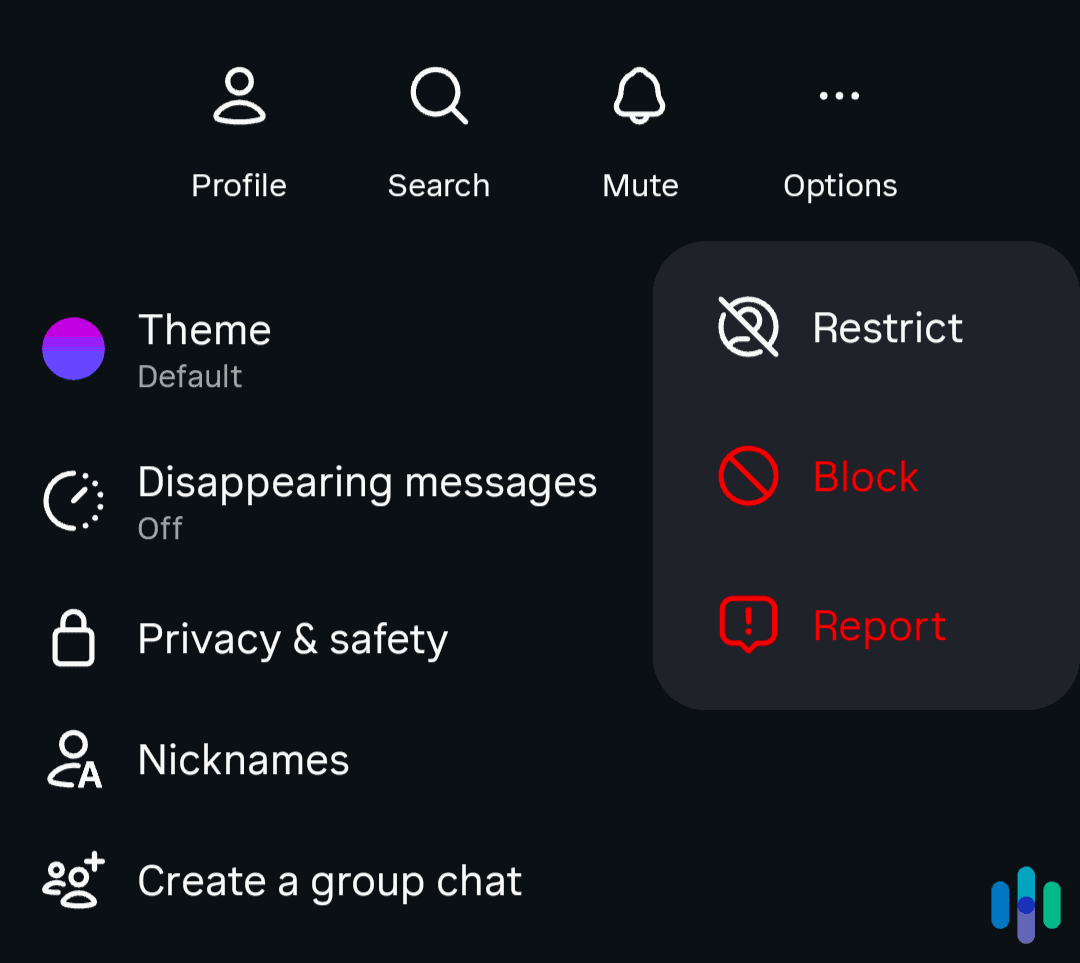
You can also block someone without visiting their profile. This is how you do it:
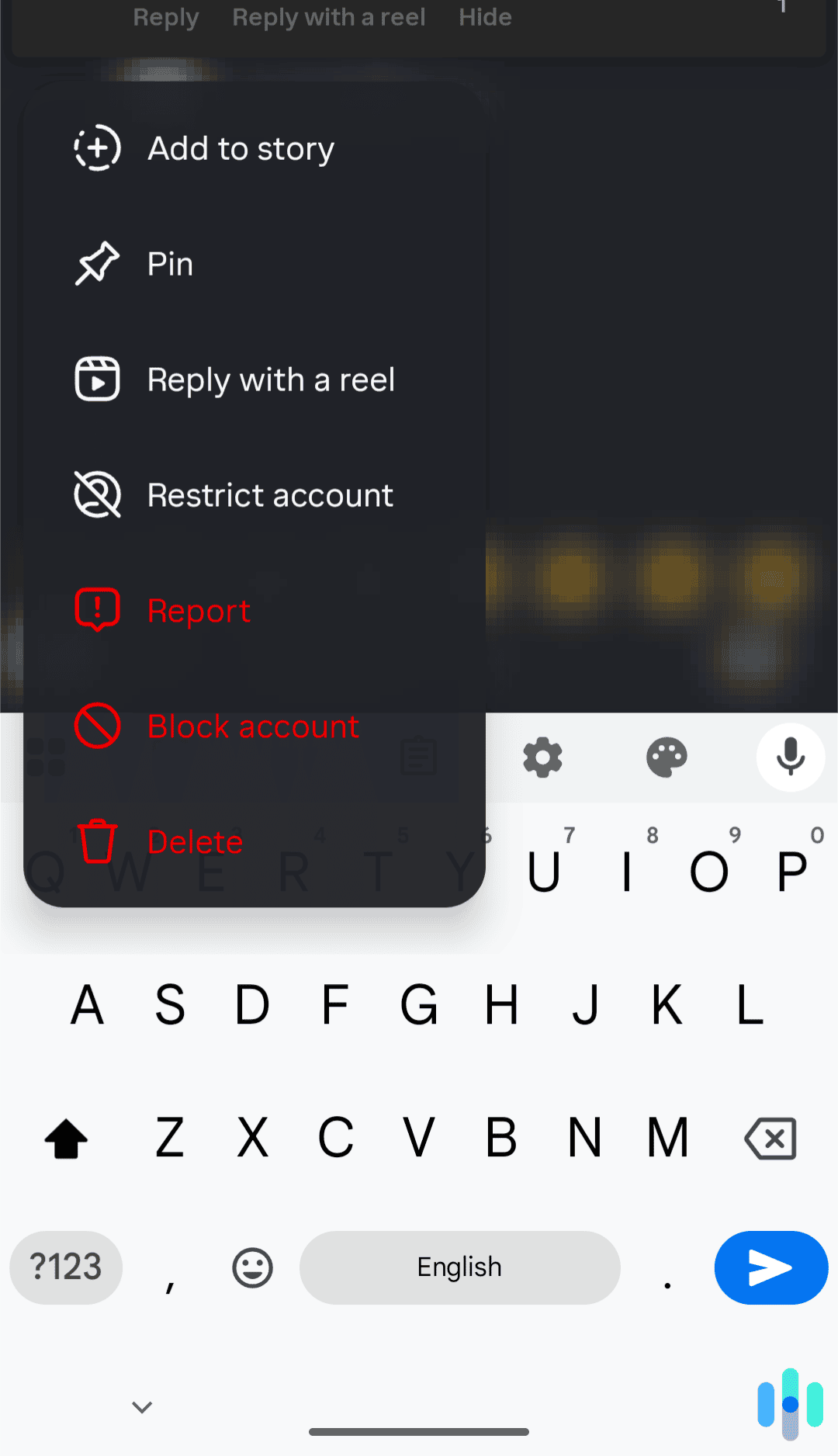
- If someone leaves a comment on your post, tap and hold the comment.
- Select “Block” from the options.
Similarly, in Direct Messages, open the conversation, tap the person’s name at the top, select “Block,” and confirm your choice. This method is useful when you’re dealing with harassment in real-time and want to act quickly without giving the person more profile visits.
Mobile vs. Desktop Differences
The process works similarly on desktop, though the interface looks slightly different. On a computer, visit the person’s profile, click the three dots next to their username, and select “Block User.” The process works the same way. Instagram just adjusts the layout for different screen sizes.
What Happens When You Block Someone
When you block someone on Instagram, several things happen simultaneously. They can no longer see your profile, posts, or Stories. Any likes or comments they previously left on your content remain visible to others, but their username appears as “Instagrammer.” They won’t be able to find you through search, and any Direct Message conversations will disappear from their inbox.
You might be wondering if the blocked person can tell if they’ve been blocked. The answer is not directly. Instagram doesn’t send notifications. If they try to visit your profile, they’ll see a “No Posts Yet” message or won’t be able to find your account at all. Savvy users might figure it out, but there’s no explicit alert.
FYI: Blocking someone on Instagram doesn’t block them on Facebook or other Meta platforms. You’ll need to block them separately on each platform.
How to Unblock Someone on Instagram
If you change your mind, unblocking is just as simple as blocking. Here’s what you need to do:
- Go to your profile and tap the three horizontal lines in the upper right corner.
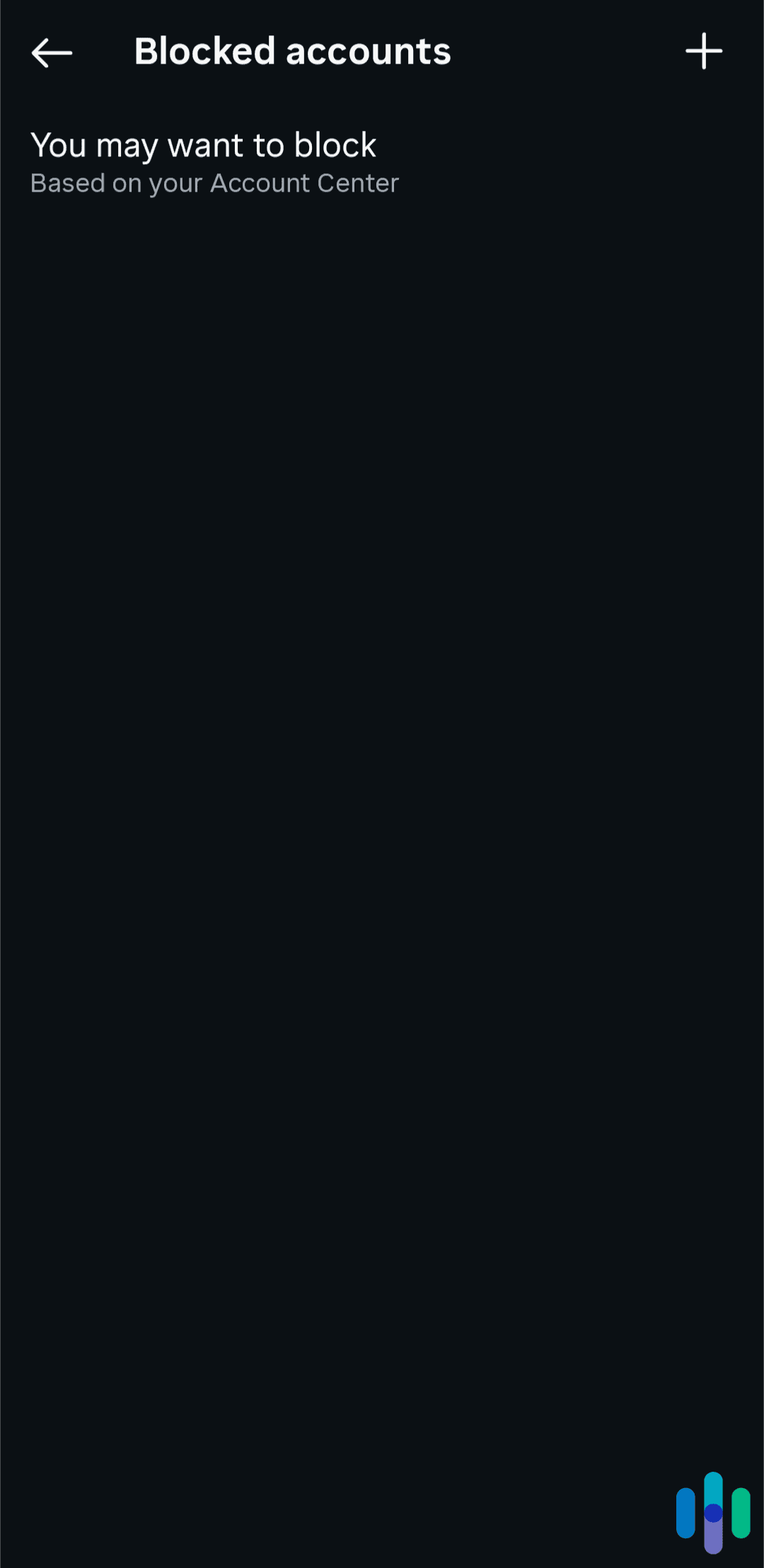
- Select “Settings,” then “Privacy,” then “Blocked accounts.”
- You’ll see a list of everyone you’ve blocked.
- Tap the account you want to unblock.
- Select “Unblock” and confirm.
After unblocking someone, keep in mind that you won’t automatically follow each other again. If you want to reconnect, you’ll need to follow them again (and they’ll need to follow you back). Instagram treats unblocking as a fresh start, not a restoration of the previous relationship.
>> Learn More: How to Clear Your Instagram Search History
What to Consider Before Unblocking
Before you unblock someone, we recommend asking yourself why you blocked them in the first place. If the issue was harassment or abusive behavior, consider whether that situation has genuinely changed. Unblocking should be intentional, not impulsive.
If you’re overseeing your child’s Instagram account, we recommend using parental control apps to keep an eye on things. When we reviewed Bark, we received alerts powered by AI that flagged content like bullying, harassment, and violence. This can start a conversation with your child about blocking Instagram accounts.
>> Keep Reading: The Best Parent Control Apps of 2026
Alternatives to Blocking
Blocking Instagram accounts isn’t the only solution. Here are some other alternatives to consider.
Restricting Accounts
Instagram’s “Restrict” feature offers a middle ground. When you restrict someone, their comments on your posts are only visible to them unless you approve them. They can’t see when you’re online or if you’ve read their messages. This feature is excellent for handling uncomfortable situations without full confrontation.
Making Your Account Private
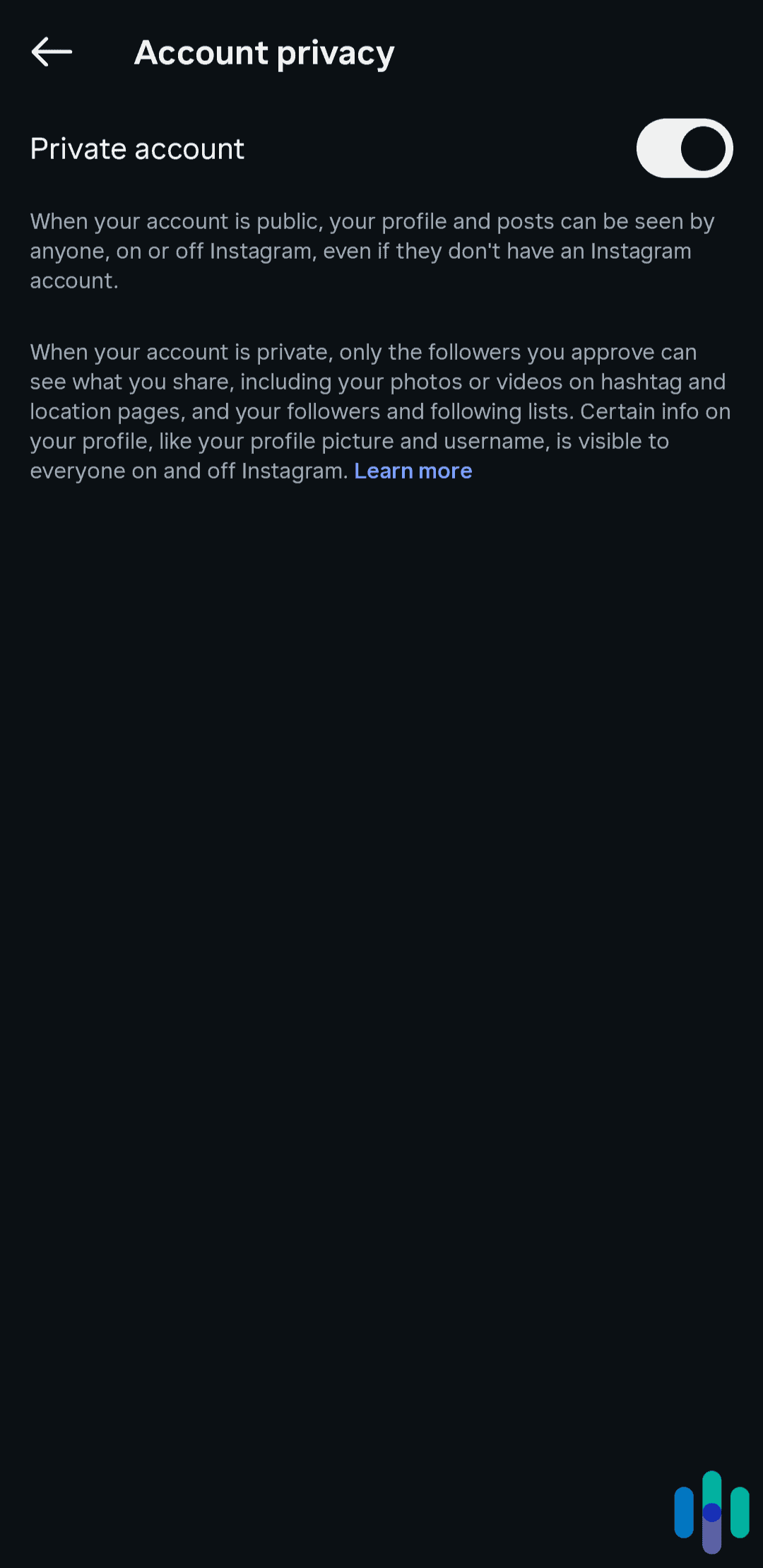
Setting your account to private means only approved followers can see your content. While this doesn’t target specific individuals, it lets you control who can see your content. Gen Z is leading the charge with private accounts and is choosing to share posts via direct messages and Stories, which expire in 24 hours like Snapchat.2
>> Check Out: How to Set Up Parental Controls on Snapchat
Removing Followers
If your account is private, you can remove followers without blocking them entirely. They won’t be notified, and they can request to follow you again if they notice. This works well for gradual disconnections where blocking feels too severe.
When You Should Consider Blocking
We recommend blocking when someone repeatedly ignores your boundaries, sends harassing or threatening messages, impersonates you, shares your private information without consent, or engages in any behavior that makes you feel unsafe.
Trust your instincts. If someone’s presence on your Instagram makes you anxious, uncomfortable, or unsafe, you don’t need a dramatic reason to block them. Your peace of mind is reason enough.
Pro Tip: We recommend screenshotting threatening or harassing messages before blocking someone. You might need this documentation for reporting to Instagram or law enforcement.
Wrap Up: Securing Your Instagram Account
Managing your Instagram experience through blocking and unblocking is an important aspect of digital security and wellbeing. These tools exist so you can curate a safe, comfortable online environment. Whether you’re dealing with harassment, ending a relationship, or simply needing space from someone, knowing how to block someone on Instagram lets you take control.
Remember that digital boundaries deserve the same respect as physical ones. You’re not obligated to maintain access for anyone who makes you uncomfortable. Plus, you can always adjust these settings as your circumstances change. Instagram’s privacy features are there for your protection, so don’t hesitate to use them when you need to.
Frequently Asked Questions
-
Will someone know if I block them on Instagram?
Instagram doesn’t send notifications when you block someone. The person might figure it out if they try to view your profile and can’t find it.
-
Can I see who I've blocked on Instagram?
Yes, go to Settings, then Privacy, and into Blocked accounts to see your complete list of blocked users.
-
If I block someone, can they still see my old comments on mutual friends' posts?
Yes, blocking doesn’t erase your previous interactions on other people’s content. They can still see comments you’ve left on mutual connections’ posts.
-
What's the difference between blocking and restricting on Instagram?
Blocking completely prevents someone from seeing your profile or contacting you. Restricting limits their interactions subtly. Their comments need your approval, and they can’t see your activity status.
-
Can I block someone on Instagram without them being able to create a new account to follow me?
Unfortunately, no. Blocking only affects that specific account. They can create new accounts to view your content if your profile is public.
-
How long does it take for a block to take effect?
Blocking is instant. The moment you confirm the block, that person can no longer access your profile or content.