

Your browser stores small files called cookies every time you visit a website. While they make your online experience smoother by remembering login details and preferences, they can also pile up and create problems. Cookies also play a big role in collecting your personal data, which concerns 86 percent of internet users in the U.S.1
Clearing your Firefox cookies is one of the simplest ways to reclaim some privacy, fix common website loading issues, and keep your browser running smoothly. We’ll show you the exact steps we take when clearing all our Firefox cookies and for clearing cookies from specific sites. Let’s dig in.
Family Tip: If your family uses the Firefox browser, you can use third-party parental control apps to limit the sites that your kids can access. Check out our roundup of the best parental control apps to see the full capabilities of these digital protection tools.
What Are Cookies and Why Clear Them?
Cookies are tiny text files that websites store on your computer to remember information about your visit. Think of them as digital sticky notes that help websites recognize you when you return. They store everything from your shopping cart items to your site preferences and login status.
There are several solid reasons to clear them regularly, including:
- Cookies accumulate tracking data that builds a detailed profile of your browsing habits, which third-party advertisers use to target you with ads.
- Outdated or corrupted cookies often cause website malfunctions like login loops, broken features, or pages that won’t load correctly.
- Clearing cookies frees up storage space and can improve browser performance, especially if you haven’t done it in a while.
Taking control of your cookies is a practical first step toward better privacy hygiene. In fact, the Federal Trade Commission notes that deleting website cookies regularly is an effective method to prevent websites from tracking you across the web.2
Pro Tip: If you’re troubleshooting a specific website problem, try clearing cookies for just that site before wiping everything.
How to Clear All Firefox Cookies
Clearing all your cookies in Firefox takes less than a minute once you know where to look. Here are two simple ways to clear your cookies on any device.
>> Read More: How to Clear Cookies on Safari
The Manual Method
First, we’ll go through the manual process for clearing cookies where you navigate into Firefox’s settings. Don’t worry, it’s a simple process that only takes eight steps to complete:
- Click the three horizontal lines in the top-right corner of your Firefox browser.
- Select “Settings” from the dropdown menu.
- Click “Privacy & Security” in the left sidebar.
- Scroll down to the “Cookies and Site Data” section.
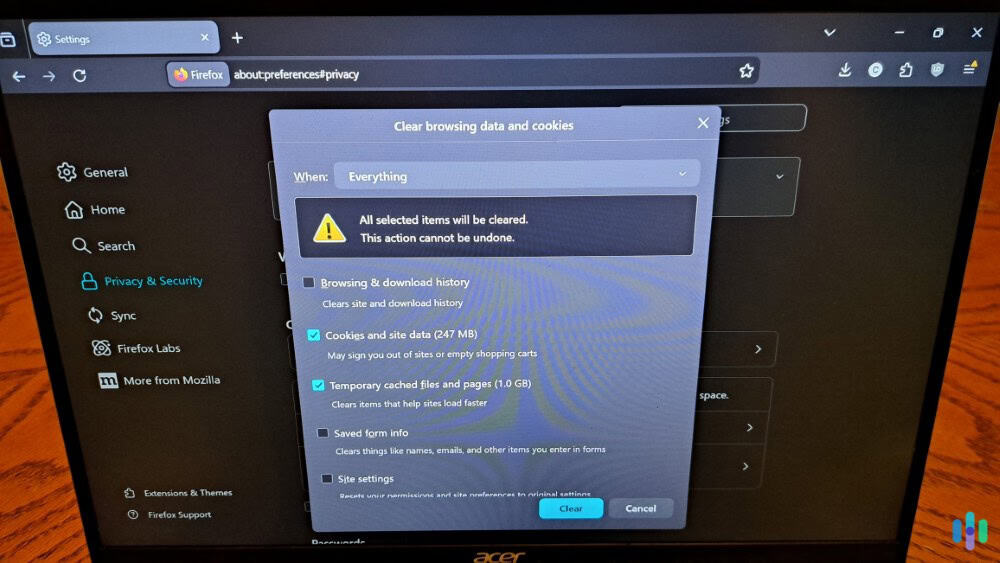
- Click the “Clear browsing data” button.
- In the next dialog box, check “Cookies and Site Data.” You can also clear cached web content at this step if you’d like.
- At the top, change the “When” option to “Everything.”
- Click the “Clear” button.
That’s it — Firefox will immediately delete all stored cookies from every website you’ve visited. This logs you out of most sites and deletes any information you stored on a site like your shopping cart or saved items.
FYI: Clearing cookies logs you out of most websites, so make sure you have your passwords handy before starting. If you use one of the best password managers, you’ll never need to worry about forgetting your passwords again and you’ll be able to use stronger passwords overall. There’s even free password managers that passed our security audit.
The Keyboard Shortcut Method
You can also clear cookies on Firefox with keyboard shortcuts. This is a quicker method if you plan to regularly clear your cookies. Here’s a step-by-step guide to clearing cookies on Firefox with keyboard shortcuts:
- Press Ctrl+Shift+Delete on Windows or Command+Shift+Delete on Mac with Firefox open. This opens the “Clear Recent History” window directly.
- In the “Time range to clear” dropdown, select “Everything.”
- Check the “Cookies” box for items to be cleared.
- Click “OK” to clear your Firefox cookies.
According to Mozilla’s own documentation, clearing cookies doesn’t affect your bookmarks, saved passwords, or form autofill data, so you won’t lose those important conveniences.
Did You Know: The keyboard shortcut method also lets you clear other browsing data like history and cache in one go, saving time if you’re doing a full cleanup.
How to Clear Cookies from Specific Sites
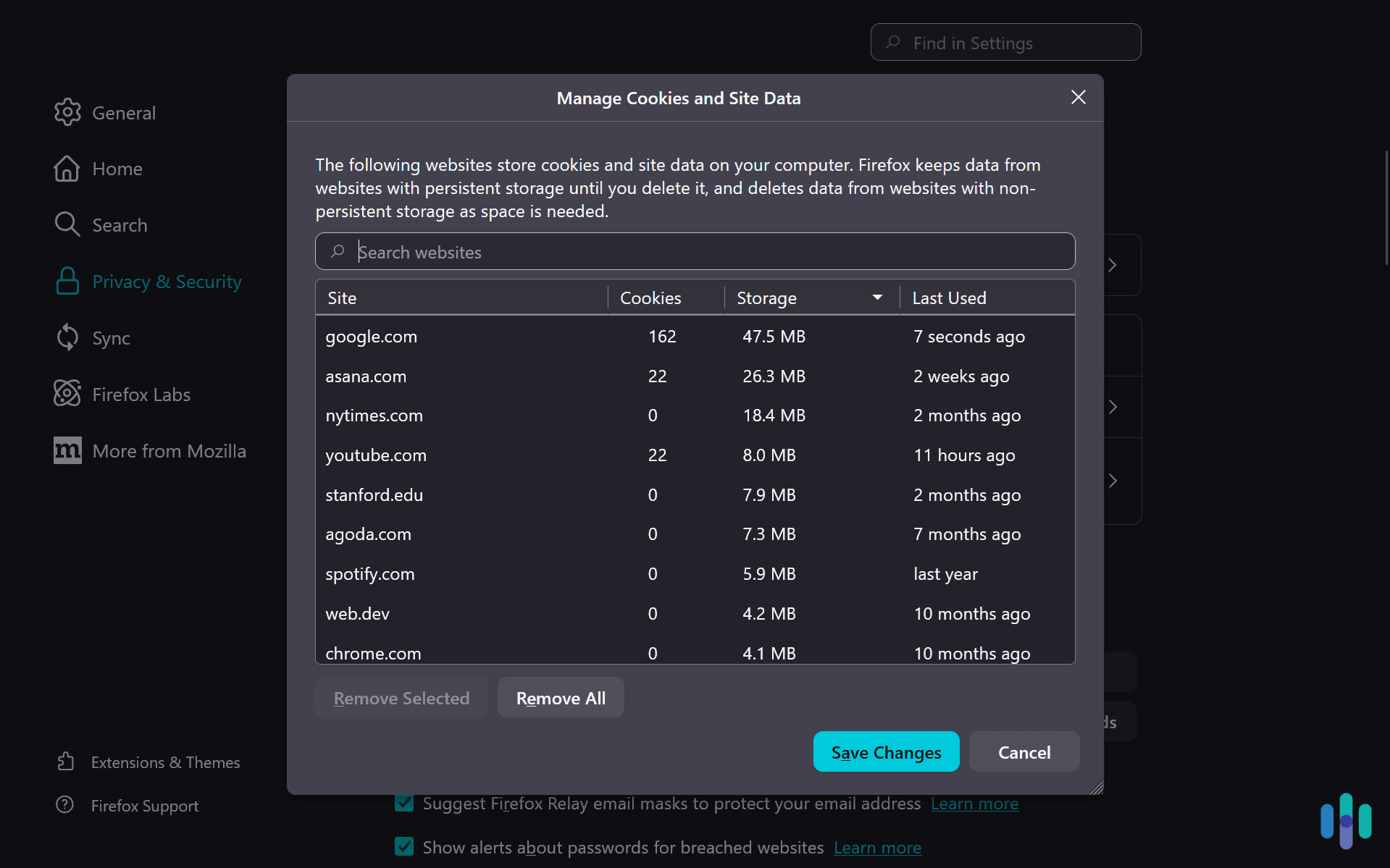
Sometimes you don’t need a full cookie purge—you just need to fix one problematic website. Firefox makes it easy to target specific sites without losing your login sessions everywhere else. Here’s how to clear cookies from specific sites on Firefox:
- Go to Settings on your Firefox browser.
- Select the “Privacy & Security” section from the menu on the left.
- Click “Manage browsing data” under the “Cookies and Site Data” section. This pulls up a searchable list of every website that has stored cookies on your browser.
- Use the search box to find the specific site causing trouble, select it, then click “Remove Selected.”
- Hit “Save Changes” to remove all cookies associated with the selected sites.
This targeted approach is particularly useful for subscription services, banking sites, or any platform where you’re experiencing glitches but don’t want to re-enter credentials for dozens of other sites.
Expert Insight: If you’re troubleshooting a login issue, clearing that site’s cookies often fixes the problem without affecting your other logged-in accounts.
Setting Firefox to Clear Cookies Automatically
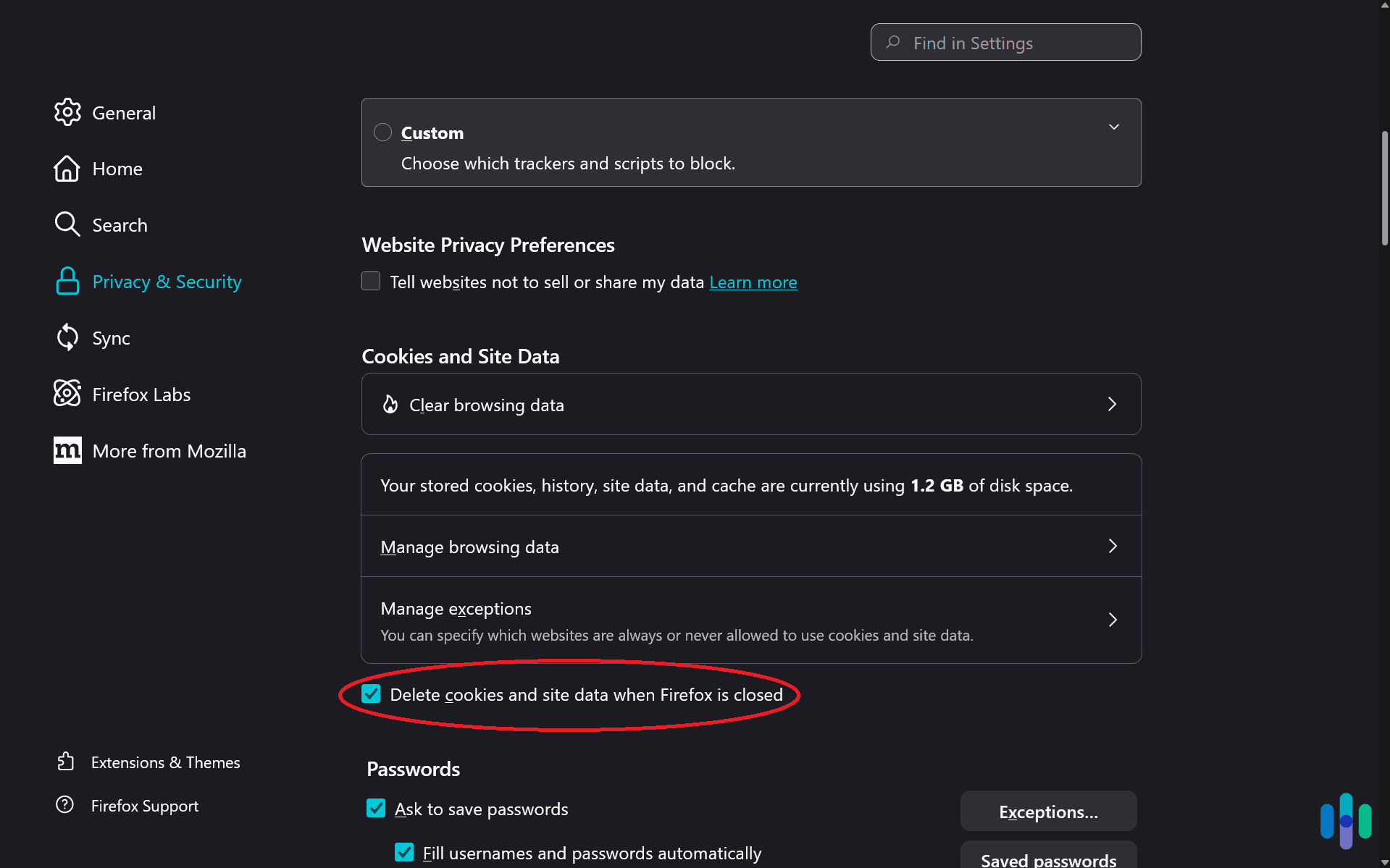
If you’re serious about privacy, you can configure Firefox to clear cookies automatically every time you close the browser. This ensures a fresh start with every browsing session. To automatically clear your Firefox cookies, follow these four steps:
- Navigate to the Settings menu on your Firefox browser.
- Select the “Privacy & Security” section from the menu on the left.
- At the bottom of the “Cookies and Site Data” sub-section, check the box that says “Delete cookies and site data when Firefox is closed.”
You can also customize what gets deleted automatically. Click “Manage exceptions” above the checkbox to specify exceptions — websites where you want to keep cookies even after closing Firefox. This is perfect for email providers or frequently-used sites where logging in repeatedly becomes tedious.
Additionally, Firefox offers Enhanced Tracking Protection, which blocks third-party tracking cookies by default. While you can set it to “Strict” for maximum privacy, we typically recommend “Standard” for a balance between website functionality and privacy. On the “Strict” setting, you’ll start to notice some websites break with portions failing to load due to the blockers.
>> Learn About: How to Clear Cookies on Chrome
Troubleshooting Common Issues

While you shouldn’t run into any issues if you follow our directions for clearing cookies on Firefox, there still are a few common issues people run into. Here are solutions to those common problems when clearing Firefox cookies:
Can’t Find the Clear Data Button
If you’re using an older version of Firefox, the menu structure might look slightly different. Make sure you’re running the latest version by clicking the menu button, selecting “Help,” then “About Firefox.” The browser will check for updates automatically and install them if available.
Websites Still Behaving Strangely
If clearing cookies doesn’t fix your website problems, the issue might be cached files instead. You can clear your cached files in the same way that you clear cookies by just checking the box for clearing cached data on the same menu that you checked clear cookies. For fixing website issues, we always recommend clearing both cookies and cached data.
>> Check Out: How to Clear Cookies on iPhone
Lost Important Login Information
If you accidentally cleared cookies and forgot your passwords, check Firefox’s built-in password manager. Click the menu button, select “Passwords,” and you’ll see all saved credentials. We recommend using one of the best password managers for Firefox instead of Firefox’s built-in password manager, so you can use it across browsers and devices.
Password Tip: You can easily switch from Firefox’s built-in password manager to a third-party one by clicking the three-dot menu and selecting “Export Logins,” then importing them into a new password manager. For more tips like this, check out our password manager guide.
Final Thoughts: Clearing Cookies to Preserve Online Privacy
Managing your Firefox cookies is a fundamental skill for anyone who takes their digital privacy seriously. Whether you’re clearing everything for a fresh start, targeting specific problematic sites, or setting up automatic deletion for ongoing protection, you now have the tools to take control of your browsing data.
Frequently Asked Questions
-
Will clearing cookies delete my passwords?
No, clearing cookies doesn’t delete saved passwords — those are stored separately in Firefox’s password manager. You’ll just need to log in again to websites that were keeping you signed in via cookies.
-
How often should I clear my Firefox cookies?
For general privacy maintenance, clearing cookies monthly is reasonable, though many privacy-conscious users do it weekly or set Firefox to clear them automatically. If you’re troubleshooting website issues, clearing cookies is the first step.
-
Do I need to clear cookies on my phone too?
Yes, Firefox on mobile devices also stores cookies that should be cleared periodically. Go to Settings > Data Management > Clear Private Data and select “Cookies” to remove them.
-
Can websites tell if I've cleared my cookies?
Websites will know you’ve cleared cookies because you’ll appear as a new visitor rather than a returning one. However, they won’t receive any notification — they simply won’t find their previously stored cookie data.
-
What's the difference between first-party and third-party cookies?
First-party cookies come from the website you’re visiting and typically enhance functionality, while third-party cookies come from advertisers and trackers on that site. Firefox’s Enhanced Tracking Protection feature blocks most third-party cookies by default.
-
Will clearing cookies speed up Firefox?
Clearing cookies can provide a modest speed boost if you have thousands accumulated, but clearing your cache typically has a bigger impact on performance. For best results, clear both periodically.