



The Nintendo Switch has become a household staple, with over 150 million units sold, making it one of the most popular gaming consoles for families.1 While not quite as popular, in the first six months of release, the Switch 2 has already sold over 10 million units. Both systems offer their fair share of online multiplayer games, in-app purchases and age-inappropriate content, which can pose risks to children.
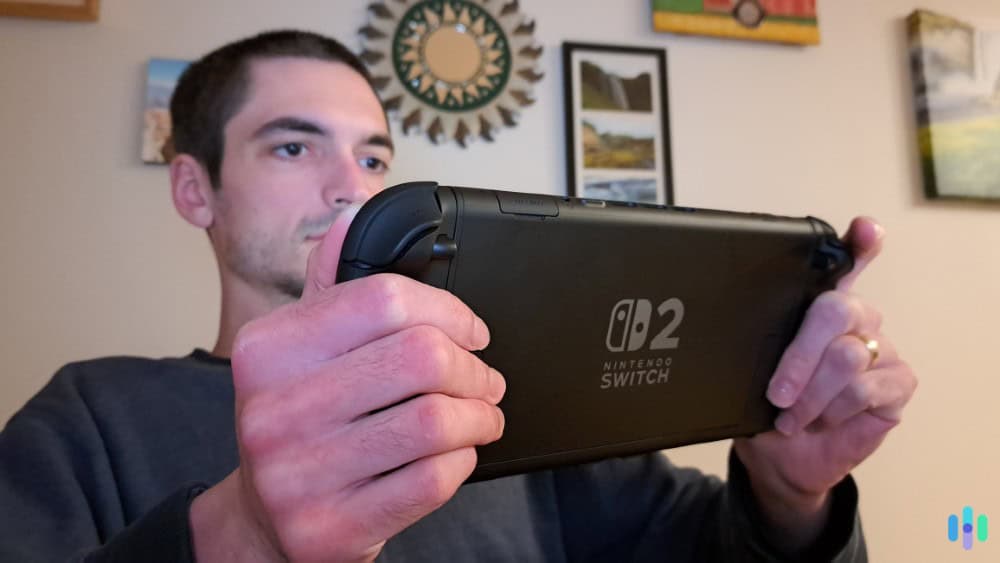
The good news? Nintendo built some genuinely useful parental controls right into the Switch, and they’re fairly easy to use. Whether you want to limit screen time, restrict certain games, or monitor what your kids are playing, you can set it all up in about 10 minutes. We’ll show you the exact steps we took to set up parental controls for our Switch and the new Switch 2. They both follow roughly the same process.
>> Read More: Best Parental Control Apps of 2026
Why Nintendo Switch Parental Controls Matter
With nearly 80 percent of parents using parental controls for their kids’ gaming consoles, it’s clear these options are in demand.2 Thankfully, the Switch offers controls that go beyond the basics. You can restrict communication features, filter content by age rating, and schedule detailed reports on what your child has been playing.
These parental controls can also place safeguards against your kids purchasing games. That way, you don’t end up with an unexpected charge on your credit card or discover that your ten-year-old bought a new M-rated game. With proper parental controls in place, you can create a safe, age-appropriate gaming environment for every member of your family.
Pro Tip: Set up parental controls before handing the Switch to your child for the first time. It’s much easier than trying to implement restrictions after they’ve already bought a few games and established their gaming routine.
Three Ways to Set Up Parental Controls
Nintendo gives you two options for configuring parental controls: through a free smartphone app or directly on the console itself. The smartphone app is the more robust option, offering detailed monitoring features and easier management. You can also set parental controls on the console itself, but it supports fewer options. Then, there’s also the option of third-party apps that allow you to unify your parental controls across all devices your kids use.
Method One: Using the Smartphone App
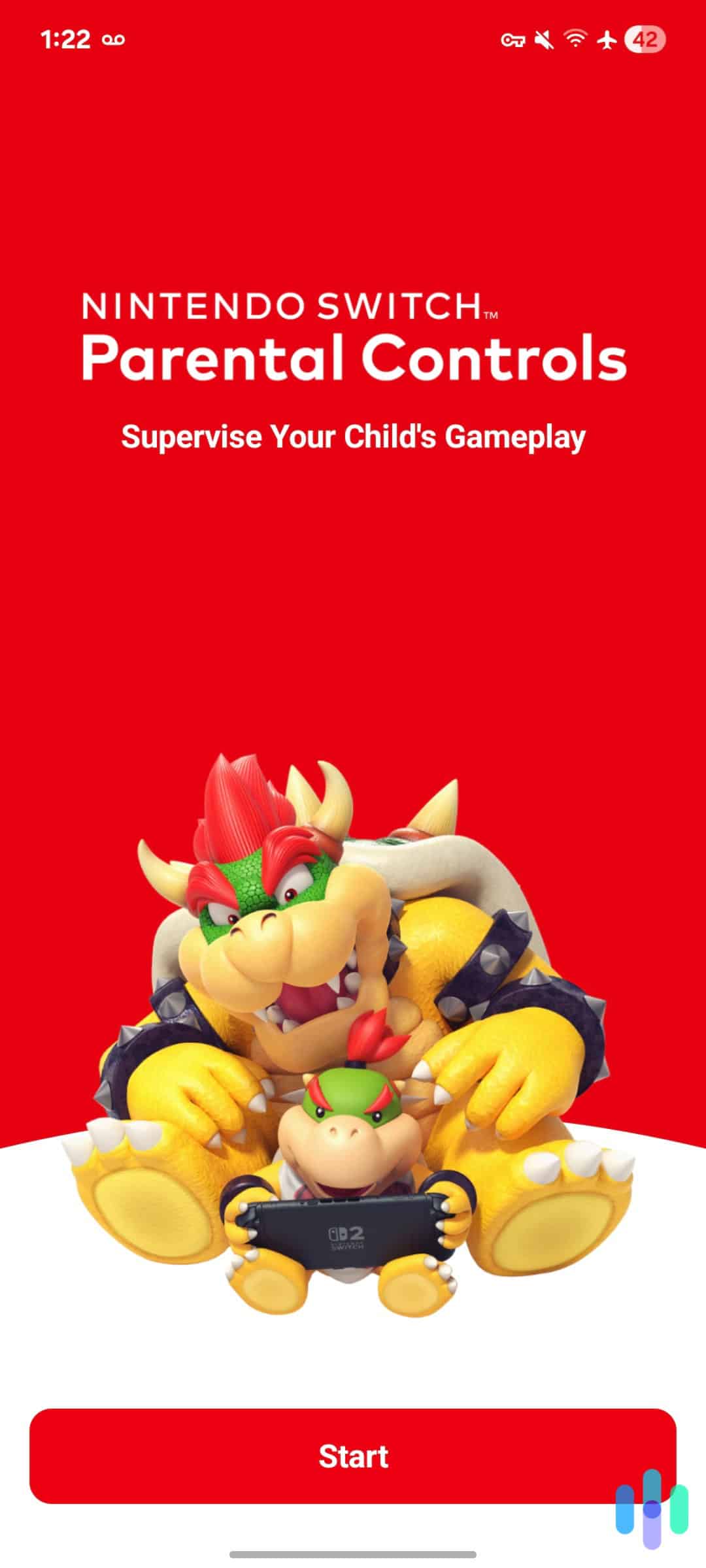
The Nintendo Switch Parental Controls app is available free for both iOS and Android devices. This method provides the most comprehensive features, including monthly play activity summaries and the ability to suspend gameplay remotely. Here are the exact steps we followed to set up parental controls using the Nintendo smartphone app:
- Download the “Nintendo Switch Parental Controls” app from your device’s app store.
- Open the app and tap “Next” to begin the setup process.
- Sign in with your Nintendo Account, or create a new one if you don’t already have one. It only takes a couple of minutes.
- Follow the instructions until you reach a screen that provides a six-digit registration code.
- Get your kid’s Nintendo Switch or Switch 2 and navigate to the System Settings. To get there, press the gear icon that’s in the lower menu of the home screen.
- In the System Settings, there will be a tab on the left called “Parental Controls” and then in that tab, click “Parental Controls Settings.” Then, select “If You’ve Already Downloaded the App.” That’ll pull up a box to input the six-digit registration code from the smartphone app.
- Input the code to link the app to your kid’s console.
- From here, the app guides you on setting appropriate restrictions levels for your kids. You can pick from three preset restriction levels: Teen, Child, and Young Child. Alternatively, you can fully customize your restrictions by choosing “Custom” instead of one of the presets.
- On top of restrictions, you can also set daily play time limits, bedtime schedules to prevent play at night, and a safelist of games and apps that can be played without the parental PIN. We’ll dig more into how we recommend adjusting these settings in a bit.
Expert Insight: Write down your parental controls PIN in a secure location—you’ll need it to change settings or override restrictions, and forgetting it requires contacting Nintendo support.
Configuring Your Preferences
The app offers three preset restriction levels: Teen, Child, and Young Child. These automatically adjust content restrictions, screen time limits, and social features based on age-appropriate guidelines from the Entertainment Software Rating Board (ESRB). You can also choose “Custom” to manually configure each setting.
For example, if you select “Child,” the system automatically restricts games rated Teen and above, limits social media posting, and disables communication with unregistered users. The “Young Child” preset goes further, blocking all online communication features entirely.
You’ll also set up daily play-time limits during this process. Research from the American Academy of Pediatrics suggests limiting screen time for children ages 6 and older to ensure it doesn’t interfere with sleep, physical activity, and other healthy behaviors. The Switch lets you set different limits for each day of the week—useful if you want to allow more gaming time on weekends.
Method Two: Setting Up Directly on the Console
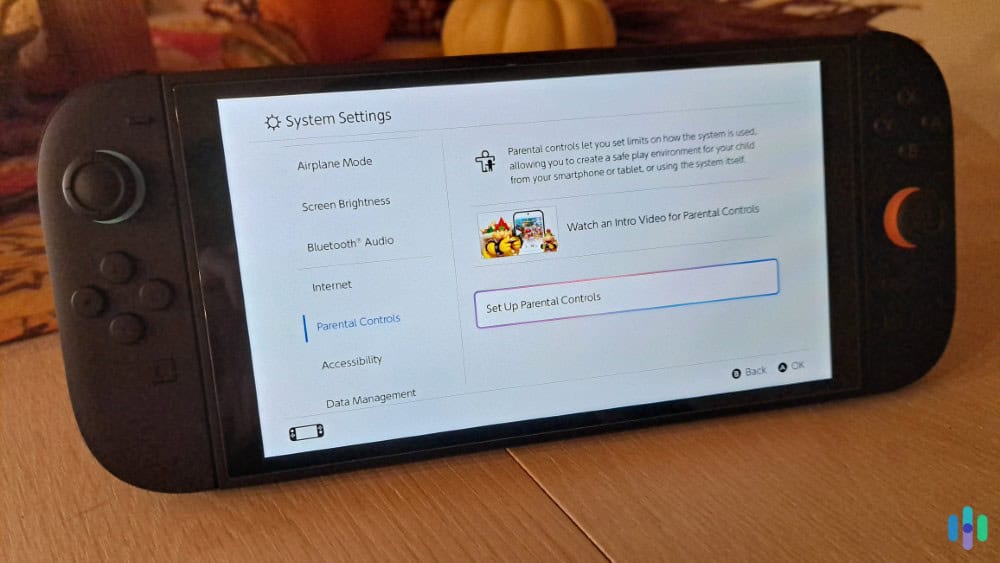
For a simpler approach, but one with fewer options to set restrictions, you can configure parental controls directly on the Nintendo Switch and Switch 2. Here’s how we set up parental controls directly on the console:
- Turn the Switch on and unlock it.
- Navigate to the home screen.
- Select the gear icon to enter System Settings.
- Scroll down to Parental Controls and select “Parental Controls Settings”
- Press the X button to set your parental controls using the console.
- Next, either choose a preset restriction level or create custom restrictions.
- After setting restrictions, create a PIN that you’ll use to adjust or bypass these settings if needed. Then, re-enter the PIN to confirm it.
As you’ll notice, you can only set restrictions when creating parental controls directly on the Nintendo Switch or Switch 2. You cannot set playtime limits, bedtime restrictions, or safelists.
Method Three: Using Third-Party Parental Control Apps
If you plan to implement parental controls for more than just your kid’s Nintendo Switch, using a third-party parental control app is by far the easiest. They unify your parental controls across devices and apps while still enabling fine control on a per device or app basis. That makes it easy to update your controls as needed for all devices and apps at once.
As an example, while we were testing Bark, we started using it shortly before summer break started. Once school was out of session, we decided to change the bedtime limitations on all devices. With Bark, we could update them all at once instead of having to go into each app and device individually. As a tech-friendly family, that easily saved us an hour. Just note, Nintendo maintains a closed system, so these third-party parental controls typically rely on restricting internet access instead of closing off the device entirely.
FYI: You don’t need to spend money for a third-party parental controls app. However, most of the free ones we’ve tried are not worth it. That’s why we put together a list of the best free parental control apps so you know which ones are worth your time.
Key Parental Control Features to Configure
Now that you know how to access parental controls for the Nintendo Switch and Switch 2, let’s go over how we recommend configuring those controls.
Content Restriction Settings
The Switch uses ESRB ratings to filter games and content. You can restrict games by rating level (Everyone, Everyone 10+, Teen, Mature, or Adults Only). For Nintendo’s preset restrictions, they enable Everyone games on the Young Child setting, up to Teen games on the Child settings, and up to Mature games on the Teen setting.
When a restriction is in place, restricted games won’t appear in the eShop, and physical cartridges for restricted games won’t launch without entering your PIN. We also recommend restricting access to the Nintendo eShop entirely if you have young kids, preventing unauthorized purchases. This is particularly important since the eShop stores your payment information by default.
Communication and Social Features
Many online games nowadays use real-time voice or text communication. That can pose risks to young kids as censoring what other players say is notoriously difficult. You can disable these modes of communication entirely on the Switch. For more privacy, you can also disable the Switch’s ability to post screenshots to social media and view or send friend requests. We always recommend limiting contact with strangers using these types of parental controls.
Safety Tip: Review each game’s specific online features before allowing your child to play online. Although rare, some games have robust communication systems that parental controls may not fully restrict.
Play-Time Management
The app version lets you set daily play time limits in 15-minute increments for up to six hours per day. When the time limit is reached, the console displays a notification and can either simply alert the child or prevent further play.
You can also enable “Bedtime” limits where your Switch or Switch 2 automatically stops gameplay at a specific time. Then, you can also set a wake-up time that sets when your kids can play with the Switch or Switch 2 again. Just note, this setting applies to all days of the week.
Monitoring and Adjusting Settings Over Time
Parental controls aren’t a “set it and forget it” solution. The smartphone app sends monthly activity summaries to your email, showing total playtime, most-played games, and trends compared to previous months. Review these reports with your child to have informed conversations about their gaming habits.
As your child matures, gradually adjust restrictions to match their growing responsibility. A child who consistently respects time limits and demonstrates good judgment might be ready for more freedom. You can easily modify settings through the app without needing to reconfigure everything from scratch. If you opt for a third-party parental control app, this becomes even easier as you can set the same restrictions for all of their online activities.
Expert Advice: Third-party parental control apps are even more effective if your kids use Android phones. That’s because Apple uses a closed-source approach to its software preventing third-party apps from limiting the use of their devices, similar to Nintendo. Check out our lists of the best Android parental control apps and the best iPhone parental control apps to fit the device you and your kids use.
Final Thoughts
Setting up parental controls on your family’s Nintendo Switch or Switch 2 is one of the smartest things you can do as a parent in today’s digital age. With just 10 minutes of setup time, you’ll have comprehensive tools to manage screen time, filter inappropriate content, and monitor your child’s gaming habits—all while giving them the freedom to enjoy their Switch safely.
While we recommend using a third-party parental control app to manage the parental controls of all your kids’ devices and apps, you’ll typically still need to use the Switch’s built-in controls as well. That’s because third-party apps can’t directly control the Switch, although they can turn off the Wi-Fi to specific devices. Either way, your kids will be safer online and develop better digital habits with parental controls activated.
Frequently Asked Questions
-
Can my child bypass Nintendo Switch parental controls?
While tech-savvy kids might try resetting the console to factory settings, this erases all saved data and game progress, which typically deters them. Keep your PIN secure and check settings periodically.
-
Do parental controls work on multiple Switch consoles?
You can link one smartphone app to multiple Switch consoles, managing all of them from a single app. Each console can have different restriction settings.
-
Will parental controls affect my own gaming?
You can create separate user profiles on the Switch — apply parental controls only to your child’s profile while leaving your profile unrestricted. Each profile maintains its own settings.
-
How do I change my PIN if I forget it?
If you set up controls through the app, you can reset the PIN within the app settings. Console-only setups require contacting Nintendo customer support with proof of purchase.
-
Can I restrict specific games rather than entire rating categories?
The Switch’s parental controls only allow you to restrict games by their ESRB rating rather than specific titles. However, you can choose not to purchase or install specific games even if they fall within your permitted rating range.
-
Do time limits apply to all activities or just games?
Play-time limits apply to all software usage, including games and apps, but not to time spent in system settings or the home menu.