

Qustodio Parental Control App Review and Pricing
Qustodio offers a lot of useful features and detailed reporting, but it’s not completely child-proof.
 Last Updated on Jan 29, 2026
What We Like
- Comprehensive web filtering across all major browsers and apps
- Detailed activity reports with timeline views and usage breakdowns
- Cross-platform support for Windows, Mac, iOS, Android, and Kindle
What We Don't Like
- Free version is limited to one device with basic features
- iOS version has limitations due to Apple restrictions
- Premium plans are expensive compared to competitors
Bottom Line
It’s not easy to parent in an age of social media, video games, and AI. With kids spending an average of 7 and a half hours on screens daily, you need a parental control tool that can be your eyes and ears when you’re not around.1 That’s where Qustodio comes in.
We tested Qustodio across multiple devices and operating systems to see how it stacks up against the competition. We looked at everything from installation ease to monitoring capabilities, web filtering accuracy, and the quality of activity reports. Overall, we found it to be effective at filtering content across browsers and apps, but only on non-iOS devices. Some Apple restrictions make it challenging to utilize the best features. Let’s go through our results and see if Qustodio is worth it for your family.
>> Find Out: The Best Parental Control Apps of 2026
Qustodio Pricing and Plans
Qustodio offers three plans. One is free and two are premium offerings. Here’s an overview of the prices.
| Plan | Devices | Annual Price |
|---|---|---|
| Free | 1 | $0 |
| Basic | 5 | $54.95 |
| Complete | Unlimited | $99.95 |
We think Qustodio is the best free parental control app. You can monitor one device, set daily limits, and pause the internet for kids with the tap of a button. You also get weekly activity reports that show you what your child is looking at and when they spend most of their time online.
The Basic plan covers five devices, which we think is the sweet spot for most families. This accommodates two parents’ phones, two or three kids’ devices, and maybe a shared tablet or computer. The annual pricing brings the cost down to about $4.58 per month, which is competitive, but not the cheapest option around.
For larger families, we recommend the Complete plan, which offers unlimited device coverage. The Complete option also includes YouTube monitoring, game and app time limits, and AI-powered search and message alerts.
Pro Tip: Qustodio offers a three-day trial of premium features when you create an account and a 30-day money-back guarantee on all paid plans. This way you can test everything risk-free before committing.
Key Features We Tested
Web Filtering and Content Blocking
We were impressed with the depth of Qustodio’s web filtering. The system organizes websites into 29 different categories, from social networks and gaming to gambling and adult content. During our testing on multiple browsers, we found it consistently blocked inappropriate content regardless of whether we used Edge, Chrome, or something else.
We could also customize filters by age. Qustodio offers preset profiles for different age groups, but it also let us manually adjust which categories to block or allow. For example, we blocked all social media for a 10-year-old but allowed access to educational YouTube content.
The filtering works at the DNS level on some platforms and through browser extensions on others, making it harder for tech-savvy kids to bypass the controls. During our tests, we attempted to use VPN services and proxy sites to bypass the filters, but Qustodio caught most of these attempts and blocked them.
Pro Tip: We recommend enabling “Safe Search” enforcement in Qustodio’s settings. This ensures search engines like Google and Bing only return age-appropriate results, adding an extra layer of protection.
Screen Time Management
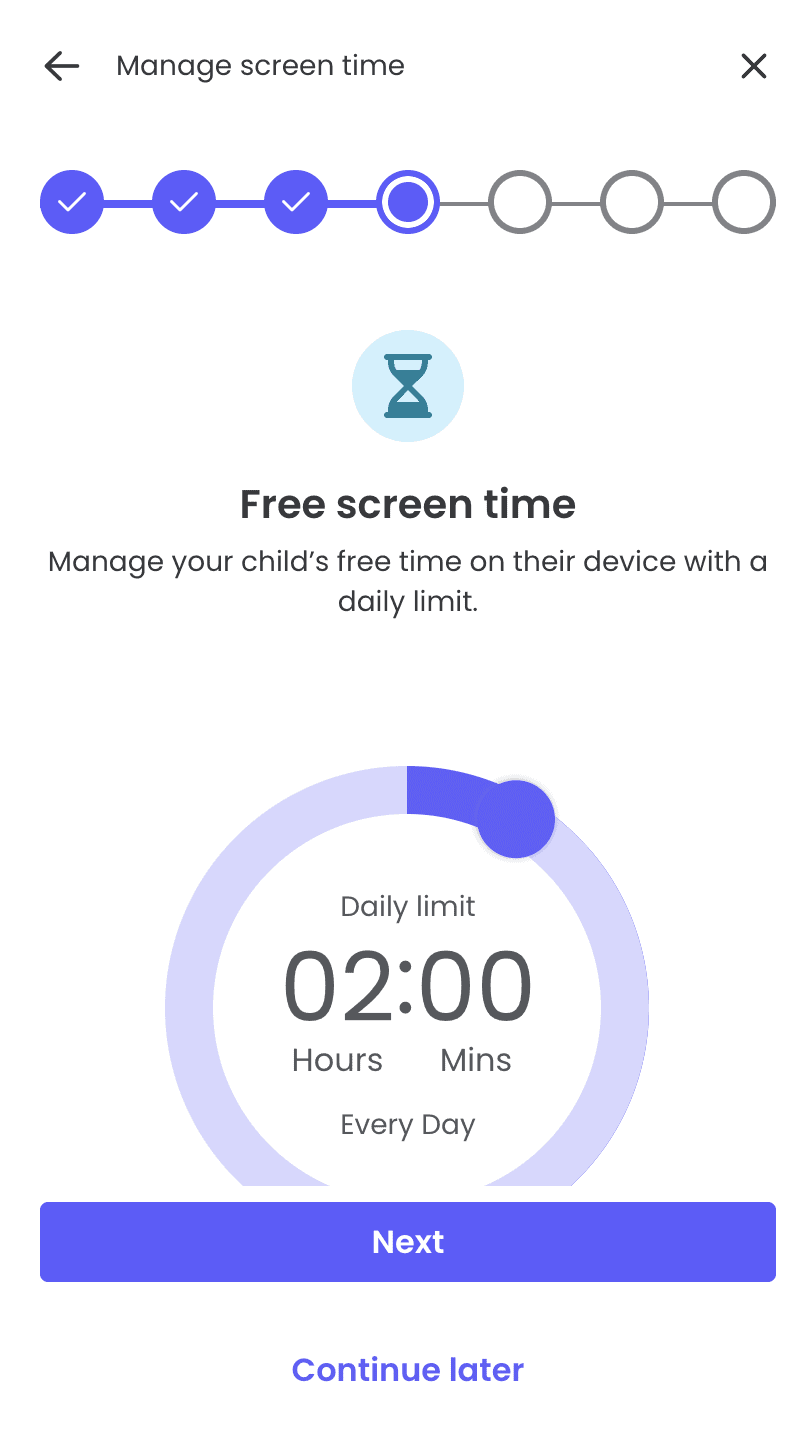
We found managing screen time straightforward. We were able to set daily time limits for each device, schedule “blackout” periods (like during homework time or bedtime), and even allocate different time allowances for weekdays versus weekends.
The app-specific time controls stood out to us. Rather than just limiting total device time, we allowed unlimited access to educational apps while restricting gaming apps to one hour daily. This granular control helps balance device time more effectively than a simple on/off timer.
>> Learn More: How to Set Up Parental Controls on the Nintendo Switch
App Monitoring and Control
Qustodio’s app monitoring performed better on Android devices. The dashboard showed us every app installed, how much time was spent in each app, and allowed us to block specific applications entirely. We noticed one of our kids was watching a lot of YouTube. It was easy to block the app while still allowing access to the browser-based version with safe search enabled.
On iOS devices, app monitoring was challenging due to Apple’s privacy restrictions. We could see which apps were installed and set time limits, but couldn’t view detailed activity within apps or block them like we could on Android. Note that this is a limitation affecting all parental control apps on iOS, not just Qustodio.
>> Keep Reading: The Best Parental Control App for iPhone
Location Tracking
The GPS tracking feature worked well during our tests. We could check real-time location on a map, view location history, and even set up geofencing alerts for specific areas. For instance, we set up alerts to notify us when a child’s device arrived at school or left the designated neighborhood.
The only issue is that location tracking requires the Qustodio app to run in the background, which can impact battery life. In our testing, we noticed about a 10 to 15 percent increase in battery drain on the monitored device. It’s noticeable but not deal-breaking for most families.
Social Media Monitoring
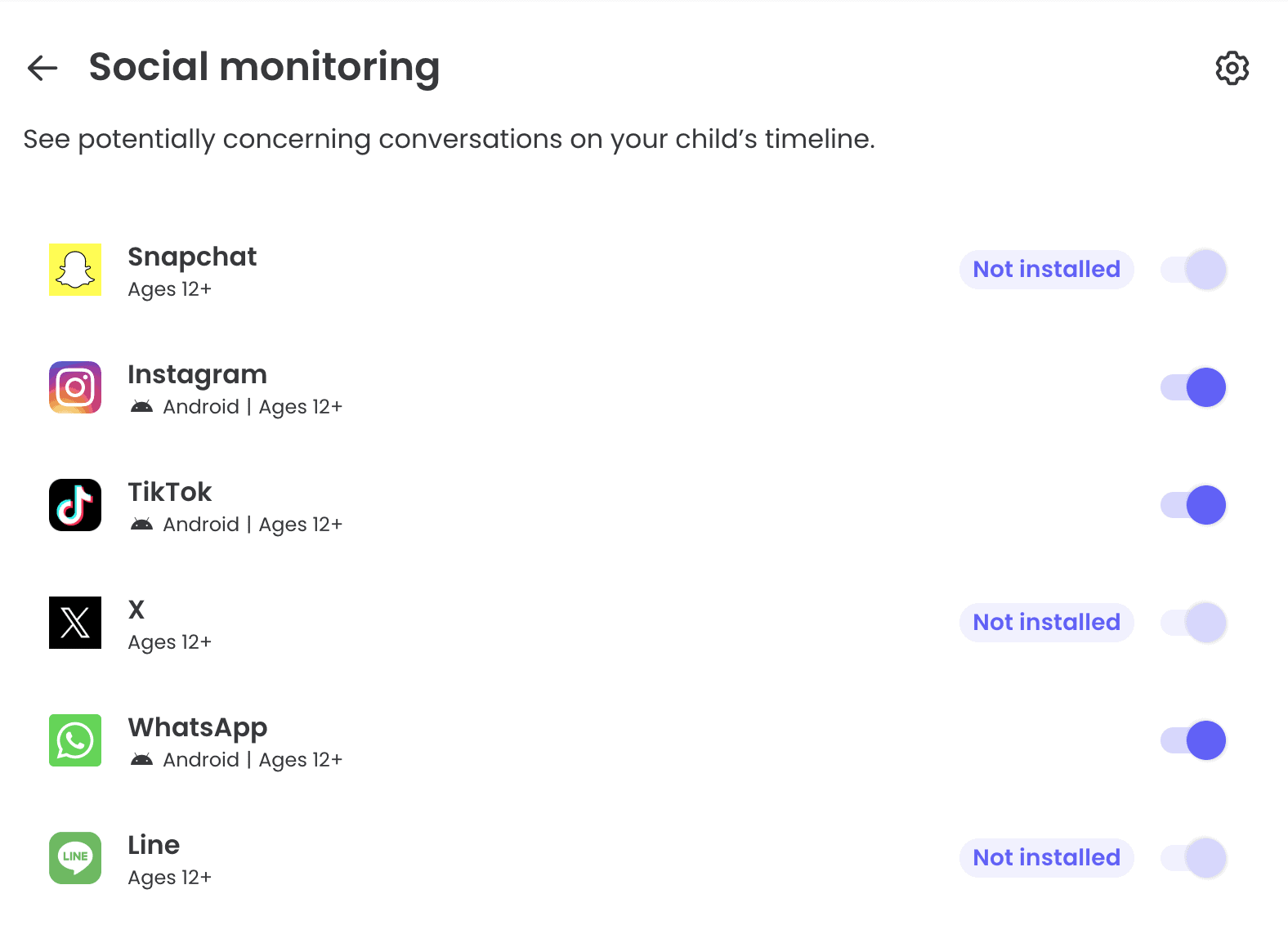
Qustodio monitors activity on Facebook, Instagram, and other social platforms, though the depth of monitoring varies. On Android, we could see posts, searches, and interactions. On iOS, monitoring was more limited to just time spent in apps due to the platform restrictions.
Keep in mind that social media monitoring has become challenging across the entire parental control industry as platforms implement end-to-end encryption and stricter privacy controls. Qustodio does what it can within these constraints, but it’s not as comprehensive as some parents might hope. We still recommend learning how to set up parental controls on Snapchat and other social media platforms.
Calls and SMS Monitoring
On Android devices, Qustodio let us view call logs (including contact names and duration) and read SMS messages. We could also block specific phone numbers from contacting the monitored device. This proved valuable in our cyberbullying testing scenarios and unwanted contact situations.
Once again, iOS devices don’t allow this level of access to call and message data. It’s another reminder that Android offers more comprehensive monitoring possibilities than Apple’s locked-down ecosystem.
>>Check Out: The Best Parental Control App for Android
Setup and Installation
Qustodio’s setup process was relatively simple, but it does require some technical knowledge. Here’s how we did it.
First, we created a parent account on Qustodio’s website. The site walked us through adding children’s profiles, including their names, ages, and assigned profile pictures. This is useful when managing multiple kids from the dashboard.
Next, we installed the monitoring app on each child’s device. On Android and Windows, we downloaded the app, granted the necessary permissions, and linked it to the child’s profile. The app needs several permissions to work properly. We had to enable accessibility services on Android, which some parents might find concerning but is necessary for comprehensive monitoring.
Pro Tip: We recommend including age-appropriate children in the setup conversation. Research shows transparency about monitoring leads to better outcomes than secret surveillance.
The iOS installation was trickier. Since Apple doesn’t allow the level of system access Qustodio needs, we had to configure a VPN profile so that all traffic goes through Qustodio’s filters. This worked, but the setup process involved more steps than on other platforms. We also needed to disable some iOS features like Screen Time to avoid conflicts.
Mac installation also required granting system-level permissions, and we had to restart the computer several times during setup. Windows installation was the smoothest experience overall, taking about 10 minutes from download to full functionality.
We did encounter an issue on one Android device. We had to disable an antivirus app that was flagging Qustodio as potentially harmful. This was a false positive due to Qustodio’s deep system access, but it’s worth knowing if you run security software.
>> Find Out: How to Get Rid of a Virus on an Android Device
Performance and Monitoring
Dashboard and Reporting
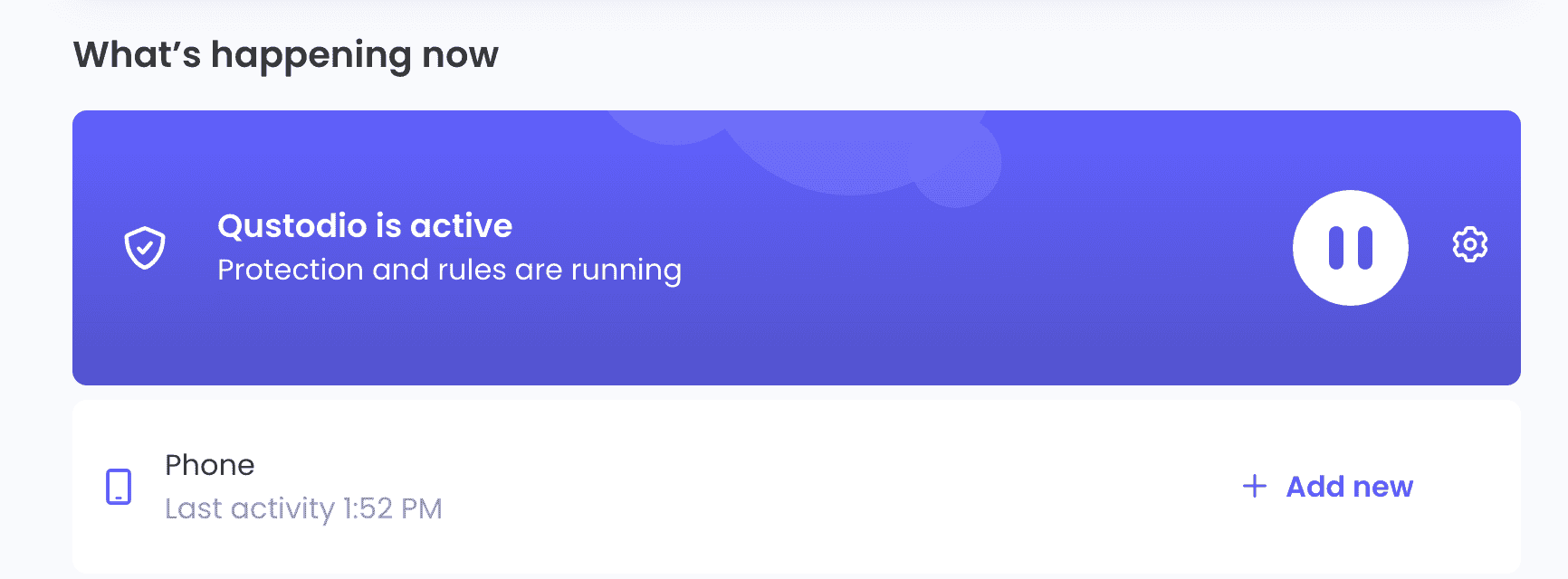
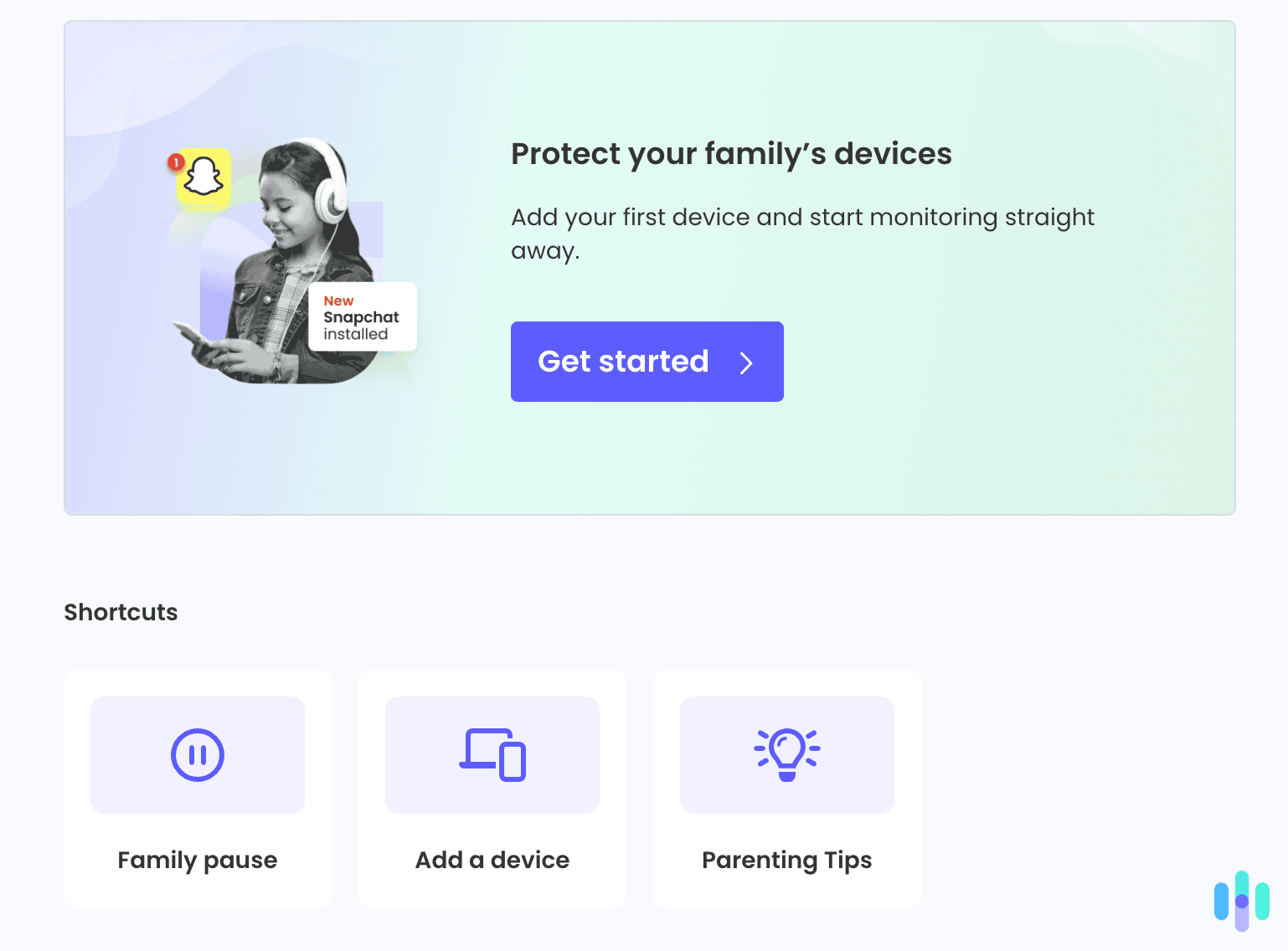
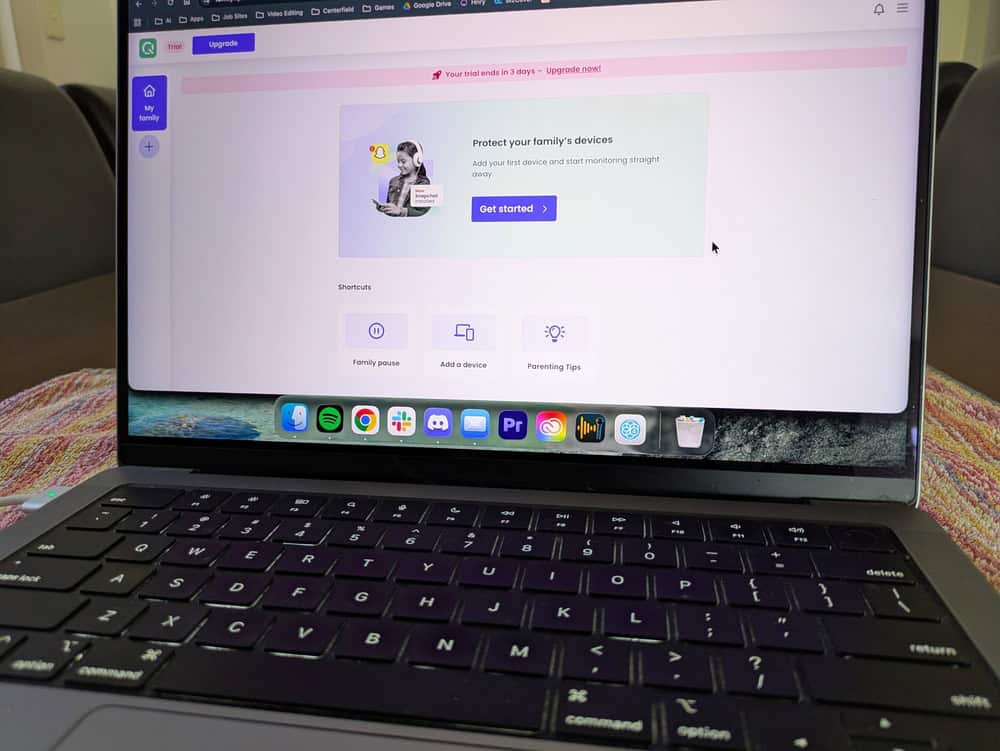
The Qustodio parent dashboard became our central command center during testing. Accessible via web browser or mobile app, it displays activity for all monitored devices in one consolidated view.
The timeline was our favorite feature. This page visualizes a child’s entire day of digital activity. We could see when they woke up and checked their phone, which apps they used during school hours, what websites they visited after school, and when they finally put the device down at night. Having this bird’s-eye view revealed patterns we wouldn’t have noticed from raw data alone.
The daily digest emails were helpful too. Each morning, we received a summary of the previous day’s activity for each child, highlighting top websites visited, most-used apps, total screen time, and any blocked attempts. For busy parents, these summaries provide oversight without requiring constant dashboard checking.
Activity reports are broken down by categories. We could isolate browsing history, social media activity, searches, calls and messages (on Android), location history, and blocked content attempts. Each report is exportable if you need to have a chat with your child or even for documentation in more serious situations.
Real-Time Alerts
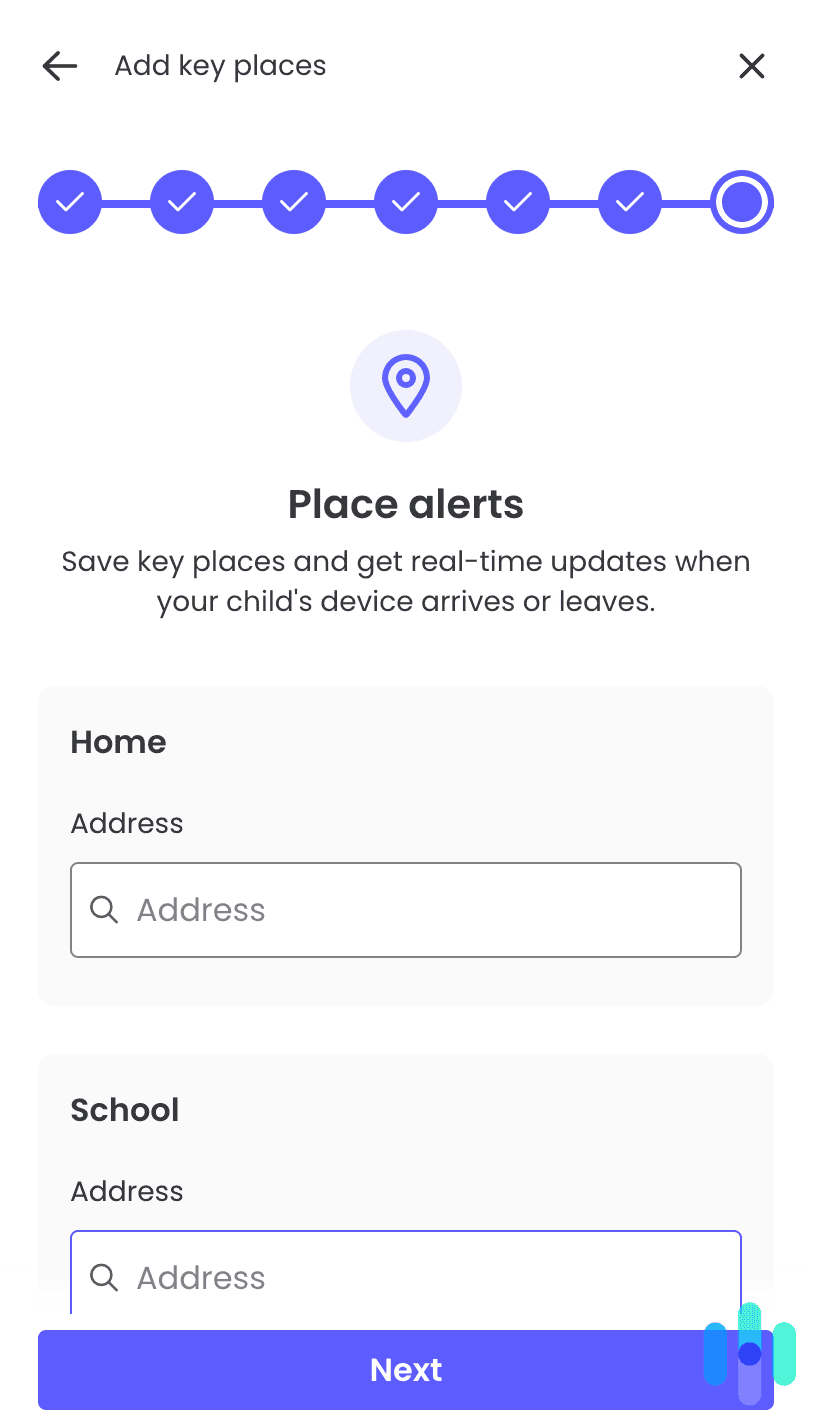
During testing, we configured alerts for specific triggers. For example, we set up notifications for attempting to access blocked content, arrival/departure from geofenced locations, and installation of new apps. We found this worked reliably. Push notifications arrived on our phone within seconds of the trigger event.
The alert system isn’t overwhelming either. We could customize which events warranted immediate notification versus just appearing in the daily report. This prevents alert fatigue while ensuring we knew about genuinely concerning activity promptly.
Device Performance Impact
All monitoring apps consume system resources, so we paid attention to how Qustodio affected device performance. On newer devices, we noticed minimal impact. Apps opened quickly, browsing was smooth, and general operation felt normal.
On an older Android phone we tested with, there was noticeable lag when opening apps and switching between tasks. The device felt sluggish compared to before Qustodio installation. This suggests that on older or budget devices, parents might need to weigh monitoring benefits against performance trade-offs.
Battery impact was moderate. In our testing, monitored devices needed charging slightly more frequently. We would estimate 10 to 15 percent faster battery drain than without Qustodio. The GPS tracking feature was the biggest battery consumer, so families that don’t need location monitoring could disable it to save power.
What We Didn’t Like
While Qustodio impressed us overall, we did encounter some frustrations worth discussing. The iOS limitations were the most obvious. Apple’s privacy restrictions mean iOS devices offer limited functionality. Parents with iPhone-wielding kids should know they’ll miss out on SMS monitoring, detailed app usage insights, and granular app blocking.
We also found the premium pricing a little steep. At $54.95 annually for five devices, Qustodio costs more than Bark (which also offers unlimited devices) and is competitive with but not cheaper than Norton Family or Net Nanny. For families on tight budgets, this pricing might be prohibitive, especially when free alternatives like Google Family Link offer basic functionality.
>> Compare: Bark Parental Control Review
We had the option to block or remove apps already installed on devices.
Another issue we noticed was occasional syncing delays. Sometimes activity on a monitored device took 10 to 15 minutes to appear in the parent dashboard. For real-time monitoring situations, this lag was frustrating. Most of the time it didn’t matter, but we could imagine scenarios where immediate visibility would be important.
The Windows app also felt less polished than the mobile versions. The interface looked dated, and we encountered more bugs. One surprising glitch was when the monitoring app became visible to the child user instead of running invisibly in the background. These were minor issues but detracted from an otherwise professional experience.
Finally, we would like to see more sophisticated social media monitoring. Given that 37 percent of youth experience cyberbullying, deeper insight into social media interactions would be valuable.2 Qustodio provides basic monitoring but can’t see inside encrypted messaging apps like WhatsApp or monitor content on TikTok beyond time spent.
FYI: We tested to see if factory resetting our device removes Qustodio, which is something a tech-savvy kid might do. Factory resetting does remove the app, but we could enable tamper protection features that alert us to uninstallation attempts.
Verdict: Is Qustodio Worth It?
We found Qustodio to be one of the most comprehensive parental control solutions available. It’s not perfect. You need to deal with iOS limitations, premium pricing, and occasional syncing delays. However, the depth of features and quality of reporting impressed us throughout our testing.
We recommend Qustodio for families with multiple children of different ages who need different levels of restriction, families with children using Android devices, and parents who want detailed reporting rather than just basic blocking. The learning curve is manageable, and once set up, it runs reliably in the background.
Families with only iOS devices might feel they’re not getting their money’s worth. Budget-conscious parents might also get adequate protection from free alternatives like Google Family Link. Families who prioritize privacy over monitoring might even prefer less invasive approaches focused on education and trust-building. Despite these issues, we believe Qustodio offers a solid investment for families navigating the challenges of raising kids in an ever-evolving digital world.
Frequently Asked Questions
-
Can my child see that Qustodio is monitoring them?
On Android and computers, Qustodio can run visibly or invisibly depending on your settings. On iOS devices, kids will know it’s installed because they can see the VPN configuration in settings.
-
Does Qustodio monitor incognito or private browsing?
Yes, Qustodio monitors and can block websites even when kids use incognito mode or private browsing windows. The filtering happens before the browser processes the request.
-
Can I use Qustodio to monitor my spouse's phone?
Qustodio is designed and legally intended only for monitoring minor children or individuals who provide informed consent. Monitoring adults without consent is illegal in most jurisdictions.
-
What's the difference between Qustodio and monitoring apps like mSpy?
Qustodio is a legitimate parental control tool with transparent monitoring designed for family safety. Apps like mSpy are often marketed for covert surveillance and exist in legal gray areas we don’t recommend.
-
Does Qustodio slow down my child's device?
On newer devices (less than three years old), performance impact is minimal. Older budget devices may experience some slowdown, particularly during app launches and multitasking.
-
Can I try Qustodio before buying?
Yes, Qustodio offers a free version for one device with limited features, and all paid plans include a 30-day money-back guarantee. This lets you test premium features risk-free.

-
American Academy of Child & Adolescent Psychology (2025). Screen Time and Children.
https://www.aacap.org/AACAP/Families_and_Youth/Facts_for_Families/FFF-Guide/Children-And-Watching-TV-054.aspx -
Cyberbullying Research Center (2025). Summary of Our Cyberbullying Research (2007-2025).
https://cyberbullying.org/summary-of-our-cyberbullying-research