

Approximately 69 percent of adults in the United States use Facebook, which makes it one of the most widely used social platforms.1 While Facebook connects billions of people worldwide, not every connection stays positive. Whether you’re dealing with harassment, protecting your privacy, or simply needing space from someone, knowing how to block and unblock people on Facebook is an essential digital security skill.
This guide walks you through everything you need to know about blocking and unblocking people on Facebook, from the step-by-step process to understanding exactly what happens when you take these actions. Let’s begin.
>> Check Out: How to Block Someone on Instagram
Why You Might Need to Block Someone on Facebook
Blocking someone on Facebook isn’t just about avoiding people you dislike. It’s a legitimate security measure that protects your digital wellbeing. Common reasons include harassment or bullying, which affects millions of social media users annually. In 2025, approximately 58 percent of young people said they have experienced cyberbullying.2
Beyond harassment, you might block someone to protect your privacy from an ex-partner, prevent unwanted contact from strangers, or maintain professional boundaries. Some people block family members during difficult periods or remove toxic relationships from their digital life.
Pro Tip: Some of the best parental control apps include social media message monitoring. These apps can send alerts to you when they detect cyberbullying or inappropriate content.
How to Block Someone on Facebook
Blocking someone on Facebook takes less than a minute once you know where to look. The process works similarly across devices, though the exact menu locations differ slightly between desktops and iPhone and Android apps.
>> Check Out: The Best Parental Control Apps for Android in 2026
Blocking from a Profile or Post
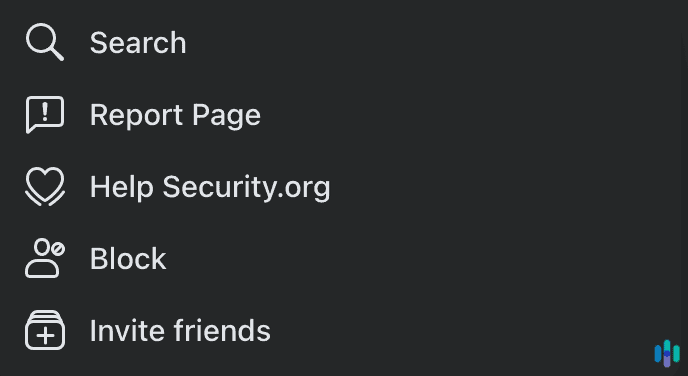
We’ve found that the quickest method is blocking directly from someone’s profile or a post they’ve made. On desktop, use the following steps:
- Navigate to the person’s profile
- Click the three dots icon next to “Message”
- Select “Block”
On the Facebook mobile app, you’ll need to do this:
- Tap the three dots in the same location and choose “Block” from the menu
- You’ll see a confirmation dialog explaining what blocking does
- Tap “Block” again to confirm
If you’re blocking someone from a comment they left on your post, click or tap the three dots next to their comment, select “Block,” and confirm.
Blocking from Settings
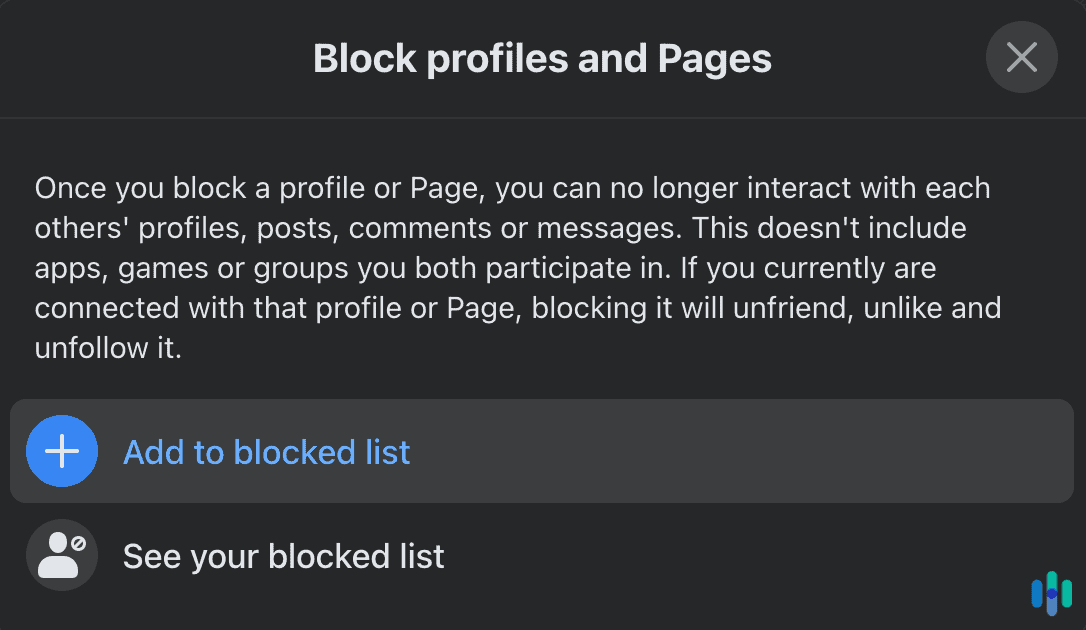
Another option is to use Facebook’s settings menu. Here’s what you need to do on desktop:
- Click the dropdown arrow in the top right corner
- Select “Settings & Privacy”
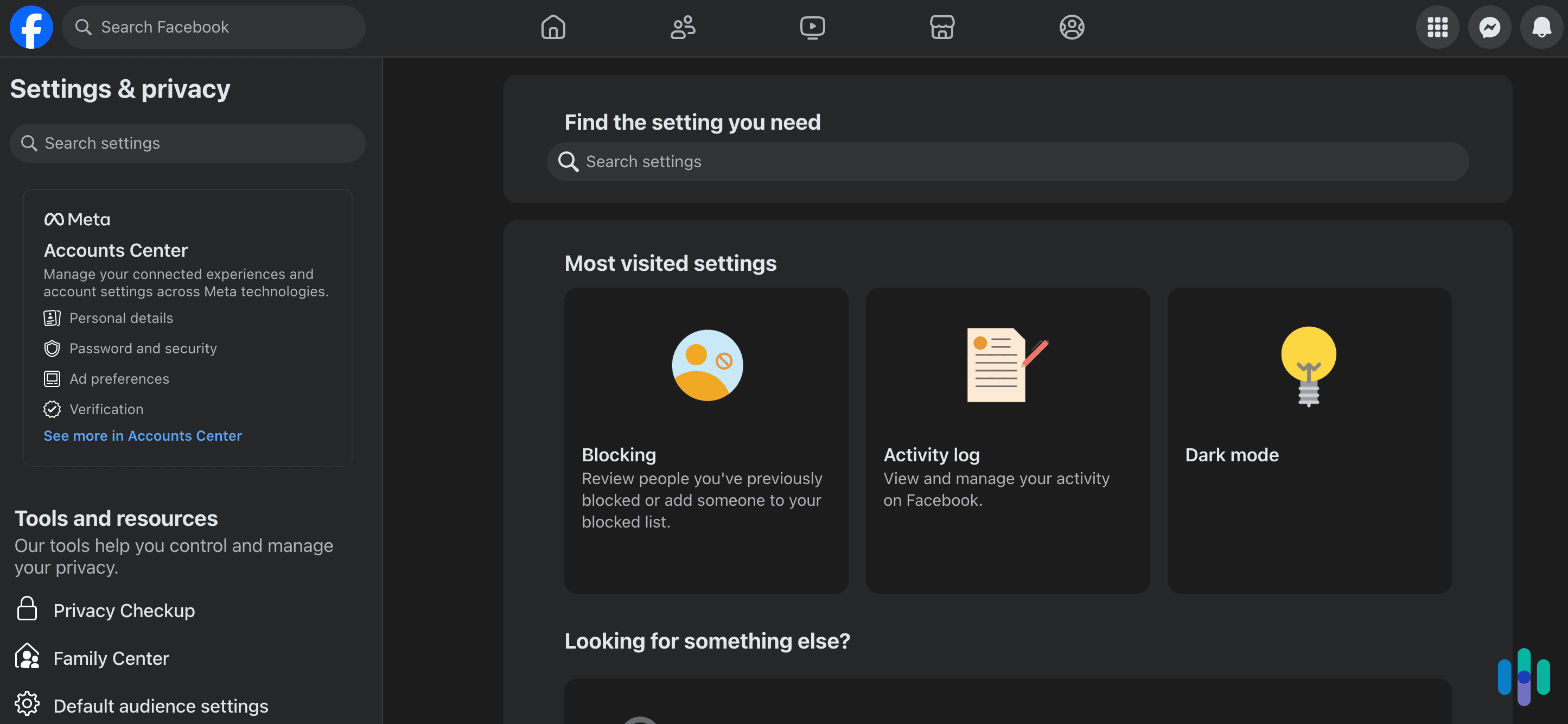
- Choose “Settings.”
- Go to “Blocking” in the left sidebar
- Type the person’s name in the “Block users” field
- Click “Block” next to their name in the search results
On mobile, follow these steps:
- Tap the three horizontal lines (menu icon)
- Scroll to “Settings & Privacy”
- Tap “Settings”
- Scroll down to “Blocking”
- Tap “Add to blocked list” and search for the person you want to block
Pro Tip: If you’re trying to block someone with a common name, make sure to look at the profile pictures and mutual friends, so you block the right person.
What Happens When You Block Someone
When you block someone on Facebook, they can no longer see your profile, posts, or timeline. You disappear from their friend list if you were previously connected, and they can’t find you through Facebook search.
Blocking also includes all interactions. People you’ve blocked can’t tag you in posts or photos, invite you to events or groups, start conversations in Messenger, or add you as a friend. According to Meta’s official documentation, blocking is the most comprehensive privacy action you can take against another user. Here’s an overview of what blocking covers and doesn’t cover:
| Action | Is It Blocked? |
|---|---|
| Viewing your profile and posts | Yes |
| Sending friend requests | Yes |
| Messaging you directly | Yes |
| Tagging you | Yes |
| Seeing your comments on mutual friends’ posts | No |
| Viewing content in shared groups | No (with limitations) |
FYI: Blocking doesn’t remove old messages from Messenger. Both of you retain your conversation history. Additionally, if you’re both in the same Facebook group, you might see each other’s posts there, though Facebook limits these interactions.
How to Unblock Someone on Facebook
If circumstances change, you can unblock someone you’ve blocked. The process is just as easy as blocking them. On desktop, go to “Settings,” then “Blocking.” On mobile, jump into “Menu,” “Settings & Privacy,” “Settings,” then “Blocking.”
You’ll see your full blocked list under “Block users.” Find the person you want to unblock and click or tap “Unblock” next to their name. Facebook will ask you to confirm your decision. Just click “Unblock” again to finalize.
Keep in mind that once you unblock someone, you must wait 48 hours before you can block them again. This stops people from repeatedly blocking and unblocking others as a form of harassment. If you unblock someone, they can send you friend requests again, but you’re not automatically reconnected. You’ll need to send or accept a friend request to restore that connection.
>> Check Out: How to Make Facebook Private
Alternatives to Blocking
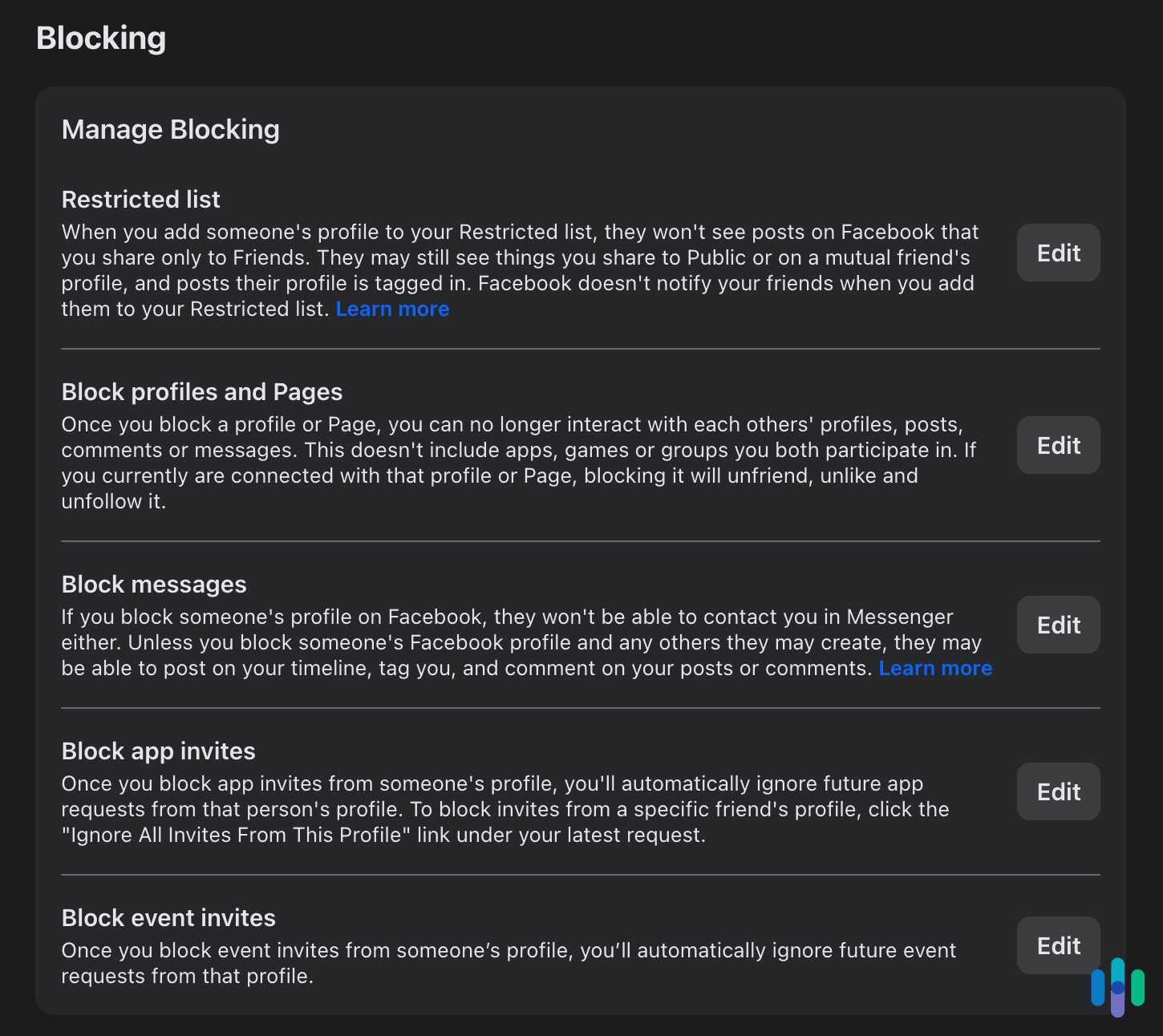
Blocking is just one option. You don’t have to delete your Facebook account. The platform offers several other privacy controls that might suit your situation better. For example, unfriending someone removes the connection without a full block. They can still view your public posts and send you friend requests, but they won’t see friend-only content.
Another option is to place people on your Restricted list. This means they only see your public posts even though you remain friends. This works well for acquaintances or coworkers where unfriending might feel awkward. You can also unfollow people to stop seeing their posts in your feed while remaining friends. They never know you’ve unfollowed them.
For more granular control, customize your audience for individual posts using Facebook’s privacy settings. You can exclude specific people from seeing particular posts without affecting your overall friendship status. These options give you flexibility to manage relationships without complete disconnection.
Pro Tip: If you’re not using parental control apps, we recommend adjusting the settings in Facebook Messenger Kids so that you approve incoming friend requests for your children.
Wrap Up: Manage Your Facebook Friends List
Blocking and unblocking people on Facebook gives you control over your online environment, allowing you to create boundaries that protect your mental health and privacy. Whether you’re dealing with harassment, maintaining professional boundaries, or simply curating your social experience, these tools empower you to use Facebook on your own terms.
Remember, you don’t need to justify blocking someone. It’s your digital space, and you have every right to decide who has access to it. Use these tools confidently, and don’t hesitate to take action when someone crosses your boundaries online.
Frequently Asked Questions
-
Does Facebook notify someone when you block them?
No, Facebook doesn’t send notifications when you block someone. However, they may eventually notice when they can’t find your profile or see your content.
-
Can a blocked person see my comments on mutual friends' posts?
Yes, if your comment is on a mutual friend’s public post, a blocked person might see it. Facebook limits but doesn’t completely eliminate all visibility in shared spaces.
-
What happens to tags in old photos when I block someone?
Tags remain in photos, but the blocked person can’t click through to your profile. Existing content doesn’t disappear, but future interactions are prevented.
-
Can I block someone who isn't on my friend list?
Yes, you can block any Facebook user regardless of whether you’re friends. This is useful for preventing unwanted contact from strangers.
-
Will blocking someone remove our Messenger conversation?
No, conversation history remains in Messenger for both parties. Blocking only prevents new messages from being sent.
-
Can I block someone temporarily?
While you can unblock someone at any time, there’s a 48-hour waiting period before re-blocking. You can use alternatives like snoozing or unfollowing for short-term breaks.