

We’ve all had those days where we sit down to work, open Chrome, and end up spending hours on social media or watching videos. Another good reason to learn how to block websites on Chrome is to keep your kids safe from inappropriate content online. Whatever your reason, it’s doable, even if you don’t have a parental control app installed.
Chrome doesn’t have a “block this website” button built into the browser, which seems like an oversight given that it’s the world’s most popular browser with over 70 percent global market share.1 Thankfully, there are several effective workarounds that range from super simple to more technical, depending on your comfort level and needs.
In this guide, we’ll walk you through five different methods to block websites on Chrome, from browser extensions that take two minutes to set up, to using the best parental control apps that offer more permanent solutions. Let’s dive in.
Why You’d Want to Block Websites on Chrome
Understanding why you want to block websites on Chrome will help you choose the right method. Most people want to block websites for one of these reasons:
- Productivity and Focus: Blocking time-wasting sites during work hours can boost your productivity and help maintain deep focus on important tasks.
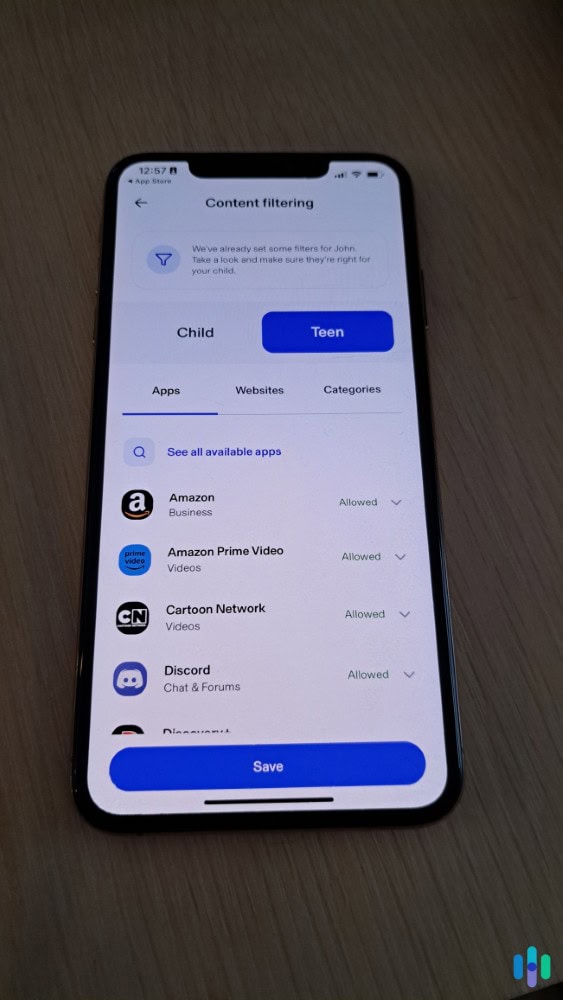
- Parental Protection: Over 95 percent of teens have access to a smartphone, and many spend significant time browsing.2 Parents often need to block adult content, gambling sites, or platforms with age-inappropriate material to protect their children.
- Security Concerns: Malicious websites, phishing scams, and malware-infected pages pose real threats. Blocking known dangerous sites adds an extra layer of protection to your digital security setup.
- Breaking Bad Habits: Whether it’s compulsive shopping, excessive gaming sites, or constant news checking, sometimes we need to protect ourselves from ourselves. Website blocking can be part of a healthy digital wellness strategy.
Method 1: Using Chrome Extensions
We’ve found that using Chrome extensions is the easiest method to block websites. Chrome extensions are like little helper apps that add functionality to your browser, and several are specifically designed for blocking websites.
Popular Extensions That Work
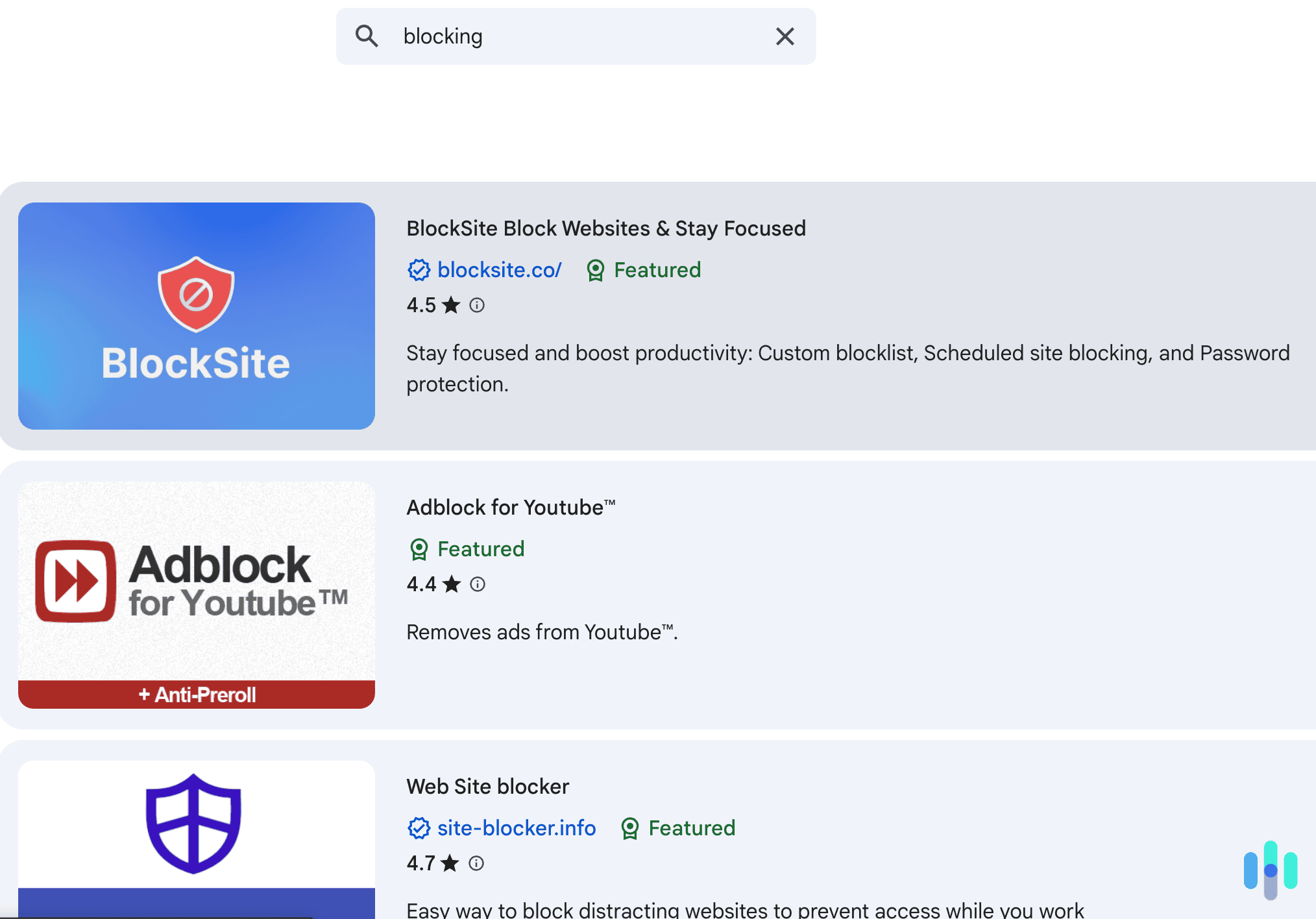
You’ll find dozens of website blocking extensions in the Chrome Web Store, but these are the ones we recommend.
- BlockSite: This is one of the most popular options, with over five million users. You simply add the extension from the Chrome Web Store, click its icon, and add URLs you want to block. We like that the extension offers scheduling features, so you can block Facebook during work hours, for example. BlockSite even has password protection to prevent you from easily undoing your blocks in a moment of weakness.
- StayFocusd: This extension takes a different approach. StayFocusd gives you a time allowance for certain sites. We let ourselves have 30 minutes of social media per day, and once that’s up, the sites are blocked. This “moderation over elimination” approach works well if you don’t want complete restriction.
- Freedom: We found this premium option also works well across devices, not just Chrome. If you need blocking on your phone, tablet, and computer, it’s worth considering despite the subscription cost.
Pro Tip: After installing a blocking extension, immediately set a password or enable its strictest settings. We found it’s the most effective option when we’re tempted to disable it during moments of weakness.
How to Set Up a Blocking Extension
No matter which Chrome extension you choose, the installation process is similar. Let’s use BlockSite as an example. Simply open Chrome, click on the three dots in the top right-hand corner, go to Extensions, and navigate to the Chrome Web Store.
Next, search for “BlockSite” and click “Add to Chrome,” then “Add extension.” Click the extension’s icon in your toolbar (you may need to click the puzzle piece icon first to see all extensions). Select “Block this site” while on any page you want to block, or manually add URLs in the extension’s settings. You can also set up your schedule and password protection options.
The whole process takes about five minutes for us. The only downside is that extensions can be disabled relatively easily if you know how. Plus, they only work in Chrome.
>> Keep Reading: The Complete Guide to Private Browsers
Method 2: Editing Your Computer’s Host File
This method is more technical but creates a system-wide block that works in every browser, not just Chrome. Your computer’s host file is like a personal phonebook that tells your device where to find websites. By editing it, you can redirect blocked sites to nowhere.
For Windows Users
Here is how we edited the computer’s host file on our Windows laptop:
- Navigate to C:\Windows\System32\drivers\etc and find the file named “hosts” (no extension)
- Right-click it and open it with Notepad as administrator
- At the bottom of the file, add a new line with this format: 127.0.0.1 www.example.com (replace example.com with the site you want to block)
- Save the file and restart your browser
>> Check Out: How to Make a Laptop Kid-Safe
For Mac Users
For Mac users, these are the steps we took to block websites using the host file:
- Open Terminal (found in Applications > Utilities)
- Type “sudo nano /etc/hosts” and press Enter
- Enter your Mac password.
- Add a new line: 127.0.0.1 www.example.com
- Press Control+X, then Y, then Enter to save
- Type “sudo killall -HUP mDNSResponder” and press Enter to apply changes
Pro Tip: When editing the host file, include both the “www” and non-“www” versions of sites. For example, add lines for both www.facebook.com and facebook.com. This will ensure nothing slips through the cracks.
Method 3: Blocking Sites at the Router Level
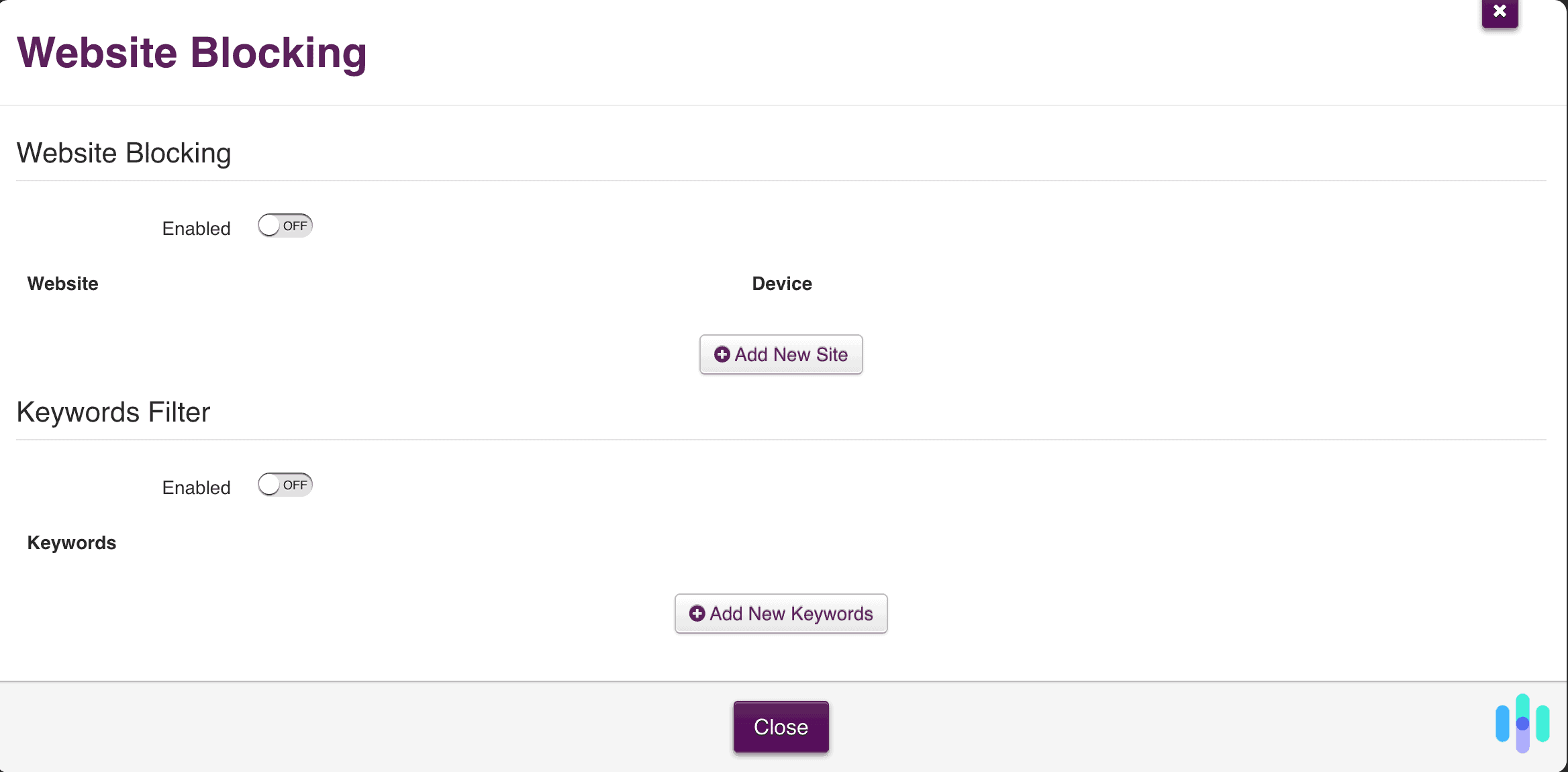
We prefer to block websites for every device connected to our home network using our router. This creates a household-wide block that affects phones, tablets, computers, and smart TVs.
Start by logging into your router’s admin panel by typing your router’s IP address into Chrome. It’s usually 192.168.1.1 or 192.168.0.1. If it’s not, check your router’s label. Enter your admin username and password, and then look for sections labeled “Parental Controls,” “Access Restrictions,” or “Website Blocking.” The terminology varies by router brand. Now you can add the URLs you want to block and save your settings.
Many modern routers from brands like Netgear, Asus, and TP-Link include parental control features with scheduling options. Some even offer mobile apps that let you manage blocked sites remotely. We found this method is particularly effective for managing children’s internet access across multiple devices.
Pro Tip: We recommend changing your router’s admin password from the default if you haven’t already. This prevents tech-savvy kids or roommates from undoing your website blocks.
Method 4: Using Built-in Parental Controls
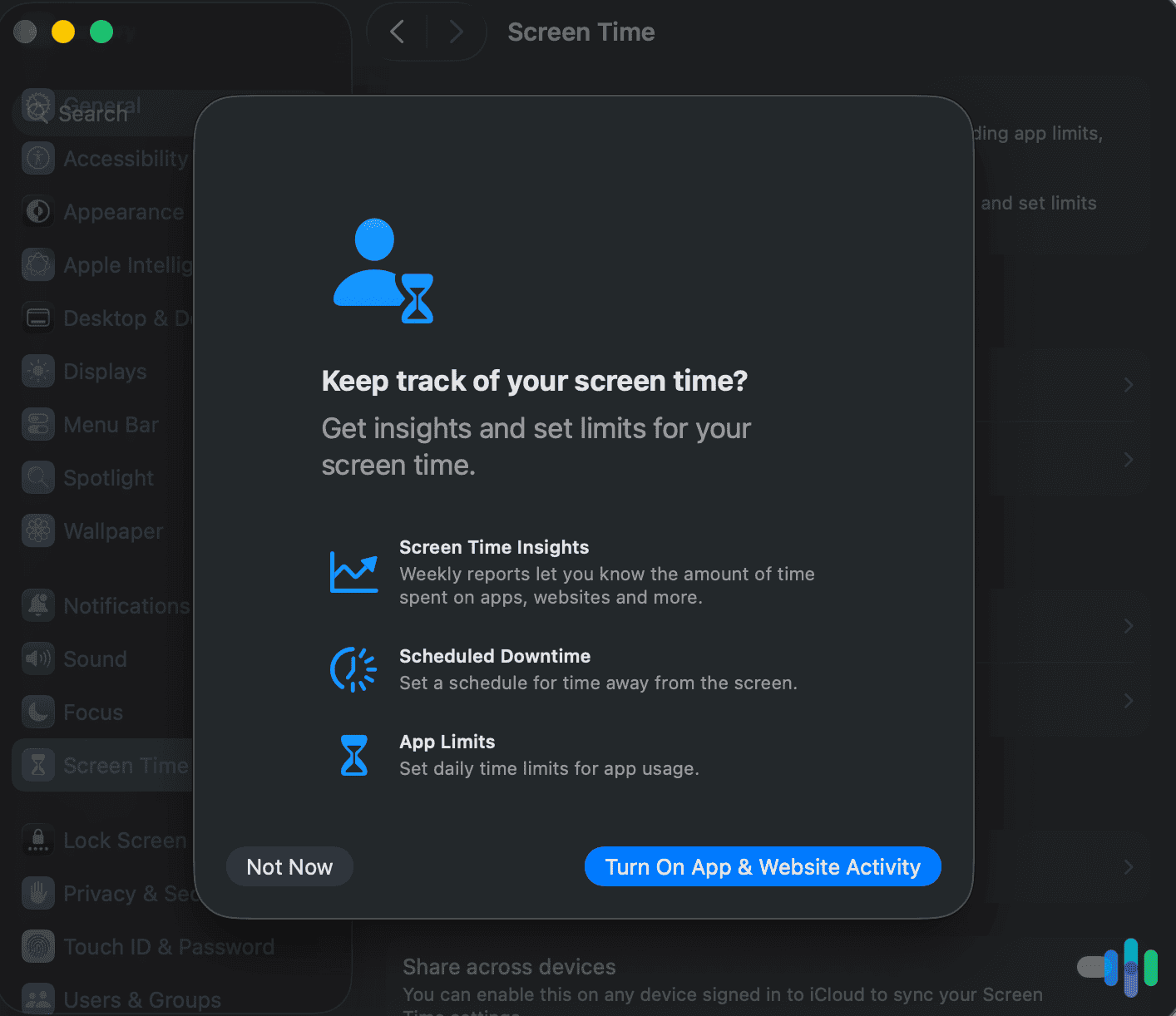
Both Windows and Mac operating systems include parental control features that restrict website access. We found they work well for family computers where children have their own user accounts.
On Windows 10 and 11, you can set up a child account through Microsoft Family Safety. This allows you to block specific websites, view activity reports, and set screen time limits from a centralized dashboard. On macOS, the Screen Time feature (introduced in Catalina) provides similar functionality with website restrictions and usage monitoring.
In our testing, these tools integrate with the operating system level, making them harder to get around than browser extensions. They’re free, require no additional software, and provide comprehensive digital parenting features beyond just website blocking.
>> Check Out: The Best Free Parental Control Apps
Method 5: Using Parental Control Apps
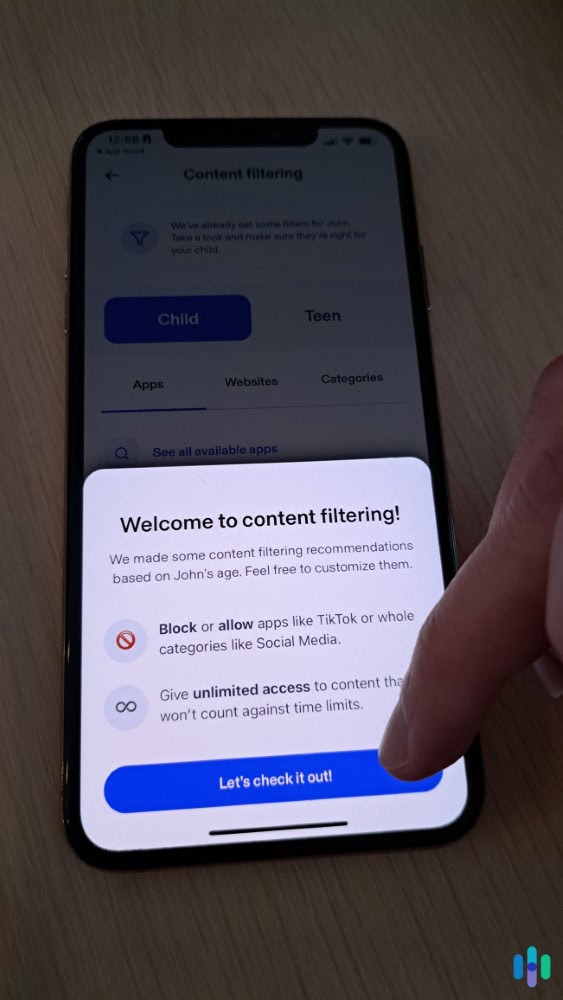
One of the most effective methods we’ve found to block websites on Chrome is using parental control apps. When we reviewed Aura, we could instantly block websites based on subject matters, like gambling or explicit content. This approach works better than blocking individual websites, especially as our kids know about ones we’ve never heard of.
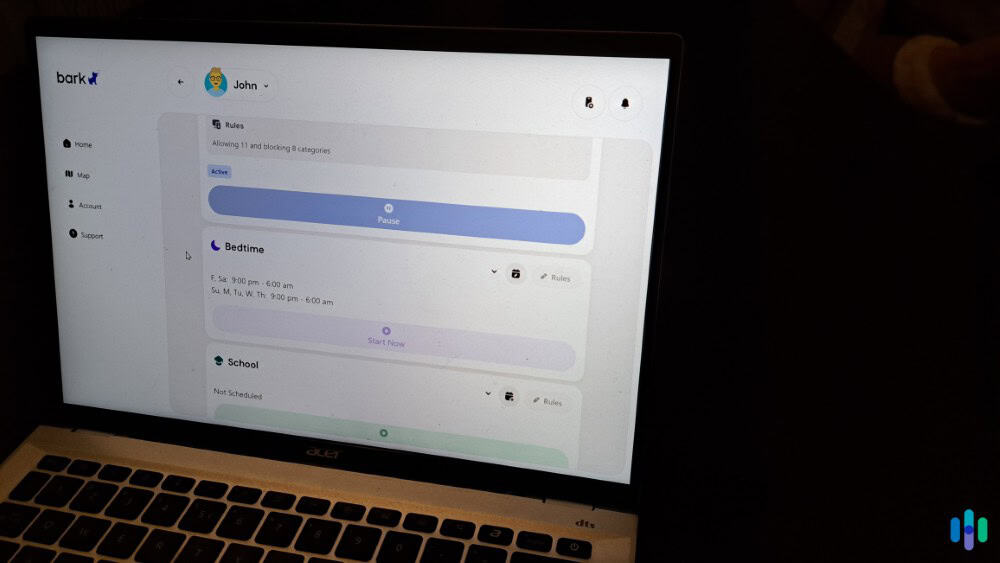
Parental control apps can also help you set screen time limits. While reviewing Bark, we could schedule different rules for school nights versus weekends. The app also let us set up how much time they could spend on different apps. We let them have an hour a day on YouTube, but only 30 minutes on Instagram and Snapchat.
>> Check Out: How to Set Up Parental Controls on Snapchat
Additional Tips for Effective Website Blocking
We’ve found blocking websites is most effective when you combine it with other strategies. The best place to start is by addressing the underlying cause. For example, if you’re blocking social media for productivity, consider whether you also need to adjust notification settings or create better work routines.
It’s also a good idea to use multiple methods for critical blocks. When we’re serious about blocking a site, we use a Chrome extension and host file editing. This creates redundancy so one method can catch what another might miss.
We also recommend planning for workarounds. VPNs, proxy sites, and different browsers can bypass many blocking methods. The goal isn’t creating an impenetrable fortress. It’s adding enough friction to break automatic habits and encourage better choices. You should also regularly review your blocked sites list. What you needed to block six months ago might not be relevant today.
Pro Tip: We also like to block the mobile versions of sites too, like m.facebook.com. This prevents smartphone workarounds if you’re using the host file or router methods.
Wrap Up: Blocking Websites on Chrome
Blocking websites on Chrome isn’t complicated once you know your options. The best method depends on your specific situation. Need a quick fix for personal productivity? Go with an extension. Managing kids’ internet access across devices? Router-level blocking or parental control apps make more sense. Want something hard to undo? The host file method offers that permanence.
We believe these tools are more effective when used intentionally and combined with good digital habits. Website blocking should support your goals, not substitute for self-awareness and discipline. Start with one method today, test it for a week, and adjust as needed. You can thank yourself after finishing your project.
Frequently Asked Questions
-
Can I block websites on Chrome without extensions?
Yes, you can edit your computer’s host file, use router-level blocking, or parental control apps to block websites without installing any Chrome extensions. These methods work system-wide across all browsers.
-
Will blocking a site on Chrome block it on my phone too?
No, blocked users cannot see any of your videos, profile information, or even find your account through search. Your content becomes completely invisible to them.
-
Can someone undo website blocks I've set up?
Yes, if they have access and knowledge. Extensions can be disabled, host files can be edited back, and router settings can be changed by anyone with admin credentials.
-
Does incognito mode bypass website blocking?
Browser extensions typically don’t work in incognito mode unless you specifically enable them in extension settings. Host file and router blocks work regardless of browsing mode.
-
Are website blocking extensions safe to use?
Yes, but we recommend sticking with well-reviewed extensions from the official Chrome Web Store with thousands of users. Check permissions carefully and avoid extensions requesting access beyond what’s necessary for blocking.
-
Can I schedule website blocks for specific times?
Yes, many extensions like BlockSite and StayFocusd offer scheduling features that let you block sites only during work hours or bedtime. Some routers also provide time-based access controls.