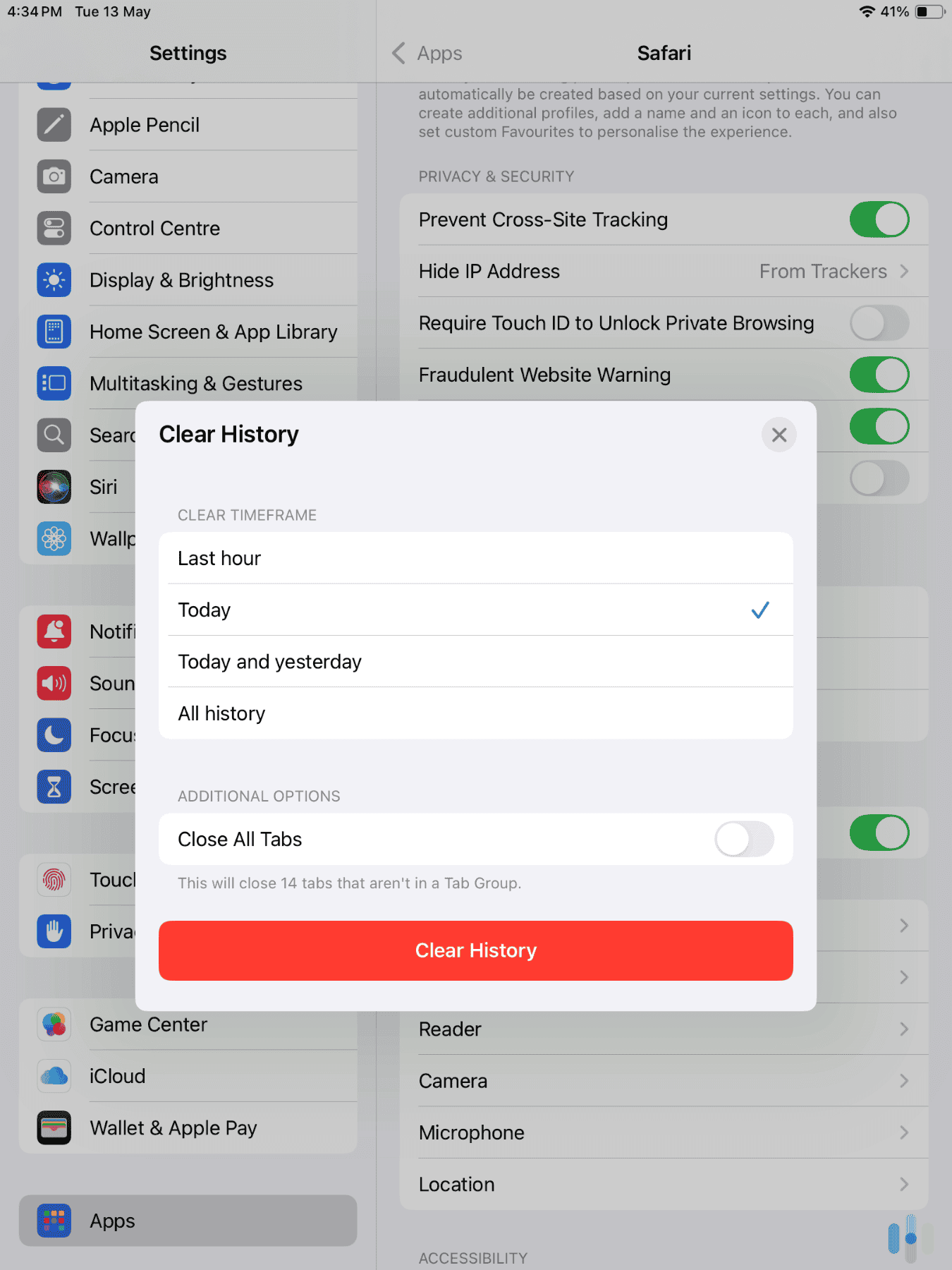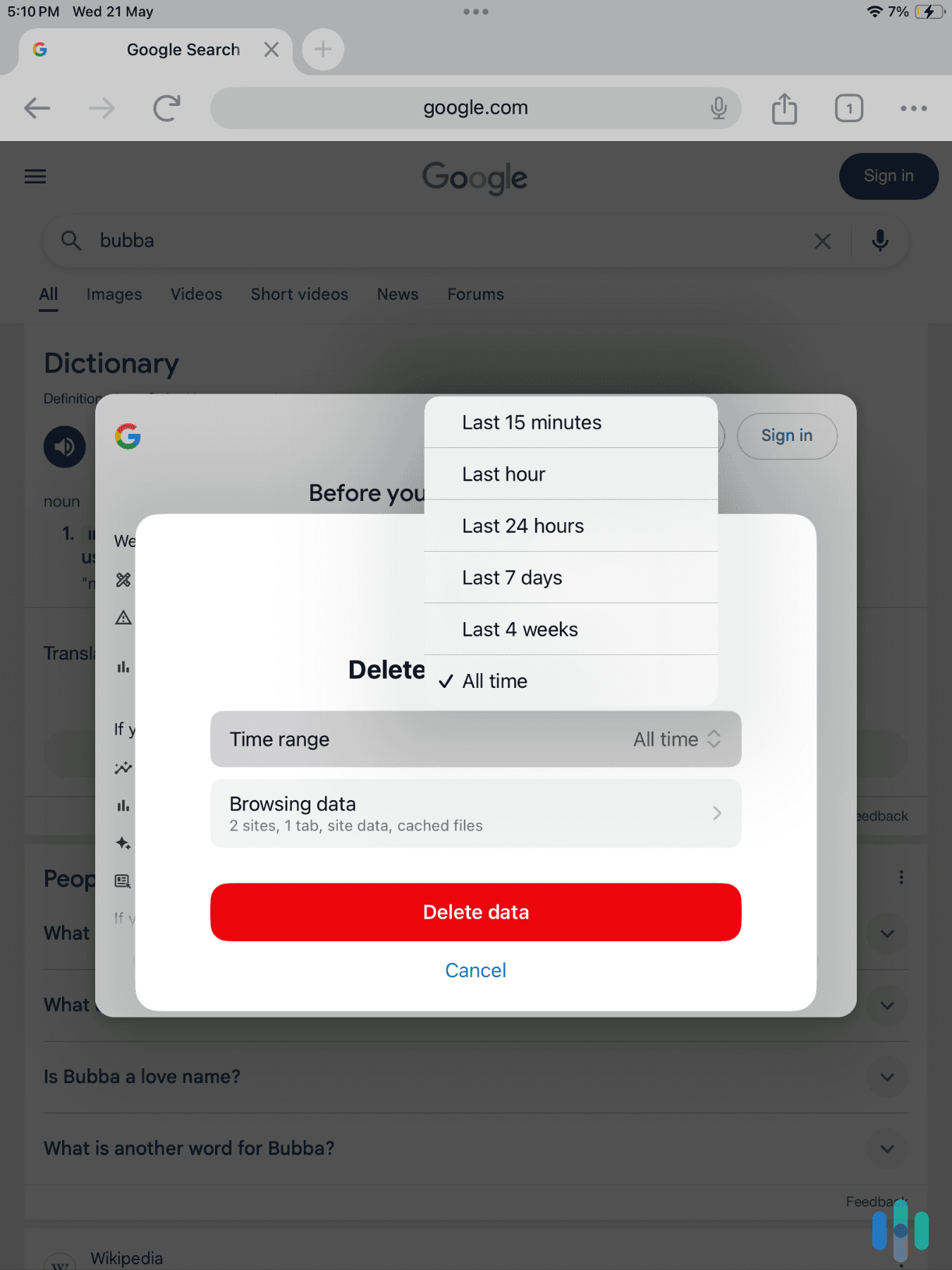


If you’ve ever wondered why ads seem to follow you around the internet or why your browser feels sluggish, browser cookies might be the culprit. These small files that websites store on your device can be useful for remembering your login information and preferences, but they also track your browsing habits and can accumulate over time, potentially compromising your privacy.
According to research from Pew Research Center, 81% of Americans are concerned about how companies use their data.1 Clearing your Chrome cookies is one of the simplest ways to take control of your digital footprint. Whether you’re troubleshooting website issues, protecting your privacy, or just doing routine browser maintenance, knowing how to manage cookies is an essential skill for anyone concerned about digital security.
What Chrome Cookies Are and Why Clear Them
Cookies are small text files that websites save to your browser to remember information about you. When you visit a site, it might create a cookie to store your login status, shopping cart contents, or accessibility preferences. Cookies are often helpful, but they can also serve as powerful tracking tools.
Third-party cookies, in particular, allow advertisers to follow your browsing across multiple websites. That’s why you might search for hiking boots on one site and see ads for them everywhere else. Beyond the creepiness factor, accumulated cookies can slow down your browser and potentially expose sensitive information if your device is compromised.
There are several practical reasons to clear cookies regularly.
- It helps protect your privacy by removing tracking data that companies use to build profiles about you.
- It can resolve website loading issues or login problems that occur when cookie data becomes corrupted.
- If you share a computer with others, clearing cookies prevents them from accessing your logged-in accounts.
- Clearing cookies clear up space, potentially making your browsing experience smoother.
Interesting Fact: Chrome holds approximately 65 percent of the global browser market share.2 If you’re one of the many Chrome users, this guide will teach you how to clear your Chromer cookies.
How to Clear Cookies on Chrome Desktop
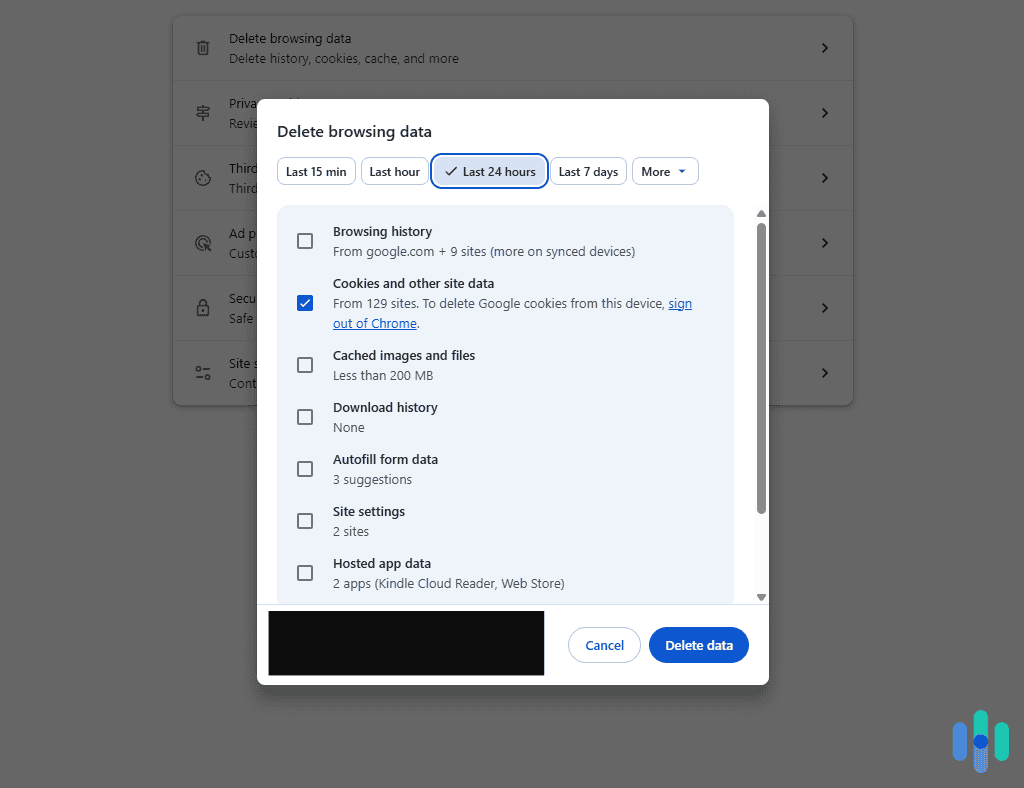
Clearing cookies on your desktop version of Chrome takes just a few clicks.
- First, open Chrome and click the three vertical dots in the top-right corner to access the menu.
- From there, select “Settings” or simply type chrome://settings into your address bar.
- Once you’re in Settings, navigate to “Privacy and security” in the left sidebar. Click on “Clear browsing data” or “Delete browsing data” (the exact wording may vary depending on your Chrome version).
- In the Basic tab, make sure “Cookies and other site data” is checked. You can also select a time range from the dropdown menu at the top: last hour, last 24 hours, last 7 days, last 4 weeks, or all time. For maximum privacy cleanup, select “All time.”
- Click “Clear data” and Chrome will remove the selected information. This process typically takes just a few seconds, though it may take longer if you’re clearing years of accumulated data.
Now, before you clear your Chrome cookies, remember that doing so will log you out of every website, so you’ll need to sign back in to Gmail, Facebook, online banking, and any other services you use. This is actually a security feature, not a bug—it ensures that cookie deletion truly removes your authentication data.
Pro Tip: Use a password manager to easily and securely log in to your accounts. Chrome has a built-in password manager, but we also recommend checking out the best Chrome password managers that can work outside Chrome, especially if you use multiple browsers.
How to Clear Cookies on Chrome Mobile
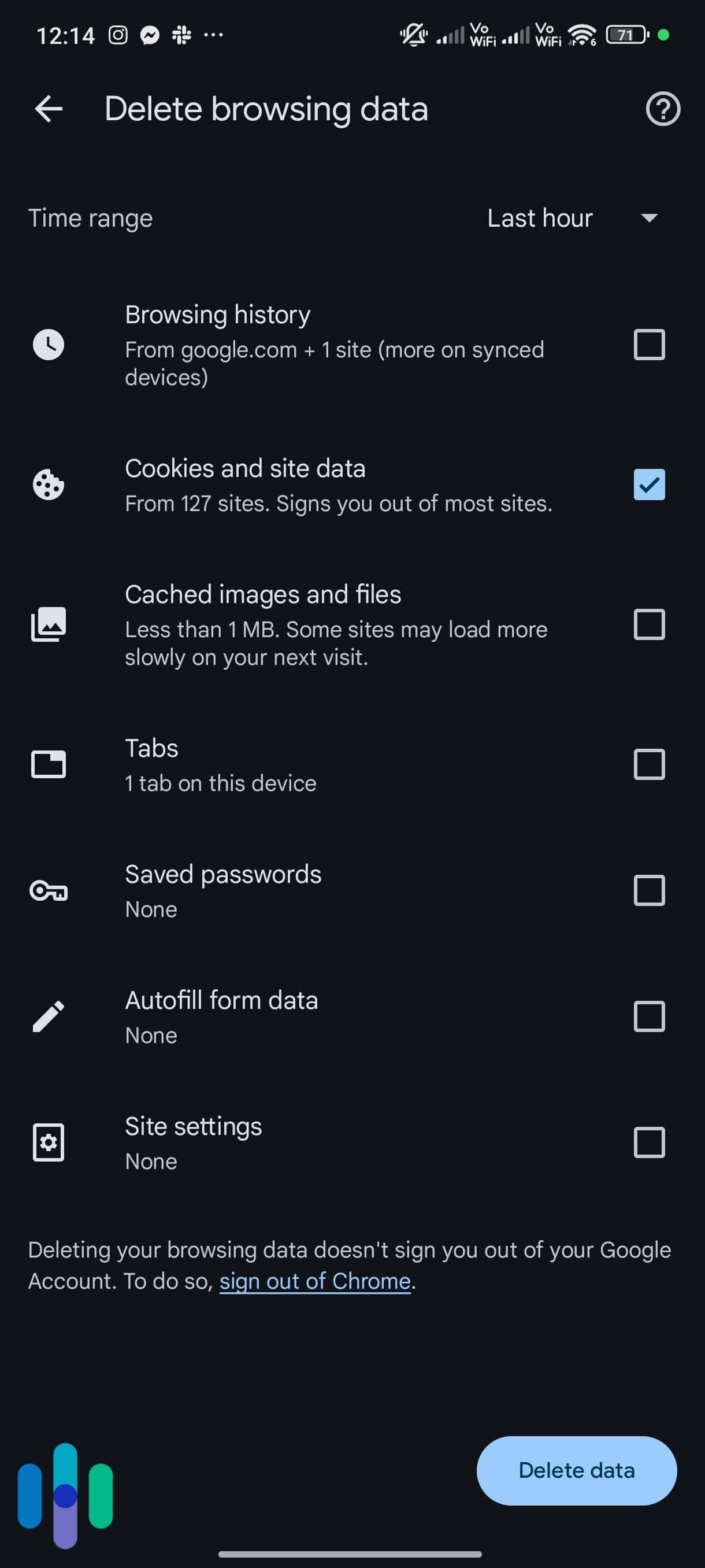
The process for clearing cookies on Chrome’s mobile app differs slightly between Android and iOS devices, but both follow the same logic.
- Open the Chrome app and tap the three vertical dots in the top-right corner.
- Select “Settings,” then tap “Privacy and security.”
- Tap “Clear browsing data.”
- Ensure “Cookies and site data” is checked, select your time range, and tap “Clear data.”
- Chrome will ask you to confirm, then process your request within seconds.
>> Related: How to Clear iPhone/iPad Browser Cookies
How to Clear Cookies from Specific Sites
Sometimes you don’t want to nuke all your cookies—you just want to remove data from specific websites. Maybe one site is acting buggy, or you want to clear tracking data from a particular retailer without logging out of everything else.
Chrome makes this easy through the site settings interface. Navigate to Settings > Privacy and security > Cookies and other site data (or Third-party cookies). Click “See all site data and permissions.” This opens a searchable list of every website that has stored cookies in your browser.
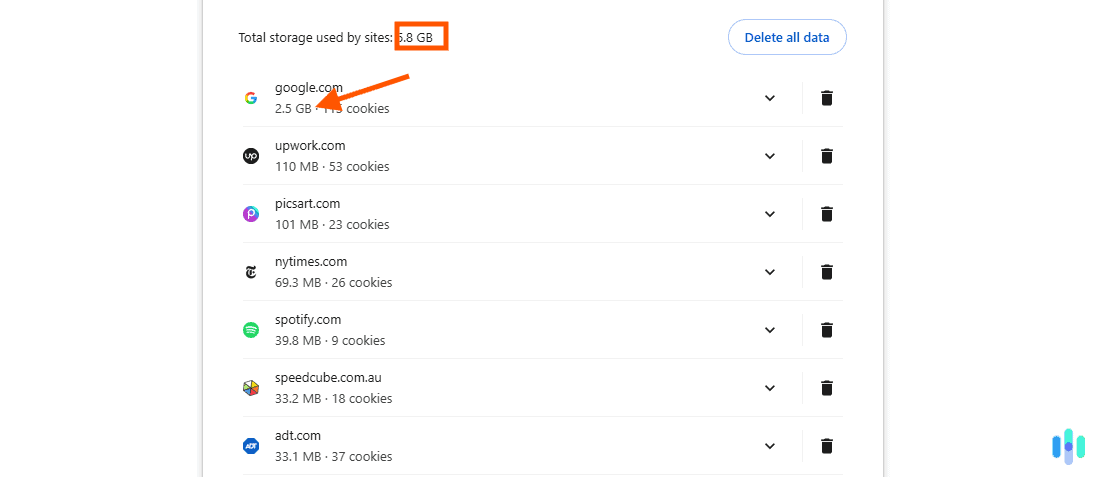
You can search for specific sites using the search box at the top, or scroll through the list. You can even sort them and see which sites have stored the largest amount of cookies. When you find the site you want to clear, click the trash can icon next to it. Chrome will immediately remove all cookies and data from that site, but leave everything else intact.
This selective approach is particularly useful for troubleshooting. If a website won’t load properly or you’re stuck in a login loop, clearing just that site’s cookies often resolves the issue without the inconvenience of logging back into dozens of other services.
Expert Advice: Ready to take your digital privacy to the next level? Check out the best VPNs for Chrome for hiding your online traffic.
Managing Cookie Settings for Better Privacy
Beyond regularly clearing cookies, you can configure Chrome to automatically manage cookies in ways that balance functionality with privacy. We recommend doing this so you won’t have to clear your cookies as often.
To access those settings, just go to Settings > Privacy and Security > Cookies and Other Site Data. There you’ll find several options.
- Allow all cookies: This option gives websites free rein to store whatever they want.
- Block third-party cookies in Incognito: When in Incognito, Chrome allows first-party cookies (cookies directly from the website you’re visiting) but blocks cookies from advertisers.
- Block third-party cookies: This setting prevents third-party cookies even if you’re not in Incognito.
- Clear cookies and site data when you close all windows: When enabled, Chrome automatically deletes all cookies every time you close the browser.
Pro Tip: Use Chrome’s Incognito mode for browsing sessions where you don’t want any cookies saved at all—it automatically discards all data when you close the window. If you use Incognito often, you should also consider switching to a private browser.
Recap
Clearing cookies in Chrome is a simple yet powerful way to protect your digital privacy and maintain your browser’s performance. Whether you choose to clear all cookies regularly, remove data from specific sites as needed, or configure automatic deletion settings, you now have the knowledge to take control of your browsing data.
Remember that privacy is an ongoing process, not a one-time task. Make clearing cookies part of your regular digital hygiene routine, along with updating passwords, reviewing app permissions, and keeping your software up to date. While it might seem inconvenient to log back into websites after clearing cookies, the privacy benefits far outweigh the minor hassle. Your digital security is worth those few extra clicks.
Frequently Asked Questions
-
Will clearing cookies delete my saved passwords?
No, clearing cookies only removes website data and won’t affect passwords saved in Chrome’s password manager. However, you will be logged out of websites and need to sign back in.
-
How often should I clear my Chrome cookies?
For most users, clearing cookies once a month provides a good balance between privacy and convenience. If you’re particularly privacy-conscious or notice browser slowdowns, you might do it weekly.
-
Does clearing cookies remove viruses or malware?
No, cookies are not viruses and clearing them won’t remove malware. If you suspect malware, run a full antivirus scan and consider using Chrome’s built-in safety check feature.
-
Can websites still track me after I clear cookies?
Yes, websites can use other tracking methods like browser fingerprinting, IP addresses, and device identifiers. Clearing cookies is just one part of maintaining online privacy.
-
What's the difference between clearing cookies and clearing cache?
Cookies store information about your interactions with websites, while cache stores actual website files to speed up loading. Both can be cleared independently through Chrome’s browsing data settings.
-
Will I lose my bookmarks if I clear cookies?
No, bookmarks are stored separately from cookies and won’t be affected. Only your browsing data, site authentication, and tracking information are removed when clearing cookies.