

Most websites you visit store little data files called cookies on your iPhone to track you across the web. These cookies serve good purposes like saving your login details. However, they also allow companies to create detailed profiles of your browsing habits, powering targeted advertisements. Companies can also sell this data, which concerns over 85 percent of people in the U.S.1
Clearing cookies regularly is one straightforward way to reclaim your privacy by reducing tracking and reset glitchy site behavior. This guide walks you through exactly how to delete cookies on your iPhone, whether you use Safari, Chrome, Firefox, or another browser.
What Are Cookies and Why Should You Clear Them?
Cookies are small text files that websites store on your device to recognize you when you return. They serve various purposes: session cookies keep you logged in while browsing, preference cookies remember your settings, and tracking cookies follow your activity across multiple sites.
While that can seem innocuous, it can create serious privacy concerns. As cookies accumulate over time, many of which are designed for cross-site tracking, advertisers and data brokers are able to build detailed consumer profiles. They then use this profile to target ads. Political campaigns even use this data to more effectively sway your vote.2
Beyond privacy concerns, clearing cookies can solve practical problems. If you’re experiencing website loading issues, seeing outdated content, or dealing with glitchy logins, deleting cookies and cached files often resolves these technical hiccups by forcing websites to load fresh data.
FYI: Clearing cookies logs you out of most websites, so store your passwords in one of the best password managers for iPhones before you start. Apple includes a built-in password manager on iPhones, but we recommend a third-party one so it works across devices. Check out our guide to password managers to learn more about why you should use one.
How to Clear Cookies in Safari
Safari is the default browser on iPhones and offers the most integrated cookie management experience. Apple has positioned Safari as a privacy-focused browser, implementing Intelligent Tracking Prevention that attempts to block cross-site trackers.
Clearing All Safari Cookies and Data
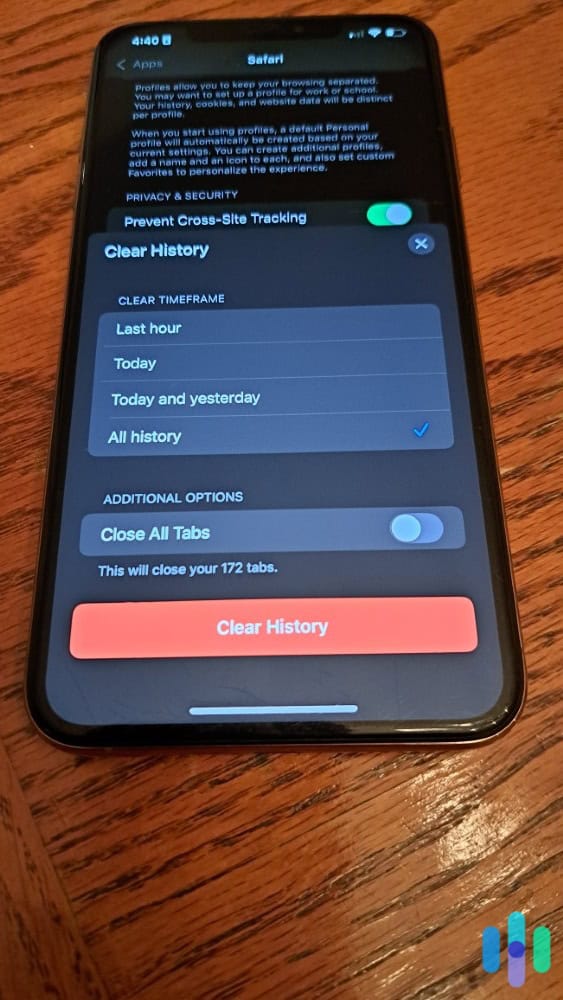
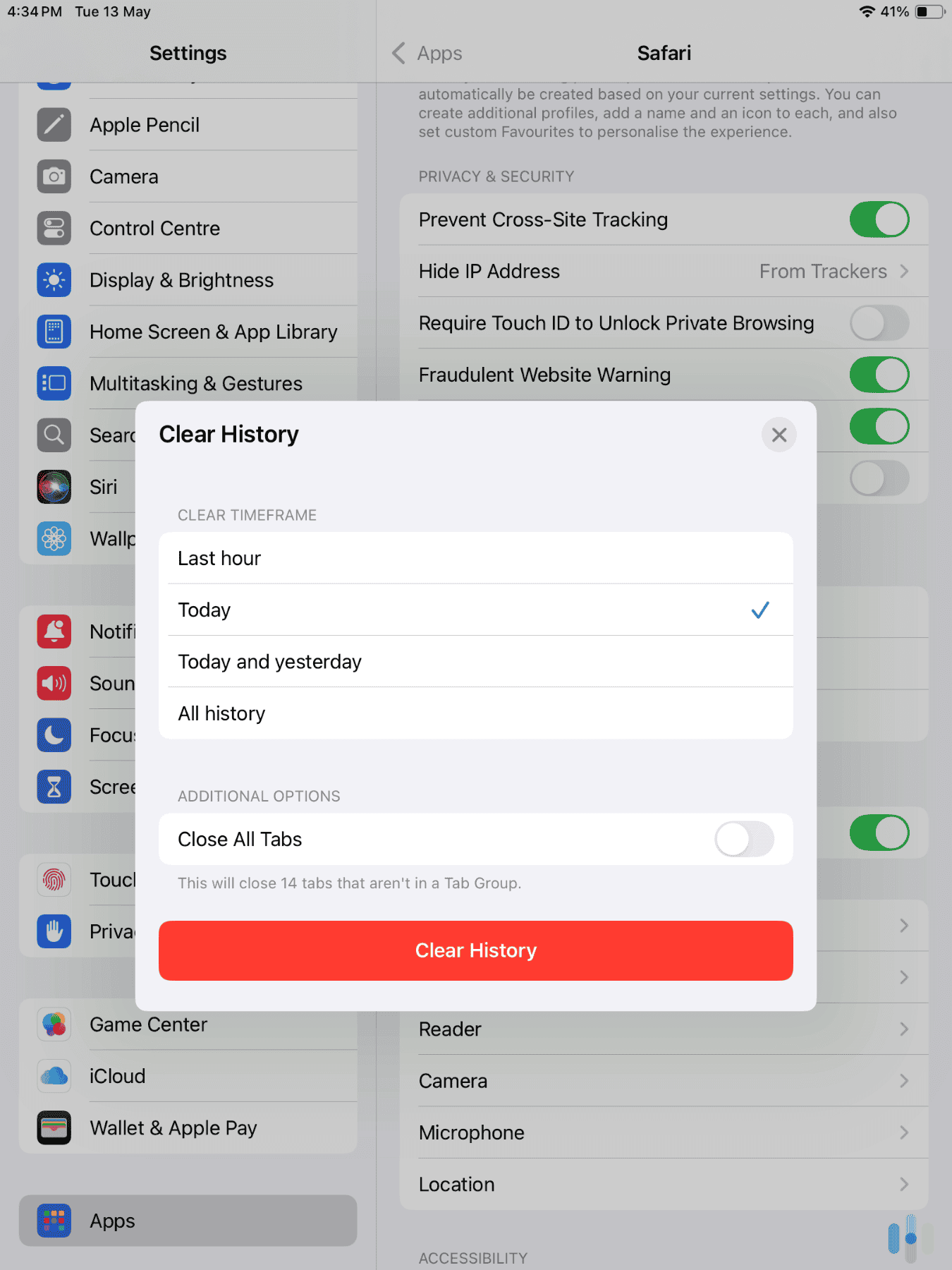
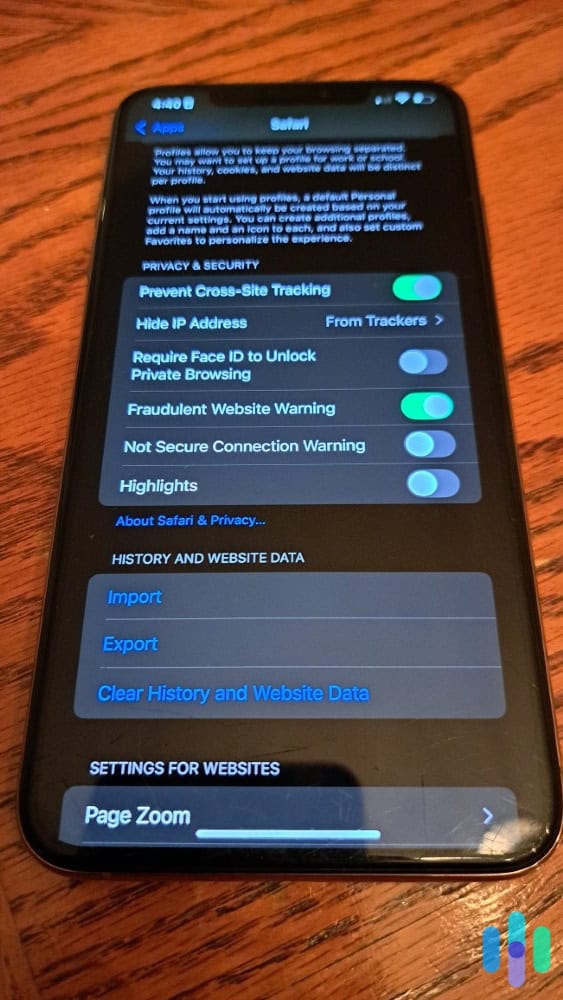
The quickest method is to clear all your cookies and browsing data on Safari. It only takes four steps:
- Open the Settings app.
- Scroll down and select Apps, then tap Safari.
- Tap “Clear History and Website Data” near the bottom of the Safari settings.
- When the confirmation popup appears, tap “Clear History” again to confirm.
This action removes your browsing history, cookies, and cached files on all devices signed into your iCloud account. That means if you use Safari across multiple Apple devices, clearing data on your iPhone also clears it on your iPad and Mac. That can be either convenient or problematic depending on your needs.
>> Learn About: How to Block Numbers, Websites, and Text Messages on iPhones in 2026
Clearing Cookies Without Deleting History
If you want to keep your browsing history intact while removing cookies on Safari, you can use a more surgical approach as follows:
- Open the Settings app.
- Scroll down to Apps and then tap Safari.
- Select “Advanced” at the bottom of the Safari settings window.
- Tap “Website Data” to see a list of every site storing data on your device.
- From here, tap “Remove All Website Data” to delete cookies while preserving your history or swipe left on individual sites to selectively remove data for specific sites.
While only deleting cookies preserves your browsing history, it will still log you out of most saved accounts. Make sure you know your passwords before deleting cookies.
Did You Know: The Website Data section shows how much storage each site uses. Seemingly simple websites can store surprising amounts of data, sometimes exceeding 50MB. Clearing this data can help free up storage on your iPhone.
Preventing Future Cookie Accumulation
Safari lets you block cookies proactively. Here’s how to prevent cookies from accumulating on your iPhone when using Safari:
- Open the Settings app.
- Scroll down to Apps and then open the settings for Safari.
- Turn the “Block All Cookies” toggle on.
Turning this setting on prevents websites from storing any cookies. That’s great for your privacy, however, it will cause some sites to break. For instance, shopping carts won’t work and you’ll never stay logged into a site. A better middle-ground option is enabling “Prevent Cross-Site Tracking.” This blocks third-party tracking cookies while allowing first-party cookies that keep websites functional.
>> Check Out: Can an iPhone Be Hacked?
How to Clear Cookies in Chrome
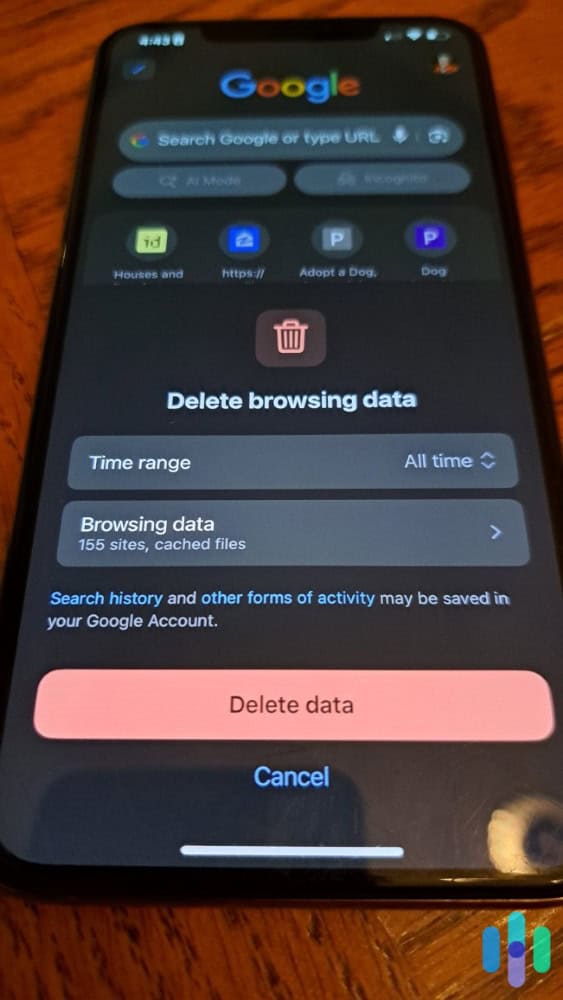
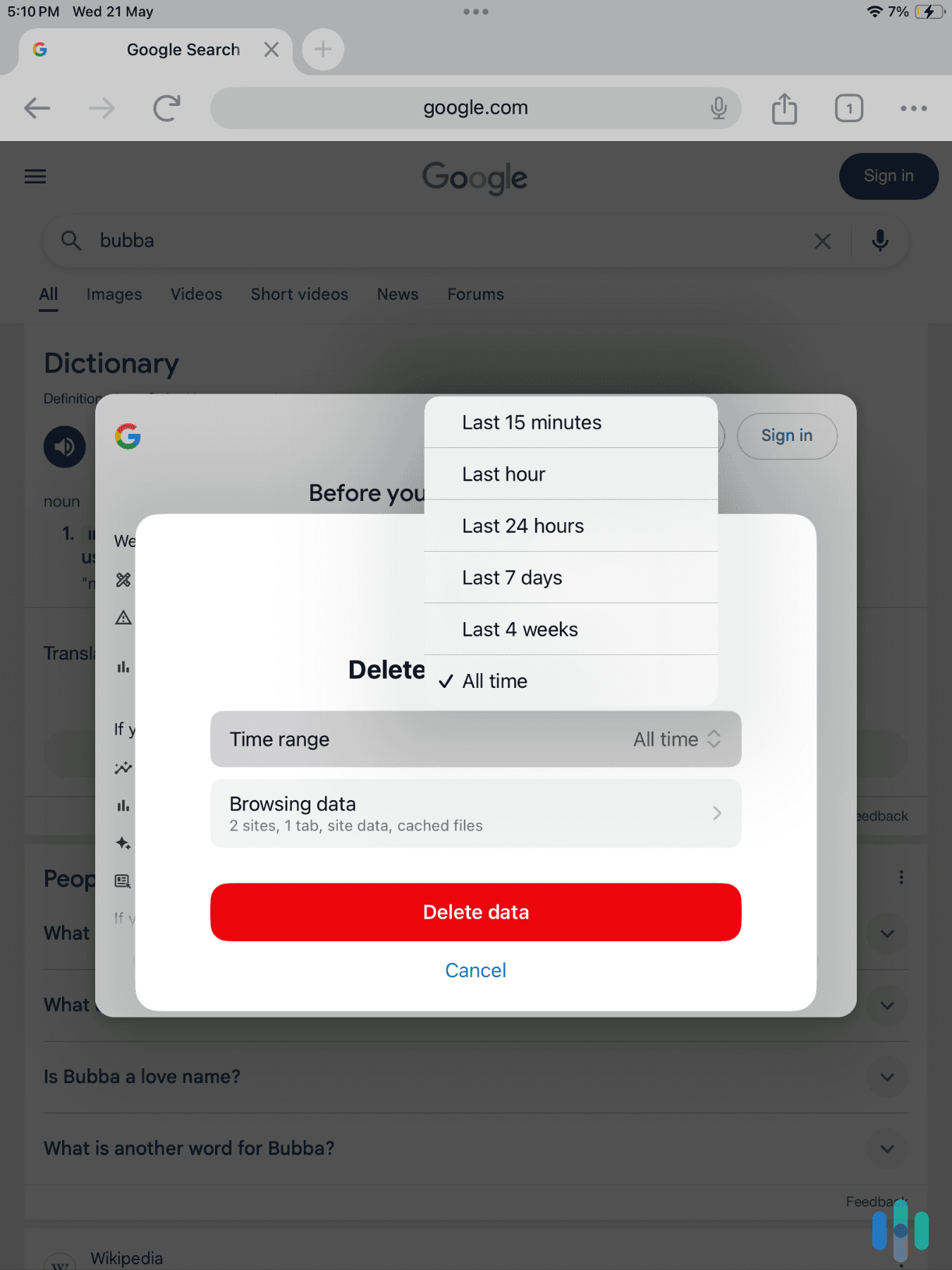
Google Chrome handles cookies differently than Safari, with settings contained within the app itself rather than iOS system settings. Here’s how to clear Chrome cookies on your iPhone:
- Open the Chrome app.
- Tap the three-dot menu icon in the bottom-right corner (or top-right on some iPhone models).
- Select “Settings” from the menu.
- Navigate to “Privacy and Security.”
- Tap “Clear Browsing Data.”
- Choose a time range of cookies you want to delete.
- Tap “Browsing data” and ensure the “Cookies, Site Data” option is checked.
- Tap “Delete Data” at the bottom.
Unlike Safari, this only affects Chrome on your current device unless you have Chrome sync enabled across devices.
Expert Insight: Chrome’s “Basic” tab offers quick options. However, we recommend going into the “Advanced” tab for granular control over what gets deleted, including saved passwords and autofill data.
Managing Cookies for Specific Sites in Chrome
For targeted cookie removal, Chrome allows site-specific management. Here’s how to remove cookies from specific sites in the Chrome iPhone app:
- In the Chrome app’s settings, go to “Privacy and Security.”
- Visit “Site Settings.”
- Tap “Cookies” to see which sites have stored data.
- Select any site you’d like to remove data on.
By deleting cookies only for specific sites, you can stay logged in, keep your shopping carts in-tact, and allow trusted sites to recognize you each time you visit them.
How to Clear Cookies in Firefox
Firefox handles cookies in the same way as Chrome in that you need to go into the Firefox app. Here’s how to delete Firefox cookies from your iPhone:
- Open the Firefox app on your iPhone.
- Tap the three-line menu icon at the bottom of the screen.
- Select “Settings.”
- Scroll down and select “Data Management” under the privacy section.
- Toggle on “Cookies” and any other type of data you want to remove.
- Tap “Clear Private Data” at the bottom.
- Confirm you’d like to clear this data.
Firefox also offers an Enhanced Tracking Protection feature that blocks most tracking cookies automatically. In Settings, under “Privacy,” you can choose between Standard, Strict, or Custom protection levels. The “Strict” setting blocks more trackers but may cause some websites to malfunction. We recommend sticking with the “Standard” setting, unless you need maximum privacy.
>> Learn More: The Complete Guide to Private Browsers
Best Practices for Cookie Management
Establishing a regular cookie-clearing routine balances privacy protection with convenience. Our experts recommend clearing cookies every one to three months for average users. Those with heightened privacy needs should do so weekly or set their cookies to automatically delete every time they close their browser. Beyond how frequently you clear your cookies, we also follow two best practices to effectively manage cookies on your iPhone without sacrificing usability.
Pro Tip: Use Safari’s Private Browsing mode or Chrome’s Incognito mode for sensitive searches. These modes automatically delete saved cookies when you close the window.
Selective vs. Complete Cookie Clearing
Not all cookies deserve deletion. First-party cookies from sites you trust and use regularly — your bank, email provider, or favorite news site — make your experience smoother without significant privacy trade-offs. Third-party tracking cookies from advertising networks provide minimal benefit while creating detailed activity profiles.
The most sophisticated approach involves adding specific sites to your exception list while deleting the cookies of all other sites every time you close your browser. This requires more setup time initially but creates a sustainable long-term privacy practice.
Alternative Privacy Measures

Cookie management works best as part of a broader privacy strategy. Enable “Limit Ad Tracking” in your iPhone’s Settings under Privacy & Security > Tracking (iOS 14 and later requires apps to request permission before tracking). We also recommend using a high-quality parental control app if your kids ever use your iPhone. That’ll prevent them from accidentally enabling any type of tracking on your device.
>> Read More: A 2026 Guide to Parental Controls Software and Apps
Recap: Improving Your iPhone’s Digital Privacy by Clearing Cookies
Managing cookies on your iPhone is a fundamental digital hygiene practice that takes just minutes but significantly impacts your online privacy. Whether you choose Safari’s integrated approach, Chrome’s flexible options, or Firefox’s straightforward controls, the key is making cookie management a regular habit rather than a one-time task.
By understanding what cookies do, how to remove them, and which privacy settings to enable, you take concrete steps toward controlling your digital footprint. Start with clearing your cookies today using the method that matches your preferred browser, then establish a schedule that works for your privacy needs and browsing habits. Once you master your cookies, head over to our guide to personal digital security for more digital hygiene habits.
Frequently Asked Questions
-
Will clearing cookies delete my saved passwords?
No, clearing cookies doesn’t affect passwords saved in your iPhone’s Passwords app or in browser-specific password managers. However, you’ll need to log in again to websites after clearing cookies.
-
How often should I clear cookies on my iPhone?
For most users, clearing cookies every month strikes a good balance between privacy and convenience. Those with higher privacy concerns should clear them more frequently — weekly or even after each browsing session.
-
Can websites still track me after I clear cookies?
Yes, websites can use other tracking methods including browser fingerprinting, IP address tracking, and device identifiers. Clearing cookies reduces tracking but doesn’t eliminate it entirely.
-
What's the difference between clearing cache and clearing cookies?
Cache stores website files (images, scripts) to speed up page loading, while cookies store data about your behavior and preferences. Clearing cached data affects loading speed; clearing cookies affects personalization and tracking.
-
Will clearing cookies speed up my iPhone?
Typically, clearing cookies will not impact your iPhone’s performance as most cookies are tiny files. If your phone feels slow, other factors like available storage, background apps, or iOS updates are more likely culprits.
-
Do I need to clear cookies in all browsers separately?
Yes, each browser app maintains its own separate cookie storage. Clearing cookies in Safari doesn’t affect Chrome or Firefox — you must clear them individually in each browser you use.