

Have you started noticing that websites are a little slower to load? You’ve probably been told a thousand times to clear your Safari cookies, but does it really make a difference? Cookies are small data files that websites store on your device to remember your preferences, log-in information, and browsing activity. While Safari cookies make browsing more convenient by keeping you logged in and remembering your shopping cart, they also create a trail that can compromise your digital safety.
Clearing your Safari cookies is a simple but effective way to take back some control over your digital footprint. Whether you’re concerned about online tracking, experiencing browser glitches, or just want a fresh start, clearing your Safari cookies takes less than a minute once you know where to look.
>> Keep Reading: How to Clear Your Safari Search History
Understanding What Safari Cookies Actually Do
Phishing, spoofing, and personal data breaches are the top three types of cybercrimes.1 While clearing your Safari cookies won’t solely prevent cybercrime, it’s one of many steps that can make a small difference in protecting your privacy online. You see, when you visit a site, it might save a cookie containing your username, language preference, or items in your shopping cart.
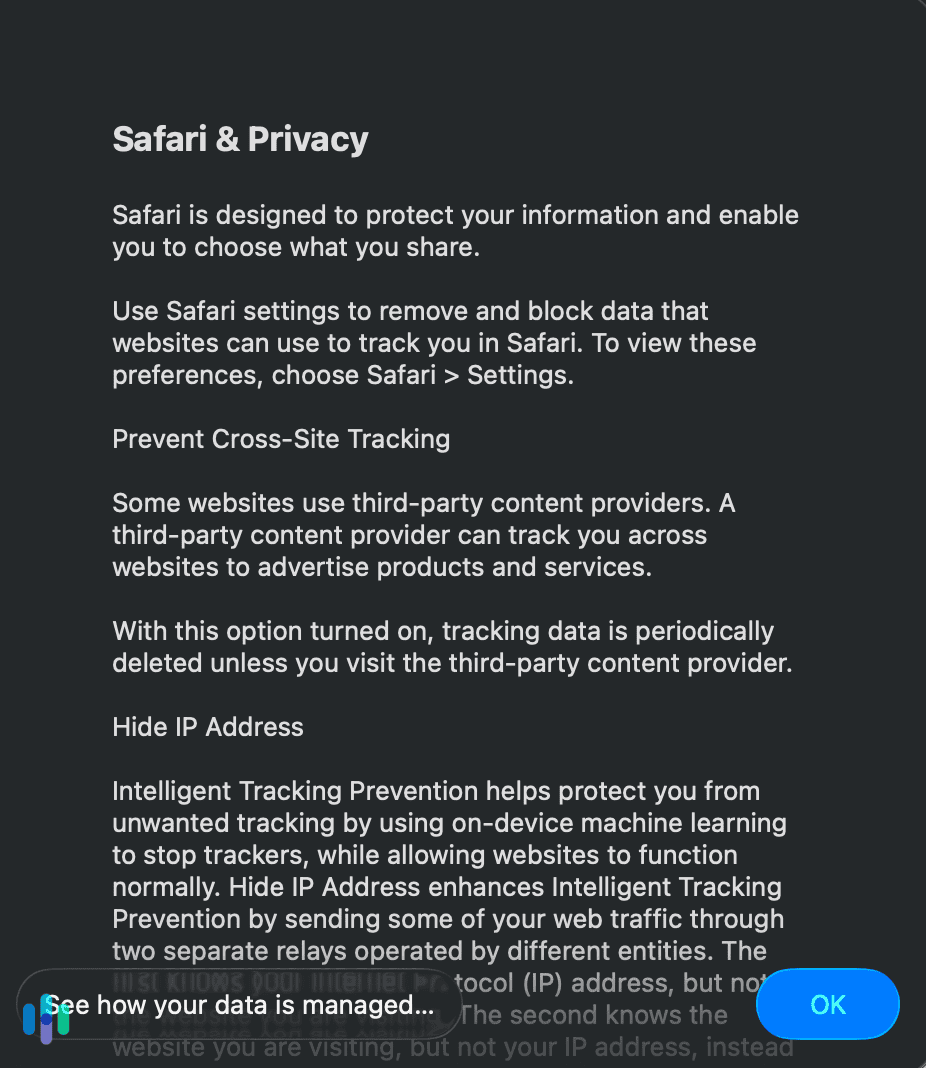
The next time you return, the website reads that cookie and recognizes you. This saves you from having to log in or reconfigure settings every single time. There are two main types of cookies Safari handles. First-party cookies come directly from the website you’re visiting. Third-party cookies come from external sources like advertisers. These ones track your behavior across multiple websites to build detailed profiles of your interests and habits.
FYI: Safari has built-in Intelligent Tracking Prevention that blocks most third-party cookies by default. Some first-party cookies and persistent trackers still accumulate over time.
Why You Should Clear Safari Cookies Regularly

Clearing cookies serves several purposes that can improve both your security and browsing experience. When you accumulate hundreds or thousands of cookies over months of browsing, they can slow down Safari’s performance, cause websites to load incorrectly, or create conflicts that result in error messages.
From a security standpoint, cookies can become vulnerabilities if they’re intercepted or stolen by malicious actors. Session cookies, which keep you logged into websites, are particularly valuable targets. If someone gains access to these cookies through a public Wi-Fi network or malware, they could hijack your active sessions on banking sites, email accounts, or social media platforms. Surveys found that four out of ten Americans have had their personally identifiable information compromised due to public Wi-Fi connections.2
Clearing cookies also disrupts the advertising profiles that companies build about you. While it won’t make you completely anonymous online, it does force trackers to start from scratch, making it harder for them to serve you targeted ads based on your complete browsing history. We always notice that ads become more generic after clearing cookies.
>> Check Out: The Internet and Data Privacy
How to Clear Safari Cookies on iPhone and iPad
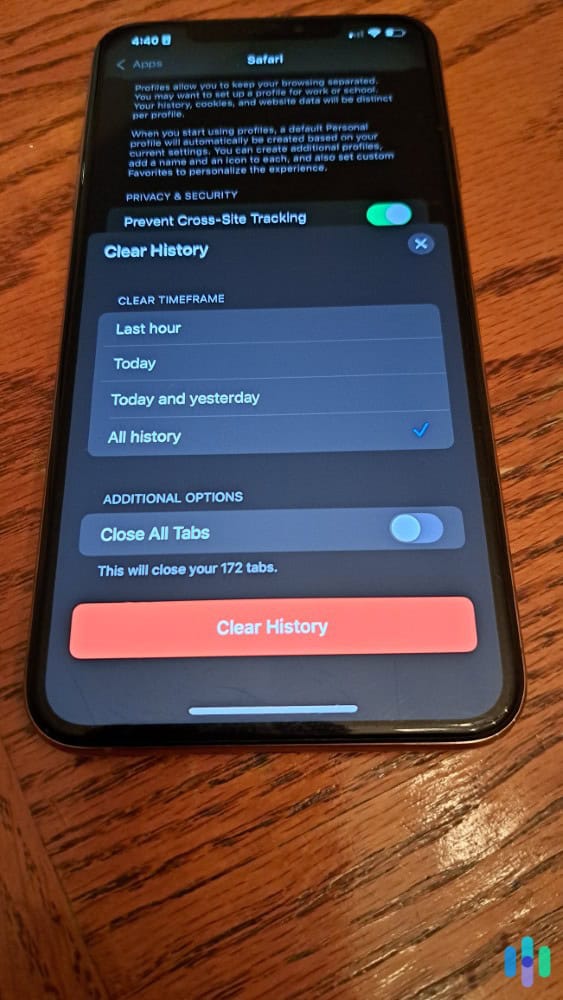
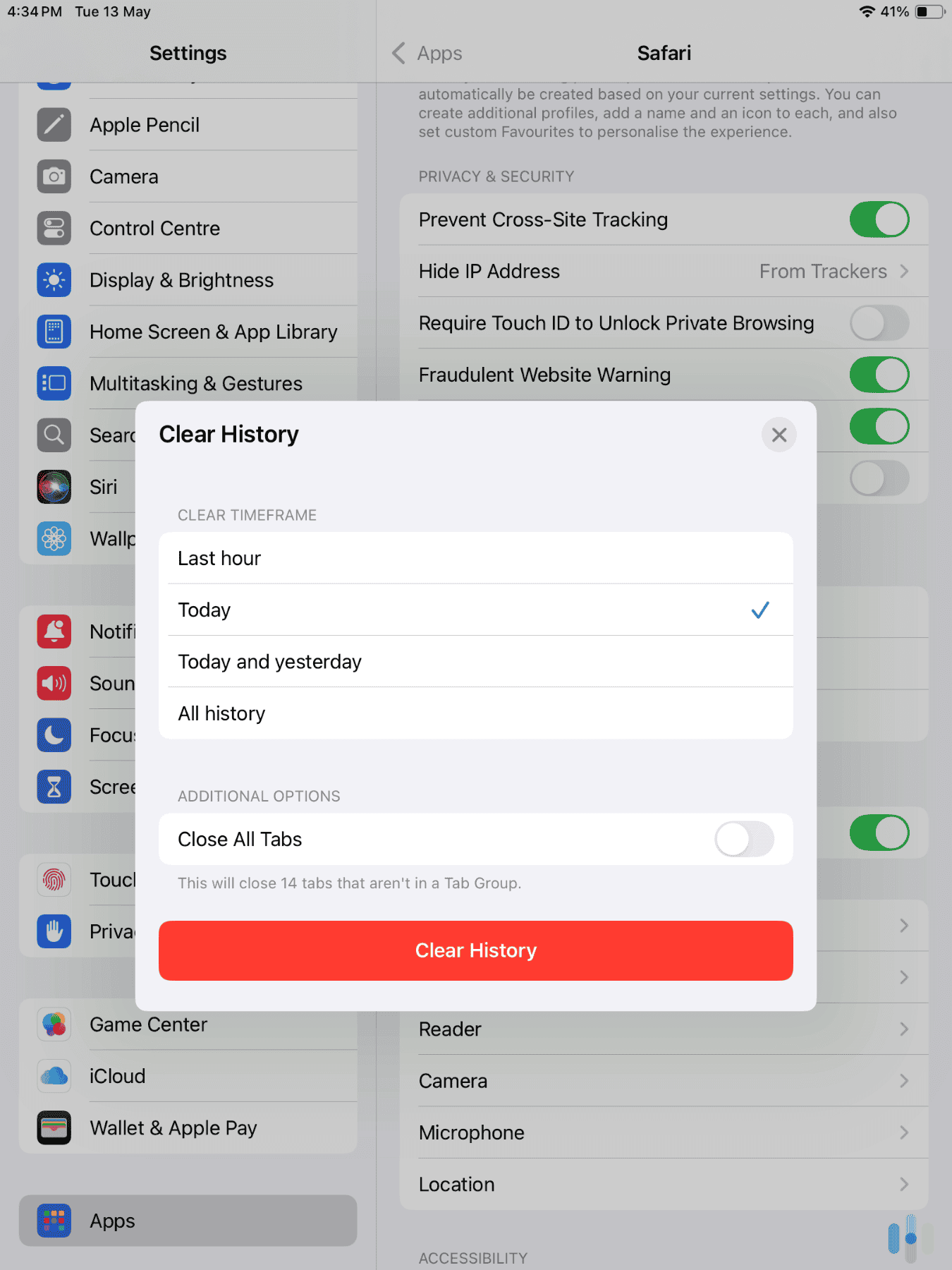
We’ve always found clearing Safari cookies on our iPhone and iPad straightforward. The only thing is that Apple has tucked the option into the Settings app rather than Safari itself. Here’s the step-by-step process:
- Open the Settings app on your device and scroll down until you see Apps.
- Go into your list of Apps and tap on Safari to open its settings menu.
- Scroll down to the Privacy & Security section.
- Tap “Clear History and Website Data.”
- A confirmation dialog will appear warning you that this action will clear your history, cookies, and other browsing data.
- Tap “Clear History” to confirm.
Keep in mind that this method clears everything at once. We’re talking about your browsing history, cookies, and cached files. Within seconds, Safari will complete the process, and you’ll notice that you’re logged out of all websites when you next open Safari. Don’t worry if you see the Safari icon grayed out during this process. It’s normal.
FYI: If the “Clear History and Website Data” button is grayed out, check Screen Time settings, especially if you’re using parental control apps. Sometimes restrictions might be enabled that prevent clearing browsing data.
How to Clear Safari Cookies on Mac
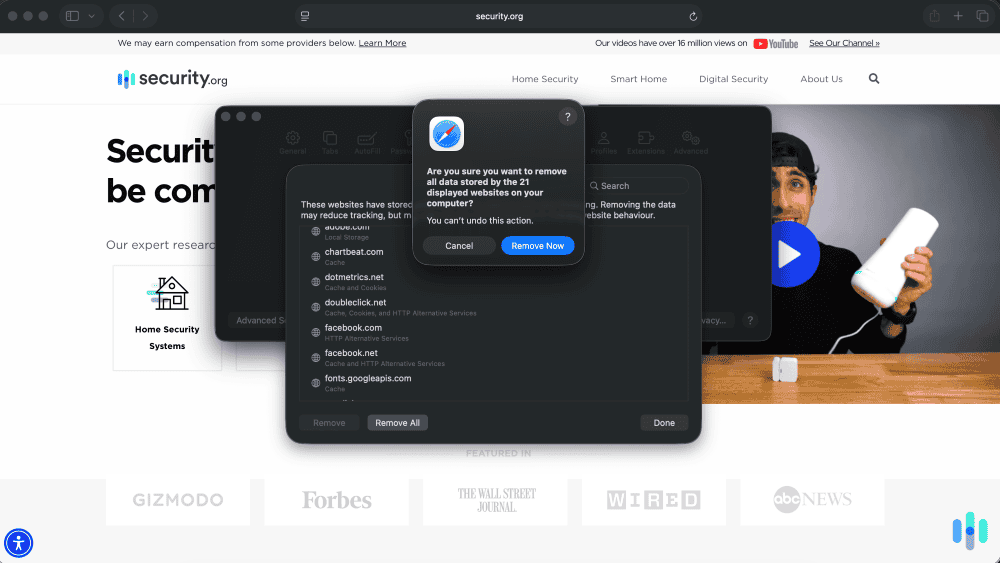
We like that Mac users have more granular control over cookie management compared with iOS users. You can clear all cookies at once or selectively remove cookies from specific websites, giving you flexibility in how you manage your privacy. Let’s start by learning how to clear all Safari cookies on a Mac.
- Open Safari and click on “Safari” in the menu bar.
- Select “Preferences” (or press Command + comma).
- In the Preferences window, click the “Privacy” tab.
- You’ll see a button labeled “Manage Website Data.”
- Click this button, and Safari will display a list of all websites that have stored cookies and data on your computer.
- Click “Remove All” at the bottom of the list.
- Safari will ask you to confirm this action because it takes effect immediately.
- Click “Remove Now” to proceed.
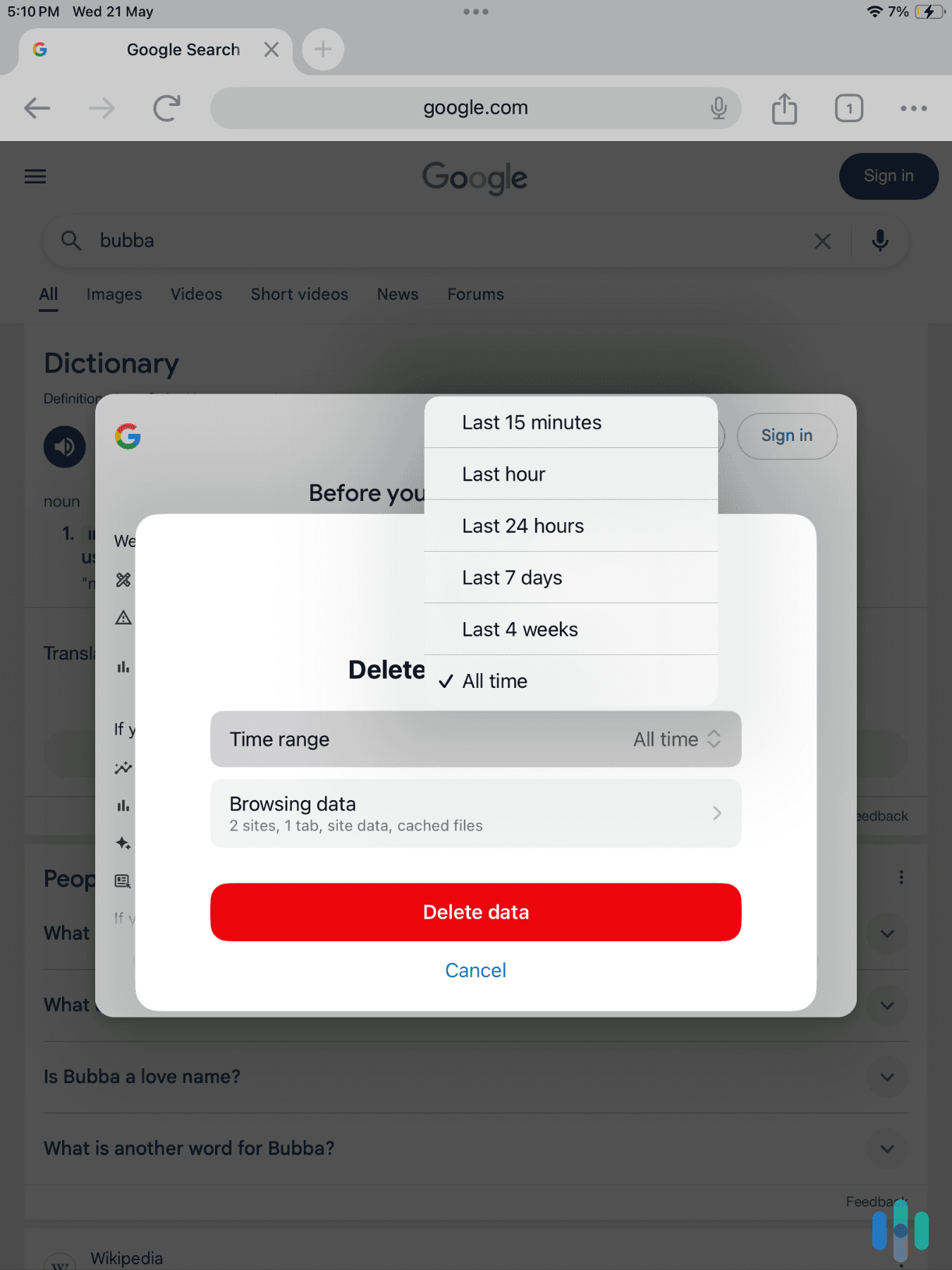
If you want a quicker route to clear everything without seeing the list, you can go to Safari’s menu, select “Clear History,” choose your time range (last hour, today, today and yesterday, or all history), and click “Clear History.” This removes history, cookies, and cached data in one action.
Pro Tip: Before you clear your Safari cookies, make sure all your log-in credentials are up to date in your password manager. Don’t have a password manager? Check out our recommendations for the best password managers of 2026.
How to Clear Cookies from Specific Websites
What should you do if you want to stay logged into your email and banking sites but clear cookies from shopping websites or social media platforms? Follow these steps:
- In Safari on Mac, go to Preferences.
- Open Privacy .
- Select Manage Website Data.
- Use the search box at the top right to find a specific website, or scroll through the alphabetical list.
- Once you’ve located the website you want to remove, click on it to select it, then click the “Remove” button at the bottom.
- You can select multiple websites by holding Command while clicking, allowing you to remove several sites at once without clearing everything.
We find this approach useful for troubleshooting website issues. If a particular site isn’t working correctly, clearing only its cookies and data often fixes the problem without affecting other logged-in sessions.
How to Prevent Safari from Storing Cookies
You’ll find the “Block all cookies” checkbox under Advanced Settings in Safari.
If you want to be proactive about cookie management, Safari offers settings that limit what cookies can be stored in the first place. On iPhone or iPad, go to Settings, then Safari, and toggle on “Block All Cookies” under Privacy & Security. On Mac, open Safari, then Preferences, then Privacy and check “Block all cookies” under Advanced Settings.
We don’t usually recommend this approach, as blocking all cookies will break many websites. You’ll find yourself unable to log into most sites, online shopping becomes nearly impossible, and many web applications won’t function. If you’re not using a VPN, we recommend leaving Safari’s default “Prevent Cross-Site Tracking” enabled, which blocks third-party tracking cookies while allowing functional first-party cookies. We’ve found that Safari’s Intelligent Tracking Prevention, which Apple introduced in 2017 and continues to update, strikes a reasonable balance.
>> Check Out: The Best VPNs for Safari in 2026
Wrap Up: Browse Safely
Clearing Safari cookies is a simple maintenance task that takes less than a minute but offers meaningful privacy and performance benefits. Whether you’re doing a complete clear on your iPhone or selectively removing data from specific websites on a Mac, you’re now in a better position to manage your digital footprint.
Remember, clearing cookies is just one way to protect your privacy. We recommend combining this task with other practices like creating strong, unique passwords, using a VPN, enabling two-factor authentication, keeping Safari updated, and being careful about which websites you visit and what information you share. We recommend making clearing Safari cookies a monthly habit. Your future self will thank you for the extra layer of protection and the cleaner, faster browsing experience.
Frequently Asked Questions
-
Will clearing cookies delete my passwords?
No, clearing cookies doesn’t delete passwords saved in Safari’s password manager. You will be logged out of websites and need to enter those saved passwords again.
-
How often should I clear Safari cookies?
If you are privacy-conscious or use public connections regularly, we recommend clearing Safari cookies weekly or after each browsing session.
-
What's the difference between clearing cookies and clearing cache?
Cookies store information about your preferences and log-in status, while cache stores website files like images and scripts to make pages load faster. Clearing history and website data in Safari removes both.
-
Can websites tell if I've cleared my cookies?
Websites can detect that they don’t have an existing cookie for your browser, but they can’t specifically tell that you cleared cookies versus using a different device or browser. You’ll appear as a new visitor.
-
Will clearing cookies stop all tracking?
No, clearing cookies is just one privacy measure. Websites can still track you through browser fingerprinting, IP addresses, and logged-in accounts. It’s part of a broader privacy strategy, not a complete solution.
-
Does clearing cookies on my iPhone also clear them on my Mac?
No, cookies are stored locally on each device. You need to clear cookies separately on your iPhone, iPad, and Mac, even if they’re signed into the same iCloud account.