



Parents today navigate something previous generations never had to deal with – raising kids in a world where screens are everywhere and the internet is literally in their pockets. According to study, children ages eight to 12 spend an average of five to six hours on screens daily, while teens clock in at up to 9 hours.1 That’s a lot of potential exposure to content you might not want them seeing.
Parental controls are tools designed to help you manage what your kids can access, how long they spend online, and who they interact with digitally. We like to think of them as digital guardrails. They won’t do all the work for you, but they’re incredibly useful when combined with open communication. Whether you’re dealing with a curious six-year-old or a tech-savvy teenager, understanding how these tools work can make your life a whole lot easier.
>> Related: A Parent’s Guide to Protecting Their Kids Online
What Are Parental Controls?
Parental controls are software features or hardware settings that let you monitor and manage your child’s device usage. They’re built into most operating systems, apps, gaming consoles, and even home internet routers. The goal is to give you more control over your child’s digital environment without having to hover over their shoulder 24/7.
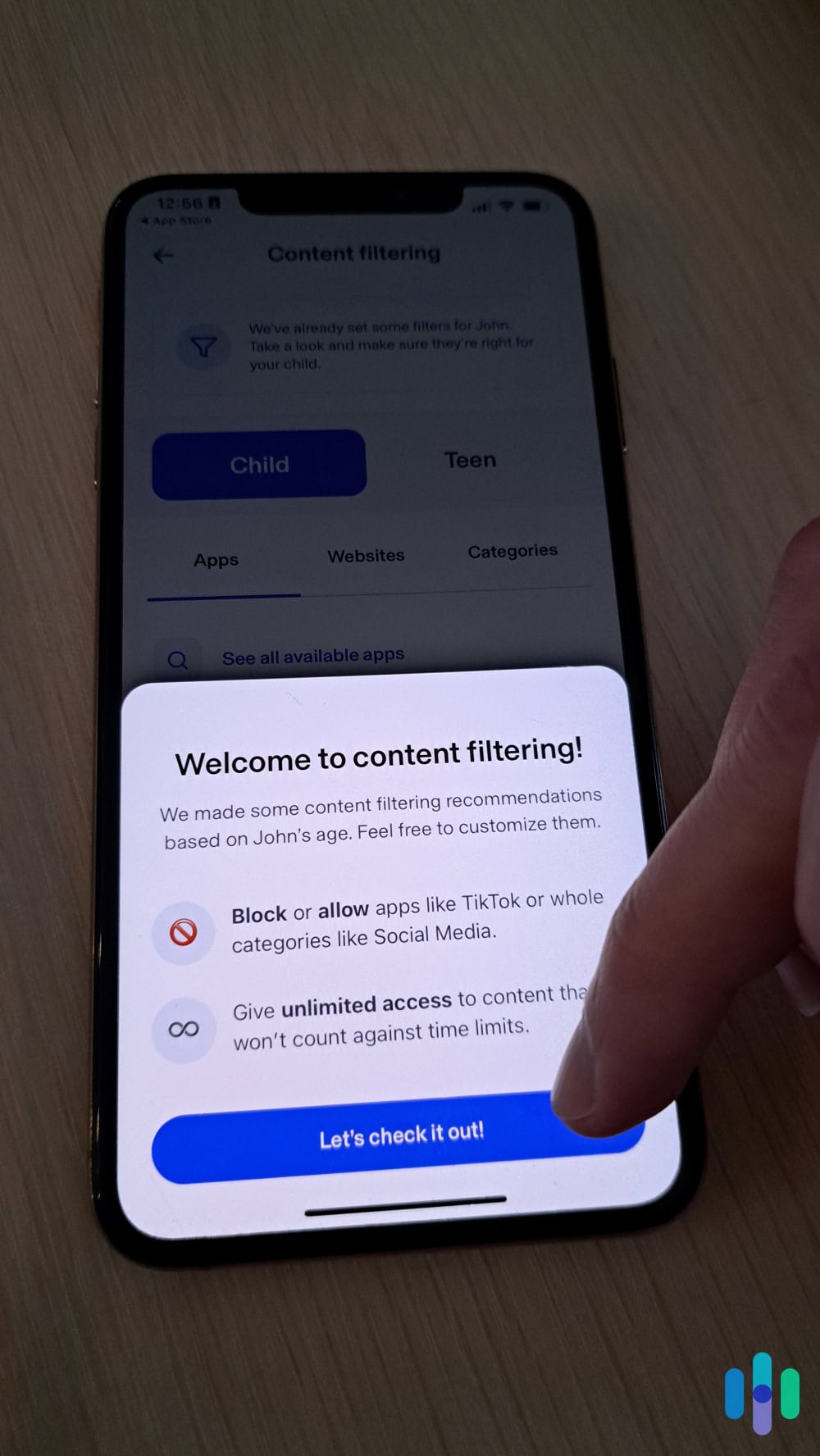
The best parental control systems we’ve tested can block inappropriate websites, limit screen time, filter search results, prevent unauthorized purchases, and track location. Some even let you see what apps your child is using and for how long. We find that the sophistication level varies. We’ve tested parental control apps that are basically on/off switches for the internet, while there are others that offer granular customization down to specific time windows and content categories.
Tip From Parenting Experts: Start implementing parental controls early, even if your child is young. It’s easier to establish these boundaries from the beginning than to add restrictions later when they’re used to unrestricted access.
Types of Parental Controls
Parental controls come in different forms, and you’ll likely use a combination of them depending on your family’s needs and your child’s maturity level and age. Here are some examples of parental control we’ve commonly seen in parental control apps.
Content Filters
Content filters block access to websites, apps, or media based on categories like violence, adult content, gambling, or social media. Most filters use databases that categorize millions of websites, though you can usually manually add sites to block or allow lists. Modern, more sophisticated parental control apps can also use AI to detect and categorize an app or website’s content.
We find that content filters work best for younger children (preteen and below), but they become less effective as teens get older and more tech-savvy.
Screen Time Limits
These controls let you set daily or weekly limits on device usage. You can often customize limits by app or app category. For instance, you can allow unlimited time for educational apps but cap social media at two hours per day.
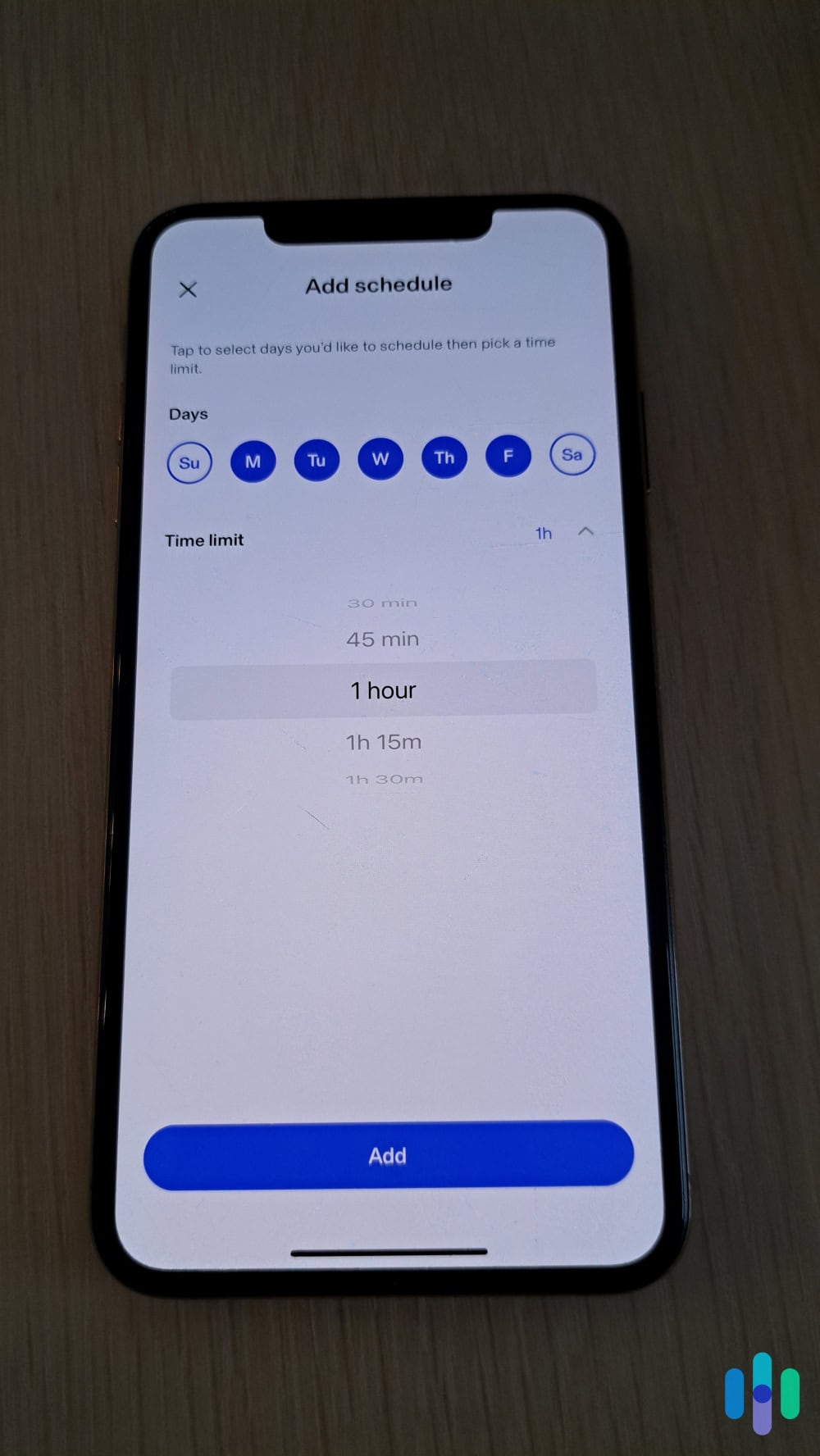
For younger kids, we recommend limiting overall screen time. Whether they’re watching educational cartoons or playing Talking Tom, there should be a limit on how much time they spend in front of a screen.
For preteens and teens, however, customizing the limits on a per-app or app category basis is more beneficial. This gives them more freedom to use their devices doing productive activities, while limiting their access to less productive apps.
FYI: Pediatric experts highlight that screen time habits that interfere with sleep are associated with reduced academic performance and recommend limits to prevent that interference.
Activity Monitoring
Monitoring tools show you what your child is doing online. They vary in terms of how much they let you see. In most cases, they can show you what websites your child visits, what they search for on their browsers and app stores, and which apps they use most frequently.
We find activity monitoring tools most effective when combined with advanced threat detection. For example, we’ve encountered parental control apps that can flag concerning keywords or behavior, such as spending too much time on a website or app.
One important factor to consider here is privacy. A young child might not object to you seeing their full online history, but a teenager most likely will. You’ll need to balance safety with your child’s growing need for independence.
Purchase Controls
Kids can rack up hundreds of dollars in digital purchases from apps, app stores, gaming platforms, and streaming services. That’s why we recommend adding purchase controls – either not allowing purchases at all or requiring your approval before kids spend real money on digital items. Requiring password or biometric authentication is a good way to add purchase controls to your kids devices, apps, and games.
Pro Tip: Consider giving your older teen a prepaid payment card to teach them about financial responsibility without the risk of going into debt if they overspend. Some prepaid payment cards have parental control features that would let you monitor their spending, too.
Setting Up Parental Controls
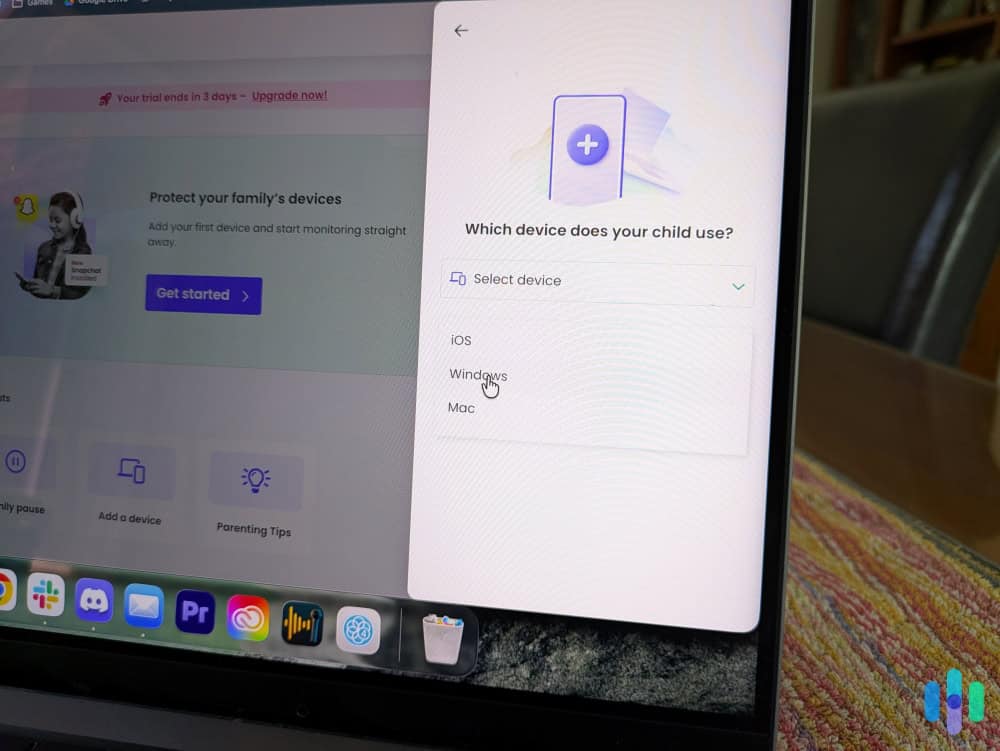
The setup process varies by device and platform, but the general approach is consistent. Start by creating an admin account (a.k.a. parent account) and then create separate user accounts for your children. This gives you more control and keeps your personal settings intact. From there, you can customize the available settings according to your kids’ needs.
If you want specific instructions, we created guides for a few popular platforms, apps, and services that offer built-in parental controls:
Platform-Specific Controls
Each major platform has its own parental control system with different strengths and limitations.
| Platform | Key Features | Best For |
|---|---|---|
| Apple (iOS/iPadOS) | Screen Time, content restrictions, purchase approval, location sharing | Comprehensive control across Apple devices |
| Android/Google | Family Link, content filters, app management, location tracking | Cross-device management and detailed activity reports |
| Windows | Microsoft Family Safety, web filtering, time limits, activity reporting | PC and Xbox integration |
| Gaming Consoles | Age ratings, communication limits, spending controls | Managing gaming-specific risks |
We also recommend looking into standalone parental control apps, especially if you’re a mixed-platform household. Most of these third-party apps focus on the major mobile and desktop platforms (Window, macOS, Android, iOS). Their features vary significantly, so be sure to research about a parental control app before using it. Here are some of our reviews to help you get started:
Even if you’re a mixed-platform household, however, your child’s main devices should be considered. If they’re an iPhone user, check out the best parental control apps for iOS. If they’re using Android, here are the best parental control apps for Android.
FYI: Third-party parental control apps often cost money, but there are a few options you can use for free. They are limited in features and benefits, but check out the best free parental control apps if you want digital safety without spending a dime.
Best Practices for Using Parental Controls
We believe that effective use of parental controls goes beyond just flipping switches in settings menus. It should start with age-appropriate restrictions and gradually loosen them as your child demonstrates responsibility. A seven-year-old needs much tighter controls than a fifteen-year-old.
We strongly encourage being transparent with your kids about what you’re monitoring and why. It’s also important to teach your kids to be responsible about their online use. A Pew Research Center survey found that 94 to 95 percent of parents say they have talked with their teen about what is appropriate to share online and what content they should view.2 This shows that explaining expectations and reasoning is a widely used approach, as it frames controls as safety measures rather than punishments.
It’s also important to remember that parental control apps are not set-and-forget. Regularly review and adjust settings as your child grows and their needs change. Setting a calendar reminder to check in quarterly might help.
Conclusion
Parental controls are valuable tools in your digital parenting toolkit, but they work best as part of a broader strategy that includes education, open dialogue, and trust-building. No software can replace your judgment and involvement in your child’s digital life.
Start by implementing the built-in controls on your devices and home network, then layer on additional tools if needed. Adjust your approach as your kids grow, gradually giving them more freedom while maintaining safety guardrails. Remember that the ultimate goal isn’t to control every aspect of their online experience forever—it’s to teach them how to navigate the digital world responsibly so they can eventually do it on their own.
Frequently Asked Questions
-
Can my child bypass parental controls?
Tech-savvy kids can potentially bypass controls using VPNs, guest modes, or factory resets, but regularly updating software and maintaining open communication makes this less likely. Using router-level controls in addition to device-level restrictions creates multiple layers of protection.
-
Are free parental control tools effective?
Built-in free options from Apple, Google, and Microsoft cover basic needs effectively for most families. Paid third-party tools offer more advanced features like social media monitoring and cross-platform management if you need them.
-
At what age should I start using parental controls?
Implement parental controls as soon as your child starts using connected devices, typically around age three to five. Starting early normalizes these boundaries and makes them easier to maintain.
-
Should I tell my kids about parental controls?
Yes, transparency builds trust and helps kids understand digital safety. Explain what you’re monitoring and why, framing it as protection rather than surveillance.
-
Do parental controls work on cellular data?
Most device-level parental controls work on both Wi-Fi and cellular data. However, router-level controls only filter Wi-Fi traffic, so ensure device settings are properly configured.
-
Can I monitor text messages and social media?
Some parental control apps can monitor messaging and social media activity, though availability varies by platform and app. Apple and Google’s built-in tools have limited social media monitoring compared to third-party options like Bark.