



If you’ve ever caught your eight-year-old trying to one-click order a $400 LEGO set or stumbled upon your teen watching something wildly inappropriate on Prime Video, you know why Amazon parental controls matter. Amazon’s ecosystem spans shopping, streaming, reading, and smart devices, which means there are multiple ways kids can access content or make purchases you’d rather they didn’t. Considering 95 percent of teens have access to a smartphone, and many use it for shopping and streaming, parental controls are more essential than ever.1
Amazon has several built-in tools to help you manage what your kids can see, buy, and watch. These controls, however, are scattered across different services and are not easy to find. Let us walk you through exactly how to set up parental controls across Amazon’s major platforms so you can relax a little more.
>> Check Out: The Best Parental Control Apps of 2026

Why Amazon Parental Controls Matter
Amazon’s reach into homes is extensive. Between Prime Video, Kindle books, Alexa devices, and the main shopping platform, kids have countless opportunities to make unauthorized purchases.
Beyond financial concerns, there’s the risk of inappropriate content exposure. Kids can accidentally stumble upon mature-rated movies, explicit music, or products that aren’t age-appropriate. Setting up parental controls isn’t about distrusting your kids. It’s about creating appropriate digital boundaries that match their maturity level.
Pro Tip: We use parental controls as training wheels for digital responsibility. As our kids prove they can follow the rules, we gradually loosen restrictions.
Setting Up Parental Controls for Amazon Shopping
The main Amazon shopping site doesn’t have traditional parental controls, but you can prevent unauthorized purchases with a few smart strategies. We found the easiest way is to enable purchase approvals and password protection.
Require Password for Purchases
Go to your Account Settings and select “Login & security.” Turn on two-factor authentication if you haven’t already. This adds an extra verification step for purchases. Next, go to “Your Payments” and select “Settings.” Here, you can require your password for every purchase, which prevents kids from clicking that tempting “Buy Now” button on a shared device.
If you have Amazon Echo devices, visit Alexa Voice Purchasing settings and either disable voice purchasing entirely or require a confirmation code. We’ve learned the hard way that kids are surprisingly resourceful at figuring out how to order toys through Alexa, so this is worth the extra step.
>> Learn More: Amazon Echo Show Review
Using Amazon Household
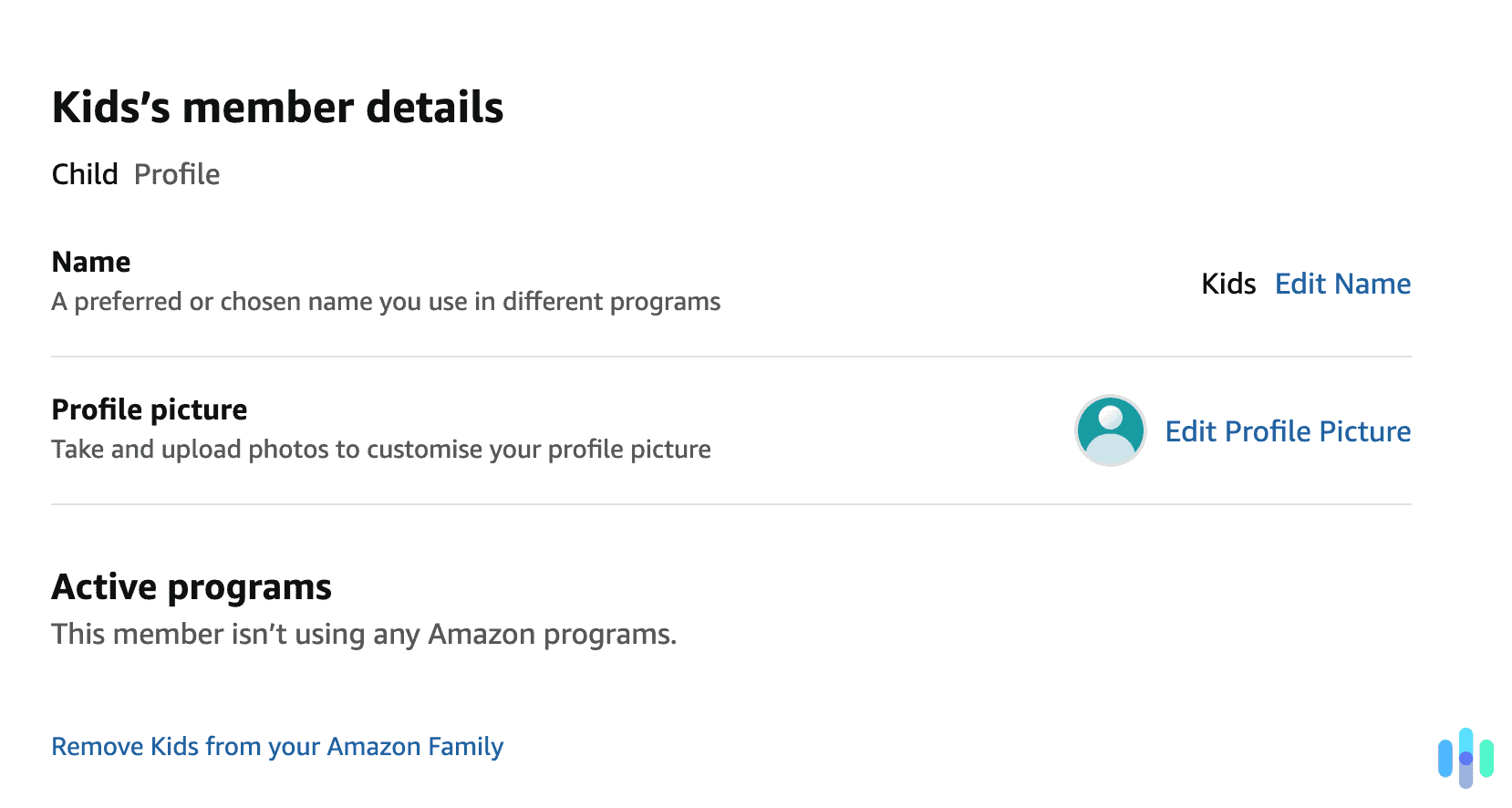
Amazon Household lets you create separate profiles for family members. You can add teens (ages 13-17) and children (under 13) with different permission levels. Teen profiles can have purchase approval requirements. They can add items to their cart, but you’ll get a notification to approve before the order goes through. Child profiles have even tighter restrictions and link to parental accounts for complete oversight.
Pro Tip: We recommend removing saved payment methods from shared devices. Alternatively, use Amazon gift card balances for kids’ accounts instead of adding a credit card.
Controlling What Kids Watch on Prime Video
Prime Video offers robust parental controls once you know where to find them. We recommend logging into your Amazon account on a web browser, where these settings are easier to configure than in the iOs or Android app.
>> Keep Reading: The Best Parental Control Apps for Android
Setting Up PIN Protection
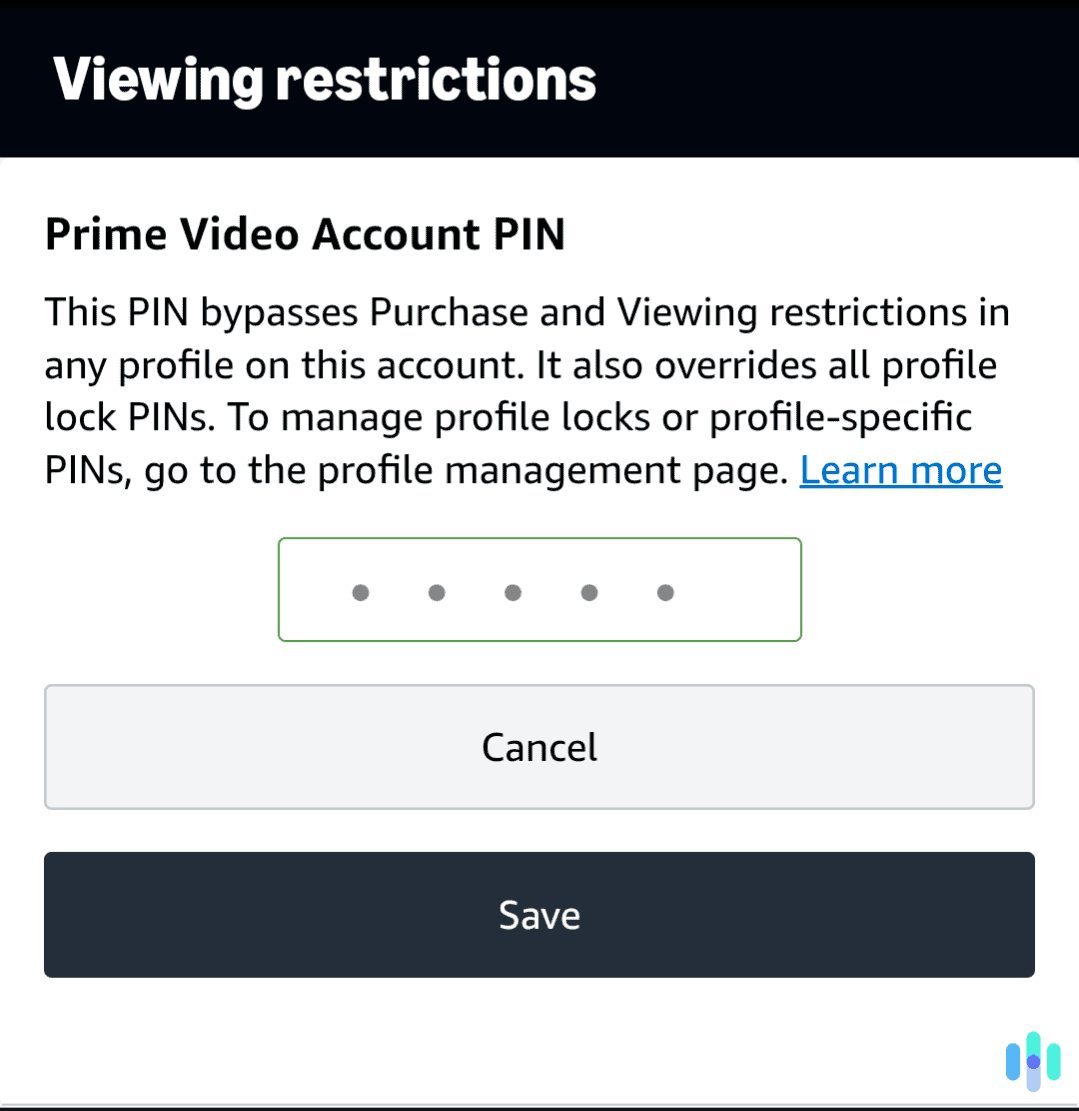
Go to Account & Settings, then select “Parental Controls.” Create a five-digit PIN that you’ll need to enter before viewing restricted content. You can set viewing restrictions by maturity rating: G, PG, PG-13, R, or NC-17 for movies, and TV-Y, TV-G, TV-PG, TV-14, or TV-MA for television shows. Any content above your selected rating will require the PIN to access. The PIN also locks settings changes, preventing tech-savvy kids from simply turning off the restrictions.
Creating Kids Profiles
Prime Video offers separate profiles for kids, which automatically filter content to age-appropriate options. When creating a profile, select the child’s age range, and Prime Video curates the available content accordingly. Kids profiles have a simple, colorful interface. They also can’t access the main adult library without entering the parental PIN.
Pro Tip: We think it’s worth reviewing your child’s viewing history every now and then. You can do this through Account Settings to see what they’re watching.
Managing Kindle and Fire Tablet Content
Amazon Kids is Amazon’s comprehensive parental control platform for Fire tablets, Kindle devices, and Echo devices. It’s actually one of the more sophisticated parental control systems out there, offering granular control over screen time, content access, and educational goals.
Setting Up Amazon Kids
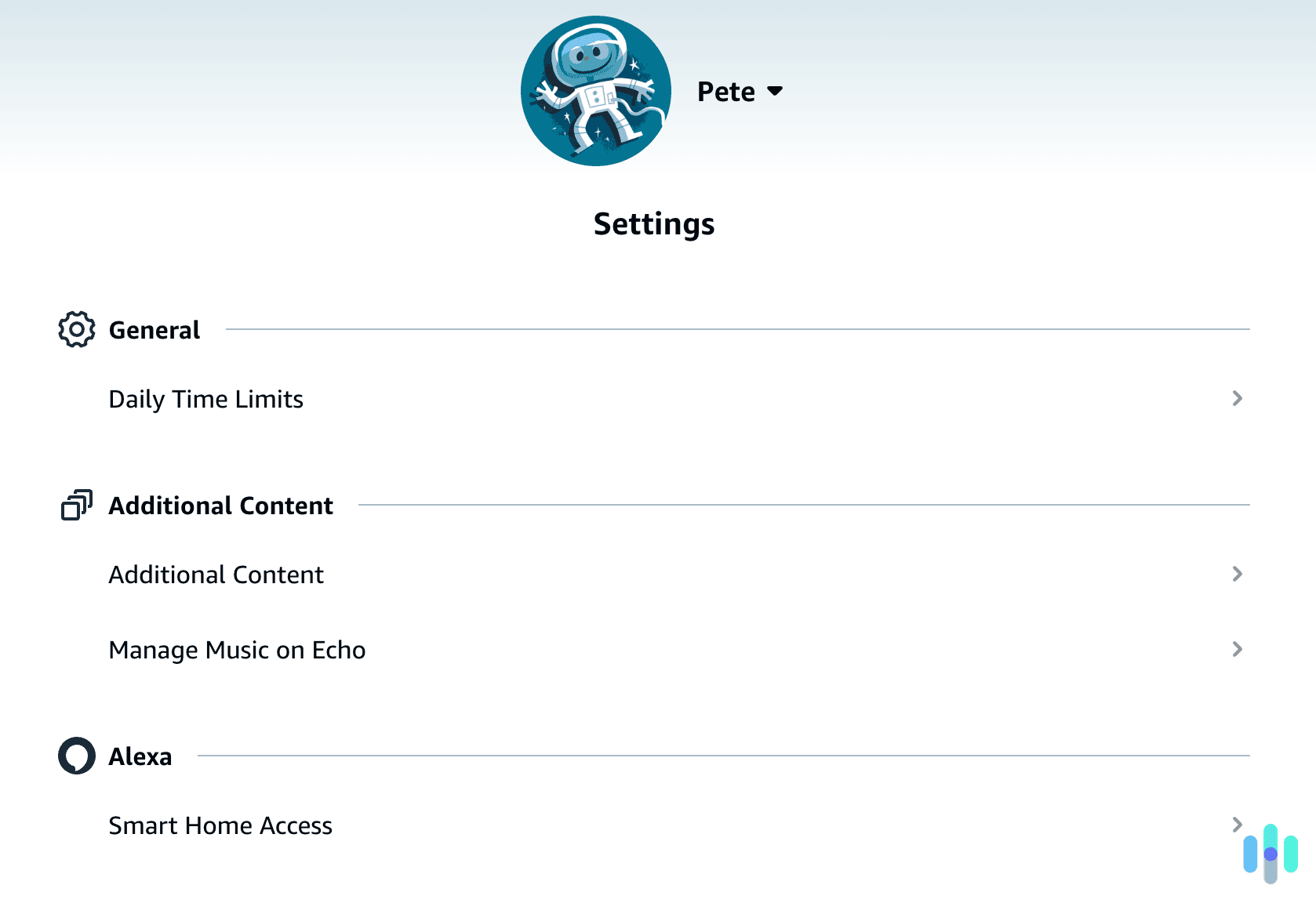
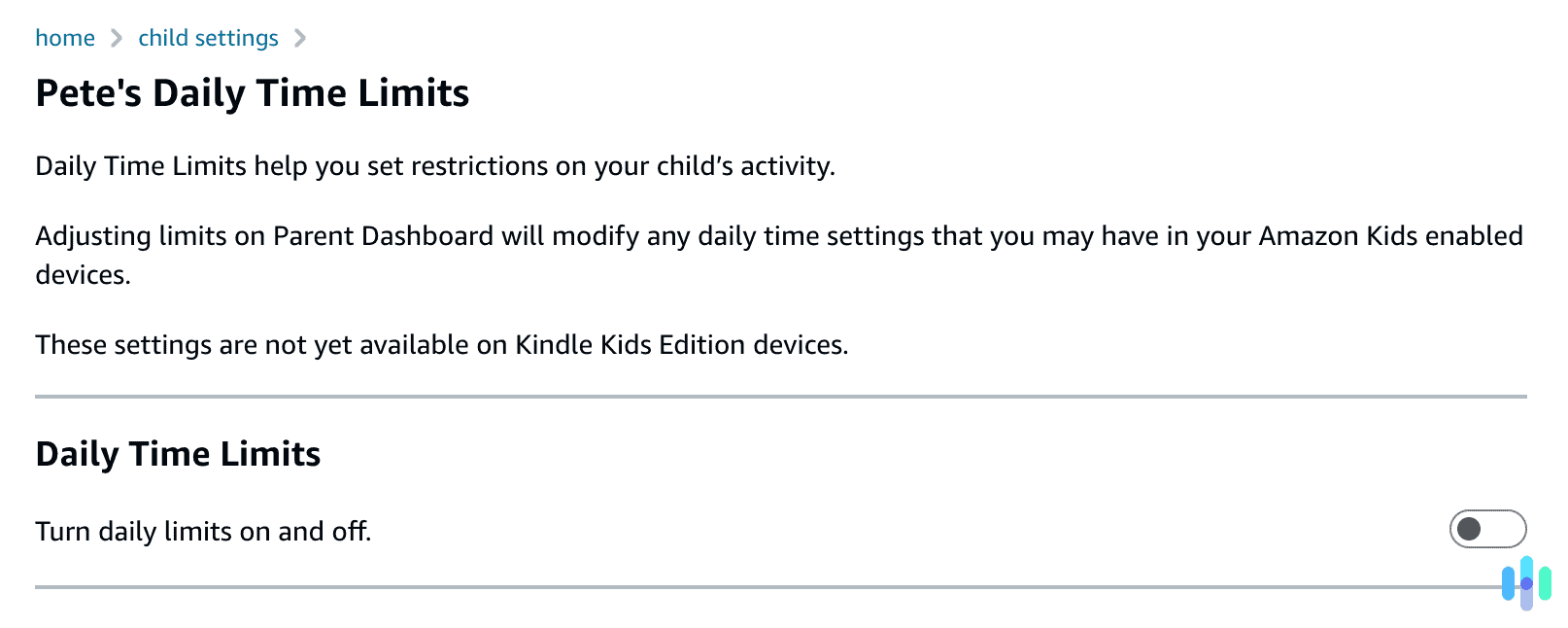
On a Fire tablet or Kindle, swipe down from the top and select “Settings,” then “Profiles & Family Library,” and finally “Add a Child Profile.” Follow the prompts to create a profile for each child. Amazon Kids gives you control over which apps, books, videos, and websites kids can access. You can also set daily screen time limits, educational goals (like “read for 30 minutes before accessing games”), and bedtime schedules that automatically lock the device.
The Parent Dashboard, accessible through the Amazon Kids app or web browser, shows exactly how your child uses their device. You can see what they’re reading, which apps they’re using, and how much time they’re spending on each activity. In our testing, this visibility was invaluable. We also found this approach was more effective than simply blocking content and letting us engage with our child’s digital habits.
Content Filters and Age Ranges
Amazon Kids automatically filters content based on the age you specify when creating the profile. You can manually add or remove specific titles from your child’s library. For web browsing, you can choose from three levels: only pre-approved websites, pre-approved sites plus specific websites you add, or open browsing with optional blocked sites.
| Age Group | Recommended Settings | Key Features |
|---|---|---|
| 3-5 years | Pre-approved content only | Educational goals, limited screen time |
| 6-8 years | Curated content with parent additions | Reading before play, website whitelist |
| 9-12 years | Broader content with filters | Time limits, discussion prompts |
| 13+ years | Standard profile with purchase approvals | More independence, approval requirements |
Pro Tip: We used the “Learn First” feature so that our kids would complete educational activities before accessing entertainment content. It was surprisingly effective.
Configuring Alexa Device Restrictions
Echo devices present unique parental control challenges since they’re voice-activated and often shared among family members. We found that Amazon has added several kid-friendly features worth turning on.
Amazon Kids on Echo
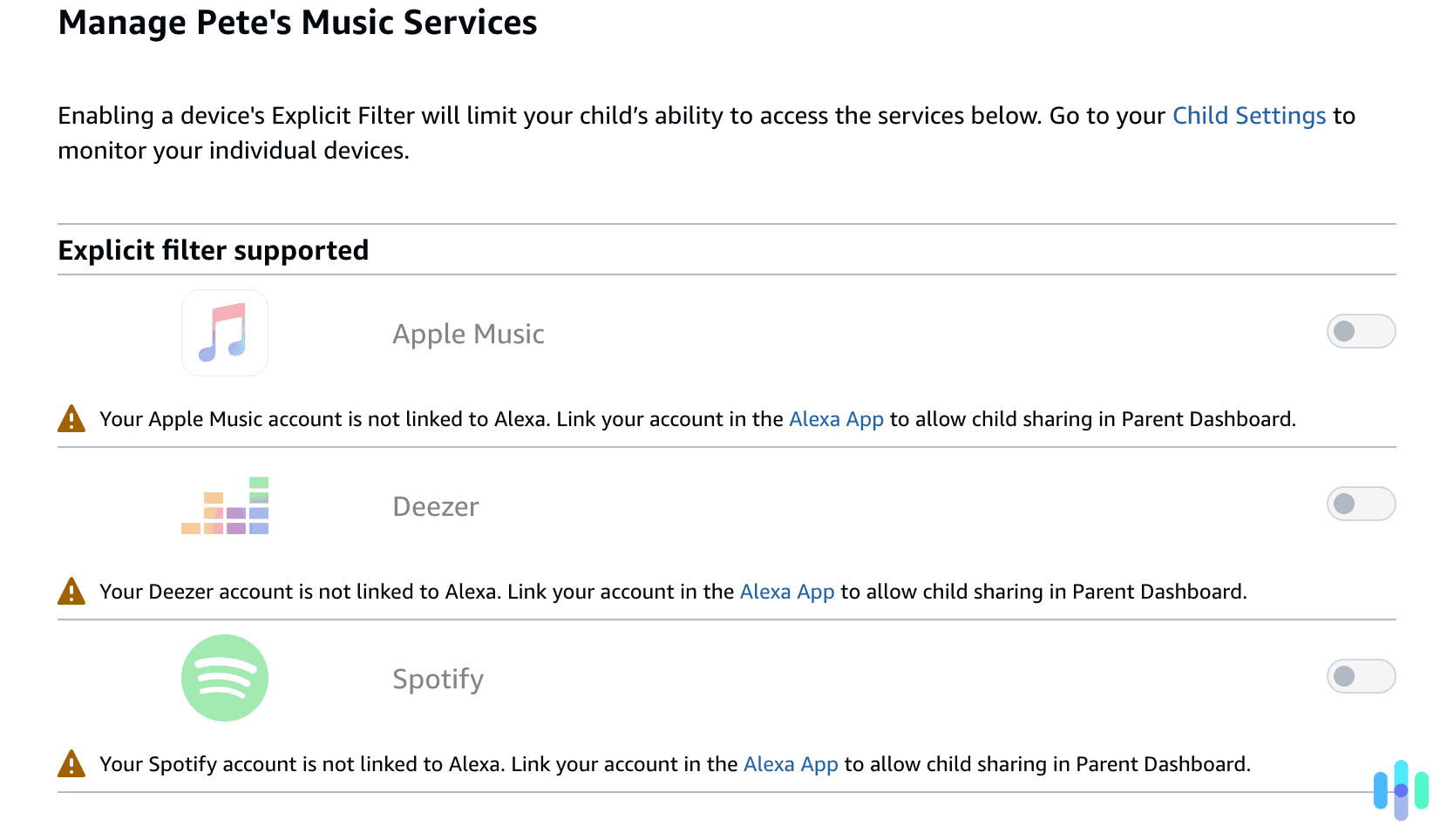
Similar to the tablet version, Amazon Kids works on Echo devices (Echo Dot Kids Edition comes with it pre-enabled). Through the Alexa app, navigate to Devices, select your Echo, then scroll to Amazon Kids. You can filter music for explicit content, disable voice purchasing, set time limits for when Alexa responds, and review conversation history.
We found the explicit language filter is particularly useful. It prevents Alexa from playing songs or responding with content that contains profanity or mature themes. We also disabled specific Alexa skills that aren’t age-appropriate, which requires going through enabled skills individually.
FYI: The good news is Amazon is overhauling its deletion and privacy practices. The bad news is it took a lawsuit from the FTC and DOJ after they found Amazon had violated the Children’s Online Privacy Protection Act Rule (COPPA Rule).2
Communication and Drop-In Settings
If you use Alexa for calling or the Drop-In feature (which lets you check in on rooms with Echo devices), configure who can contact your child’s Echo devices. In the Alexa app, go to Communicate, select your child’s profile, and adjust contact permissions. You can limit contacts to only approved family members or disable these features entirely.
Additional Tips for Maximum Protection
Beyond the specific platform controls, we recommend a few extra strategies to strengthen your overall approach. First, have regular conversations with your kids about what they’re watching, reading, and buying. Technology alone won’t replace communication about what they’re consuming.
Second, regularly audit your settings. Amazon updates its platforms frequently, sometimes changing the location of settings or adding new features. Quarterly reviews ensure your controls stay effective. Check your purchase history, review content accessed through family profiles, and adjust restrictions as your kids mature.
Third, model good behavior. Kids learn digital habits from watching adults. If you’re mindful about impulse-buying, selective about content, and careful with personal information, your kids will absorb those habits too.
Finally, we recommend using Screen Time features on iOS devices or Digital Wellbeing on Android to add another layer of control over how much time kids spend in Amazon apps. You can even install free parental control apps for better visibility. We found these controls complement Amazon’s built-in tools.
>> Find Out: The Best Parental Control Apps for iOS
Secure Your Amazon Account
Setting up Amazon parental controls requires visiting multiple settings menus across different platforms, but the effort pays off in peace of mind. Secure purchase approvals on the shopping site, set content ratings on Prime Video, use Amazon Kids profiles on tablets and Echo devices, and maintain open dialogue with your children. Together, these steps create a safer digital environment.
Remember that parental controls are tools, not complete solutions. They work best when combined with age-appropriate education about online safety, critical thinking about content and advertising, and ongoing family conversations about digital life. As your kids demonstrate responsibility, you can gradually adjust settings to give them more independence while maintaining appropriate safeguards. Remember, the goal isn’t permanent restriction. It’s teaching kids to make good decisions so that eventually, they won’t need these controls at all.
Frequently Asked Questions
-
Can I set different parental controls for each child?
Yes, Amazon Household and Amazon Kids let you create individual profiles with unique settings tailored to each child’s age and maturity level. Each profile can have different content filters, screen time limits, and purchase permissions.
-
Do parental controls work across all devices?
Parental controls are profile-based, so they follow the user across devices when they’re logged in. However, you need to set up controls separately for shopping, Prime Video, Kindle/Fire tablets, and Alexa devices since they use different systems.
-
Can my child bypass Amazon parental controls?
Determined, tech-savvy kids might find workarounds, like using a different profile or device. Regularly change your PIN, monitor account activity, and have conversations about trust help minimize this risk.
-
Is Amazon Kids+ necessary for parental controls?
No, basic parental controls are free with your Amazon account. Amazon Kids+ is a subscription service that adds curated kid-friendly content but isn’t required for restrictions and filtering.
-
How do I temporarily disable parental controls?
Enter your parental control PIN and navigate to the specific setting you want to change. Most controls have toggle switches or can be adjusted on a per-session basis without fully disabling protection.
-
What age should I start using parental controls on Amazon?
Start as soon as your child begins using Amazon services independently, typically around ages 3 to 5 for tablets. Adjust settings as they grow rather than waiting for problems to emerge.