



Disney Plus is Disney, so it’s the safest streaming platform out there, right? Well here’s the thing: Disney Plus also hosts content from Marvel, Star Wars, National Geographic, and in many regions, more mature programming through Star. That means your eight-year-old could potentially stumble onto content meant for teenagers or adults. What’s more, research from the Family Online Safety Institute indicates that only 38 percent of parents use parental controls on smart TVs, where streaming apps like Disney Plus are most commonly used.1
The good news is that Disney Plus offers robust, account-level parental controls that are actually straightforward to use. In this guide, we’ll show you how to create kid-safe profiles, set up PIN protection, restrict content by rating, and monitor viewing activity. Whether you’re worried about your preschooler accidentally accessing The Walking Dead or want to keep your tween from binge-watching shows past bedtime, we’ll walk you through exactly how to lock things down.
Word of Advice: This guide applies to Disney Plus only. If your household uses multiple streaming services, we recommend using a third-party parental control app instead. That way, you can manage controls for multiple devices and platforms. Check out our list of the best parental control apps of 2026.
How Disney Plus Content Ratings Work
Before you start setting restrictions, you need to understand what you’re restricting. Disney Plus uses standard content rating systems that vary by country, but they all follow similar principles.
In the United States, Disney Plus uses these film ratings:
| G (General Audience) | Appropriate for all ages. |
| PG (Parental Guidance Suggested) | Some materials may not be suitable for children, so parents are urged to give guidance. |
| PG-13 (Parents Strongly Cautioned) | Parents are strongly urged to be cautious, as some content may not not be appropriate for pre-teens. |
| R (Restricted) | Parents are urged to learn more about the film beforehand. Kids under 17 years must be accompanied by parents. |
| Not Rated | The content has not been rated. |
In addition to film ratings, Disney Plus also rates TV shows. The rating system for television shows is mostly the same as that of films, except there are ratings for shows designed specifically for kids, such as educational shows and cartoons.
| TV-Y | The show was designed specifically for kids of all ages. |
| TV-Y7 | The show was designed specifically for kids over the age of 7. |
| TV-Y7-FZ | The show was designed specifically for kids over the age of 7, but may contain fantasy violence. |
| TV-G | The show was not designed for kids, but the content is suitable for all ages. |
| TV-PG | The program contains materials that may not be suitable for children, so parental guidance is advised. |
| TV-14 | The program contains materials that many parents may consider unsuitable for children under 14 years. |
| TV-MA | The show was designed specifically for adults, and may be unsuitable for anyone under 17 years old. |
| Not Rated | The program has not been rated. |
Pro Tip: Content ratings appear on every title’s information page. If you think your child is old enough to understand how these ratings work, spend a few minutes browsing with them to see what falls into each category and discuss why certain content has specific ratings.
Setting Up Kid Profiles (For Kids Below 7 Years)
Learning the content rating system of Disney Plus is crucial because the Kids Profile – the foundation of Disney Plus parental controls – relies heavily on restrictions based on content ratings. Kids Profiles exclude all titles rated PG-13, R, TV-14, and TV-MA automatically.
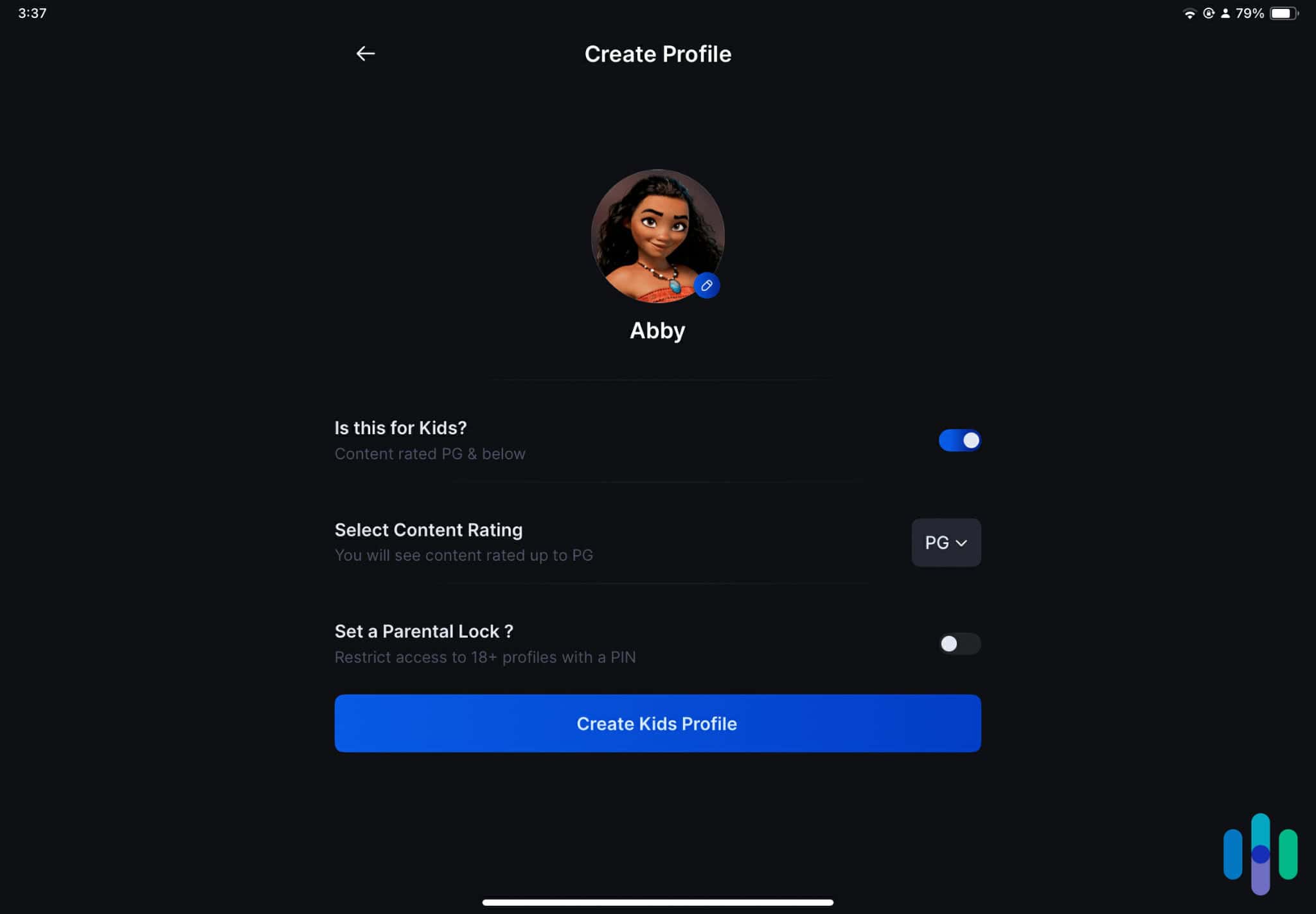
Here’s how to set one up:
- Log into your Disney Plus account and click on your profile icon in the bottom right corner.
- Select “Edit Profiles,” then click “Add Profile.”
- You’ll see an option to create a Kids Profile. Toggle that switch on.
- Give the profile a name (e.g. your child’s name) and choose an avatar.
- Once you save it, that profile will only show content rated TV-7FV and G or below.
The Kids Profile is beautifully simple: no complex menus, no mature content suggestions, and a curated interface designed for children. According to Disney’s own specifications, Kids Profiles exclude all titles rated PG-13, TV-14, TV-MA, and R automatically. Your seven-year-old literally cannot access anything age-inappropriate from this profile.
Extra Tip: A Disney Plus Kids Profile won’t let you add screen time limits. If screen time is what you’re worried most about, check out the best parental control apps for iOS and parental control apps for Android. These apps will let you set screen time limits on your children’s devices.
Setting Up Standard Profiles with Content Rating Limits (For Older Kids)
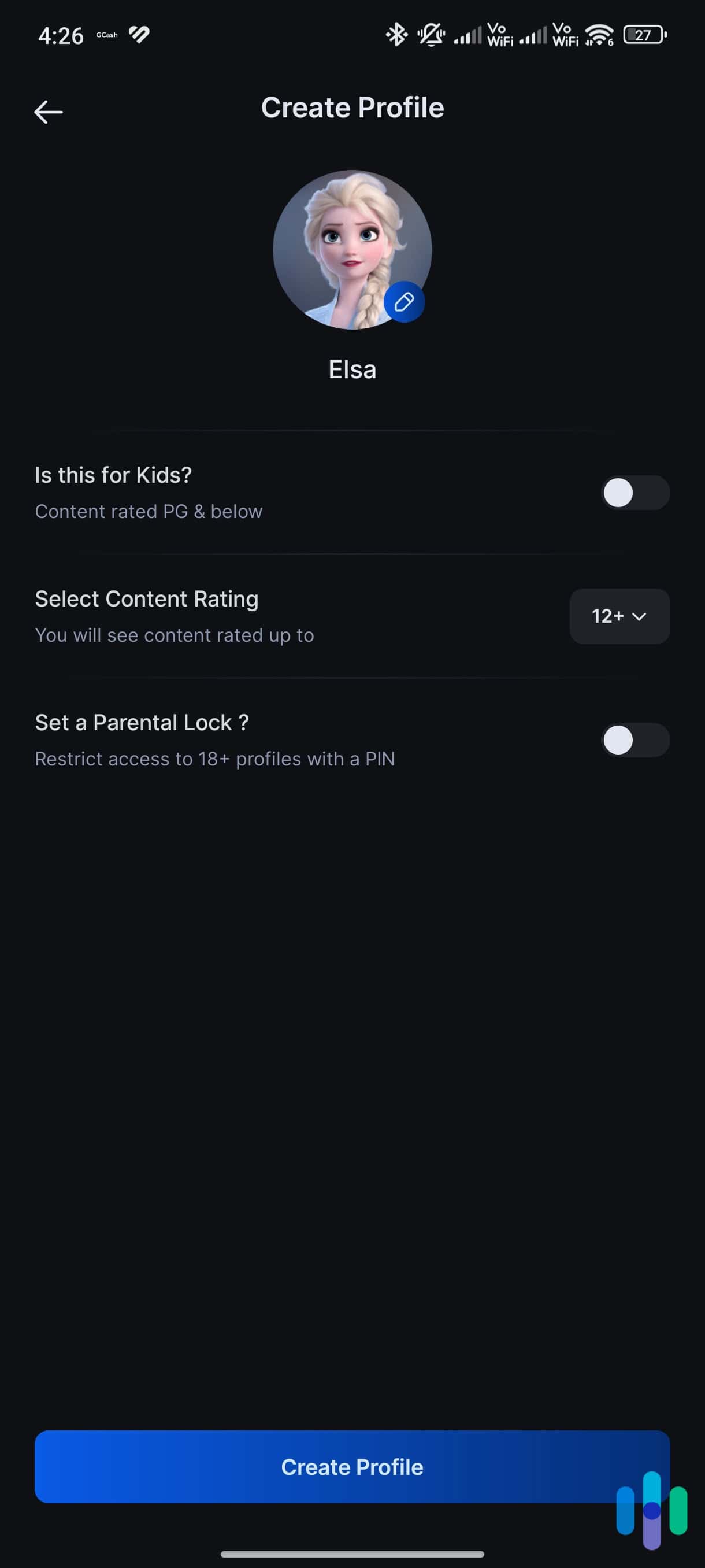
The Kids Profile is a straightforward way to make sure your young grade-schooler doesn’t access inappropriate content, but as they grow older, they’ll eventually outgrow those restrictions. If you want more customizability, you can set up a standard profile instead but with content rating restrictions. This approach works well specifically for pre-teens and teenagers.
- Log into your Disney Plus account and click on your profile icon in the bottom right corner.
- Select “Edit Profiles,” then click “Add Profile.”
- Under “Select Content Rating,” choose the content rating of films and TV shows you’re comfortable letting your kid watch.
The beauty of this approach is that you can create a different profile for each child, each profile with its unique content rating restrictions. Disney Plus allows up to seven profiles per account.
Of course, it will be up to you to set content rating restrictions, but we made this general guideline to give you a starting point.
| Age Range | Suggested Movie Rating Limit | Suggested TV Rating Limit |
|---|---|---|
| 3-6 years | G | TV-Y |
| 7-12 years | PG | TV-PG |
| 13-15 years | PG-13 | TV-14 |
| 16+ years | Varies by family values | Varies by family values |
Pro Tip: Review the content rating restrictions every six months or after birthdays. As your kids mature, their appropriate access levels should grow with them.
Adding PIN Protection to Adult Profiles
Giving your kids their personalized restricted profiles is great, but that only works if they actually use their profiles. This is where PIN protection becomes your best friend. By adding a four-digit PIN to your adult profiles, you prevent unauthorized profile switching.

Here’s how to set up a PIN for your adult profiles:
- Go to your account settings on the Disney Plus website.
- Navigate to “Profile” settings, then select “Parental Controls.” You’ll need to enter your Disney Plus password first.
- Under “Profile PIN,” toggle the setting on and create a four-digit code.
- Make sure to select “Require PIN to add a new profile” as well. Clever kids might just create their own unrestricted profile.
But let’s be real for a second. If you use “1234” or your birth year, your kids will crack that code in about thirty seconds. Choose something non-obvious that you’ll remember. Avoid sequential numbers, repeated digits, or significant dates your kids might know.
If you suspect your PIN has been compromised, change it immediately through the Parental Controls section. You can update your PIN as often as needed without affecting any other settings.
>> Related: Your 2026 Guide to Password Managers
Monitoring What Your Kids Watch
Setting restrictions is step one; knowing what your kids are actually watching is step two. Disney Plus makes this reasonably easy through viewing history.
To check what’s been watched on any profile:,
- Log into that specific profile and go to “Account Settings.”
- Under “Viewing Activity,” you’ll see a complete list of everything watched on that profile, including dates and times.
This isn’t about spying—it’s about staying informed and having conversation starters. If you notice your daughter has watched the same episode of a show five times, that might be worth discussing. The National Center for Missing & Exploited Children advises parents to stay informed about their children’s media use as a key part of an overall digital safety plan.2
>> You Might Also Be Interested In: The Best VPNs for Disney Plus
Troubleshooting Common Disney Plus Parental Control Issues
Even with proper setup, you might encounter some hiccups. Here are solutions to the most common problems:
Problem: Kids Profile is showing content you find to be too mature. Remember that Kids Profiles show content rated TV-7FV and below, which includes some cartoons with fantasy violence. If you find something concerning, you can report it to Disney Plus directly.
Problem: Can’t access Parental Controls from the mobile app. This is a platform limitation—you must use the Disney Plus website on a desktop or mobile browser to adjust parental control settings. The apps (iOS, Android, smart TV) don’t include full account management features.
Problem: Content rating restrictions aren’t working on all devices. Make sure all devices are logged into the correct profile. Also, log out and back in after changing parental control settings to ensure the changes sync properly across devices.
Conclusion
Setting up parental controls on Disney Plus takes about ten minutes and provides lasting peace of mind. By creating Kids Profiles for younger children, adding PIN protection to adult profiles, and customizing content rating restrictions for older kids, you’re building a safe streaming environment tailored to your family’s needs.
However, remember that these technical tools work best when paired with ongoing conversations about media literacy and age-appropriate content. As your kids grow, revisit and adjust these settings together. The goal isn’t to control everything they watch forever—it’s to provide appropriate access that matches their developmental stage while teaching them to make good choices about media consumption.
Frequently Asked Questions
-
Can I set time limits on Disney Plus?
Disney Plus doesn’t have built-in time limit features. You’ll need to use device-level parental controls on iOS Screen Time, Android Family Link, or router-based restrictions to limit streaming hours.
-
What's the difference between a Kids Profile and a regular profile with restrictions?
Kids Profiles automatically filter content to TV-7FV and G ratings and have a simplified interface. Regular profiles with restrictions let you choose specific rating limits and maintain the standard Disney Plus interface.
-
Can my kids bypass parental controls by deleting and recreating their profile?
Not if you’ve set up PIN protection correctly—deleting profiles and creating new ones should require your PIN. Double-check this setting in Parental Controls.
-
Do parental controls work the same way in all countries?
The functionality is the same globally, but the content ratings and available content vary by region. Countries with Star (like Canada and the UK) have additional mature content, making controls even more important.
-
Will setting parental controls affect my own viewing experience?
No, your adult profile remains unrestricted. Parental controls only apply to the specific profiles where you implement them.
-
Can I block specific shows or movies instead of entire rating categories?
Unfortunately, Disney Plus doesn’t currently offer title-specific blocking. Your only option is to set content rating limits, which applies to all content at or above that rating.