

With well over one million complaints of robocalls being submitted to the FTC per year, knowing how to block numbers on your iPhone can help keep you safe from scams.1 In that same vein, you may also want to block websites and text messages to make using your iPhone an overall safer experience.
The good news? Apple builds robust blocking features directly into iOS, so you don’t need third-party apps for basic protection. However, these settings can feel hidden. That’s why we’re going to walk you through, step-by-step, how to block numbers, websites, and text messages on your iPhone. Let’s jump in.
How to Block Phone Numbers on iPhone
Blocking a phone number on an iPhone takes about ten seconds once you know where to look. Apple designed this feature to be accessible from both your recent calls and your contacts list.
Blocking from Recent Calls
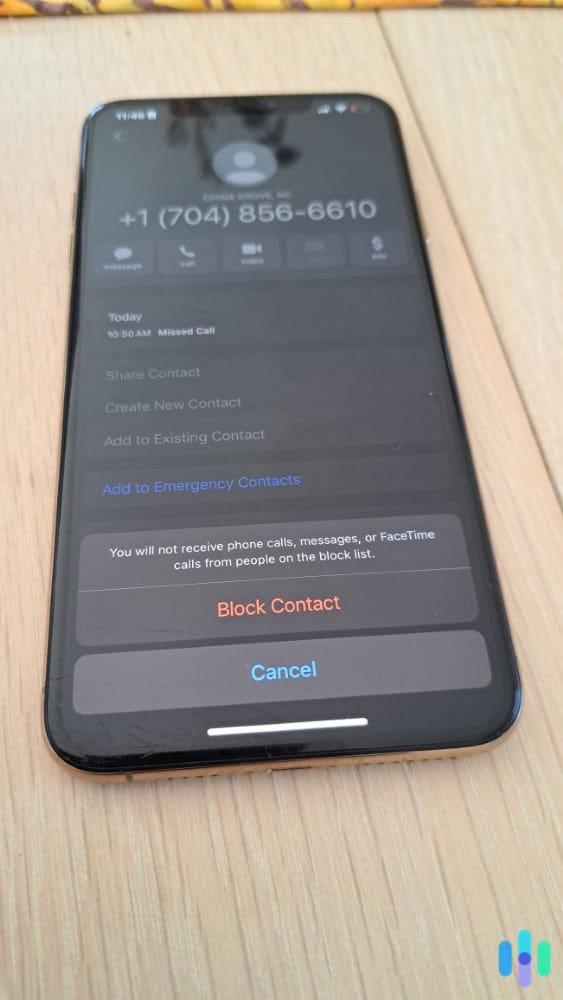
The quickest method starts in your Phone app. Here’s a step-by-step walkthrough for blocking numbers from your recent calls:
- Open the Phone app.
- Navigate to your recent calls by tapping “Recents” at the bottom.
- Tap the small “i” icon next to the number you want to block.
- Select “Block this Caller” number from the pop-up menu. You may need to scroll down a bit to find it.
- When asked, confirm you want to block this number by tapping “Block Contact.”
Once confirmed, that number can no longer call you, send texts, or initiate FaceTime conversations. We use this method when we just received an annoying call and want to block it immediately.
Pro Tip: Unknown callers bothering you? Enable “Silence Unknown Callers” in Settings > Phone to prevent notifications from numbers not in your contacts.
Blocking from Contacts
If the number is already saved in your contacts, you can block it directly from there. Here’s how:
- Open the Contacts app.
- Select the contact you want to block.
- Tap “Edit” in the upper-right corner.
- Scroll to the bottom and choose “Block this Caller” from the menu.
This approach works well when you’re doing periodic contact list maintenance or need to block someone you previously knew.
>> Check Out: How To Change Location on an iPhone
How to Block Text Messages on iPhone
Text message blocking works hand-in-hand with phone number blocking on iPhones — when you block a number, you automatically block phone calls and text messages from that number. However, these methods work best when blocking a number that sends text messages instead of calls.
Blocking Individual Text Conversations
You can also block numbers directly from text conversations. We use this method to thwart phishing text message attempts.
- Open the Messages app.
- Tap the conversation with the person you want to block.
- Press their name or number at the top.
- Select the “info” icon.
- Tap “Block this Caller” from the pop-up menu.
This approach also comes in handy when you’re trying to stop spam texts. Just quickly block the number that’s sending spam texts, and you won’t have to hear from them again. Note that this method also blocks calls from the sender.
Filtering Unknown Senders
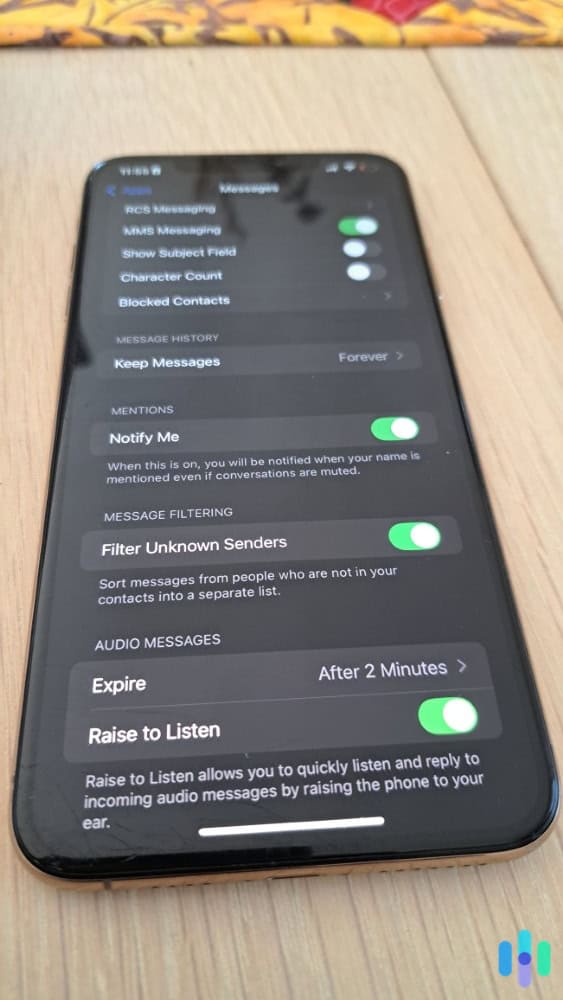
Similar to how you can silence unknown callers, Apple also allows you to “Filter Unknown Senders” for text messages. It automatically puts text from people who are not in your contacts into a separate list. Here’s how to enable this feature:
- Open the Settings app.
- Go to “Apps” and then “Messages.”
- Toggle on “Filter Unknown Senders.”
Your main Messages list stays clean, while potential spam gets tucked away in a separate tab you can check when convenient. While this feature doesn’t block messages entirely, it creates a barrier between you and the rising number of spam texts seen over the past few years.2
Safety Tip: Never click links in texts from unknown numbers, even if they claim to be from your bank or a delivery service. These are often phishing attempts designed to steal your information. For more tips like this, check out our ultimate phishing protection guide.
Reporting Junk Messages
When you receive obvious spam, we recommend reporting the message instead of simply blocking the number. All you need to do is hit “Report Junk” from the info menu. This reports the sender to Apple and your carrier, helping them improve spam detection for everyone. It’s a small action that contributes to the broader fight against text-based scams.
>> Read About: Can an iPhone Be Hacked?
How to Block Websites on iPhone
Blocking websites requires a different approach since it involves content restrictions rather than contact blocking. Apple bundles these controls under Screen Time, originally designed for parental controls but equally useful for personal productivity and security.
FYI: Are you looking to add parental controls to your kids’ iPhones? We rounded up the best parental control apps for iPhones. They can help you monitor your kids’ social media activity and alert you of any content that could signify a risk to their health or safety.
Setting Up Screen Time Restrictions
Before you can start blocking websites on your iPhone, you need to set up the Screen Time restrictions feature:
- Open the “Settings” app.
- Go to “Screen Time.”
- Tap “Content & Privacy Restrictions” to open the menu and then turn the toggle at the top on.
- Set a Screen Time passcode that you’ll use to change these restrictions.
By setting up Screen Time restrictions, you can customize your content restrictions.
Limiting Adult Websites
Now let’s dig into the Content & Privacy Restrictions feature to start blocking websites:
- Go back into the “Turn On Screen Time” menu.
- Tap “Content Restrictions.”
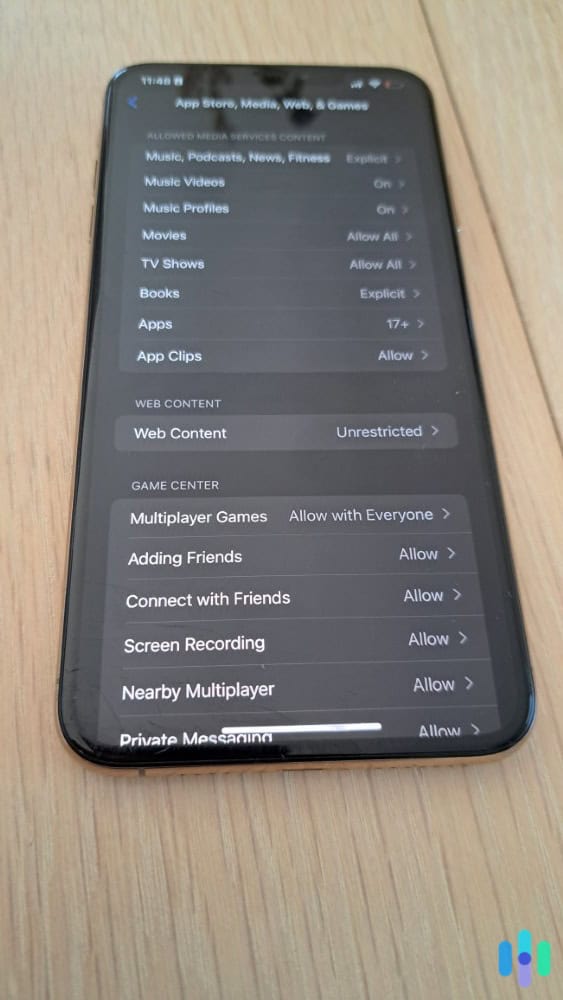
- Open the “App Store, Media, Web, & Games” menu.
- Tap “Web Content.”
- Choose the restrictions you would like to set from “Unrestricted,” “Limit Adult Websites,” or “Only Approved Websites.”
This setting blocks access to set websites across Safari and other browsers on your device. If you choose “Limit Adult Websites,” you can manually add specific sites to block under “Never Allow” or whitelist trusted sites under “Always Allow.” Simply tap “Add Website” and enter the URL.
>> Learn More: All About iPhone and iPad Parental Control Settings
Creating a Whitelist
The “Allowed Websites Only” option creates a strict whitelist, blocking everything except sites you specifically approve. This works well for young children or situations requiring maximum restriction. Your iPhone will only load the websites you add to the approved list, turning the entire internet into a curated, safe space.
Expert Insight: Block social media during work hours by adding sites like Facebook, Instagram, and Twitter to your “Never Allow” list to boost productivity. Then, check out our guides on how to block someone on Facebook, how to block someone on Instagram, and how to block someone on TikTok to take more control over your social media feed.
Blocking Websites by App Category
Screen Time also lets you block entire app categories in a similar way to how you block websites. Under “Content & Privacy Restrictions,” tap “Allowed Apps” and remove Safari to prevent it from being used entirely. If you just want to set a time limit, you can do so in the “App Limits” menu instead.
These settings block access to the browser entirely, instead of individual sites. However, make sure you block any other browsers, such as Chrome, as well if you want to entirely block web browsing.
Managing Your Blocked Contacts List
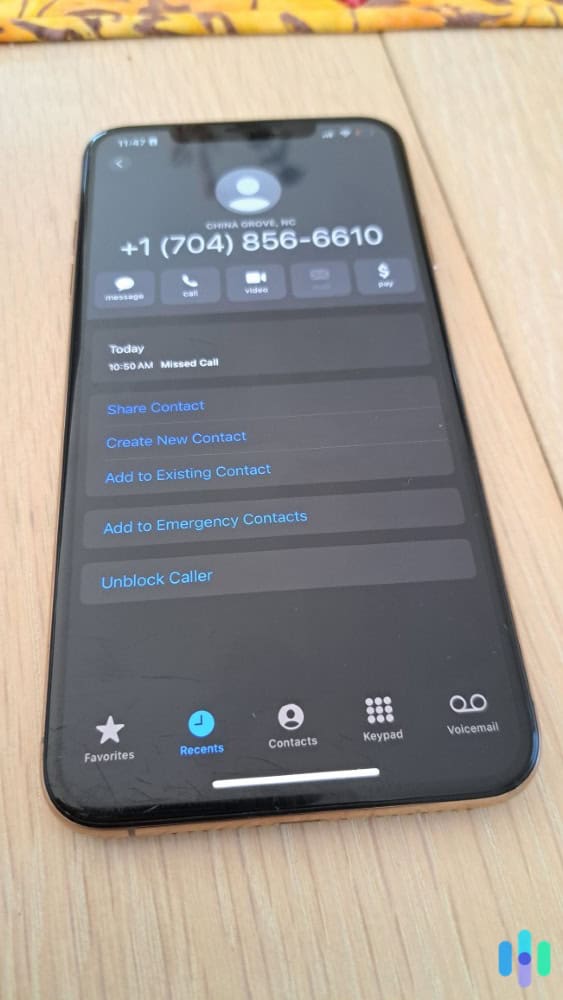
Over time, your blocked list might need adjustment. Maybe you blocked someone in anger, or circumstances changed. Apple makes reviewing and editing your blocked contacts straightforward. Here’s how to manage your blocked contacts list:
- Open the “Settings” app.
- Go into the “Phone” app’s settings.
- Select “Blocked Contacts” to pull up a complete list of the numbers you’ve blocked.
- To unblock someone, swipe left on their name and tap “Unblock.” Alternatively, you can tap “Edit” in the upper right corner and use the minus icons to unblock people.
Regularly reviewing this list ensures you’re not accidentally blocking important contacts. We recommend checking it every few months, especially if you’ve been aggressively blocking spam numbers. You might find duplicates or numbers you no longer need to block.
Did You Know: Occasionally, iPhone’s blocking may need a refresh to take full effect. If calls from a blocked number still come through, restart your iPhone before reblocking the same number again.
Recap: Managing Your iPhone’s Restrictions
Taking control of who can reach you and what content appears on your iPhone isn’t just about convenience. It can also improve your digital security. With distractions always finding a way to creep onto your iPhone, these blocking features represent your first line of defense against unwanted intrusions.
While iPhones have a relatively simple blocking system, that’s what makes it great. Whether you’re blocking a persistent ex, protecting your family from inappropriate websites, or simply creating boundaries in an always-connected world, these tools put you in the driver’s seat. Start with the methods that address your immediate needs, then explore additional restrictions as your digital security awareness grows.
Frequently Asked Questions
-
Will someone know if I block their number on my iPhone?
No, the iPhone doesn’t notify people when you block them. Their calls go to voicemail, and texts appear sent on their end but never reach you.
-
Can I block websites on my iPhone without Screen Time?
No, Screen Time is Apple’s built-in system for content restrictions including website blocking. Third-party apps offer alternatives but Screen Time is the only native solution.
-
Do blocked numbers stay blocked if I get a new iPhone?
Yes, if you restore from an iCloud backup or use the same Apple ID. Your blocked contacts list transfers with your other settings during device migration.
-
Can blocked callers leave voicemails?
Technically yes, but you won’t receive notifications and blocked voicemails go to a separate section you must manually check. Most carriers automatically delete these after a short period.
-
How do I block international spam calls?
Block them the same way as any other number, or enable “Silence Unknown Callers” in Settings > Phone to automatically silence all numbers not in your contacts, including international spam.
-
Can I temporarily block a website instead of permanently?
Yes, use Screen Time’s “Downtime” or “App Limits” features to block websites during specific hours rather than permanently, perfect for limiting distractions during work or sleep.