

You’ve likely heard the term “cookies” thrown around when talking about internet privacy, but what really are they? Browser cookies are small text files that websites place on your device to remember information about you. It can be anything from your login credentials to your shopping cart items. Cookies make browsing more convenient, but they also track your online behavior and slow down your browser over time. Learning what cookies do and how to manage them puts you back in control of your online privacy.
What Are Cookies?
When you visit a website, it stores tiny text files on your device that contain small pieces of data. Those text files are cookies, and they often contain unique identifiers and some basic information. That way, when you return to that website, your browser sends the cookie back to the server, which helps the site “remember” you.
For instance, when you add items to an online shopping cart and then browse to another page, the website remembers the items in your cart even if you’re not logged in. That’s all thanks to cookies.
Fun Fact: Cookies were invented in 1994 by Lou Montulli, a web developer at Netscape Communications, to solve the problem of stateless connections. The HTTP protocol doesn’t naturally remember previous interactions, so cookies bridge that gap by storing information between page visits.1
How Cookies Actually Work
When you visit a website, the server sends a cookie to your browser with specific instructions about what information to store and for how long. Your browser saves this cookie in a designated folder on your device. Each time you navigate to a new page on that site, your browser checks its cookie folder and sends the relevant cookies back to the server.
Most cookies are harmless and quite small, typically ranging from 50 bytes to 4 kilobytes in size. They can’t run programs, deliver viruses, or access other files on your computer. They are simply text files with data strings.
Pro Tip: Even in Incognito, Chrome stores cookies. The difference is that as soon as you close the Incognito window, all stored cookies during the browsing session gets deleted. Privacy browsers like Brave and Vivaldi, however, have the option to block all cookies.
The Different Types of Cookies
There are actually several types of cookies, depending on their function, how long they stay on your devices, and their source. Understanding these different types will help you manage your website and cookie preferences for better digital safety.
Session Cookies vs. Persistent Cookies
Session cookies are temporary. They disappear when you close your browser. This is not like Incognito. When in Incognito, all cookies are permanently deleted by the browser. With session cookies, the cookies expire or self-destruct. Session cookies are essential for basic website functionality, like keeping you logged in while you navigate between pages.
Persistent cookies, on the other hand, remain on your device for a set period, sometimes months or even years. This is how websites remember your preferences. For example, our website uses persistent cookies to remember your accessibility preferences (look for the accessibility menu in the lower left corner of the screen).
First-Party vs. Third-Party Cookies
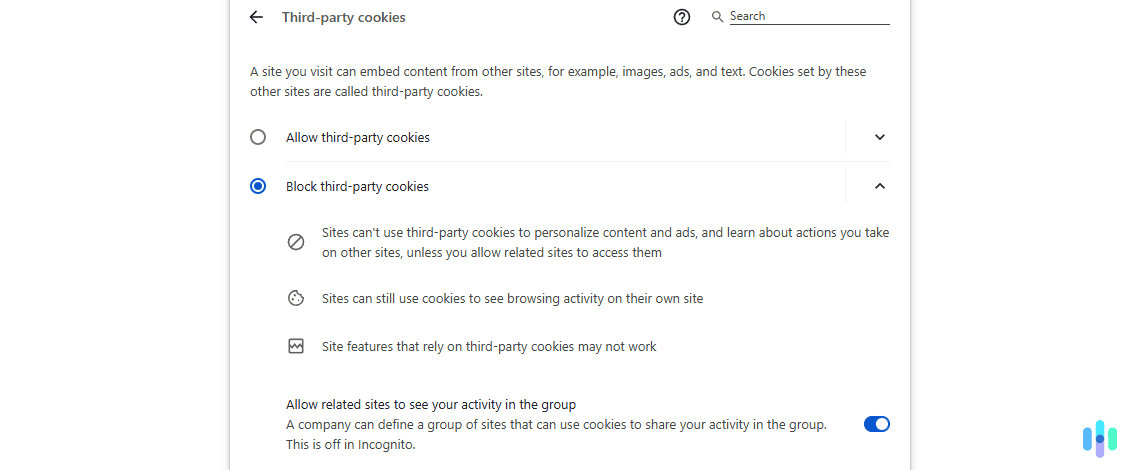
First-party cookies come directly from the website you’re visiting. Generally speaking, these cookies enhance your user experience, so they are sort of necessary. Third-party cookies, on the other hand, are placed by external domains. These cookies usually come from advertisers and analytics companies. If you visit a website with ads, for example, the advertiser stores cookies so they can track your browsing activity and use the data for ad targeting.
>> You Might Also Want: What Is Adware and How to Avoid It?
Essential, Functional, and Advertising Cookies
Obviously, cookies serve important functions throughout the web. However, some types of cookies are more necessary based on their functionality.
- Essential: Essential cookies are cookies necessary for websites to function properly. Without them, you wouldn’t be able to log in or complete purchases.
- Functional: Functional cookies enhance your experience by remembering your language preferences or font size selections. They are important, but not always necessary.
- Advertising and tracking: Advertising and tracking cookies monitor your behavior to serve personalized ads and compile analytics data about website traffic.
If you’re serious about privacy, we recommend turning on only essential cookies. The General Data Protection Regulation (GDPR) classifies cookies as personal data. That’s why websites are heavily regulated and required to inform users about their what and how cookies are stored and to give internet users the chance to opt out of cookies.2
Why You Should Clear Your Cookies
Cookies serve a legitimate, essential function, but clearing cookies should be part of your regular digital safety strategy. Here’s why:
Privacy Protection
Clearing cookies removes the data trail you’ve left across the internet. Advertisers and data brokers use cookies to build detailed profiles about your interests, demographics, and online habits. Regular cookie deletion disrupts this tracking and limits how much information companies can collect about you over time.
>> Related: Do VPNs Hide Search and Browsing History?
Improved Browser Performance
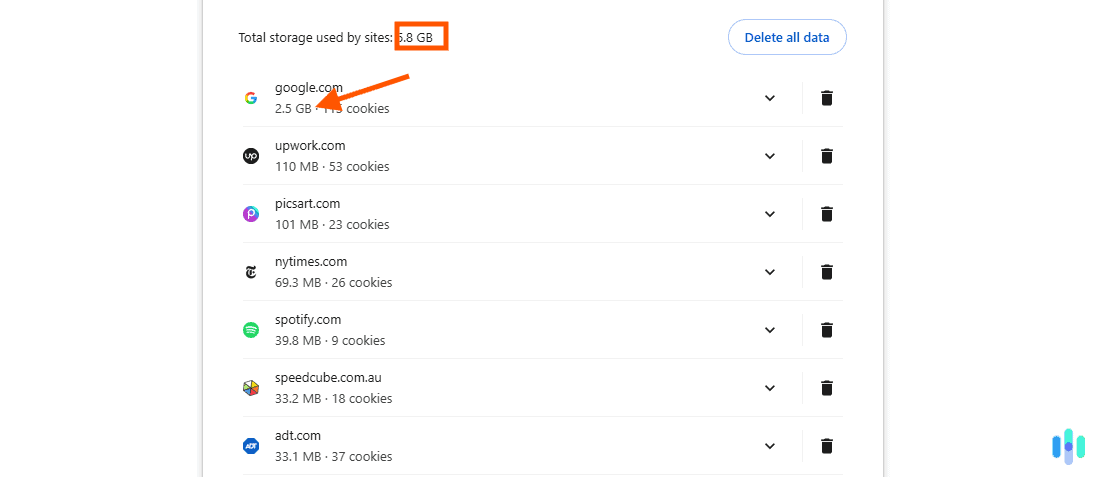
As cookies accumulate, they can slow down your browser’s loading time. If you’ve been browsing for months without clearing cookies, you might have thousands of these files stored on your device. Removing them frees up storage space and can make your browser run noticeably faster.
>> Also See: What Is ISP Throttling?
Fixing Website Errors
Sometimes corrupted or outdated cookies cause websites to malfunction. You might get error messages, pages might not load properly, or some site features might not work. Clearing cookies often resolves these issues by forcing the website to create fresh cookies with current data.
Security After Using Shared Computers
If you’ve logged into personal accounts on a public or shared computer, clearing cookies afterward prevents the next user from accessing your accounts. This is especially important for banking websites, email, and social media accounts where cookies are typically used to keep you logged in.
How to Clear Cookies on Different Browsers
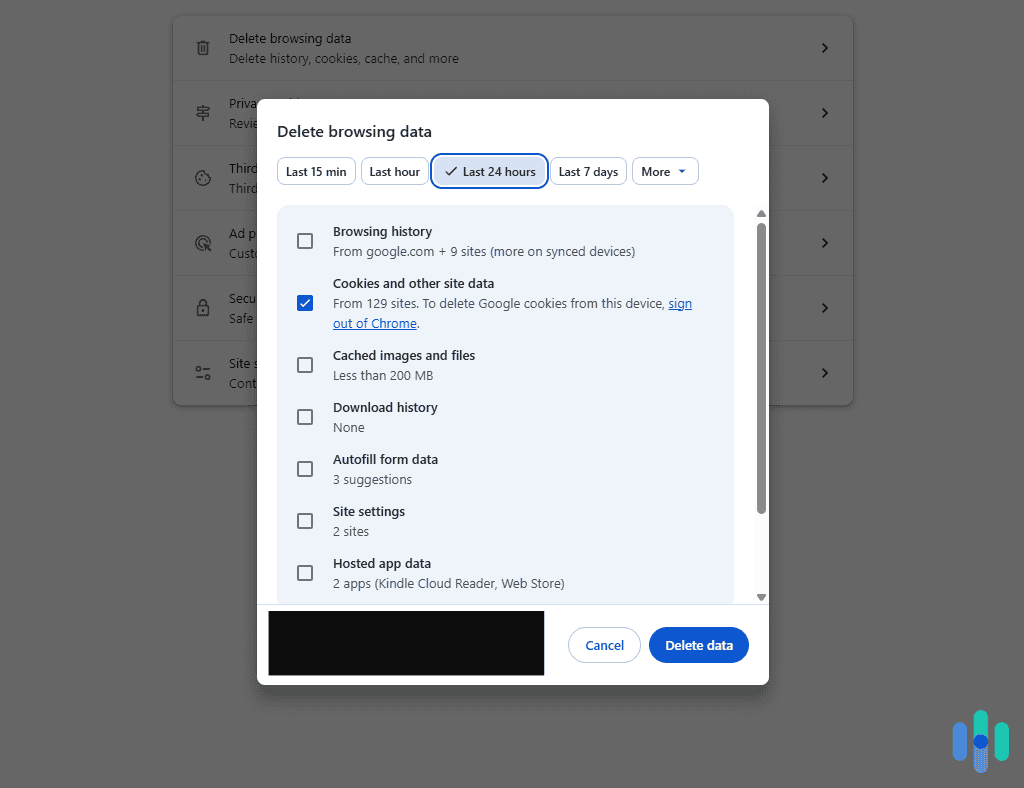
As for how you can clear your browser cookies, the exact process depends on the browser you’re using. That being said, the option to clear cookies can usually be found in the browser’s privacy settings.
Google Chrome
To clear your Google Chrome cookies:
- Open Chrome and click the three dots in the upper-right corner, then select “Settings.”
- Navigate to “Privacy and security,” then click “Clear browsing data.”
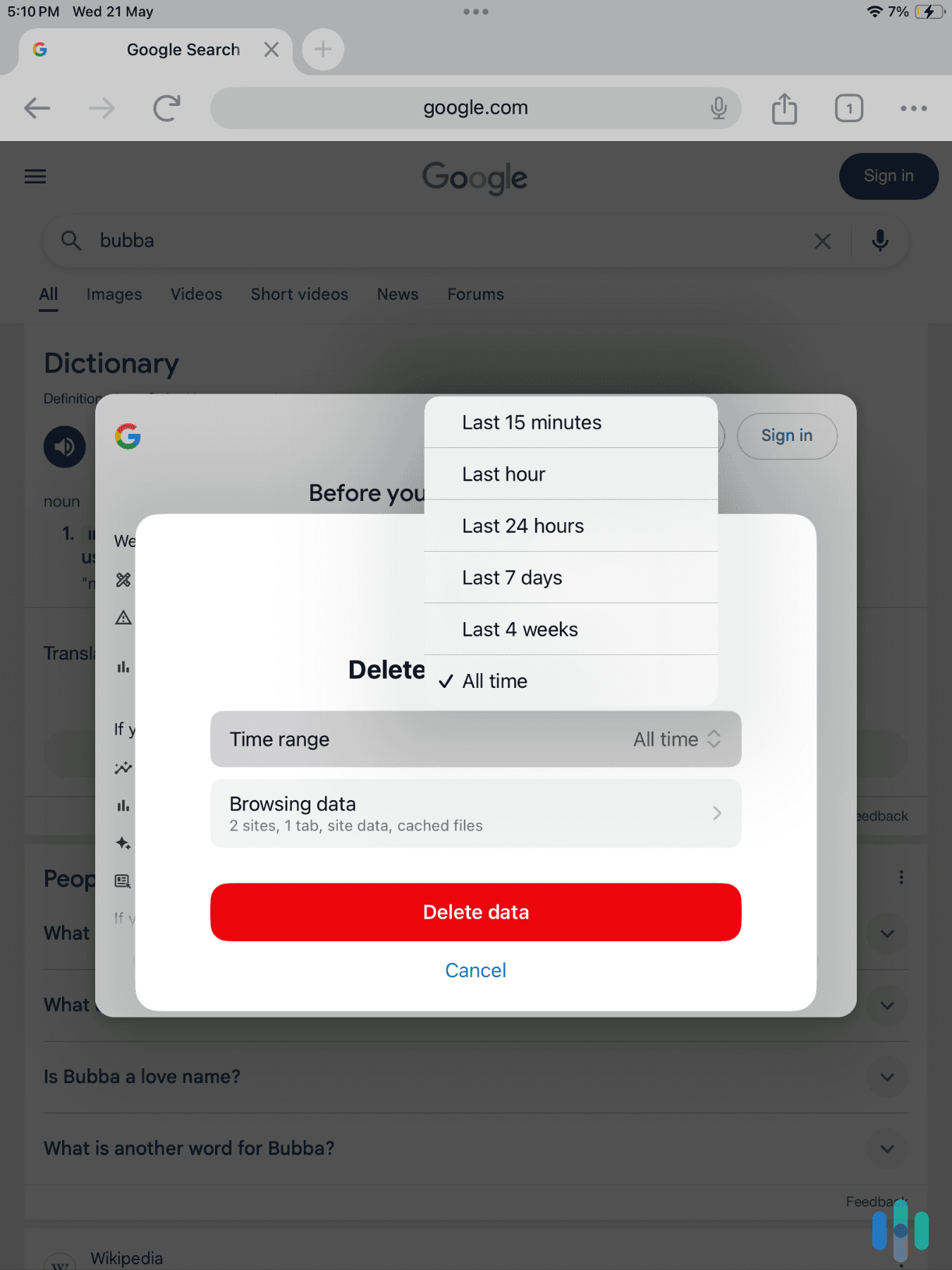
- Choose “Cookies and other site data” and select your preferred time range. You can clear all cookies from the last hour, 24 hours, or seven days, or you can clear all cookies.
- Click “Clear data” to complete the process.
Addiional Tip: For more targeted control, you can manage cookies for specific websites by going to Settings > Privacy and security > Cookies and other site data > See all site data and permissions. From there, you can search for specific websites and delete their cookies individually.
Mozilla Firefox
Clearing Firefox cookies follows a similar approach:
- Click the three horizontal lines in the upper-right corner and select “Settings.”
- Choose “Privacy & Security” from the left menu, then scroll down to “Cookies and Site Data.”
- Click “Clear Data” and make sure “Cookies and Site Data” is checked.
- Select “Clear” to remove all cookies, or click “Manage Data” to delete cookies from specific websites.
>> More for Privacy: The Best VPNs for Firefox
Safari (macOS and iOS)
The process for clearing cookies on Safari depends on what type of Apple device you’re using.
- On Mac, open Safari and click “Safari” in the top menu bar, then select “Preferences.”
- Navigate to the “Privacy” tab and click “Manage Website Data.”
- You can either “Remove All” to delete everything or search for specific websites and remove their data individually.
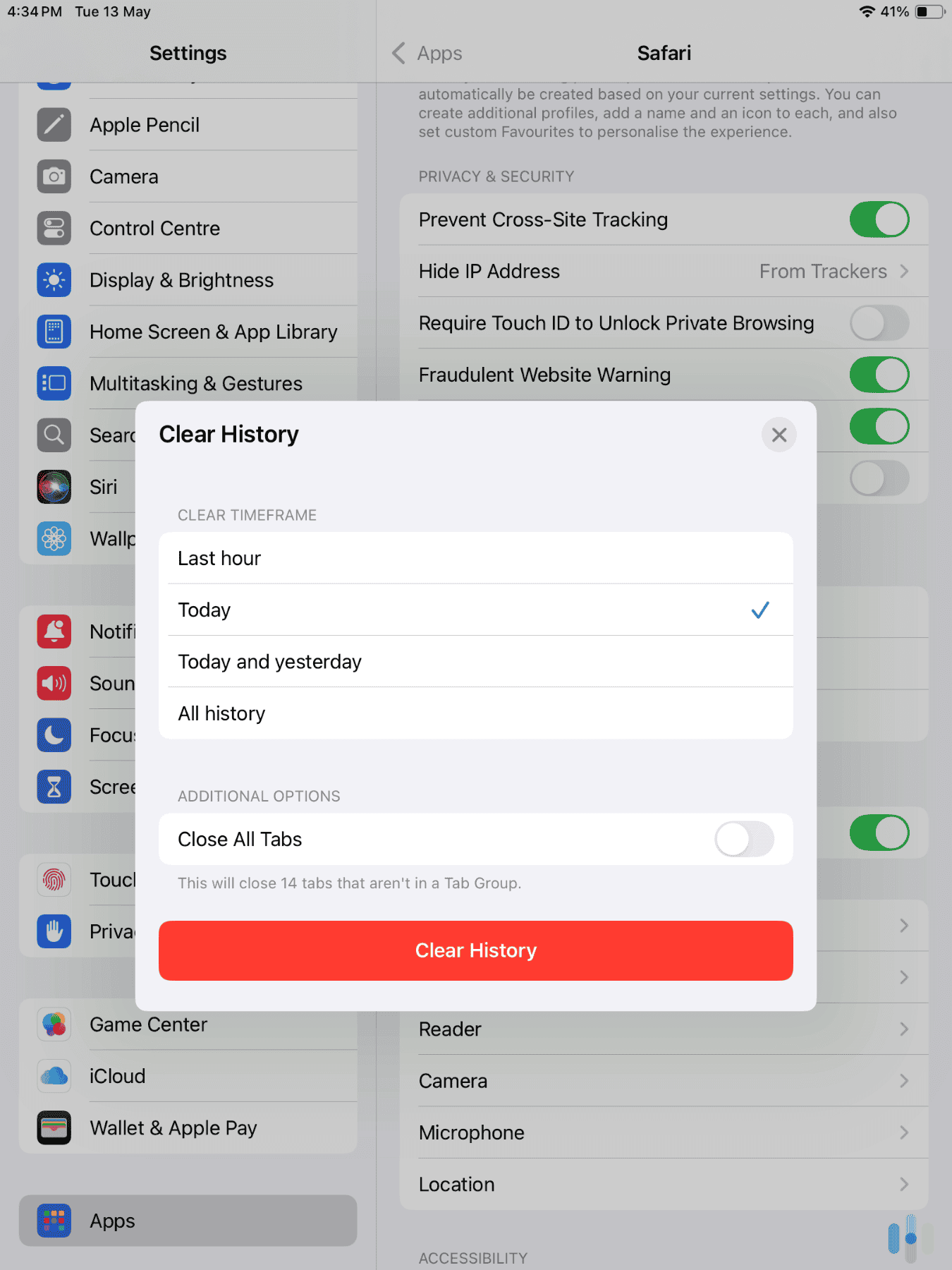
You can also clear cookies on iPhones. Simply go to Settings > Safari > Clear History and Website Data. This removes cookies along with your browsing history. For more granular control, go to Settings > Safari > Advanced > Website Data, where you can remove data for specific sites.
Microsoft Edge
For Microsoft Edge, you can clear cookies by following this process:
- Click the three dots in the upper-right corner and select “Settings.”
- Choose “Privacy, search, and services,” then under “Clear browsing data,” click “Choose what to clear.”
- Select “Cookies and other site data,” pick your time range, and click “Clear now.”
Pro Tip: Most browsers offer a “clear cookies on exit” option in their privacy settings, which automatically removes cookies every time you close the browser.
Best Practices for Cookie Management
Clearing cookies is a simple but useful step towards online privacy, but it’s most effective when done right. Here are some practical tips from our security and privacy experts.
Regular Maintenance Schedule
Rather than waiting until your browser feels sluggish, establish a routine for clearing cookies. Our in-home cybersecurity experts recommend a monthly schedule for most users, but if you’re particularly conscious about privacy, a bi-weekly or weekly schedule also works. If you use your device primarily for work with sensitive information, consider clearing cookies even more frequently.
>> Further Reading: Securing Confidential Personal Data
Selective Cookie Deletion
You don’t always need to delete all cookies. Most browsers allow you to clear cookies for specific websites while keeping others intact. This approach lets you remove tracking cookies from advertising sites while maintaining your login status on trusted websites like your email provider or banking portal. Just note that taking a more granular approach means more work.
Browser Extensions for Cookie Management
Consider using privacy-focused browser extensions that automatically manage cookies for you. There are extensions that can remove cookies as soon as you close a tab, while others block third-party tracking cookies entirely while allowing essential first-party cookies to function normally.
Understanding Cookie Consent Banners
Those cookie consent pop-ups you see on websites aren’t just annoying—they’re legally required in many jurisdictions. The European Union’s General Data Protection Regulation (GDPR) and similar laws give you control over which cookies websites can set. We recommend taking the time to customize these settings rather than clicking “Accept All,” especially for websites you frequently use. Reject non-essential cookies when possible.
Conclusion
Cookies serve an important purpose in making the internet more functional and personalized, but they also create privacy concerns that every internet user should understand. Now that you know what cookies are and why clearing them matters for your privacy and browser performance, you can take practical steps to manage them effectively.
The good news is that clearing cookies takes just a few clicks in any browser, and you can do it as often as your privacy needs require. Whether you choose to delete all cookies monthly, use browser extensions to manage them automatically, or selectively remove tracking cookies while keeping essential ones, you’re taking control of your digital footprint. Remember that cookie management is just one piece of a comprehensive approach to online security, but it’s an important one that gives you back some of the privacy that modern web browsing often compromises.
Frequently Asked Questions
-
Will clearing cookies delete my passwords?
No, clearing cookies won’t delete saved passwords if you’re using your browser’s password manager. However, you will need to log back into websites since the cookies that kept you logged in will be removed.
-
How often should I clear my cookies?
For most users, clearing cookies once a month provides a good balance between privacy and convenience. Weekly clearing offers better privacy protection if that’s a priority for you.
-
Can cookies steal my personal information?
Cookies themselves can’t steal information that isn’t voluntarily entered into websites, but they can track your browsing behavior and preferences. They cannot access other files on your computer or spread malware.
-
What's the difference between clearing cookies and clearing cache?
Cookies store data about your browsing sessions and preferences, while cache stores website files like images and scripts to load pages faster. Clearing cache helps with performance, while clearing cookies helps with privacy.
-
Will clearing cookies stop targeted ads?
Clearing cookies will temporarily reduce targeted advertising, but advertisers will begin building a new profile as you browse. Combining cookie deletion with ad blockers and privacy settings provides better long-term protection.
-
Do I need to clear cookies on my phone?
Yes, mobile browsers store cookies just like desktop browsers do. Regularly clearing cookies on your phone improves both privacy and app performance.