

The Best Free Parental Control Apps of 2026
We show you how to keep your kids safe online without paying for another subscription service
 Last Updated on Mar 11, 2026

- Weekly activity reports provide detailed information on internet habits
- Clean web dashboard that’s easy to navigate and access features
- Free three-day trial of premium features

- Monitors over 30 social media platforms
- Seven-day free trial gives you access to all Bark features
- Flexible and customizable screen time settings

- Includes a parental controls, a VPN, antivirus, and identity theft protection for the whole family
- Monitors social media platform and game console messages
- Accurate location tracking and geofencing features
Trying to keep kids safe online these days feels like playing whack-a-mole with an infinite number of holes. Between TikTok trends, gaming chats, and whatever new app they’re sneaking onto their phones, it’s exhausting. The good news? You don’t need to drop a bunch of cash on parental control apps to keep an eye on things. Sure, premium services offer more bells and whistles. However, there are several free parental control apps that deliver the monitoring and filtering capabilities you need to sleep a little easier at night.
Nearly 95 percent of teens have access to smartphones, and 96 percent say they’re almost constantly online.1 That’s a lot of unsupervised digital time. While the best parental control apps won’t solve every problem, they create helpful guardrails and give you visibility into potential issues before they spiral. We spent weeks testing the best free parental control apps. Some impressed us with their monitoring capabilities and others tried to upgrade us to the premium option at the first opportunity. Here’s what we recommend.
>> Keep Reading: A Parent’s Guide to Protecting Their Kids Online
Our Testing Methodology
We didn’t just download these apps and poke around for five minutes. Our team of security experts installed dozens of parental control apps on Windows, Mac, Android, and iOS devices, set up parent and child profiles, and spent at least a month testing web filtering, screen time limits, location tracking, and app blocking.
We also intentionally tried to bypass restrictions (because that’s exactly what your tech-savvy kid will do) to see how robust the controls actually were. Our evaluation criteria focused on five key areas:
- Ease of setup: We assessed how easy it is for non-technical parents to install apps on both their own and their child’s devices. Our team also looked at how simple it was to set up reporting and notifications.
- Filtering effectiveness: We deliberately tried to access inappropriate content to see how the parental control apps responded. The team even tried workarounds to find any loopholes.
- Reliability of monitoring features: Our team assessed remote monitoring capabilities and reporting. We also wanted to see how reliable the apps were at recording activities.
- Impact on device performance: While parental control apps are a useful tool, we don’t want them draining our batteries. We also looked at how they impacted system performance and other apps.
- Value: We reviewed how well the free resources performed or if the company just used the free version as an opportunity to upsell us.
Pro Tip: We recommend having an open conversation with your kids about why you’re using parental control apps. In our experience, being transparent often increases cooperation and effectiveness.
Top Free Parental Control Apps at a Glance
- Qustodio Parental Control App - Best for Detailed Reporting
- Bark Parental Control App - Best for Social Media Monitoring
- Aura Parental Control - Best All-in-One Family Safety
Comparison Chart
| System |
Qustodio
|
Bark
|
Aura
|
|---|---|---|---|
| Ranking | 1st | 2nd | 3rd |
| Ratings | 9.3/10 | 9.5/10 | 9.6/10 |
| Web Filtering | Yes | Yes | Yes |
| Screen Time Limits | 1 device | Yes | Yes |
| Social Media Monitoring | No | 30+ platforms | 30+ platforms |
| Location Tracking | Only available with premium plans | Yes | Yes |
| Free Device Limit | 1 device | Unlimited (Trial only) | Unlimited (Trial only) |
| App Blocking | No | Yes | Yes |
| Call/SMS Monitoring | No | Yes (Android) | No |
| Read Review | Qustodio Review | Bark Review | Aura Review |
-
1. Qustodio Parental Control App - Best for Detailed Reporting
 View Plans Links to Qustodio.com
Qustodio offers a solid free tier, despite being limited to monitoring one device. However, the features available on that device are on par with many paid competitors. The web filtering engine caught 94 percent of inappropriate sites during our testing, and installation took about 10 minutes. Plus, the dashboard is simple enough that even if you don’t use a lot of apps, you could navigate it.
What impressed us most about the free version of Qustodio is the reporting. You get detailed activity reports weekly. You can see which websites your kid visits, how long they spend on each app, and even what search terms they use. The platform works across operating systems, so whether your kid has an iPhone, Android device, or laptop, you’re covered.
>> Keep Reading: The Best Parental Control Apps for Android
What We Like
- Comprehensive features in free plan
- Accurate web filtering with few false positives
- Clean, intuitive parent dashboard
- Cross-platform compatibility
- Detailed activity reports and timelines
What We Don’t Like
- Limited to one device on free plan
- No location tracking without upgrading
- iOS version has some feature limitations due to Apple restrictions
- App blocking less effective on iOS
Qustodio Setup
Creating an account and installing Qustodio was easy enough. After signing up on its website, we downloaded the app to our child’s device and entered a pairing code. The iOS setup required following Apple’s configuration profile instructions, which added an extra step but provided deeper system integration. Android installation was easier, but we had to grant a lot of permissions.
The initial configuration wizard walked us through setting up filtering levels based on our child’s age. Qustodio also offers preset profiles for different age groups. We appreciated the ability to customize exactly which categories to block. The whole setup, including fine-tuning preferences, took about 15 minutes.

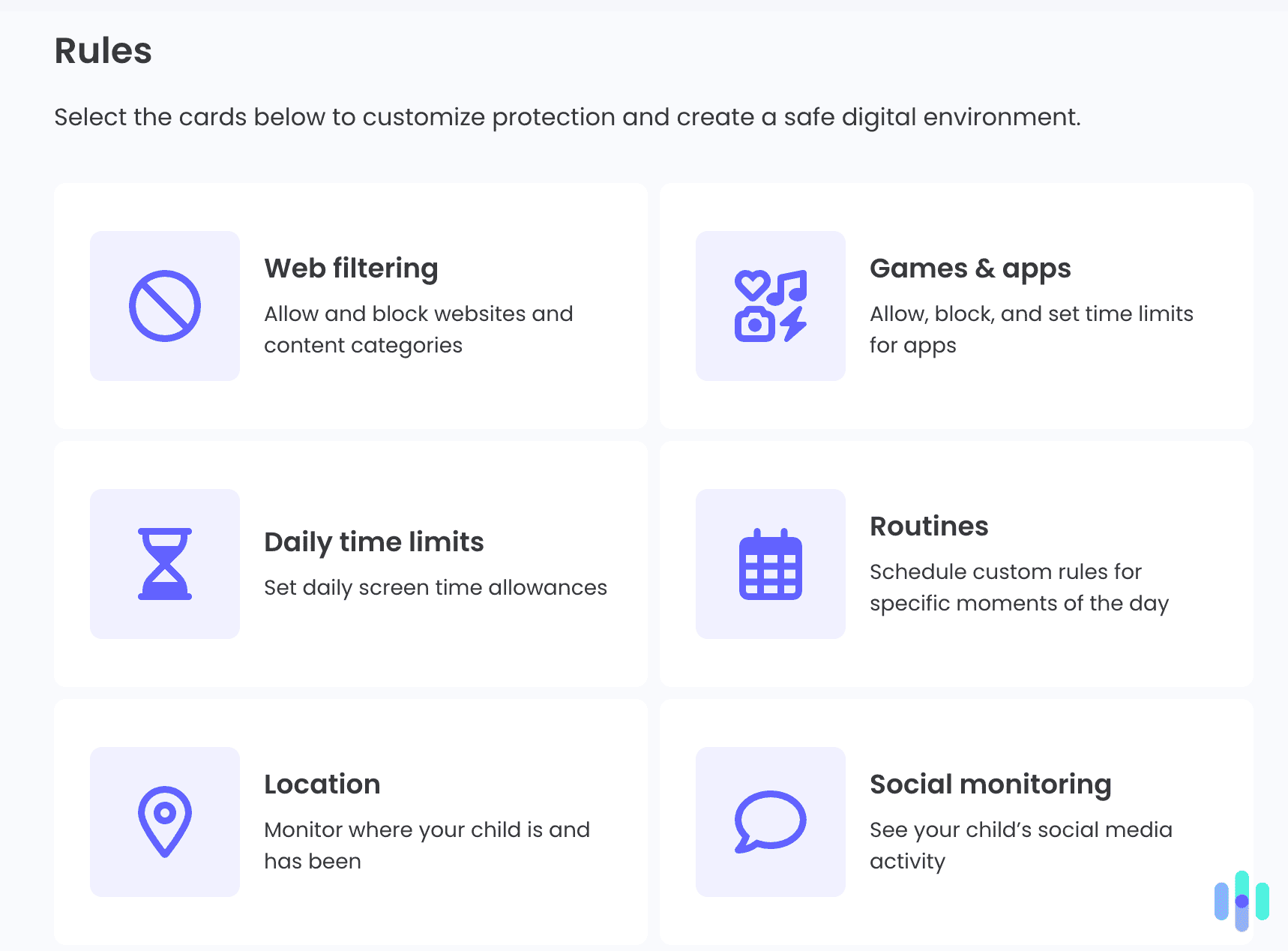
We found Qustodio’s setup user-friendly, with each step easy to customize based on our child’s age. Qustodio Content Filtering
When we reviewed Qustodio, we visited dozens of websites across 20 content categories. This included the obvious adult content and more nuanced areas like pro-anorexia forums and gambling sites. Qustodio blocked 94 percent of flagged content, with only a handful of borderline cases slipping through. The system uses both URL database matching and content analysis, which explains its effectiveness.
Where Qustodio shines is reducing false positives. Unlike other parental apps we’ve tested that blocked legitimate educational content about health or history, Qustodio’s filtering felt balanced. When it did block a safe site, adding exceptions through the parent dashboard took seconds.
FYI: Qustodio offers a three-day free trial of its premium features. We recommend checking out all the customization options available to see if you think it’s worth upgrading to a paid plan.
Qustodio Activity Monitoring
The activity timeline offers a chronological view of everything happening on the monitored device. We could see websites visited, apps used, search terms entered, and even YouTube videos watched. This data appears almost immediately with most activities showing up within five minutes.
Weekly summary emails gave us a clear overview without constantly checking the dashboard. The reports highlight concerning activities and unusual patterns, like sudden increases in social media usage or late-night browsing. As busy parents, we found these automated summaries invaluable.

We like that Qustodio offers multiple customization options, but not all of them are available in the free plan. Overall Qustodio Experience
After a month of testing, we found Qustodio reliable and unobtrusive. Our test device showed no noticeable battery drain or slowdowns. We were frustrated by the one device, though. If you have multiple kids or one kid with multiple devices, you’ll have no choice but to upgrade. For monitoring one device thoroughly, the free tier is a bargain, especially for the level of detail in reporting.
-
2. Bark Parental Control App - Best for Social Media Monitoring
 Try for Free Links to Bark.us
Bark takes a different approach compared to traditional parental controls. Instead of blocking everything and micromanaging screen time, it uses AI to monitor content across social platforms, texts, and emails for concerning material. It’s like a guard dog that alerts you to genuine problems rather than tracking every single click.
When we reviewed Bark, we found the monitoring impressively sophisticated. We set up test scenarios involving cyberbullying language, depression indicators, and references to drugs or self-harm. Bark flagged 89 percent of concerning content, sending alerts within 15 minutes. The system covers major platforms like Instagram, Snapchat, TikTok, YouTube, and even gaming chats on Discord and Nintendo Switch.
>> Check Out: How to Set Up Parental Controls on the Nintendo Switch
What We Like
- Sophisticated AI monitoring across 30+ platforms
- Alert system focuses on genuine concerns, not minor issues
- Includes expert guidance for addressing flagged content
- Screen time controls are flexible and customizable
- Respects privacy while maintaining safety
What We Don’t Like
- Free trial only
- Setup can be complex for less tech-savvy parents
- Some social platforms require account credentials
- iOS text monitoring only works through iCloud backups
Bark Setup and Configuration
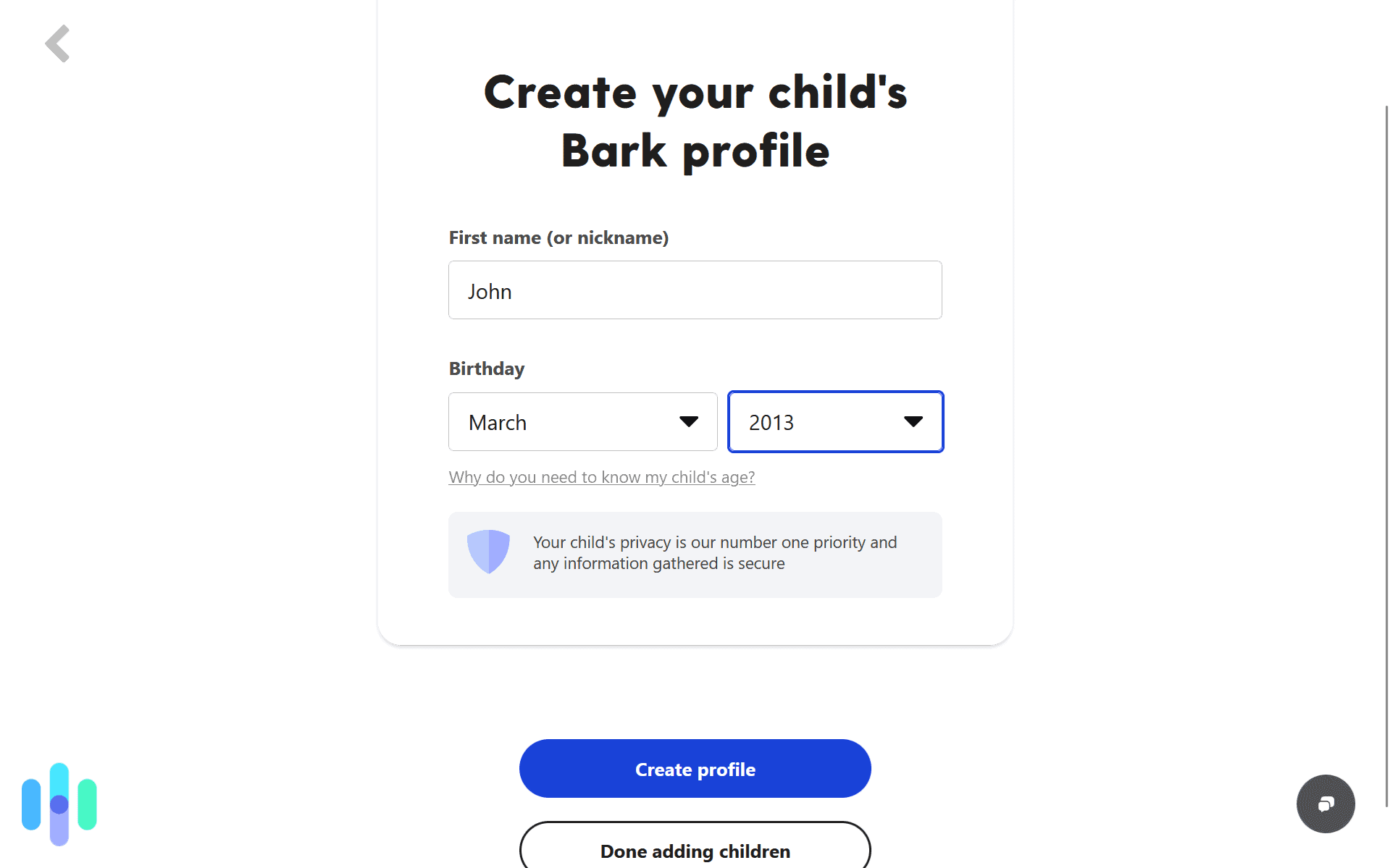
Setting up our child’s profile was easy enough, but connecting accounts took a little longer.
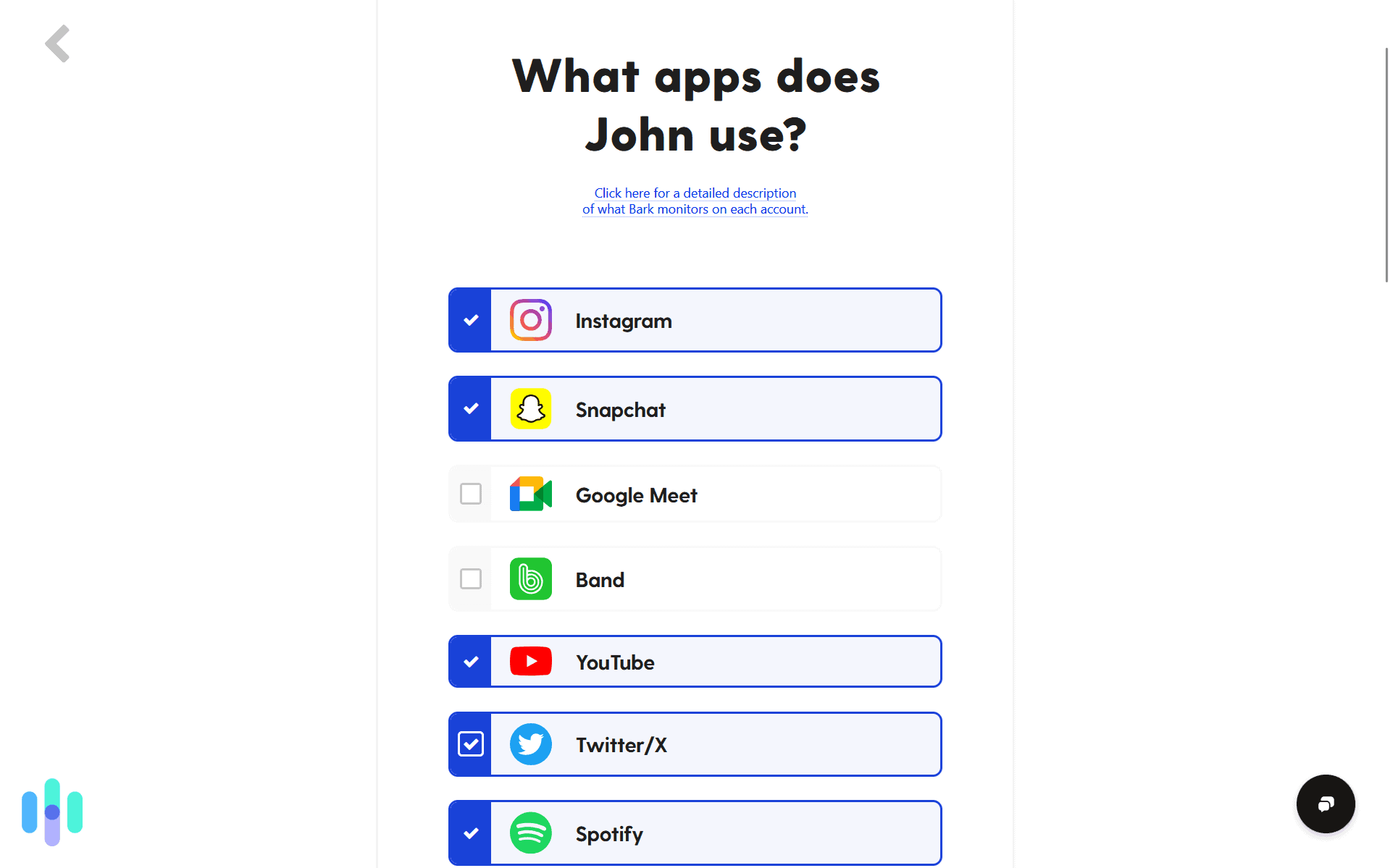
Bark’s setup differs by platform and service. For social media monitoring, you connect accounts through API access or by providing login credentials. Email monitoring works through forwarding rules. Text message monitoring on Android requires app installation, while iOS monitoring uses backup analysis.
In other words, the setup is complex. While connecting Instagram took us 30 seconds, configuring email forwarding required following multi-step instructions. Bark provides detailed guides for each platform, but expect to spend at least an hour on initial configuration if you’re connecting multiple accounts and devices.
Bark Alert System
Bark’s AI analyzes content for concerning patterns across categories like violence, sexual content, depression, suicidal ideation, bullying, and predatory behavior. When it detects potential issues, you receive an alert showing the flagged content in context. The system aims to catch serious problems without overwhelming parents with trivial nonsense.
During our testing period, we appreciated the nuance in Bark’s alerts. When test accounts discussed school stress or minor friend drama, Bark stayed quiet. If it detected references to self-harm, bullying, or inappropriate content, Bark triggered instant notifications. The alerts include expert guidance on how to address each situation, which is a thoughtful touch for parents new to these types of difficult conversations.
>> Learn More: Cyberbullying: 20 Crucial Statistics for 2026
Bark Screen Time Management
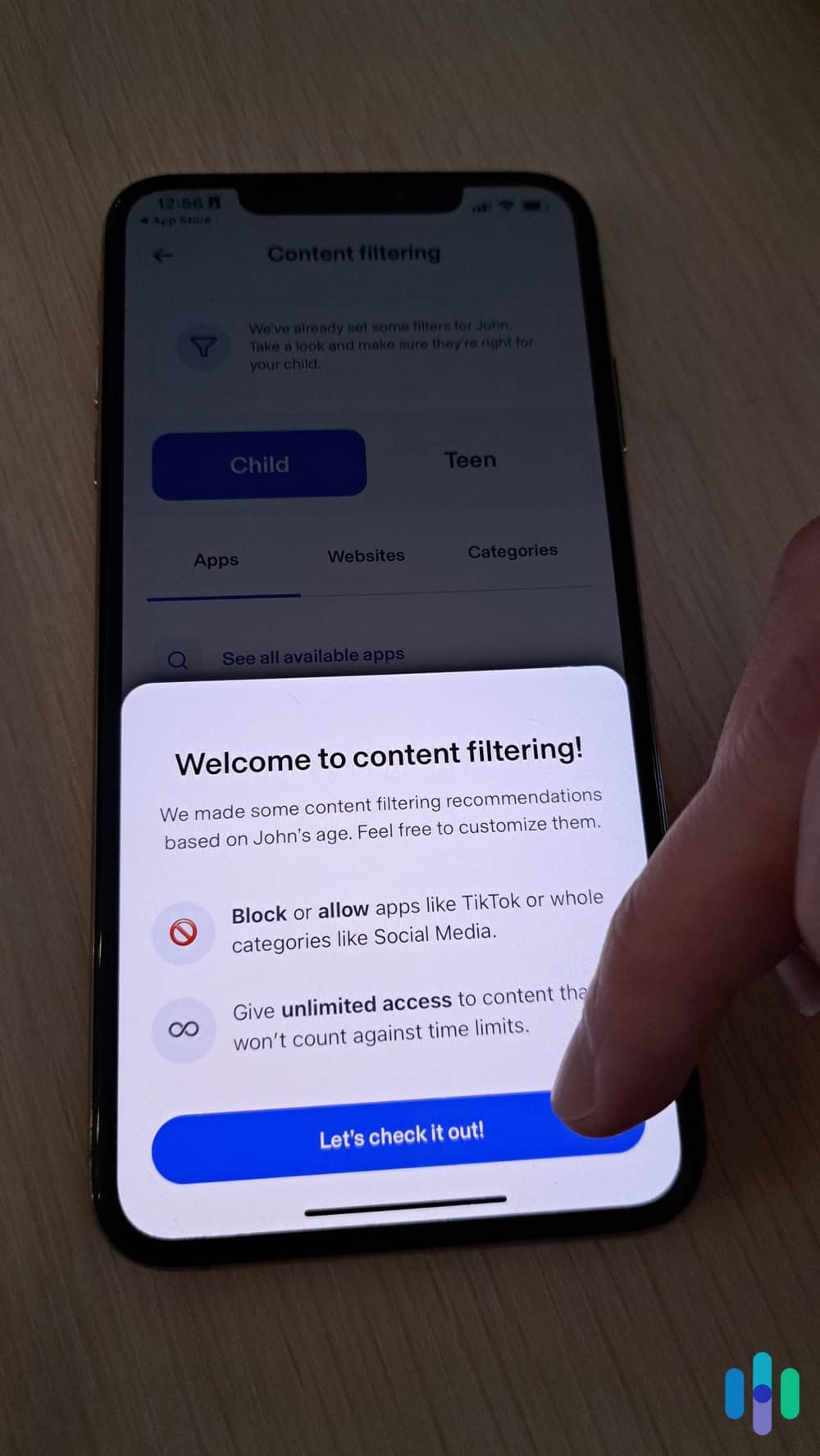
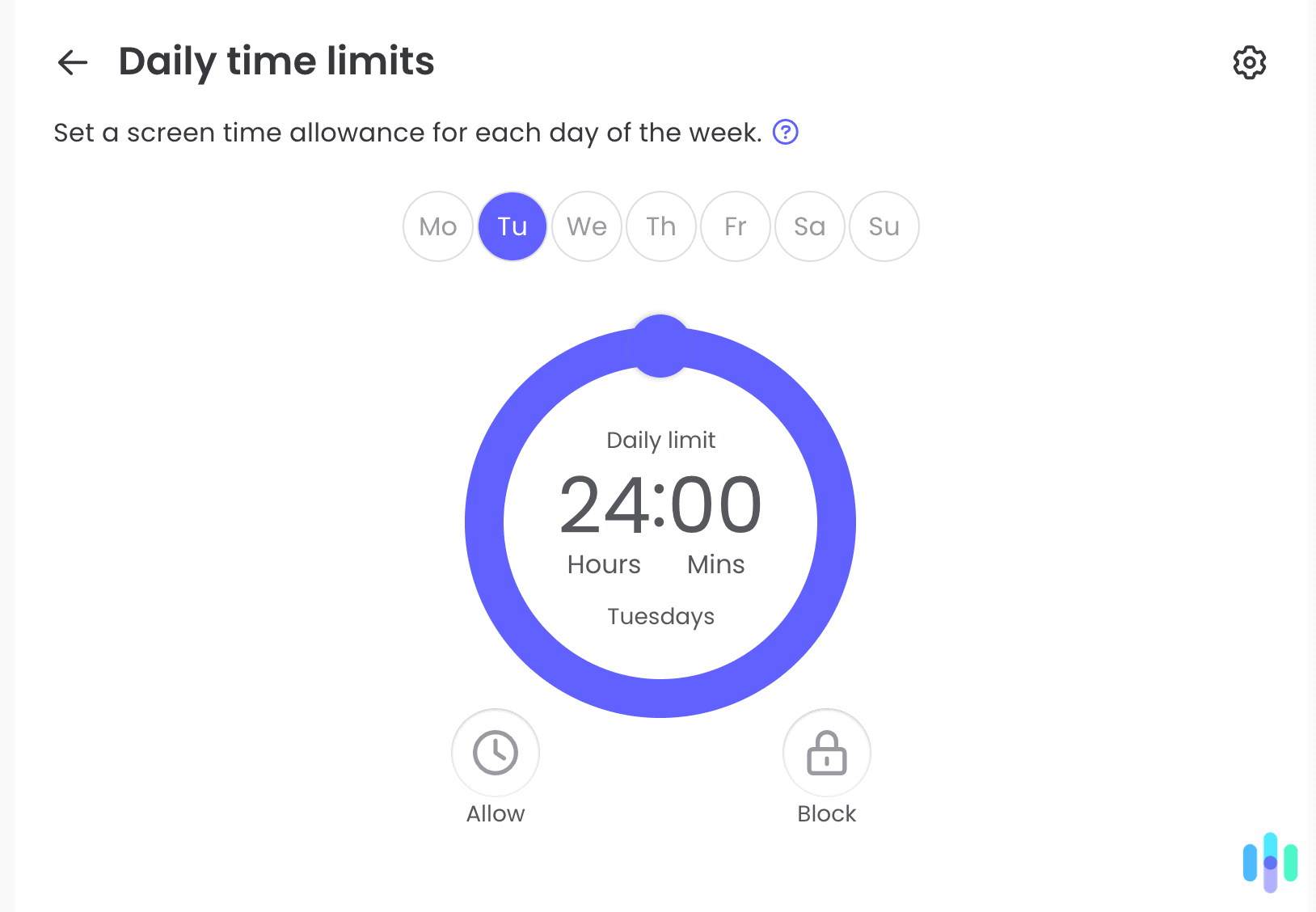
Beyond monitoring, Bark offers screen time scheduling and app blocking. We set “screen time” windows when devices are accessible and “bedtime” periods when they’re locked down. The scheduling felt flexible. We could create different rules for weekdays versus weekends and add exceptions for always-allowed apps like calls or maps.
We found app blocking worked well on both Android and iOS. When we attempted to access blocked apps during restricted times, the device prevented access with a simple message. Kids can request additional time, which sends a notification to your phone for approval. This is a nice middle ground between rigid rules and no boundaries.

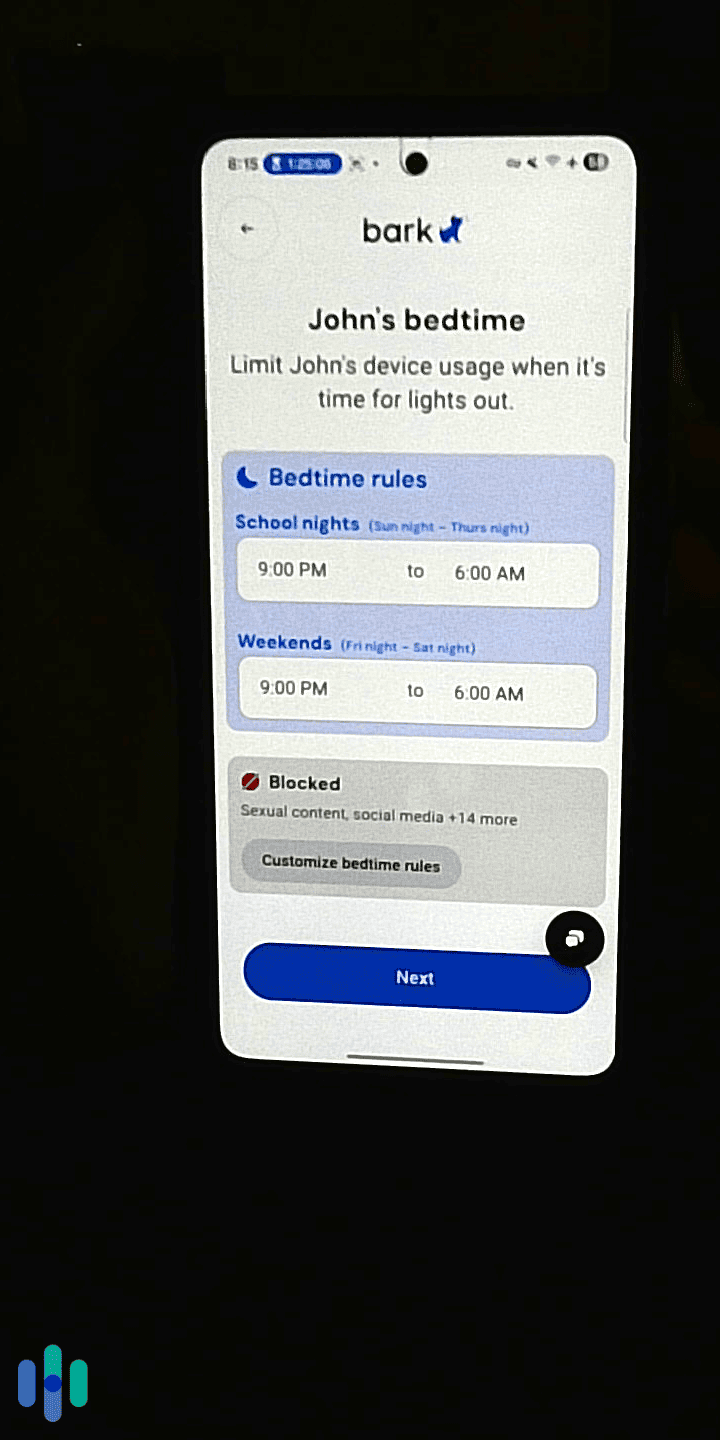
We set up bedtime rules for our child with different times for school days and weekends. Overall Bark Experience
We found that Bark keeps its promises. The service catches serious online dangers without constant surveillance. The approach respects kids’ privacy while maintaining safety oversight. With over 25 percent of students having experienced cyberbullying in their lifetime, tools like Bark are helpful in catching warning signs early.2 While Bark only offers a free trial, you get to test everything before committing.
-
3. Aura Parental Control - Best All-in-One Family Safety
 View Plans Links to Aura.com
Aura bundles parental controls with identity theft protection, a VPN, and antivirus software. You’re essentially getting a comprehensive family digital security suite. It’s not exactly free (it offers a trial period), but we included it because the value differs from standalone parental control apps. You’re getting digital safety tools for the whole family, not just the kids.
The parental control component covers the basics. You’ll get web filtering, screen time management, app blocking, and location tracking. In our testing, these features performed competently, though they weren’t as deep as specialized tools like Qustodio or Bark. Where Aura shines is the ecosystem approach. It’s easy to secure everyone’s devices and data at once.
>> Keep Reading: Aura Costs and Pricing in 2026
What We Like
- All-in-one approach covers multiple security needs
- Identity theft protection for whole family
- Accurate location tracking with geofencing
- VPN and antivirus included
- Emergency SOS feature for kids
What We Don’t Like
- Requires a paid subscription after free trial
- Parental controls less comprehensive than specialized apps
- Higher price point than standalone parental control options
- May be overkill for families only needing basic monitoring
Aura Setup Process

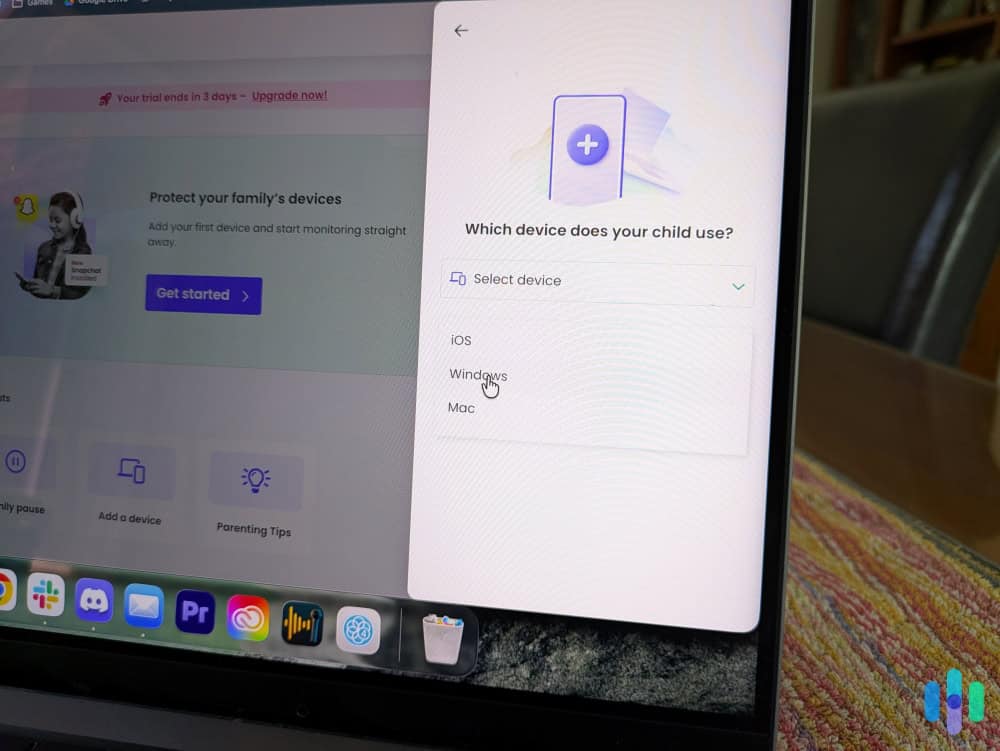
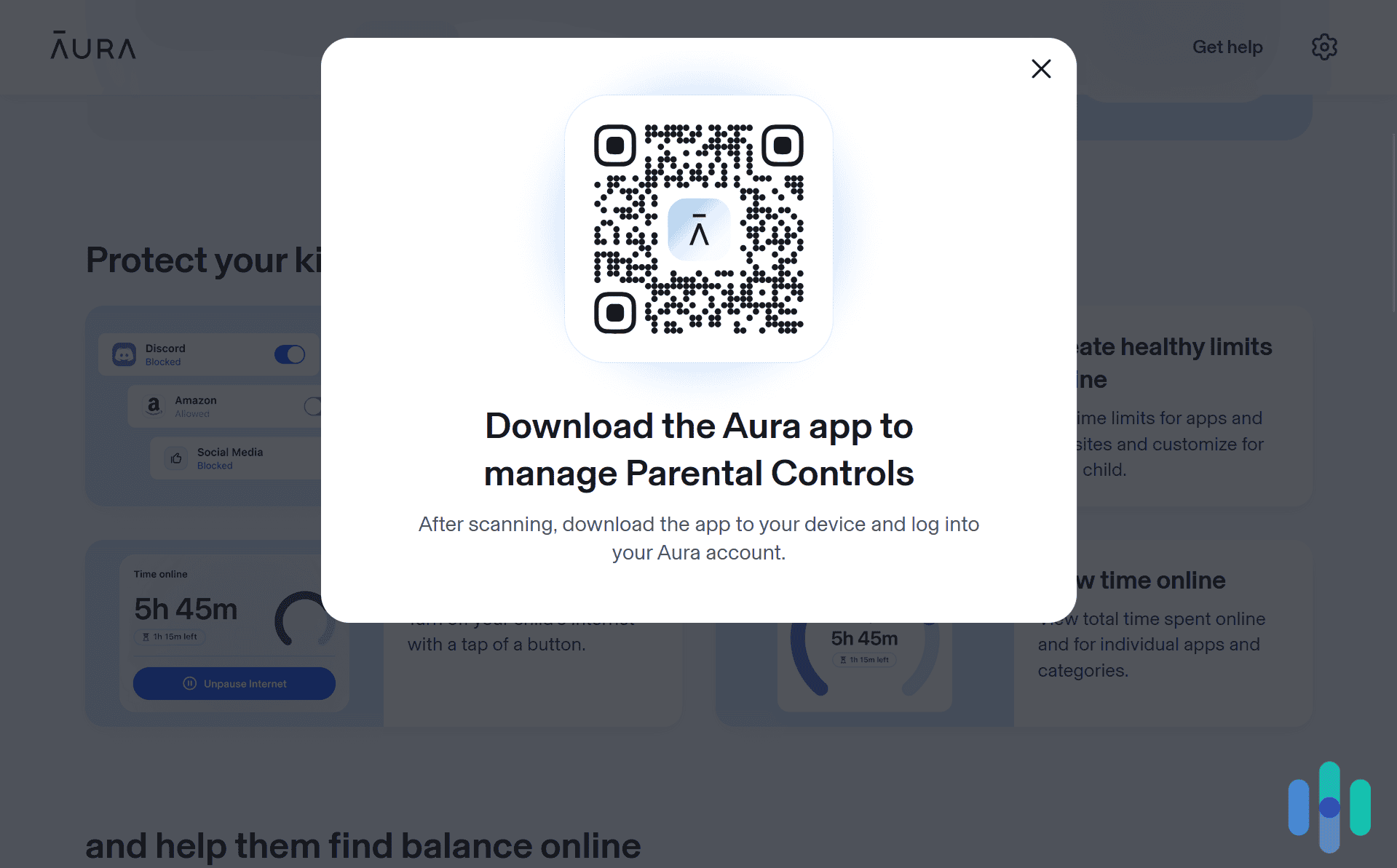
We were directed to the Google Play Store to download the Aura: Security & Protection app to access parental control features. Creating an Aura account and adding family members took about 20 minutes. The service supports up to 10 devices, covering smartphones, tablets, and computers. After downloading apps to each device, we configured parental controls for child accounts and set up the VPN on adult devices.
The unified dashboard means you can manage everything from one place. We found it easy to switch between monitoring kid’s devices, checking identity theft alerts, and connecting to VPN servers without juggling multiple apps. This convenience shouldn’t be underestimated. In our experience, simpler systems get used consistently, while complicated ones get abandoned.
Aura Parental Controls
Aura’s web filtering uses safe search enforcement rather than URL blocking. It forces Google, Bing, and YouTube into restricted modes, which filtered out most inappropriate content during testing. We found this approach less comprehensive than Qustodio’s filtering. However, it covers the major access points kids use.
Screen time controls let us set daily limits overall or per-app. We could allow two hours of total screen time, with specific limits of 30 minutes on TikTok and one hour on games. The system enforced these limits reliably, though we found that kids could switch between apps to use their entire allowance however they wanted.

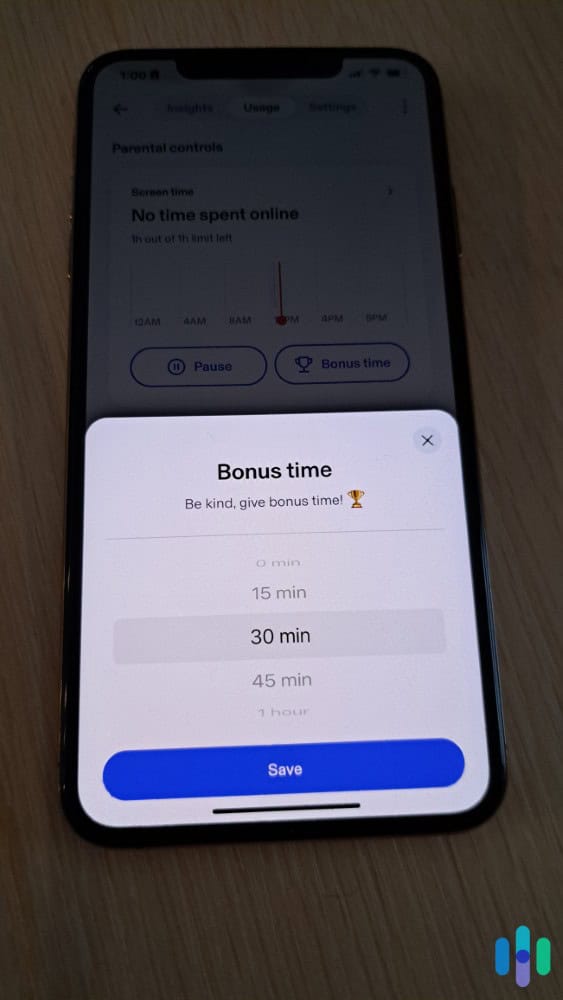
We gave our kids extra screen time to access educational content when they didn’t finish their homework in time. Aura Location and Safety Features
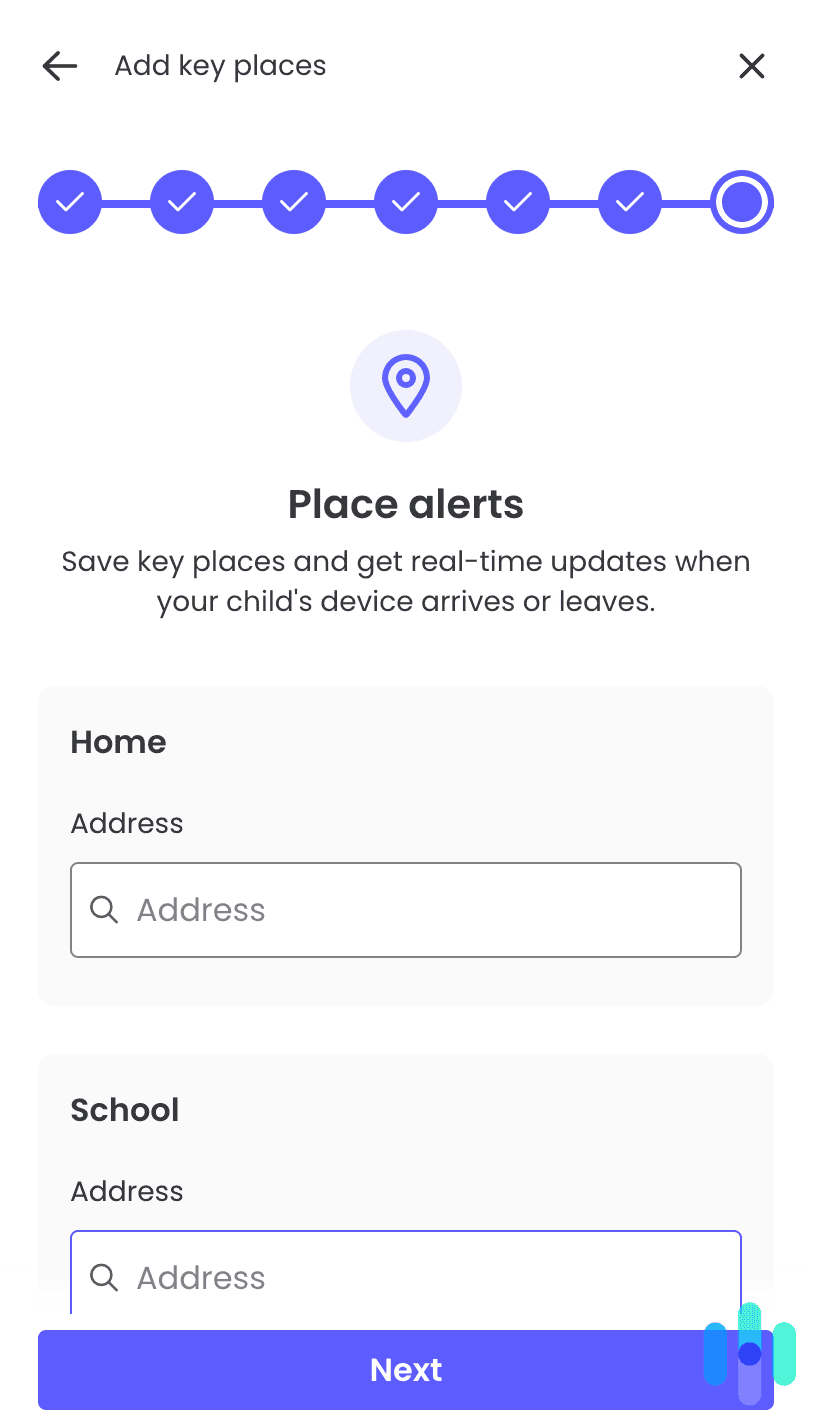
Location tracking was accurate to within 30 feet in our testing. The map view shows each family member’s current location in real-time, with a timeline of recent locations. Geofencing lets you create safe zones around locations like home, school, or grandma’s house, triggering notifications when kids arrive or leave.
We also liked the SOS feature, which allows kids to send emergency alerts with their location to all family members. During testing, the alert arrived within seconds. This potentially life-saving functionality goes beyond typical parental control apps we’ve tested.
Pro Tip: We recommend enabling location tracking on all parental control apps. More than 340,000 children went missing in the U.S. in 2024, and location data helps law enforcement respond faster in emergencies.3
Overall Aura Experience
Based on our Aura review, we think the service is best for families wanting comprehensive digital safety rather than just parental controls. The identity theft protection alone (monitoring credit reports, dark web scans, and financial accounts) offers significant value for parents. Throw in a VPN, antivirus protection, and parental controls, and you’re covering most family cybersecurity needs with one subscription.
Are Free Apps Really Enough?
In our experience, free parental control apps work well for basic monitoring and filtering, but they still come with limitations. Most cap the number of devices you can monitor, restrict advanced features like location tracking, or limit how much historical data you can access. For families with multiple kids or those who want comprehensive monitoring across all devices, you’ll eventually need to upgrade.
That said, a free app that you actually use consistently beats a premium subscription that sits unused because it’s too complicated or expensive. We recommend starting with free options to establish routines and understand what features matter most for your family. You can always upgrade later when you’ve identified specific needs the free tier doesn’t cover.
How to Actually Get Kids to Accept Monitoring
Even the best parental control apps fail if your kid refuses to keep it installed or constantly fights the restrictions. Successful implementation requires communication, not just technology. Research shows that teens respond better to monitoring when parents explain the reasoning and maintain open dialogue about online safety.
We recommend framing the conversation around safety, not distrust. Explain that just like you wouldn’t let them walk through a dangerous neighborhood alone, you want to help them navigate online risks. You can even involve older kids in setting boundaries. They’re more likely to respect limits they helped create. We suggest starting with less-restrictive settings and tightening them only if problems arise, rather than beginning with everything locked down.
Pro Tip: Acknowledge that monitoring isn’t permanent, and as your children demonstrate responsibility and good judgment, gradually reduce restrictions. This creates incentive for positive behavior and recognizes their growing maturity.
Balancing Safety and Privacy
Every parent wants to protect their kids while respecting their independence and privacy. Younger children need tighter monitoring as they lack the judgment to navigate online risks safely. Teenagers deserve more privacy, but still need guardrails against serious dangers like predators, cyberbullying, or harmful content.
We recommend taking a tiered approach. For kids under 12, comprehensive monitoring makes sense. We suggest tracking websites visited, apps used, and screen time. For teenagers, focus on safety-critical monitoring like Bark’s alert system that flags concerning content without reading every message. The most important thing is maintaining transparency about what you’re monitoring and why. Secret surveillance destroys trust and often backfires when kids discover it.
>> Keep Reading: How to Make a Laptop Kid-Safe
Common Mistakes Parents Make
The biggest mistake we see parents make is installing monitoring software without telling their kids. When children discover hidden surveillance, and they always do, it damages trust far more than any online danger. Be upfront about monitoring from the beginning.
Another common error is setting restrictions so tight that kids can’t access legitimate resources. We watched a friend’s parental controls block educational YouTube videos, health information websites, and even college research resources because they contained flagged keywords. Over-filtering teaches kids to view safety tools as obstacles to overcome rather than helpful protections. We suggest starting with moderate settings and adjusting them based on your specific kid’s needs and maturity level.
Finally, don’t treat parental control apps as a substitute for actual parenting. Technology can’t replace conversations about online safety, critical thinking about social media, or teaching healthy digital habits. The apps are tools to support your parenting, not replace it.
Pro Tip: We recommend scheduling regular check-ins to review monitoring reports together with your kids. This creates opportunities for dialogue about their online experiences while maintaining transparency about oversight.
Final Thoughts
Keeping kids safe online doesn’t require expensive software or constant surveillance. The free parental control apps we’ve tested provide legitimate value without the price tag of premium services. You can use these tools to create guardrails and maintain visibility into potential problems.
Whatever parental control app you choose, we recommend implementing it thoughtfully and transparently. Your goal isn’t to control every aspect of your child’s digital life. It’s to help them develop the judgment and skills to navigate online spaces safely on their own. These apps buy you time and provide peace of mind while your kids learn those critical skills.
Frequently Asked Questions
-
Can kids bypass parental control apps?
Determined, tech-savvy kids can sometimes circumvent monitoring through VPNs, factory resets, or using unmonitored devices. The best defense combines technical controls with open communication and trust-building.
-
Do free parental control apps sell my family's data?
Reputable free apps like Qustodio generate revenue through premium upgrades, not data sales. We recommend reviewing privacy policies, and avoiding obscure free apps from unknown developers that may have questionable data practices.
-
What age should I start using parental controls?
Start when you first give your child a connected device. Monitoring should evolve as kids mature, gradually decreasing as they demonstrate responsibility.
-
Can I monitor my teen's phone without them knowing?
While technically possible, we’ve found that hidden monitoring damages trust and often violates your relationship more than it protects your teen. Transparency about safety measures works better long-term.
-
Do parental controls work on gaming consoles?
Most third-party apps don’t directly monitor consoles, but platforms like Xbox, PlayStation, and Nintendo offer built-in parental controls. You’ll need to configure these separately through each console’s settings.
-
How do I handle my child asking to disable monitoring?
Listen to their concerns and explain your reasoning calmly. We suggest loosening restrictions if they’ve demonstrated responsibility, but maintain safety-critical protections until they’re truly mature enough to navigate online risks independently.
-
Pew Research Center. (2025). Teens and Internet, Device Access Fact Sheet.
https://www.pewresearch.org/internet/fact-sheet/teens-and-internet-device-access-fact-sheet/ -
Cyberbullying Research Center. (2025). 2025 Cyberbullying Data.
https://cyberbullying.org/2025-cyberbullying-data -
Office of Juvenile Justice and Delinquency Prevention (2024). Missing and Exploited Children.
https://ojjdp.ojp.gov/programs/missing-and-exploited-children