



Fortnite is one of the most popular games among kids and teenagers, with over 650 million registered players worldwide. Children love the fast-paced action and social interaction, as well as the rotating roster of characters from Sabrina Carpenter to Darth Vader. While it offers endless entertainment, it also comes with concerns about screen time, online communication with strangers, and in-game purchases. This is where parental controls come in.
Epic Games, Fortnite’s developer, has parental control tools built into the game, giving you the power to manage who your child talks to, how long they play, and what content they can access. You can even combine them with the best parental control apps like Aura and Bark to monitor in-game chats. Let’s walk you through exactly how to set these up, what each feature does, and how to make them work for your family.
>> Learn More: A Parent’s Guide to Protecting Their Kids Online
Why Fortnite Parental Controls Matter
Before we dive into the setup process, let’s talk about why setting up parental controls matters. According to the Entertainment Software Rating Board (ESRB), Fortnite is rated T for Teen, meaning it’s designed for ages 13 and up. However, like Roblox, many younger children play the game, which makes parental oversight even more critical.
The main concerns parents face with Fortnite include exposure to inappropriate language through voice chat, the risk of interacting with strangers online, and excessive screen time that affects sleep and schoolwork. Unexpected credit card charges from V-Bucks purchases are another concern. Parental controls can address each of these issues, giving you control over your child’s gaming environment without having to ban the game entirely.
FYI: Over 60 percent of Fortnite players are aged between 18 and 24.1 If your child is younger, we recommend following the steps outlined in the next section to protect them from older gamers.
How to Set Up Parental Controls on Fortnite
Setting up parental controls in Fortnite requires you to create a six-digit PIN. Similar to Amazon parental controls, the PIN blocks your child from changing the settings. You also have the option to change privacy, communication, and gameplay settings to tailor the game to your child’s experience. These are areas that even the best free parental control apps can not fully manage on their own.
>> Find Out: The Most Popular Hiding Apps Parents Should Know About
Step 1: Access the Parental Controls Menu
The parental controls menu is available everywhere the game is playable, including PlayStation, Xbox, Nintendo Switch, PC, and mobile devices. Start by launching Fortnite on your child’s device. From the main lobby, press the menu button. This is typically the three horizontal lines in the upper right corner. Navigate to “Settings” and then select the “Parental Controls” option, which is near the bottom of the settings menu.
Step 2: Create Your PIN
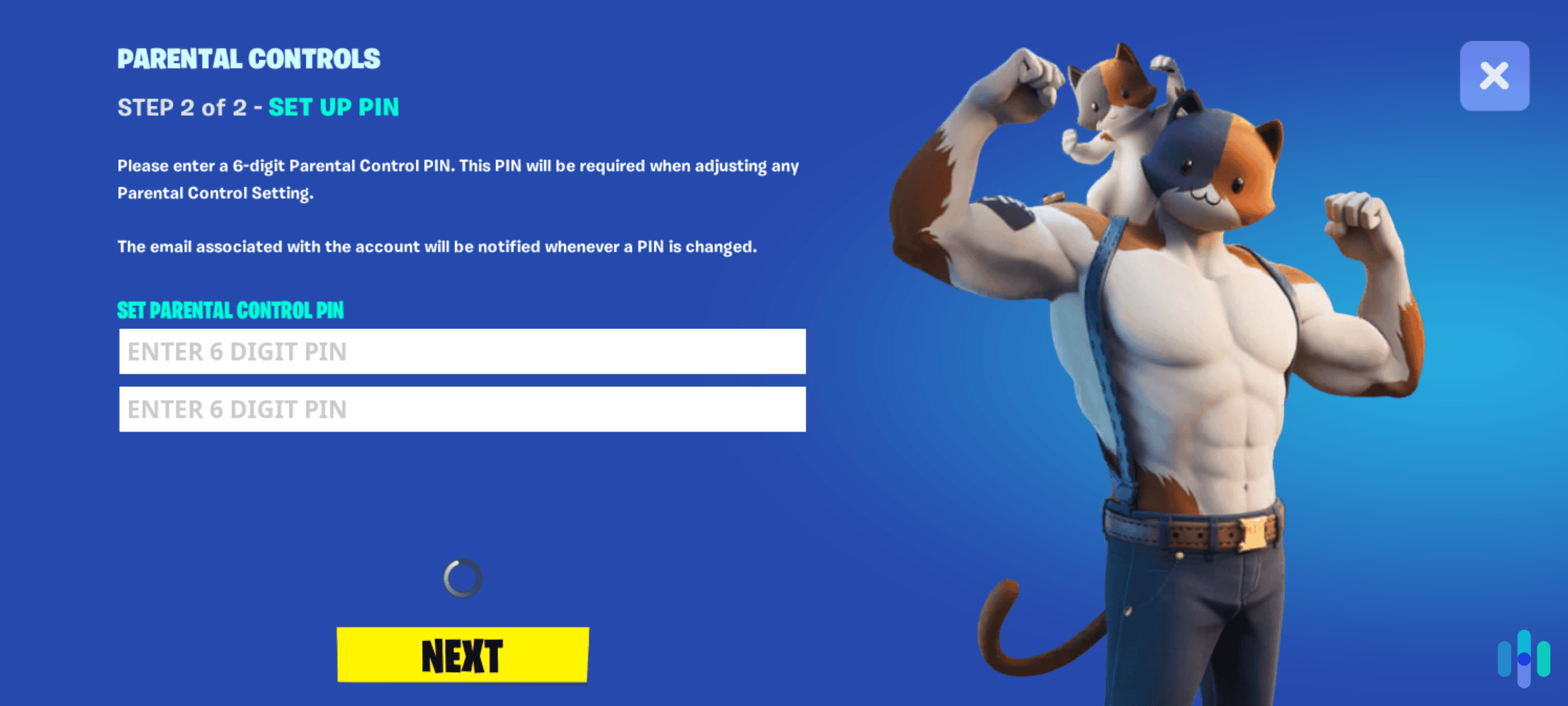
You’ll be prompted to enter an email address where Epic Games will send a six-digit code. Make sure to use your email address, not your child’s. Once you receive the code, enter it into Fortnite. Next, create a six-digit PIN that your child doesn’t know. This PIN will be required to change any parental control settings in the future.
Pro Tip: Choose a PIN your child can’t easily guess. We suggest avoiding obvious combinations like birthdays or repeating numbers.
Step 3: Configure Your Settings
Once your PIN is set, you’ll see several toggles and options. Take time to go through each one and adjust them based on your child’s age and maturity level. You can always come back and modify these settings as your child grows or demonstrates more responsibility.
Key Parental Control Features Explained
Fortnite’s parental controls offer several specific features that address different aspects of gameplay and safety. Understanding what each one does helps you make informed decisions.
Communication Settings
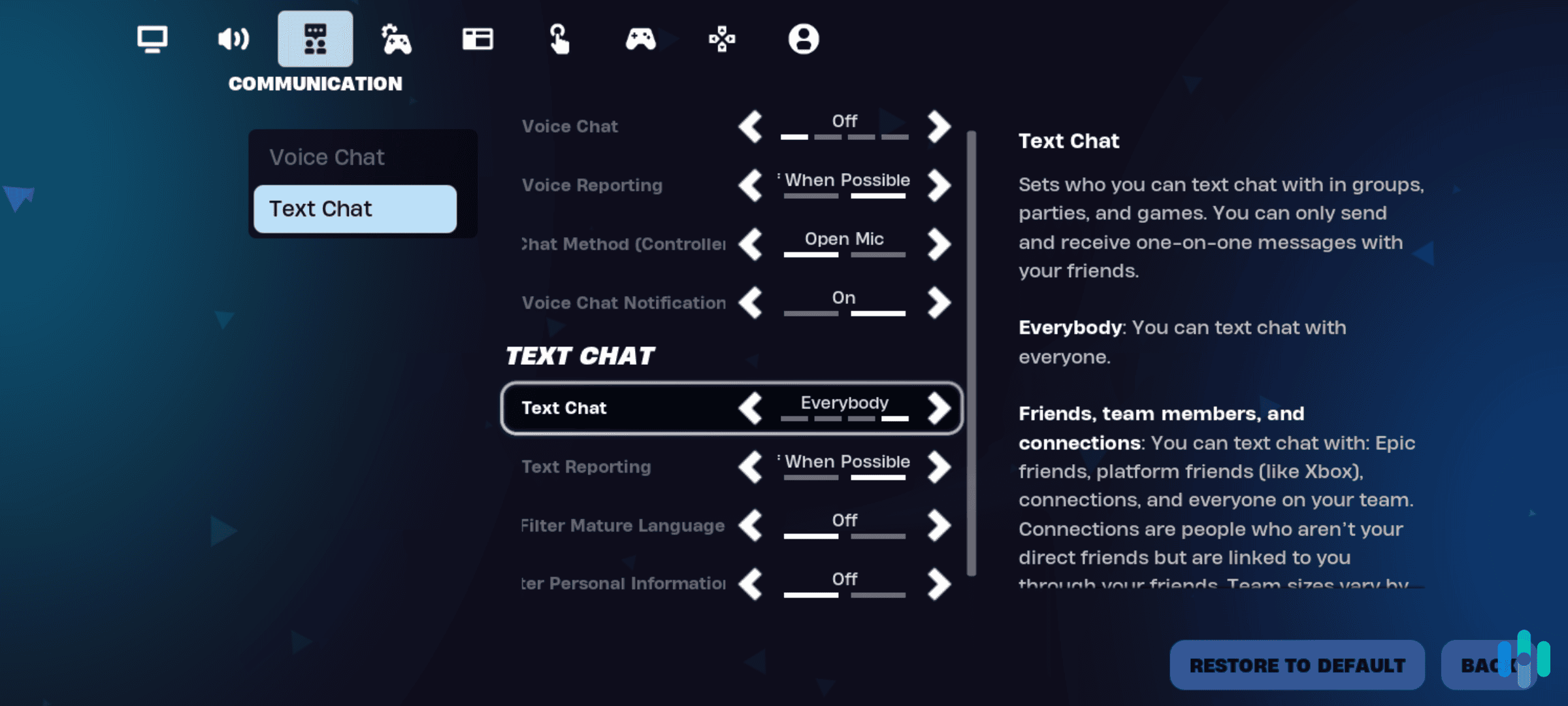
We think the communication controls are the most important for protecting your child from inappropriate interactions. You can filter mature language, which automatically censors profanity in text chat. You can also restrict voice chat to friends only, nobody, or everybody. We recommend starting with “friends only” for younger children. Similarly, you can limit text chat options to prevent your child from messaging strangers.
FYI: Over 30 percent of young people have experienced cyberbullying in online games, so setting these communication restrictions is vital for younger players.2
Privacy Settings
Privacy controls determine who can interact with your child in the game. You can restrict who can see your child’s display name, limit friend requests to friends-of-friends or block them entirely, and control whether others can see if your child is online. For children under 13, many of these settings are automatically restricted to comply with the Children’s Online Privacy Protection Act (COPPA).
Pro Tip: Set friend requests to “friends of friends” rather than “everyone”. This will limit your child’s exposure to complete strangers while still allowing them to connect with classmates.
Time Limit Management
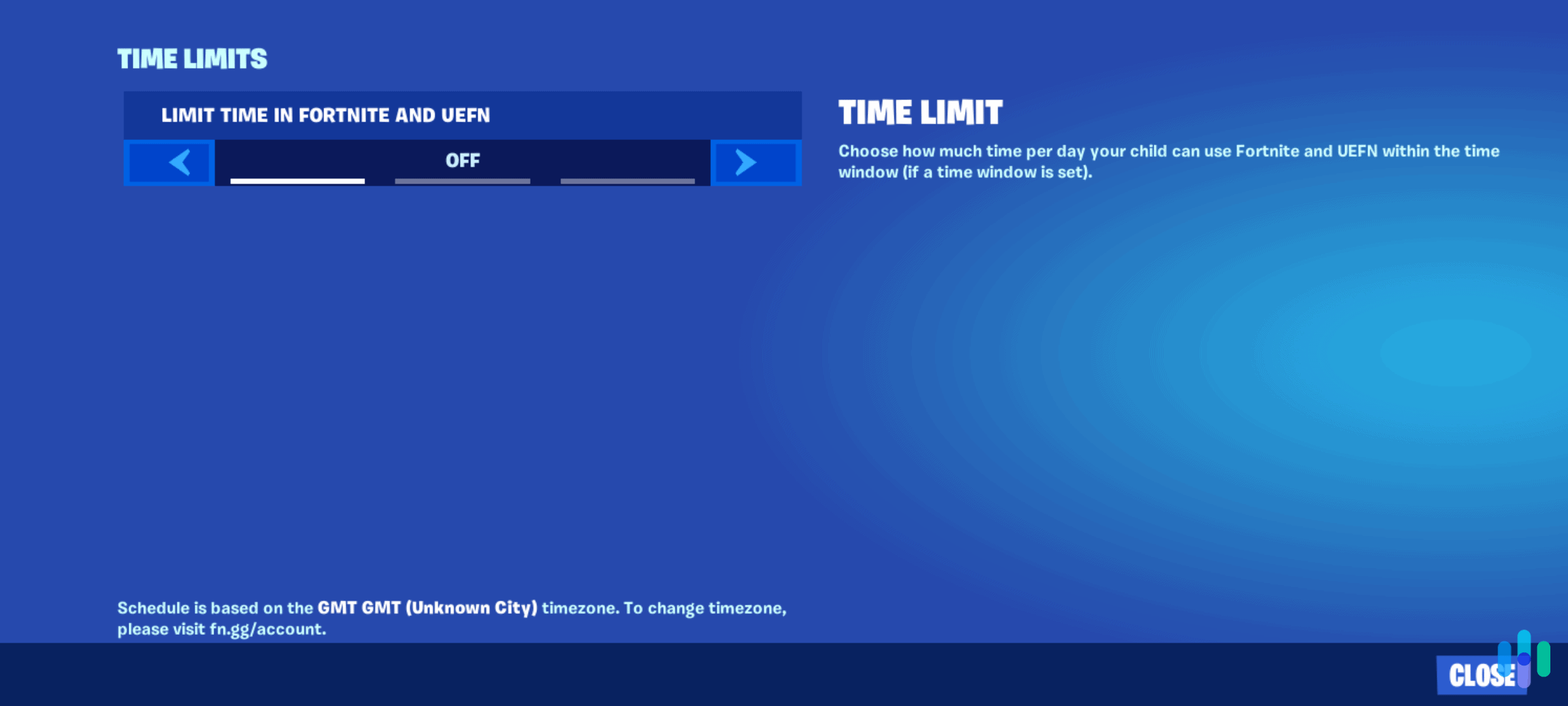
The time limit feature lets you set daily playtime restrictions, choosing anywhere from 15 minutes to several hours per day. You can also schedule specific play windows, such as only allowing gameplay after homework time or not on school days. When we reviewed Qustodio, we also set up screen limits as a backup for mobile devices. When the time limit approaches, your child receives warnings, and the game will eventually lock them out until the next permitted play period.
Purchasing Controls
V-Bucks (Fortnite’s virtual currency) are used to buy cosmetic items, battle passes, and emotes. You can require your PIN for every purchase, set spending limits, or disable purchases entirely. This prevents surprise credit card bills and teaches children to ask permission before spending money, even virtual currency.
Content Filtering
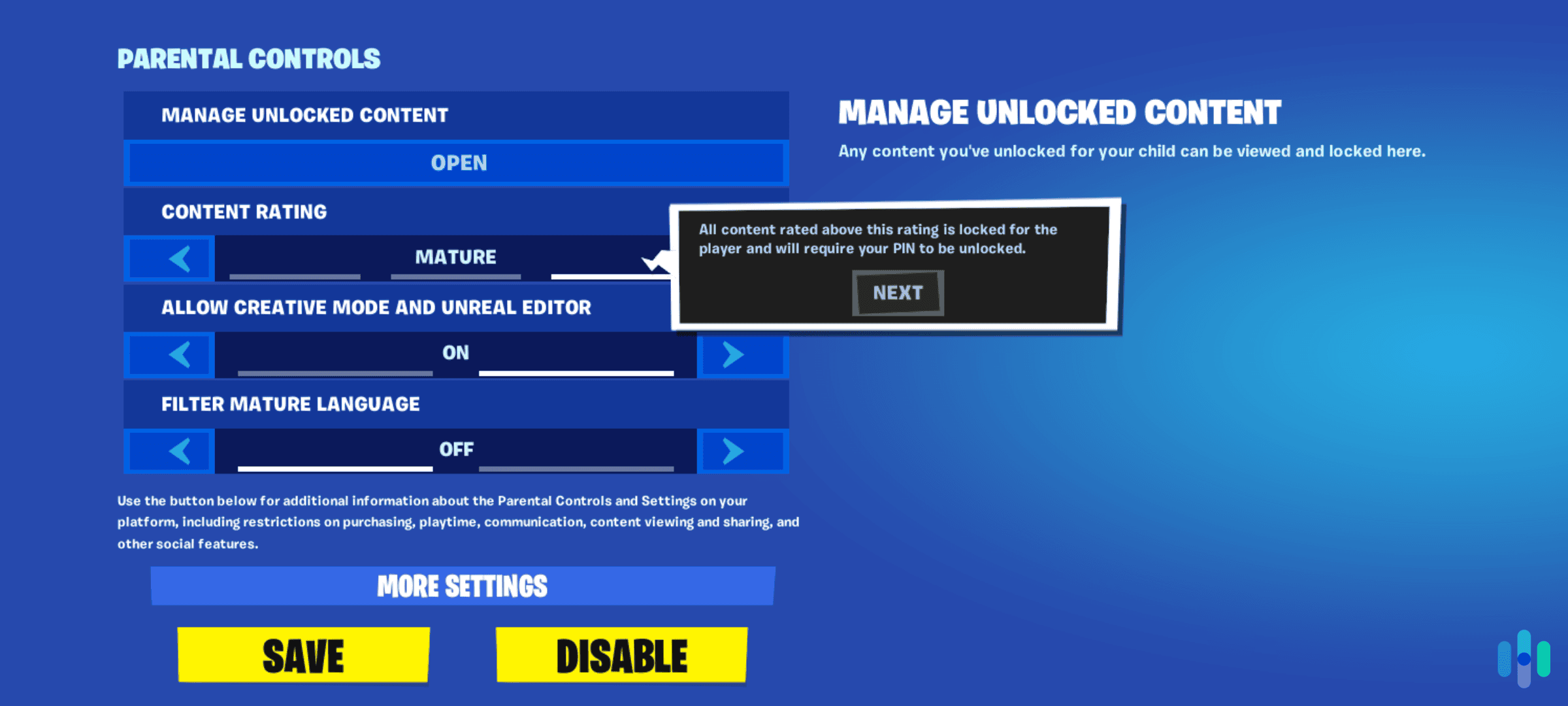
While Fortnite’s main Battle Royale mode doesn’t have adjustable content filters (the violence level is consistent throughout), Creative Mode allows user-generated content. You can restrict which creative islands your child can access based on maturity ratings assigned by Epic Games.
Additional Safety Tips for Parents
We’ve found that parental controls work best as part of a broader approach to online safety. Keep gaming devices in common areas of your home where you can occasionally check in, rather than letting them play in isolated bedrooms. Have regular conversations with your child about their gaming experiences. Ask who they’re playing with and what they’re enjoying about the game.
It’s also smart to enable two-factor authentication on your child’s Epic Games account, which adds an extra security layer preventing unauthorized access. You can do this through the Epic Games website under account settings. We’ve also put together a list of the best VPNs for gaming, which secures your connection without impacting gameplay. Additionally, review your credit card statements regularly if your payment method is connected to the account, even with purchasing restrictions enabled.
Pro Tip: We recommend playing a few rounds of Fortnite with your child to understand the game’s appeal. It’s also an opportunity to observe their interactions with other players firsthand.
Troubleshooting Common Issues
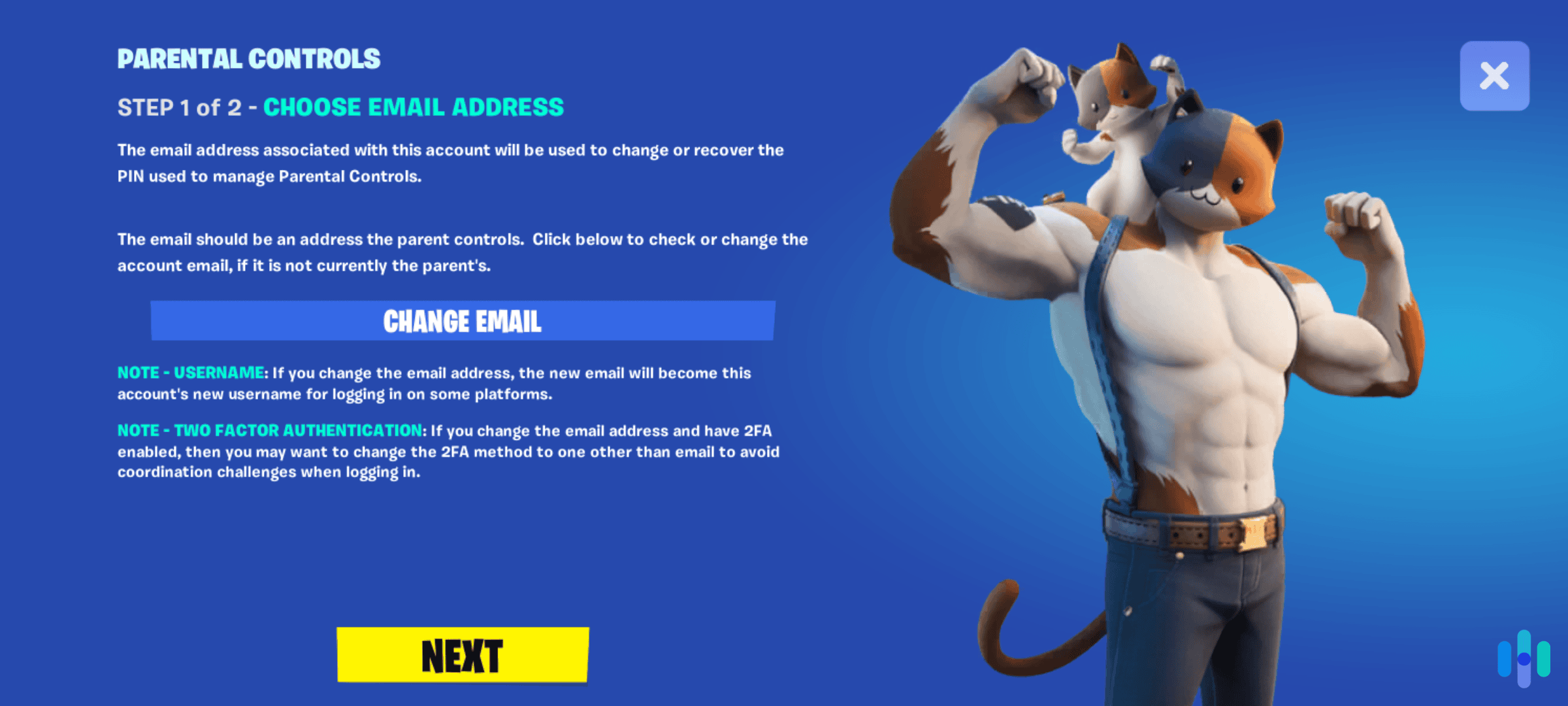
Sometimes parents encounter issues when setting up or using parental controls. If you’re not receiving the email verification code, check your spam folder and ensure you entered your email correctly. The code expires after a certain time, so request a new one if needed.
If your child claims they can’t access certain features they need, log in with your PIN and review the settings together. This helps you understand what restrictions might be too tight. If you forget your PIN, you’ll need to contact Epic Games support through their website, which requires account verification for security purposes.
On consoles, remember that platform-level parental controls (PlayStation, Xbox, or Nintendo Switch settings) work alongside Fortnite’s controls. For the best protection, we recommend configuring both the platform controls and Fortnite’s built-in features.
>> Learn More: How to Set Up Parental Controls on the Nintendo Switch
Recap
Setting up parental controls on Fortnite doesn’t mean you don’t trust your child. It means you’re being proactive about their online safety. Taking 10 minutes to configure these settings can prevent problems ranging from excessive screen time to dangerous interactions with strangers.
We recommend starting with stricter settings and gradually relaxing them as your child demonstrates maturity and responsibility. Keep in mind that Fortnite is constantly evolving and Epic Games regularly updates features. We suggest reviewing your parental control settings every few months to ensure they still match your child’s age. By combining parental controls with open communication and occasional supervision, you can let your child enjoy Fortnite while maintaining the safety boundaries that matter most to you.
Frequently Asked Questions
-
Can my child bypass Fortnite parental controls?
Children cannot bypass the controls without your six-digit PIN, which is why keeping that PIN secure and unknown to your child is crucial. Epic Games designed this system specifically to prevent unauthorized changes.
-
Do parental controls work across all devices?
Yes, parental controls are tied to your child’s Epic Games account and apply regardless of whether they play on PlayStation, Xbox, Switch, PC, or mobile devices. The settings sync automatically across all platforms.
-
How old does my child need to be to play Fortnite?
Fortnite is rated T for Teen (ages 13+) by the ESRB, but Epic Games allows younger children to play with parental consent and stricter default settings. Many parents allow supervised play for children as young as eight with strict parental controls enabled.
-
Can I monitor my child's Fortnite activity?
Epic Games doesn’t provide detailed activity logs through parental controls, but you can see playtime information and purchase history through the account management website. Some third-party router apps also allow you to monitor gaming time across your home network.
-
Will parental controls affect my child's gameplay experience?
Some controls may limit some social features, but the core gameplay remains fully functional. Most children adapt quickly to the restrictions, especially when you explain they’re for safety rather than punishment.
-
Can I set different controls for different children?
Each Epic Games account has its own parental control settings, so if you have multiple children playing Fortnite, you can customize controls for each child’s account based on their age and maturity. This requires each child to have their own account with separate PINs.