



With over 210 million monthly active players, Minecraft is a digital playground where kids spend hours building, exploring, and connecting with others.1 But here’s the thing: while Minecraft itself is relatively safe, the multiplayer features and chat functions can expose your children to strangers, inappropriate content, and online risks you’d rather avoid. That’s why as security experts, we strongly recommend setting up parental controls on Minecraft.
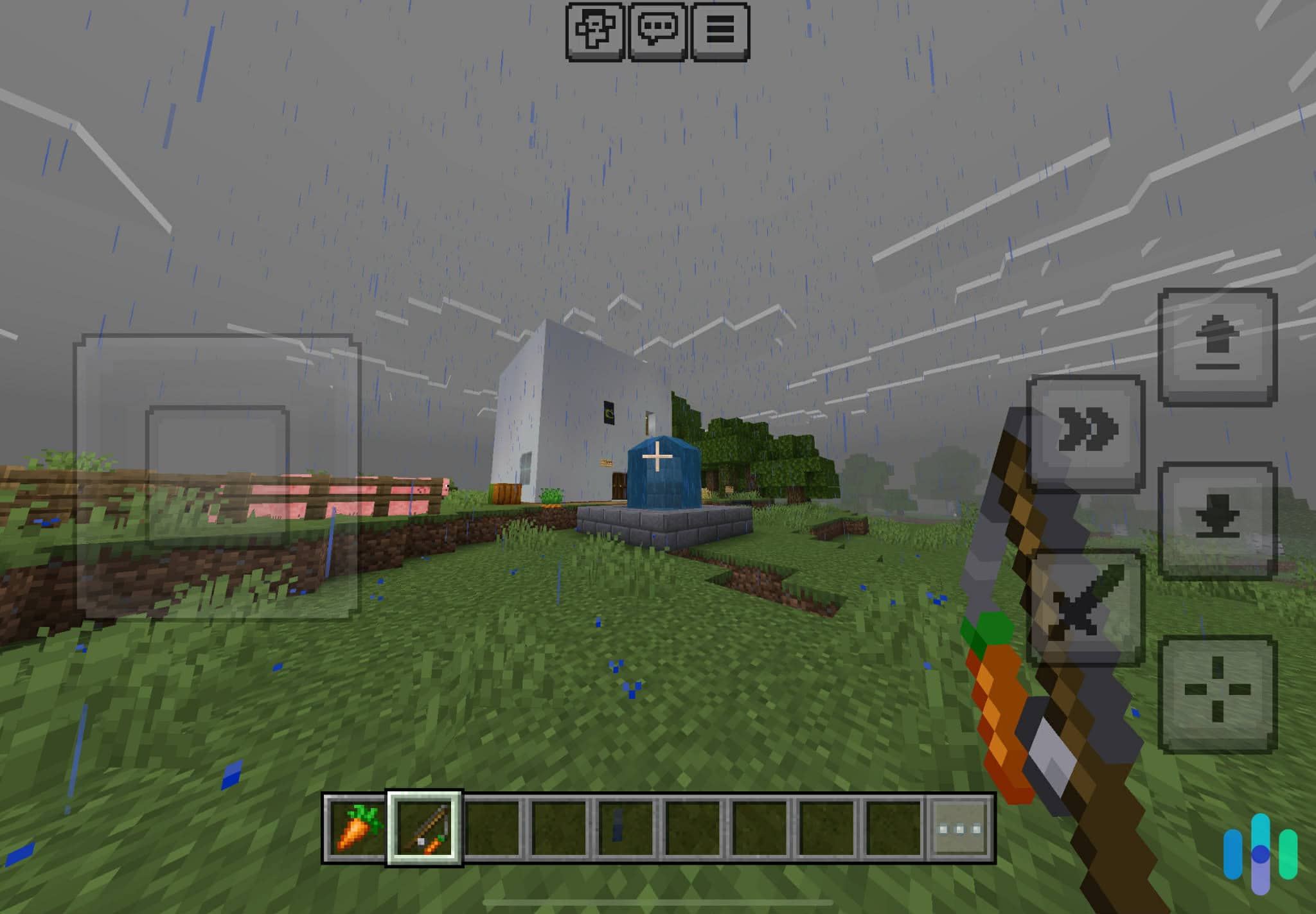
The process of setting up Minecraft parental controls isn’t complicated, but it varies depending on the platform your kid is playing on. In this guide, we’ll show you how to lock down those settings so your child can enjoy the game safely, whether they’re playing on an Xbox, PlayStation, Nintendo Switch, or a mobile device.
Expert Insight: Think of parental controls as the digital equivalent of knowing who your kids are playing with at the park. That being said, before diving into parental controls, sit down with your child and explain why you’re setting these boundaries. Doing so creates trust and helps them understand online safety.
How Minecraft Parental Controls Work
Minecraft’s parental controls work through a combination of in-game and platform-level settings. The very backbone for Minecraft parental control is the Microsoft account system, since most multiplayer features require logging in with a Microsoft account. That means you can apply parental controls to the account and apply them across most versions of the game, including Windows, mobile, and console editions.
The main areas you’ll want to address include multiplayer access, chat features, and the ability to join or create realms. According to research from the Family Online Safety Institute, four out of five parents and guardians find parental controls effective, which in turn gives them confidence about their children’s online safety.2 That confidence matters because it lets your kids enjoy the creative benefits of Minecraft without the constant worry.
Here’s what Minecraft parental controls let you manage across different platforms:
- Multiplayer access on public and private servers
- Chat and messaging capabilities
- Purchase permissions and spending limits
- Screen time and play session duration
- Content sharing and social media connections
It’s important to address all those areas if you want to make sure you’re protecting your kids online. Up next, let’s talk about how exactly you can set up and manage parental controls.
Setting Up Microsoft and Xbox Account Parental Controls
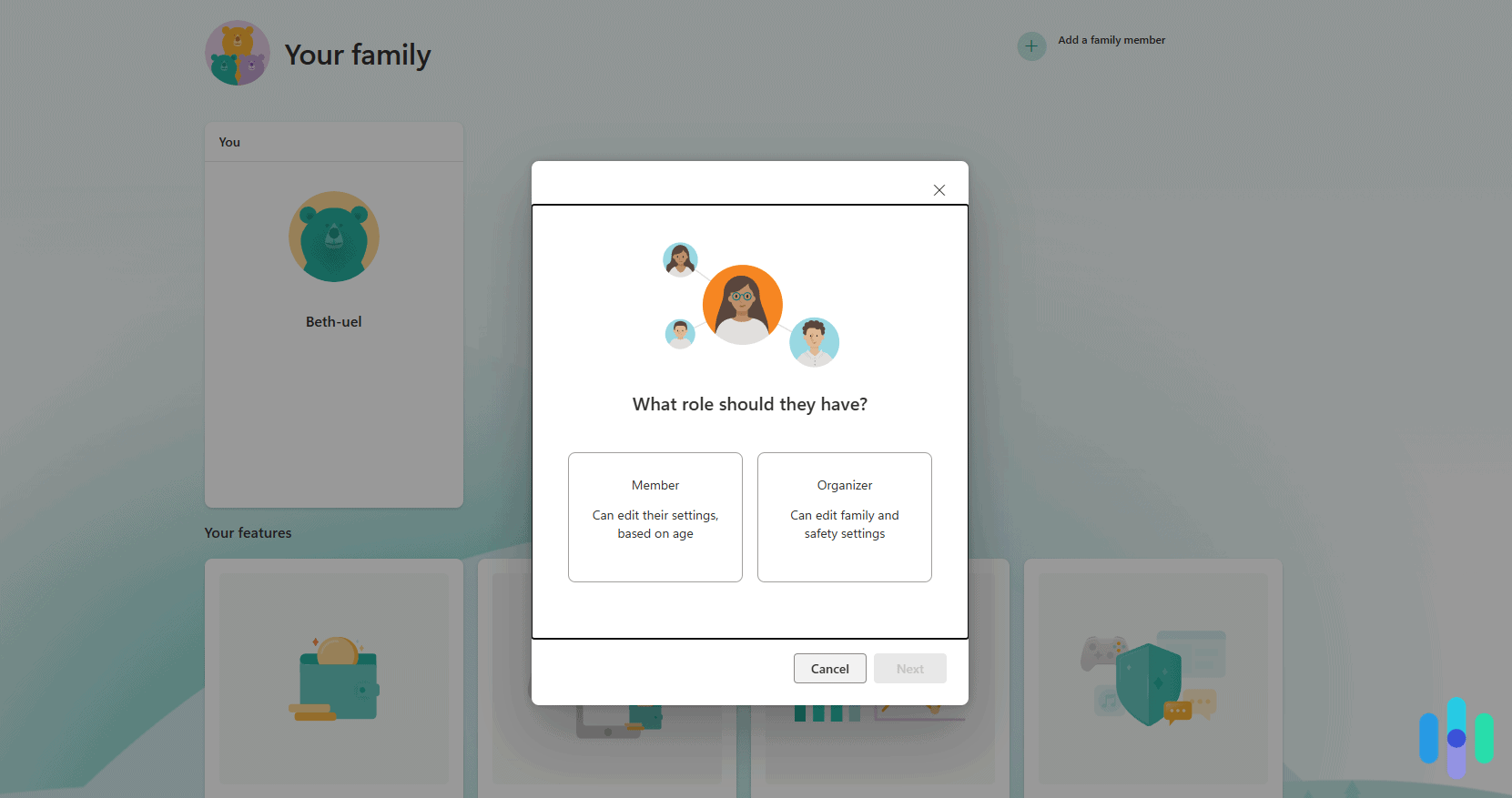
Since Minecraft uses Microsoft accounts for most cross-platform features, this is your starting point regardless of where your child plays. We recommend using the Xbox Family Settings app because it makes the process straightforward. It also gives you remote control capabilities from your phone.
Creating and Managing a Child Account
First, you’ll need to add your child to your Microsoft family group.
- Head to account.microsoft.com/family and sign in with your Microsoft account.
- Click “Add a family member” and create a child account using their email address. If they’re under 13, you’ll automatically get additional privacy protections thanks to COPPA (Children’s Online Privacy Protection Act) regulations.3
- Once the account is created, download the Xbox Family Settings app on your smartphone. From the app, you can adjust settings on the fly, approve or deny purchase requests, and get weekly activity reports.
Once the Xbox Family Settings app is ready, you can start customizing your Minecraft parental controls.
Configuring Privacy and Online Safety Settings
The Xbox Family Settings app focuses on online interactions, including messaging, socials, and purchasing.
First, we suggest navigating to the Privacy tab within your child’s account settings. There’s where you’ll make the critical decisions about multiplayer and communication. Here’s what you should do:
- If you want to prevent all online play: Under “Xbox Privacy,” set “You can join multiplayer games” to “Block.”
- If you’re comfortable with your kids playing with friends: Under “Xbox Privacy,” set “You can join multiplayer games” to “Friends only.”
Next, decide and set your comfort level for who can chat with your child within Minecraft. Most parents choose “Friends” or “Block,” but again, it all depends on what you think is best for your child. You’ll find the options under “Others can communicate with voice, text, or invites.”
Lastly, enable “Ask to Buy” under “Spending.” If this is on, any in-app purchase will require your approval. Every time your child tries to buy Minecraft skins, texture packs, or Minecoins, the Xbox Family Settings app will send you an approval request on your phone.
>> Parental Controls Outside Minecraft: The Best Parental Control Software of 2026
Minecraft Parental Controls on Different Platforms
The Xbox Family Settings app gives you a nice starting point. And while it has some other features – screen time limits, account wallet, and activity reports, for example – we recommend addressing other settings using built-in device parental controls, which are typically more granular.
Configuring Nintendo Switch Parental Controls
How To Set Up: Download the Nintendo Switch Parental Controls app from your smartphone’s app store and link it to your console using the registration code displayed on your Switch.
Nintendo has their dedicated Parental Controls app, which gives you a surprising amount of control over what happens on your child’s Switch.
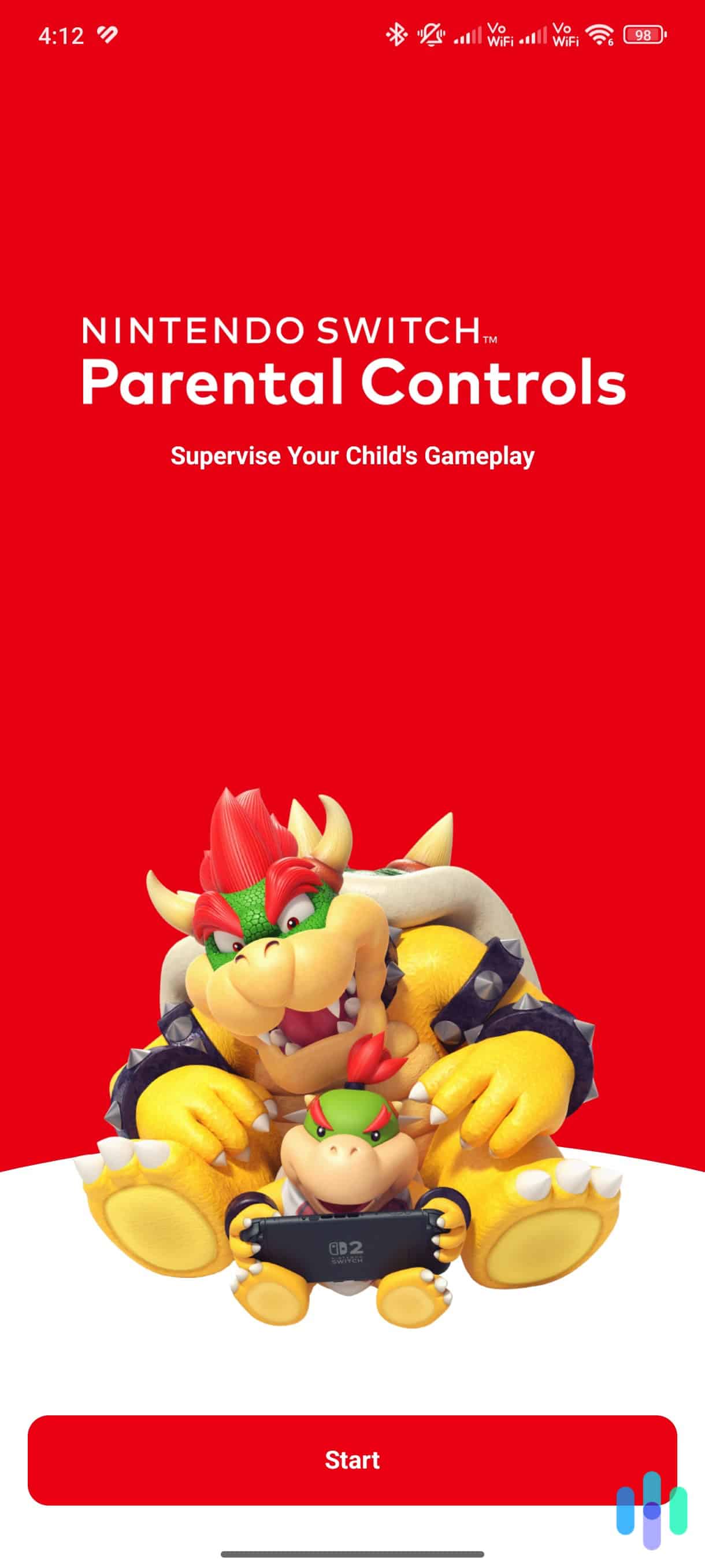
Within the Nintendo Switch’s parental control app, you can set daily playtime limits and choose whether to restrict online communication in games. For Minecraft specifically, you’ll want to toggle “Restrict the posting or viewing of messages or content created by other users.” This blocks chat functions but still allows your child to play on local multiplayer with people in the same room, which we find is a nice middle ground for most families.
The Switch app also sends you monthly summaries showing exactly how much time your kid spent in each game. When we talk to parents about this feature, many are surprised to discover their child is playing way more than they realized. We encourage parents to know the numbers, because this knowledge helps inform better screen time conversations.
>> Related: How to Use a VPN on a Nintendo Switch
PlayStation Parental Control Setup
How To Set Up: From the console’s home screen, go to “Settings”, then “Family and Parental Controls,” and then “Family Management.” You’ll need to sign in as the family manager, then select your child’s account to customize their restrictions.
On Playstations, you can limit communication with other players by adjusting “Communicate with Other Players” under “Parental Controls.” Set the restriction to “Not Allowed” to completely block chat and messaging in Minecraft. Additionally, the “User-Generated Media” setting lets you prevent your child from viewing content created by other players, though this can limit some Minecraft functionality like viewing signs and books written by others.
PlayStation also offers spending controls under “Monthly Spending Limit,” where you can cap exactly how much can be spent each month on Minecoins and downloadable content. Set it to zero if you want to prevent any purchases without your direct involvement.
>> Additional Privacy Tips: How to Set Up a VPN on Playstation
Managing Mobile and Tablet Controls
Minecraft Pocket Edition on iOS and Android requires a combination of device-level controls and Microsoft account settings. Since the Microsoft account restrictions you set earlier apply here too, you’re already halfway there.
Minecraft Parental Control on iOS
For iOS devices, we suggest using Screen Time to limit Minecraft usage and restrict in-app purchases.
- Go to “Settings,” and then “Screen Time”.
- Under “App Limits,” scroll down to Minecraft and set a limit for the app specifically.
- Additionally, under “Content & Privacy Restrictions,” you can require password entry for purchases to prevent surprise charges.
We also suggest looking into our list of the best parental control apps for iOS devices. These apps provide even more granular control and additional features, including working on different platforms.
Minecraft Parental Control on Android
For Android, you can use Google Play’s parental controls and the Family Link app. Family Link gives you remote control over app usage, screen time, and purchase approvals. Within the app, select your child’s device, tap “Controls,” and set up app limits for Minecraft.
That said, Family Link works best if your entire household uses Android devices. If you’re using a non-Android smartphone, we check out the best parental control apps for monitoring your child’s Android.
Recap and Final Words
Setting up parental controls on Minecraft is one of those tasks that takes a bit of effort upfront but pays dividends in peace of mind. By configuring platform-specific settings through Xbox, PlayStation, Nintendo, or mobile device controls, you create a safer gaming environment tailored to your child’s age and maturity level.
However, remember that technology alone won’t keep your kids completely safe. It needs to work alongside open communication and education. These parental controls are tools, not replacements for involvement in your child’s online life. Check in regularly, adjust settings as they grow, and stay curious about what they’re building and who they’re playing with. Minecraft can be an incredible space for creativity and learning when you’ve set up the right guardrails, so take these steps today and let your kids enjoy the game with confidence.
Frequently Asked Questions
-
Can I completely disable multiplayer in Minecraft?
Yes, through your Microsoft account family settings, you can block all multiplayer access, which prevents your child from joining servers or realms. This restriction applies across all devices linked to their Microsoft account.
-
Do parental controls work in creative mode?
Yes, parental controls apply to all game modes including creative, survival, and adventure. The controls restrict online interactions and communications regardless of which mode your child is playing.
-
Can my child bypass these parental controls?
It’s difficult but not impossible. Some tech-savvy kids find workarounds like creating secondary accounts. To minimize that risk, use strong passwords, enable two-factor authentication, and keep devices in shared spaces to minimize this risk.
-
Are Minecraft Realms safer than public servers?
Generally yes, because Realms are private and invitation-only, giving you control over exactly who plays with your child. However, you should still know who has been invited and maintain communication rules.
-
How do I monitor what my child is doing in Minecraft?
Use platform-specific activity reports (Xbox Family Settings, Nintendo Switch Parental Controls, or Family Link) to see playtime and friends. The best monitoring combines these tools with occasional in-person check-ins during gameplay.
-
Will these settings affect single-player mode?
No, parental controls primarily affect online features like multiplayer, chat, and purchases. Your child can still play Minecraft in single-player mode without any restrictions from parental controls.