

Managing your digital boundaries is essential in today’s connected world. One way to do that is with Snapchat’s blocking feature. Whether you’re dealing with harassment, unwanted attention, or simply want to curate your social circle, knowing how to block and unblock contacts is a fundamental skill for maintaining your online safety and peace of mind.
With cyberbullying statistics showing that roughly 50 percent of U.S. teens have experienced harassment on social platforms, privacy controls are more important than ever.1 That’s why we made this guide so you can take your digital safety into your own hands. Our experts will show you the exact steps to blocking someone on Snapchat in under one minute. We’ll also show you how to unblock them in case you change your mind.
Expert Insight: If you’re blocking someone on Snapchat to prevent them from communicating with you, we recommend blocking them on other social media platforms as well. Check out our blocking people on Instagram, blocking people on TikTok, and blocking people on Facebook guides to prevent access on those platforms as well.
How to Block Someone on Snapchat
Blocking someone on Snapchat takes just a few taps, and the process is the same on iPhone or Android devices. We’ll cover three ways to block someone — from their profile, from chat and from their story.
>> Read More: How to Block Numbers, Websites, and Text Messages on iPhones
Method #1: Block From Profile
We’ll start with blocking people on Snapchat from their profile. It can be done in just four steps:
- Open the Snapchat app.
- Navigate to the person’s profile by searching their username or finding them in your Friends list.
- Tap the three-dot menu icon in the top-right corner of their profile.
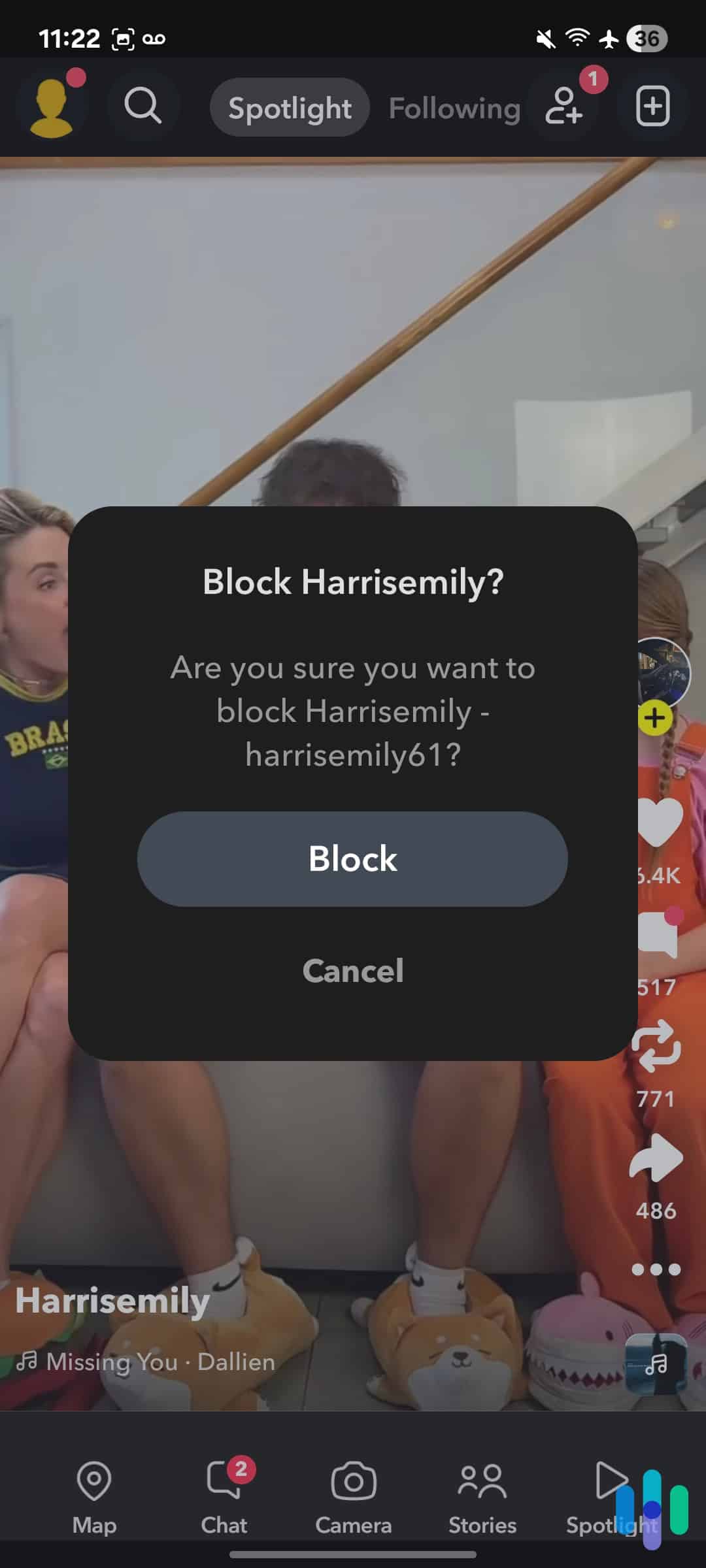
- Select “Block” from the menu options, then confirm that you want to block them when prompted.
We use this method the most as no matter where you are on the app when you decide you want to block someone, you can always navigate to their profile.
Method #2: Block From Chat
When someone sends you a Snap, you can block them directly from the Chat window in six steps as follows:
- Open the Snapchat app and navigate to the Chat screen by tapping the speech bubble icon in the bottom navigation bar.
- Find the person you want to block in your chat list. You can search their username using the search bar at the top if you can’t find them.
- Press and hold on their name or Bitmoji until a new menu pops up.
- Tap “More” from the pop-up menu.
- Select “Block” from the options.
- When prompted, tap “Block” again to confirm your action.
With this method, you can block people from the main screen used when interacting with others on Snapchat.
Method #3: Block From Story
Finally, you can also block someone from the Stories screen before you even click into their story. Here’s how:
- From the Stories screen, tap and hold the Story thumbnail of the person you want to block until a menu pops up.
- On the pop-up menu, select “More.”
- Tap “Block” from the options.
- When prompted, confirm that you want to block this user.
This method is particularly useful when you encounter unwanted content and need to take quick action.
Pro Tip: If you’re trying to keep your kids safe as they use social media platforms like Snapchat, a parental control app can help. It allows you to set limits on how they use social media with the best parental control apps also sending you notifications if their interactions show signs of risky behavior.
Why Block Someone on Snapchat?
Blocking can help you create a safer, more comfortable digital environment when you use social media. People block others on Snapchat for various legitimate reasons, and understanding these can help you decide if blocking someone is the right move for you.
The most common reasons people block others on Snapchat are associated with harassment or bullying. When someone repeatedly sends unwanted messages, inappropriate content, or harassing Snaps, blocking becomes a necessary protective measure.
Other valid reasons include ending relationships cleanly, avoiding drama or conflict, protecting your privacy from ex-partners, and preventing unwanted Story viewers. All that said, you really don’t need a reason to block someone. If you think blocking someone will make your experience on Snapchat safer or more enjoyable, you should do it.
Expert Inisght: If someone is threatening you or sending explicit content without consent, screenshot the evidence before blocking. That way, you have evidence in case their harassment escalates and you need to file a police report.
What Happens When You Block Someone?
When you block someone, they’re immediately removed from your Friends list, and you’re removed from theirs. All existing chat conversations remain in your chat feed, but you won’t receive any new messages from them. They can’t send you Snaps, view your Stories, or see your location on Snap Map if you had that enabled.
While the person won’t receive a notification that you blocked them, they’ll likely figure it out once they notice that they can no longer see your Stories or send you Snaps. Your account essentially becomes invisible to them, which is noticeable if they used to interact with your profile regularly.
Still, Snapchat’s silent blocking approach reduces confrontation and potential retaliation, making it safer for users who need to disconnect from problematic contacts. Plus, it keeps previous Snaps and messages in your chat history. We recommend taking screenshots of those Snaps and messages in case you need evidence at a later date. Then, delete them so you no longer need to see them when using Snapchat.
>> Learn About: How To Change Location on Snapchat
How to Unblock Someone on Snapchat
Changed your mind or resolved a conflict? Unblocking someone is almost as easy as blocking them in the first place, with just a few nuances.
Step-by-Step Unblocking Process
Let’s start with the easy part. Here are the five steps to officially unblock someone on Snapchat:
- Open Snapchat and tap your profile icon (Bitmoji) in the top-left corner.
- Tap the settings gear icon in the top-right corner to access the Settings menu.
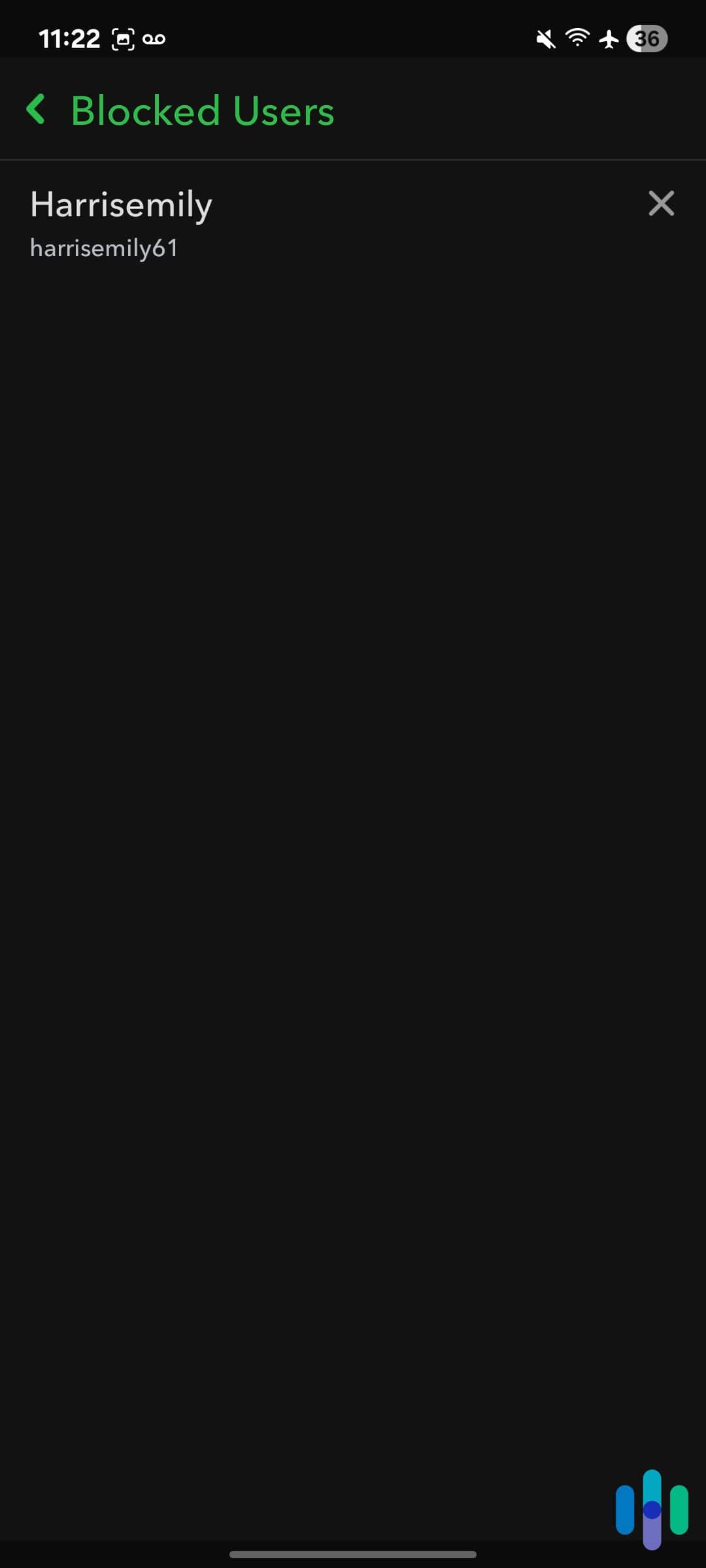
- Scroll down and select “Blocked” under the Account Actions section. This shows a complete list of users you’ve blocked.
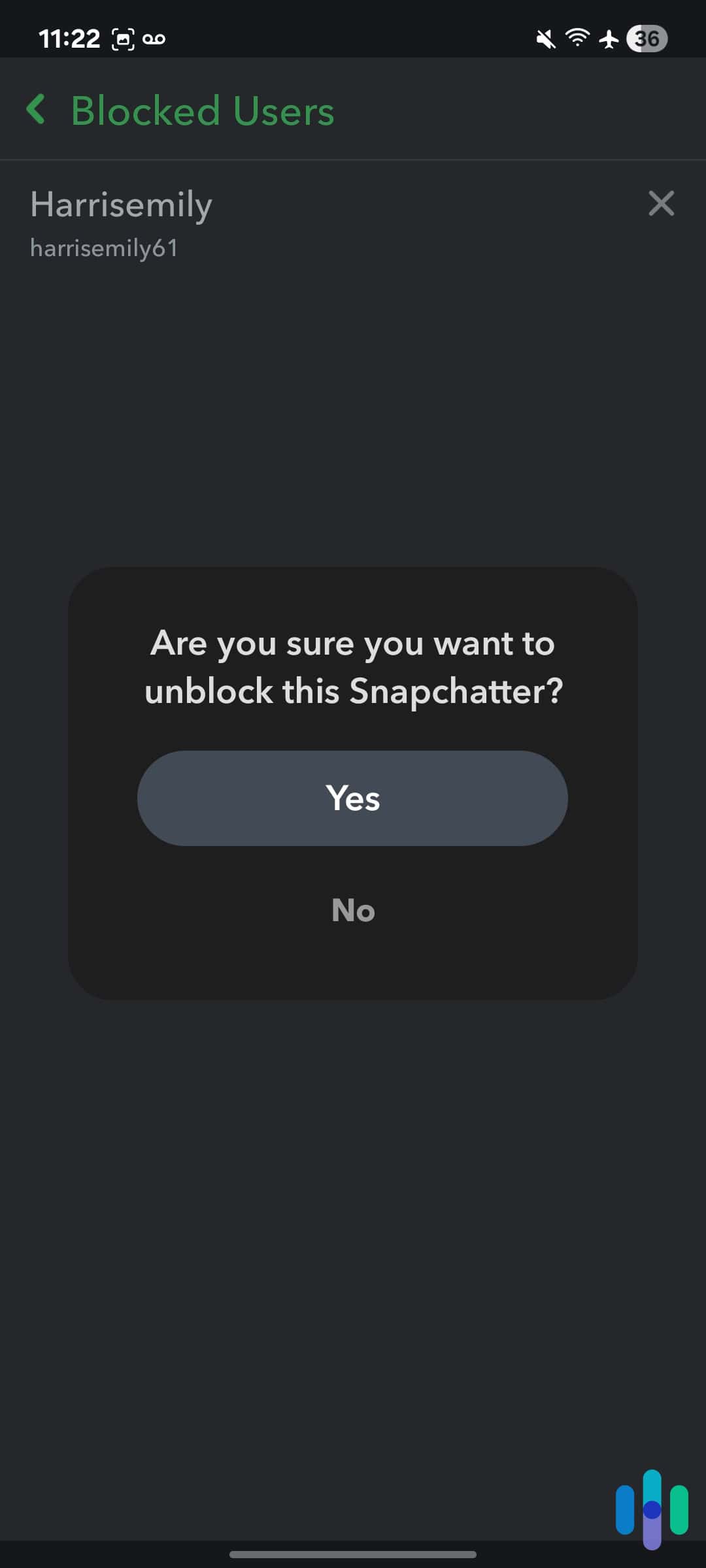
- Find the person you want to unblock in the list and tap the “X” next to their name.
- Confirm you want to unblock them when prompted.
Now for the nuance. After following those steps, they’re unblocked. However, that does not automatically re-add them as a friend. You’ll still need to send them a new friend request just like when you first added them on Snapchat. Then, they’ll need to accept it before you can start interacting with them like you did before blocking them.
Heads Up: When dealing with people who cross your boundaries, experts recommend staying consistent in the way you enforce your boundaries.2 Before you unblock someone, consider if it’s the right choice given their past actions. If you blocked them for violating a boundary, unblocking them might make them think they can cross your boundaries without consequence.
Blocked vs. Removed: Understanding the Difference
Snapchat offers two different ways to disconnect from someone, blocking and removing. These functions serve different purposes in managing your social connections. Here’s an overview of the differences between removing and blocking someone:
| Snapchat Action | Remove | Block |
|---|---|---|
| Can They Message You? | Yes, sent to your pending messages | No |
| Can They See Your Stories? | Yes, if you set your Stories to public | No |
| Can They Find Your Profile? | Yes | No |
When you remove someone, you’re simply unfriending them. They can still send you Snaps and messages (which appear as pending), view your public Stories, and see your profile in search results. We recommend removing someone when you’re just trying to clear out your friends list so it’s easier to find the Stories and Snaps you actually want to see.
Blocking, on the other hand, creates a complete communication wall. The blocked person can’t find your profile, send you anything, or view any of your content. We recommend blocking in situations that involve harassment, unwanted contact, or when you need complete separation from someone.
>> Check Out: Most Popular Hiding Apps Parents Should Know About
Recap: Using Blocking as a Digital Safety Tool
Blocking is a powerful tool on Snapchat for managing your digital boundaries and protecting your online wellbeing. Whether you’re dealing with harassment, ending a relationship, or simply curating a more positive social media experience, it puts you in complete control over who can interact with you.
Don’t hesitate to block someone if they’re making you uncomfortable, violating your boundaries, or threatening your safety. Your peace of mind and digital security are always more important than worrying about someone else’s feelings.
Frequently Asked Questions
-
Does someone know when you block them on Snapchat?
No, Snapchat doesn’t send a notification when you block someone. However, they may notice they can’t find your profile or see your content anymore.
-
Can a blocked person still see old messages?
Yes, messages sent before the block remain visible in both users’ chat histories. Blocking only prevents new communication.
-
What happens to Snapstreak when you block someone?
Your Snapstreak immediately ends when you block someone, and it cannot be recovered even if you unblock them later.
-
Can I block someone who isn't my friend?
Yes, you can block any Snapchat user even if you’re not friends with them, which is useful for stopping strangers from contacting you.
-
Will unblocking restore our previous friendship status?
No, unblocking doesn’t automatically re-add someone as a friend. You’ll need to send a new friend request after unblocking.
-
How many people can I block on Snapchat?
There’s no official limit to how many users you can block on Snapchat. You can block as many accounts as needed for your safety and comfort.