

The Best Parental Control Apps of 2026
We tested and ranked the best parental control apps – Aura, Bark, and Qustodio.
 Last Updated on Jan 29, 2026

- Comprehensive identity theft protection bundled with parental controls for whole-family security
- AI-powered content monitoring that scans for concerning language patterns across multiple platforms
- Includes VPN and antivirus protection alongside parental features for complete digital safety

- Monitors 30+ social media platforms including text analysis in direct messages and comments
- Alerts sent only for genuinely concerning content, reducing notification fatigue for parents
- Covers unlimited devices per family subscription, making it cost-effective for larger households

- Works seamlessly across iOS, Android, Windows, Mac, and Kindle devices from one dashboard
- Detailed activity reports show exactly how much time kids spend on each app and website
- Panic button feature lets kids instantly alert parents during emergencies
Let’s talk numbers — roughly 42 percent of children begin owning smartphones around age 10. By age 12, smartphone ownership rises to 70 percent. Additionally, about half of 11-year-olds have social media accounts.1 That’s a whole lot of internet access for preteens who still need to be reminded to brush their teeth.
Parental control apps aren’t about spying on your kids or invading their privacy. They’re about protecting kids in an online world that wasn’t designed with children’s safety in mind. After spending weeks testing the leading parental control platforms, we’ve found that the best ones strike a delicate balance. They give you visibility into potential dangers, like cyberbullying and inappropriate content, without turning you into Big Brother. Aura, Bark, and Qustodio stood out in particular.
How We Test Parental Control Apps
We don’t just download these apps and poke around for an hour. Our testing process involves installing each platform on multiple devices (iOS, Android, Windows, Mac) and using them as actual parents would for at least two weeks. We evaluate everything from the initial setup experience to how accurately the apps detect concerning content.
Our testing criteria include monitoring accuracy, ease of use, feature comprehensiveness, platform compatibility, privacy policies, and value for money. We create test scenarios involving age-inappropriate searches, simulated cyberbullying conversations, and attempts to circumvent restrictions. We also assess how each app handles false positives—because the last thing you need is a panic attack over something harmless.
For this specific guide, we prioritized:
- Platform flexibility: We understand that parents looking for the best parental control apps might need it for kids who are using different types of devices, so flexibility in this area is critical.
- Monitoring accuracy: We also tested how well these apps detect danger across different areas they monitor, from social media and messaging apps to online games. We also tried using them alongside built-in app tools, such as Snapchat parental controls.
- Overall value for money: Since most parental control apps charge a subscription fee, we looked for options that provide the most value. We found a number of ways these apps provide extra value, such as by bundling useful digital safety tools like VPNs and antivirus software or offering advanced AI features.
Expert Advice: No parental control app is 100 percent foolproof. Tech-savvy kids can find workarounds, so these tools work best when combined with open conversations about online safety.
Our Top Parental Control App Picks
- Aura Parental Control - Best All-Around Protection
- Bark Parental Control App - Best for Social Media Monitoring
- Qustodio Parental Control App - Best for Cross-Platform Coverage
Comparing The Best Parental Control Apps
| System |
Aura
|
Bark
|
Qustodio
|
|---|---|---|---|
| Ranking | 1st | 2nd | 3rd |
| Ratings | 9.6/10 | 9.5/10 | 9.3/10 |
| Starting Monthly Price | $8.33/month | $14/month | $4.58 |
| Number of Devices | Unlimited | Unlimited | Up to 15 |
| Social Media Monitoring | Yes | Yes (30+ platforms) | Yes |
| Screen Time Controls | Yes | Yes | Yes |
| Location Tracking | Yes | Yes | Yes |
| Web Filtering | Yes | Yes | Yes |
| Identity Protection | Included | No | No |
| Read Review | Aura Review | Bark Review | Qustodio Review |
-
1. Aura Parental Control - Best All-Around Protection
View Plans Links to Aura.com
Aura takes a different approach than most parental control apps by offering an identity theft protection Family plan that bundles digital safety tools with comprehensive identity theft protection. When we signed up for this plan, we got parental controls plus credit monitoring, dark web scanning, VPN service, and antivirus protection. We recommend this approach if you want all-around protection for the entire family. It’s also one of the best family identity protection plans we’ve tested.
Focusing on parental control, we think Aura is solid, but the all-around protection means it’s less specialized than dedicated apps like Bark. With Aura, we got the core features, including web filtering, screen time management, location tracking, and basic content monitoring, but not a lot of advanced features. Still, for $20 per month, the Aura Family plan offers solid value.
FYI: You can also purchase a standalone parental control subscription, starting at $8.33 per month if you prepay for a year. If you pay monthly, the cost is $10 per month for unlimited parental control coverage.
What We Like
- Comprehensive family protection that goes beyond just parental controls
- Excellent value when you consider all the bundled security features
- User-friendly dashboard that doesn’t require a tech degree to navigate
- 24/7 customer support with real humans
What We Don’t Like
- Social media monitoring isn’t as deep as specialized competitors
- Takes longer to set up due to the bundled subscription
- Mobile app interface could be more intuitive for quick checks
Aura Setup and Installation

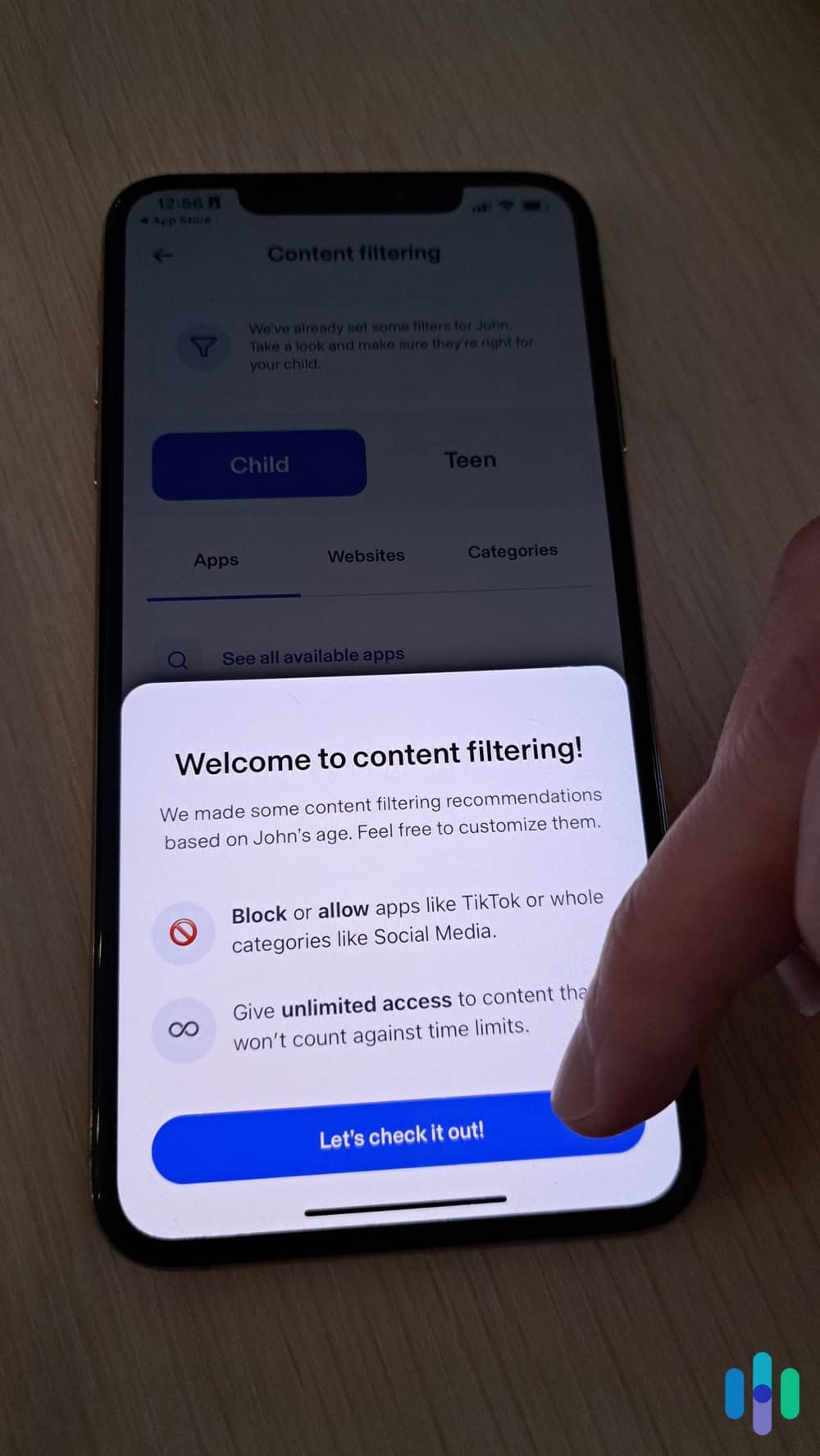
The Aura app monitoring a designated child device We recommend setting aside about 15 minutes per device to set up Aura. We started by creating an account on the web dashboard. Then, we added family members and installed the app on child devices. We found the process straightforward, though we noticed that iOS devices require a few extra steps due to Apple’s restrictions on parental control apps. Nonetheless, we think Aura is one of the best iOS parental control apps.
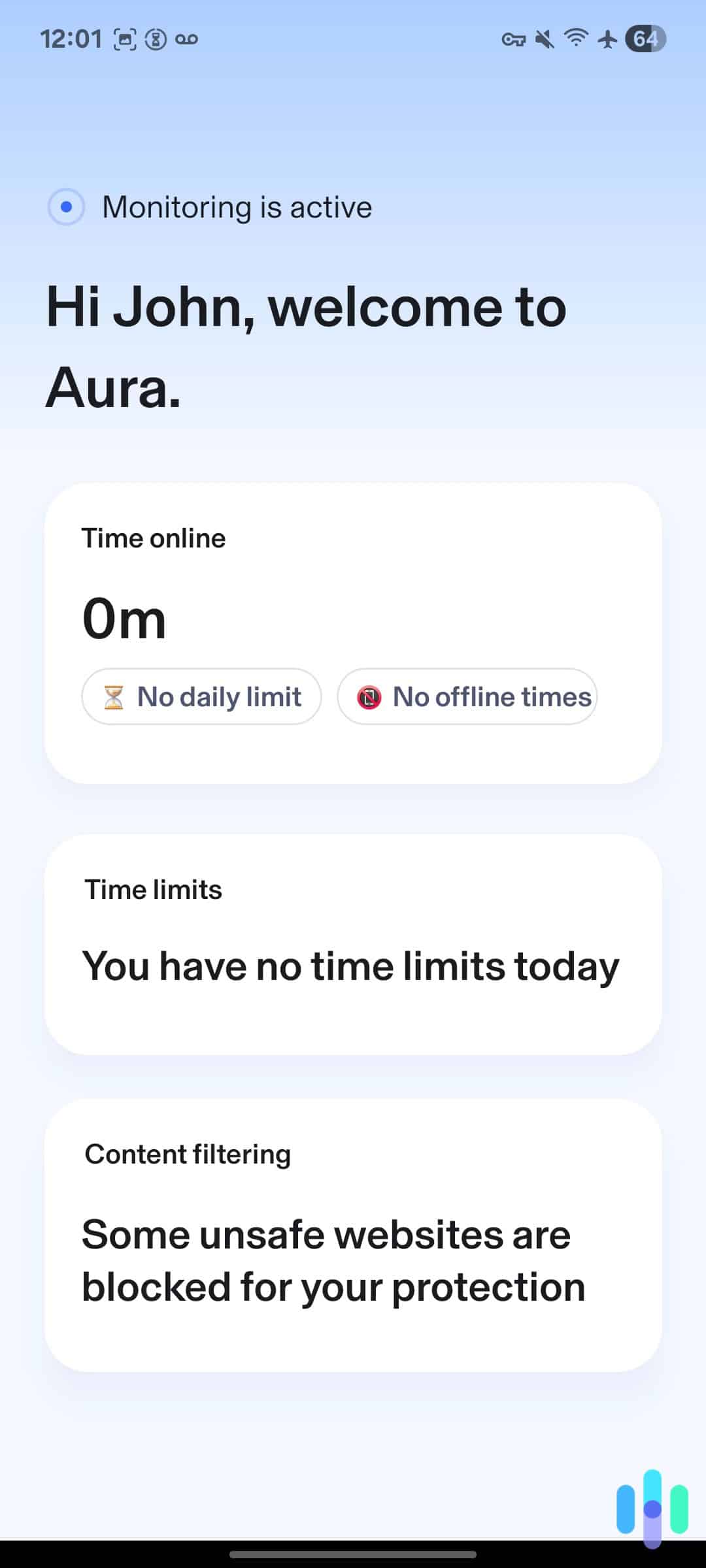
Once installed, Aura automatically began monitoring web browsing and app usage on the designated child’s devices. However, we recommend customizing your filtering preferences, setting screen time limits, and designating safe zones for location alerts. We found the defaults sensible enough that you don’t need to tweak everything, but a little personalization will help you tailor the app to your child’s needs.
Content Monitoring and Filtering
Aura’s content filtering relies on constantly updated category databases that block inappropriate websites automatically. You can choose from preset age-appropriate filters or create custom rules. During testing, it successfully blocked adult content, gambling sites, and violent material, though a few questionable sites slipped through. Mind you, these are not full-on inappropriate websites, so we understand why the filters didn’t catch them all.
The monitoring extends to search history and app downloads, giving you visibility into what your kids are curious about. We found through research that Aura uses AI to flag potentially concerning search terms. That said, it doesn’t scan the actual content of text messages or social media direct messages as thoroughly as Bark (our next pick) does.
Screen Time Management

Aura tracking screen time and social media use Setting screen time limits in Aura is refreshingly simple. You can establish daily time limits for individual apps, create schedules that block device usage during homework or bedtime, and instantly pause internet access when needed. One of our favorite features is the ability to reward extra screen time for completed chores or good behavior. It turns screen time into a teaching tool rather than just a restriction.
The app provided us detailed reports showing exactly how screen time on child devices are spent, broken down by app and website. This data can prove invaluable. For example, during actual testing, we saw that one of the devices spent four hours daily on YouTube. If an actual kid were using the device, it would have prompted us to have a conversation about time management.
Expert Tip: We find that combining parental control apps with built-in device or app parental control typically works well. For example, we were able to use Aura’s screen time monitoring with Fortnite parental controls for more robust screen time reporting and management.
-
2. Bark Parental Control App - Best for Social Media Monitoring
Try for Free Links to Bark.us
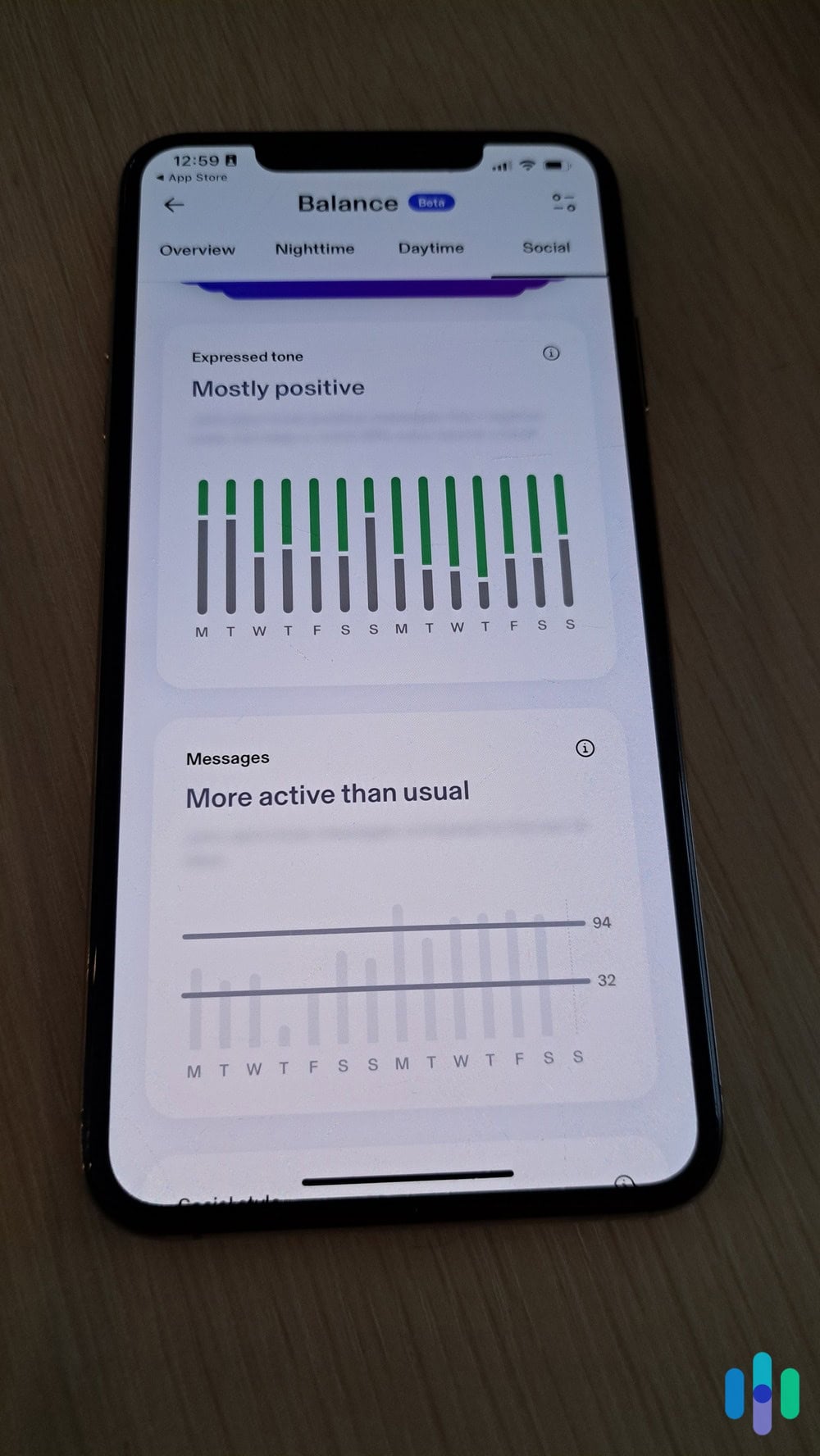
Bark built its reputation on monitoring social media better than anyone else. If your teen is active on Instagram, Snapchat, TikTok, or any of the other 30+ platforms Bark monitors, this is the app you want. Rather than logging every single message (which would be overwhelming and invasive), Bark uses sophisticated AI to analyze content and alert you only when it detects potential issues like cyberbullying, sexual content, depression, or contact from strangers.
This smart alert system is what separates Bark from the competition. According to the company’s data, the average Bark user receives only three or four alerts per month, not 50 notifications about harmless conversations. During testing, this proved accurate. Bark stayed quiet during normal teen chatter but immediately flagged test messages containing language about self-harm and bullying.
Pro Tip: Social media platforms have built-in parental controls. For example, here’s a guide on how to set up Snapchat’s Family Center parental control system. We recommend exploring these options, too, to make your teen’s protection more robust.
What We Like
- Industry-leading social media monitoring across more platforms than any competitor
- Smart alerts reduce false positives and notification overload
- Unlimited devices covered under one subscription
- Monitors email accounts, including Gmail and Outlook
What We Don’t Like
- Screen time management tools are less robust than competitors
- Requires access to your child’s social media login credentials for some platforms
- Dashboard can feel cluttered when monitoring multiple children
Bark Setup Process

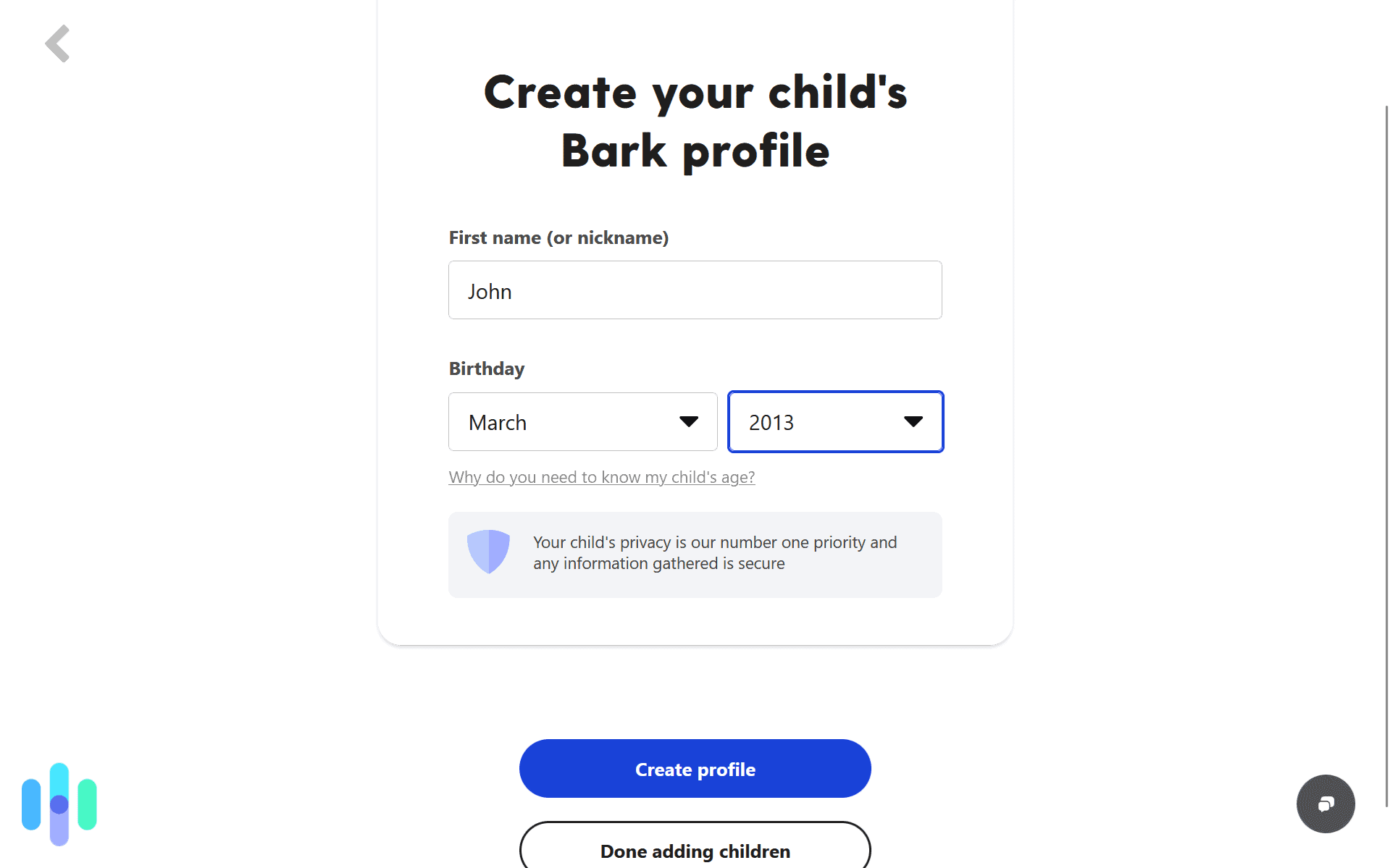
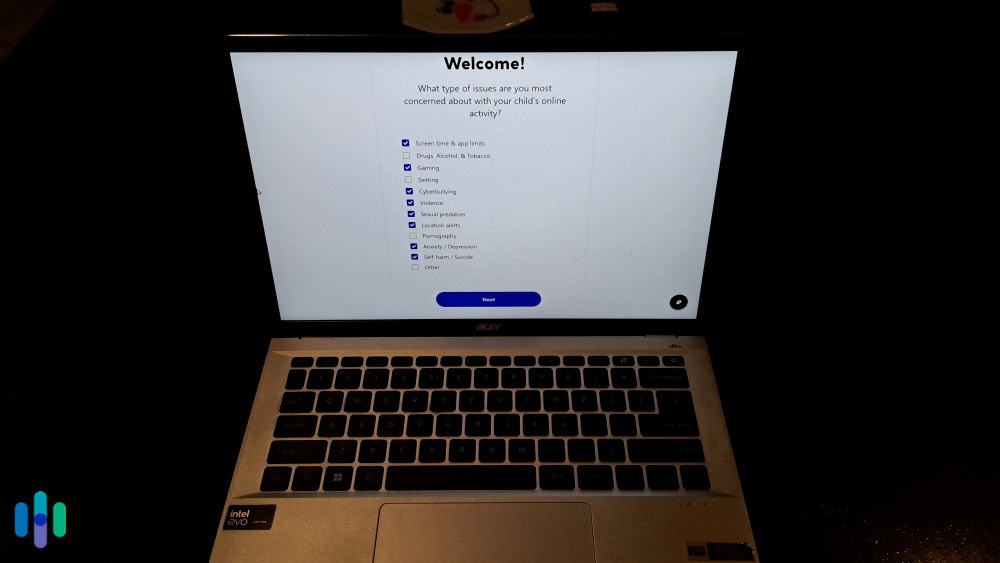
Setting up a new child profile Bark’s setup is slightly more complex than other parental control apps because it needs to connect to your child’s social media accounts. You’ll install the app on their device first, then connect each platform you want to monitor. Some apps like Instagram allow monitoring through Bark’s API integration, while others require you to manually log in with your child’s credentials. A good password manager can make this process more seamless.
During testing, and even with a password manager in our toolbelt, the setup took about 30 minutes to connect five social media platforms. It wasn’t tedious, but it was time-consuming. However, we recommend taking the time to set up social media monitoring, as it is one of Bark’s best features. Plus, the different processes for linking each platform are well-documented with helpful video tutorials.
Social Media Monitoring Capabilities
This is where Bark absolutely shines. The AI analyzes text, images, and even memes for potentially harmful content. It detected test messages about depression, subtle references to drug use, and sexual language with impressive accuracy. Even more importantly, it understood context—jokes between friends didn’t trigger alerts, but the same words used in a threatening manner did.
Bark monitors direct messages, comments, and posts across platforms including Instagram, Snapchat, TikTok, YouTube, Discord, Reddit, and even email. During testing, it proved particularly effective at catching cyberbullying. It even identified patterns of exclusion or harassment that might not be obvious in individual messages.
Alert System and Parent Dashboard

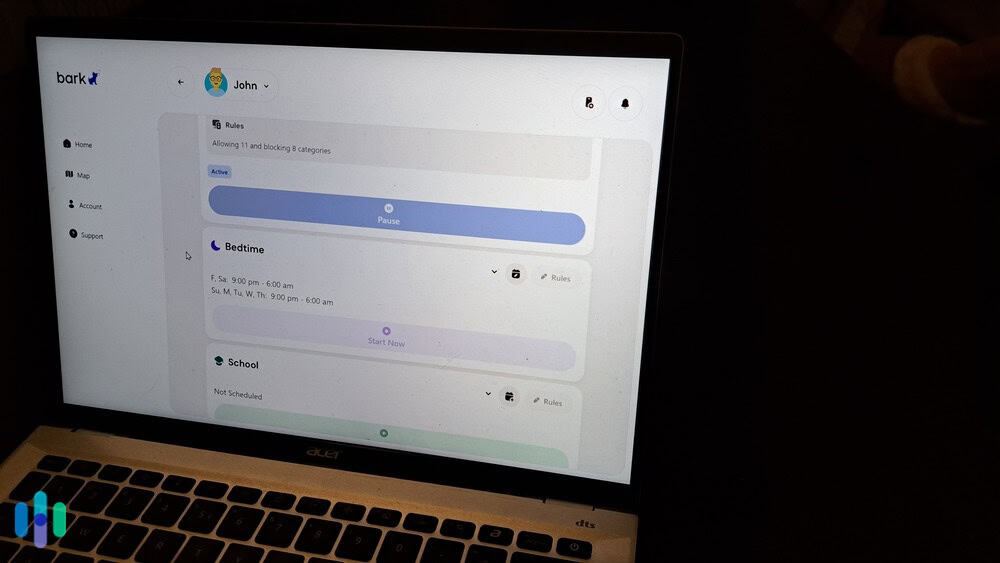
Back to basics — Bark’s screen time monitoring schedules When Bark detects something concerning, you receive an alert with context. These are usually snippets of the conversation showing what triggered the warning. Our alerts also included the severity level and suggested talking points for discussing the issue with the child. We think this kind of guidance is genuinely helpful, offering age-appropriate ways to approach sensitive topics.
The dashboard shows a timeline of alerts and provides weekly summaries of your child’s online activity. You can see which apps they’re using most, who they’re communicating with frequently, and trends in their digital behavior. These reports facilitate conversations without requiring you to read through every single message.
>> Learn More: The Best Android Parental Control Apps
-
3. Qustodio Parental Control App - Best for Cross-Platform Coverage
 View Plans Links to Qustodio.com
If your family uses a mix of iPhones, Android tablets, Windows laptops, and Mac computers, Qustodio is your best bet. This platform works seamlessly across all major operating systems, managing everything from a single parent dashboard. We also found the consistency of features across platforms remarkable. That’s something many competitors struggle with, especially given Apple’s restrictive policies around parental control apps.
Qustodio focuses on comprehensive monitoring and detailed reporting. You get granular visibility into every website visited, every app opened, and every search performed.
What We Like
- Works consistently across all major platforms including Kindle devices
- Detailed time-tracking reports show exactly how kids spend their digital time
- Panic button feature provides kids a quick way to alert parents during emergencies
- Excellent customer support with quick response times
What We Don’t Like
- More expensive than competitors, especially for families with multiple children
- Social media monitoring is limited compared to specialized apps like Bark
- Interface feels dated compared to more modern competitors
Installation and Setup Experience
Qustodio’s installation was straightforward across all platforms and devices we tested. We created our parent account, added each child account, then installed the monitoring app on child devices. The whole process took about 10 minutes per device. On iOS, we had to configure a VPN profile that routes traffic through Qustodio’s filtering system. We found this to be the standard for parental control apps on Apple devices.
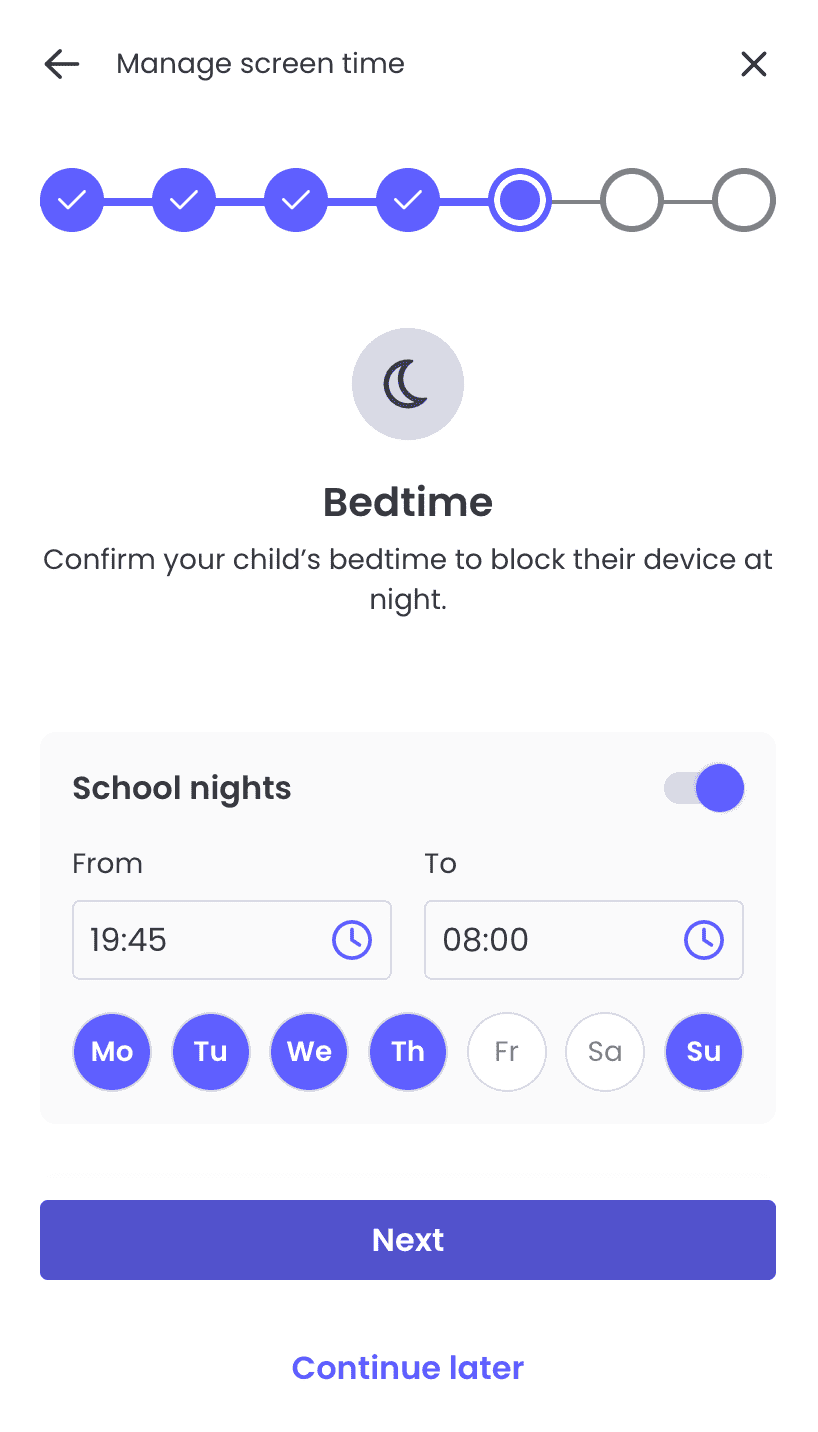
From there, we customized it. The setup wizard helped us configure age-appropriate rules for each child profile. Qustodio also comes with sensible defaults in case you want to leave it as-is, although we still strongly recommend personalizing it. You can set different rules for weekdays versus weekends, create whitelists of always-allowed websites, and configure quiet hours when devices automatically lock.
>> Related: How to Set Up Disney Plus Parental Controls

Qustodio’s customizable bedtime rules Web Filtering and App Management
Qustodio’s web filtering is among the most comprehensive we’ve tested. It categorized websites into 29 different categories—from obviously harmful content like pornography and violence to more nuanced categories like forums, games, and social networking. You control exactly which categories are blocked for each child.
The app management features let you block specific applications entirely, set time limits, or allow access only during certain hours. During testing, these controls worked reliably across all platforms. We particularly appreciated the ability to block app stores, preventing kids from downloading new apps without permission.
>> Also See: How to Set Up Amazon Parental Controls
Activity Monitoring and Reports
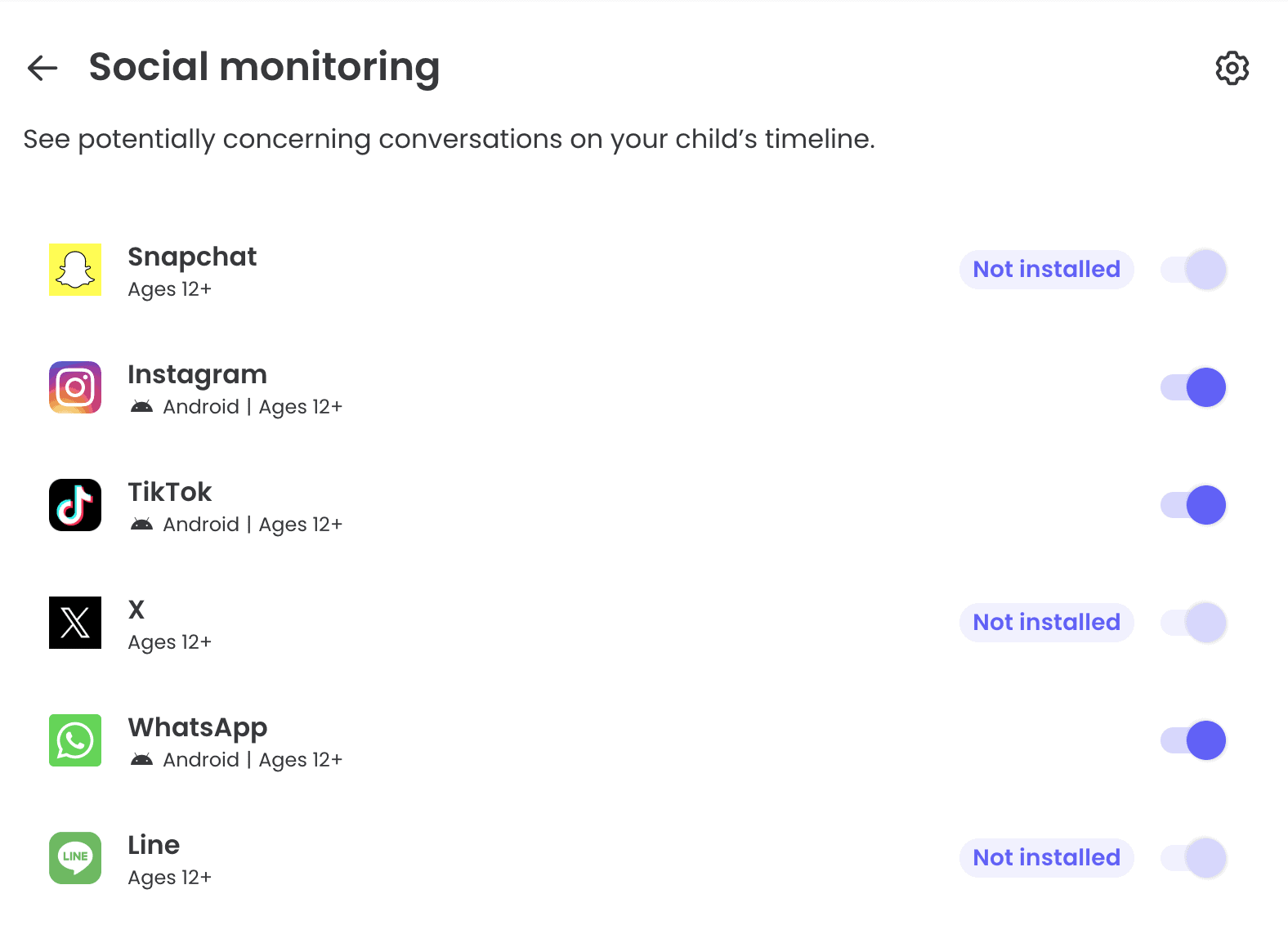
This is where Qustodio really excels. The activity reports are incredibly detailed, showing minute-by-minute timelines of device usage. You’ll see every website visited (with duration), every app used (with time spent), every search performed, and every YouTube video watched. It even captures Facebook activity, though the monitoring isn’t as sophisticated as Bark’s cross-platform social media tracking.

Qustodio’s social media monitoring is fairly basic compared to Bark These reports can prove invaluable for understanding actual usage patterns. Numbers don’t lie—when your kid claims they “barely use” their phone, the data tells the real story. The reports also highlight trends over time, showing whether device usage is increasing or decreasing.
How to Choose the Right App
The best parental control app for your family depends on several factors.
- First, consider your child’s age and maturity level. A seven-year-old and a 15-year-old require completely different approaches to digital safety.
- Second, think about which platforms your family uses. If everyone has iPhones, any of these apps will work fine. But if you’re mixing Android phones, Windows computers, and tablets, cross-platform compatibility becomes crucial.
- Third, consider your primary concerns. Are you worried about cyberbullying, inappropriate content, excessive screen time, or all of the above? Match the app’s strengths to your specific needs.
After you take those factors into account, you’ll be able to make an informed decision as to which parental control app best meets your needs.
Parental Control – Trust and Privacy Concerns
Truth be told, parental control apps raise legitimate privacy concerns. Research from the Pew Research Center indicates that 61% of parents of teens say they have checked their teen’s web history or phone calls.2 However, experts emphasize the importance of balancing safety with privacy, especially as children get older.
We find that the most successful approach involves transparency. We suggest telling your kids what you’re monitoring and why. Frame it as a safety tool, not a trust issue. Many parents find success by adjusting monitoring levels based on demonstrated responsibility. They start with more oversight for younger kids and gradually reduce it as they prove they can make good decisions. The goal is to eventually remove the training wheels, not create permanent surveillance.
Essential Settings Every Parent Should Configure
Regardless of which app you choose, certain settings are essential.
- Always enable web filtering with age-appropriate categories blocked.
- Set up screen time limits, especially for school nights.
- Configure location tracking and establish geofences around your child’s regular locations.
- Enable alerts for concerning content, but adjust sensitivity to avoid receiving too many notifications.
- Schedule device downtime at least one hour before bedtime, as numerous studies have shown that screen exposure before sleep can disrupt sleep quality.
These five settings provide a foundation for effective digital parenting that doesn’t become overwhelming.
Are Free Parental Control Apps Worth It?
Free parental control apps exist, and some work reasonably well for basic needs. However, they come with significant limitations. Most free versions restrict you to monitoring just one device, offer minimal features, and may sell your data to advertisers.
Another free option are the built-in parental controls on iOS and Android that have both improved substantially. These controls work fine for younger children who primarily need screen time limits and basic web filtering.
For comprehensive protection—especially social media monitoring, detailed reports, and multi-device coverage—paid apps are worth the investment. Think of it this way: you’re paying roughly the cost of one pizza per month to help protect your child’s digital wellbeing. That’s a pretty reasonable trade-off.
>> Check These Out: The Best Free Parental Control Apps of 2026
Conclusion
Choosing the best parental control app ultimately comes down to matching features with your family’s specific needs. Aura delivers exceptional value if you want comprehensive family protection beyond just parental controls. Bark is unmatched for families concerned about social media risks and online predators. Qustodio provides the most detailed monitoring and works seamlessly across every platform your family might use.
Whatever you choose, remember that the most effective digital safety strategy combines parental control software with open communication, education about online risks, and age-appropriate trust. These apps work best when they facilitate conversations rather than replace them. Start those conversations early, adjust your approach as your children mature, and remember that the goal isn’t perfect control—it’s helping your kids develop the judgment to navigate the digital world safely on their own.
Frequently Asked Questions
-
Can my child tell if parental control software is installed?
Yes, most parental control apps are visible on the device and shouldn’t be hidden. Transparency about monitoring builds trust and makes the tools more effective as teaching aids rather than secret surveillance.
-
Will parental control apps slow down my child's device?
Modern parental control apps use minimal system resources and shouldn’t noticeably affect device performance. During testing, we detected no slowdowns on any platform with the apps reviewed here.
-
Can parental control apps monitor incognito or private browsing?
Yes, most quality parental control apps can monitor activity in private browsing modes, though this varies by platform and browser. iOS is particularly restrictive about this capability due to Apple’s privacy policies.
-
What happens if my child uninstalls the parental control app?
These apps include tamper protection that requires a parent password to uninstall or disable. You’ll also receive an alert if your child attempts to remove the app or turns off their device’s location services.
-
Do parental control apps work on school-issued devices?
Generally no—school districts typically lock down their devices with mobile device management software that prevents installing third-party apps. However, you can often monitor your child’s personal device usage at home instead.
-
Can I monitor text messages with these apps?
This varies significantly by platform. Android allows more comprehensive text message monitoring, while iOS restricts this capability. Bark can monitor texts on both platforms, while Qustodio and Aura have more limited text monitoring on iOS.
-
Common Sense Media. (2025). Parents' Ultimate Guide to First Phones.
https://www.commonsensemedia.org/articles/parents-ultimate-guide-to-first-phones -
Pew Research Center. (2016). Parents, Teens and Digital Monitoring.
https://www.pewresearch.org/internet/2016/01/07/parents-teens-and-digital-monitoring/