

the security.brief
Find where Chrome saves passwords, so that you can update them, fix them, and make them more secure. Learn how to export and access Google’s checkup tool.
Chrome has a feature that lets you save your passwords automatically. What it doesn’t tell you is where the browser is storing them. The good news is that knowing where to find them, how to manage them, and when to trust the browser is easier than you think.
This guide covers everything Chrome’s built-in password manager can do, including how to find your saved passwords, how to change them, how to export them, how to delete them, and how to make sure Chrome is actually remembering new ones going forward. Let’s begin.
>> Find Out: The Best Password Managers for Chrome in 2026
Where Chrome Stores Your Passwords
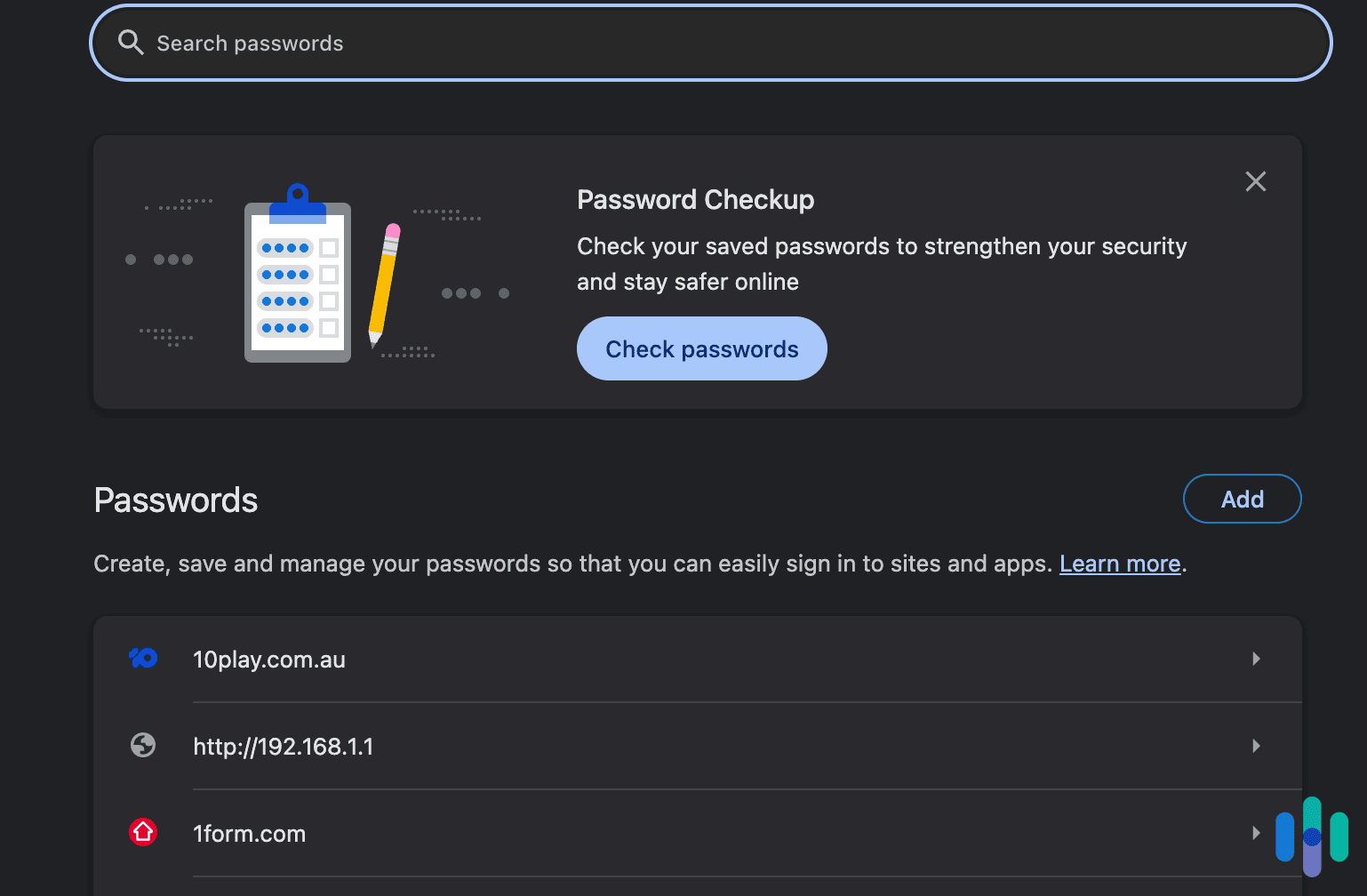
Chrome’s password manager is called Google Password Manager. It’s built into the browser and tied to your Google Account if you’re signed in. That means your saved passwords sync across every device where you’re signed into Chrome, including desktop, Android, and iOS.
If you’re not signed into a Google Account, passwords are stored locally on that device only. You can reach Google Password Manager a few ways:
- Go to chrome://password-manager/passwords in the address bar
- Click the three-dot menu in the top right, select Passwords and autofill, and choose Google Password Manager
- Click your profile icon in the top right and click the key icon
How to Find Passwords on Chrome
Once you’re in Google Password Manager, you’ll see a list of all your saved logins. Right at the top of the page is a search bar that you can use to filter by site name. When you click on any entry, you’ll be shown the username and password.
Click the eye icon next to the password field to reveal the password. You may be prompted to enter your device password or Google Account password to confirm. You can use the copy icon to copy it to your clipboard without revealing it on screen.
FYI: If a site isn’t showing up, it either wasn’t saved or was saved under a different URL.
How to Change a Saved Password in Chrome
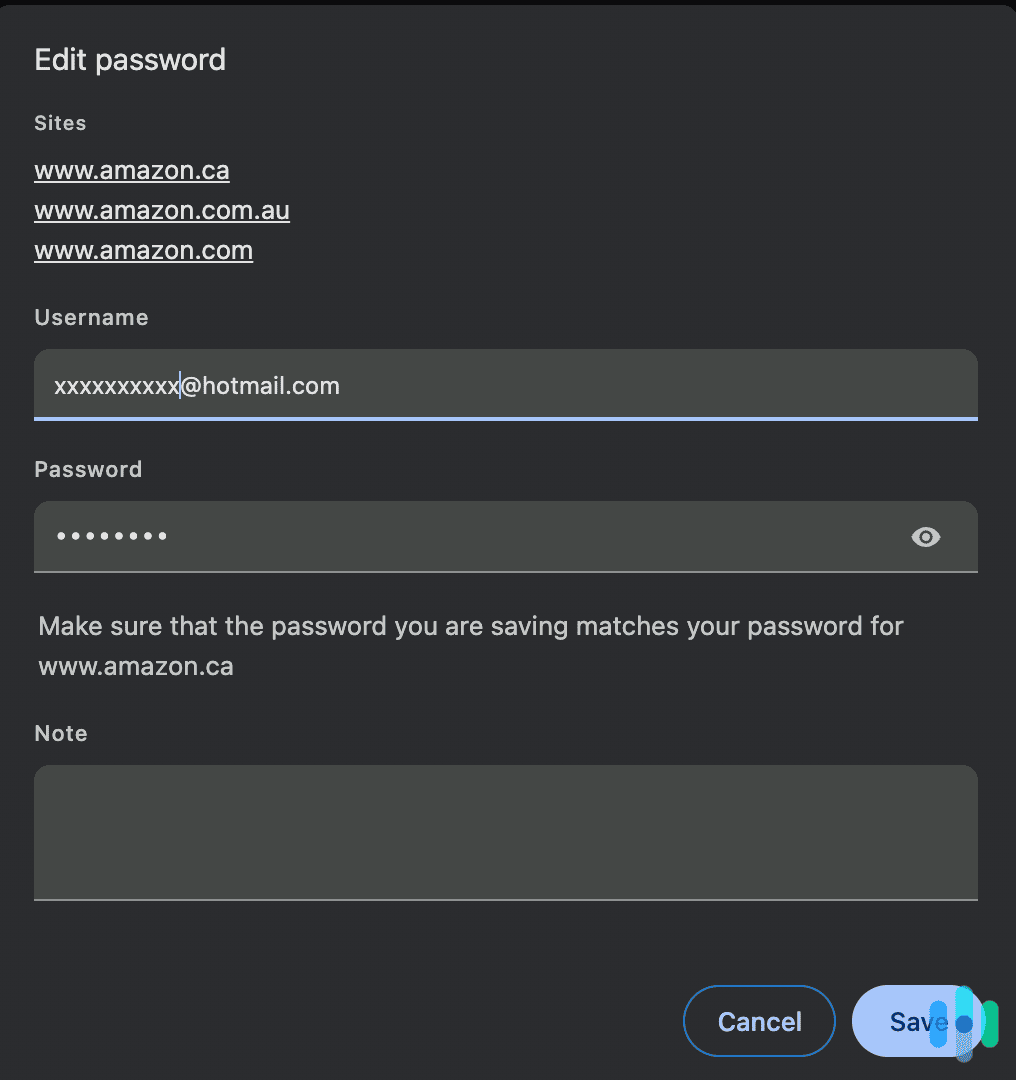
Changing a password in Chrome updates what the browser has stored. It won’t change the password on the website itself. You’ll need to do that separately through the site’s account settings. To change a password:
- Open Google Password Manager via the address bar or menu.
- Find and click the site whose password you want to update.
- Click Edit.
- Update the username or password as needed.
- Click Save.
Before you save your credentials, we recommend checking them with our Password Strength Checker. It will compare it against databases of common and weak passwords. Once saved, Chrome will autofill the new credentials the next time you visit that site.
How to Delete a Saved Password in Chrome
If you close an account on a website, you’ll need to delete your credentials manually in Google Password Manager. To delete a single password:
- Open Google Password Manager.
- Find the site and click on it.
- Click Delete.
Thankfully, there’s an easier way to delete all the data Google Password Manager saves. You might want to do this if you switch to one of the top password managers on the market. To remove all data:
- Open Google Password Manager.
- Click Settings in the left sidebar.
- Next to Delete all Google Password Manager data, click Delete data, then confirm.
This removes all passwords and passkeys from Google Password Manager, but it does not affect your Google Account or any other data.
>> Keep Reading: How to Delete Your Personal Information From Google
How to Export Passwords from Chrome
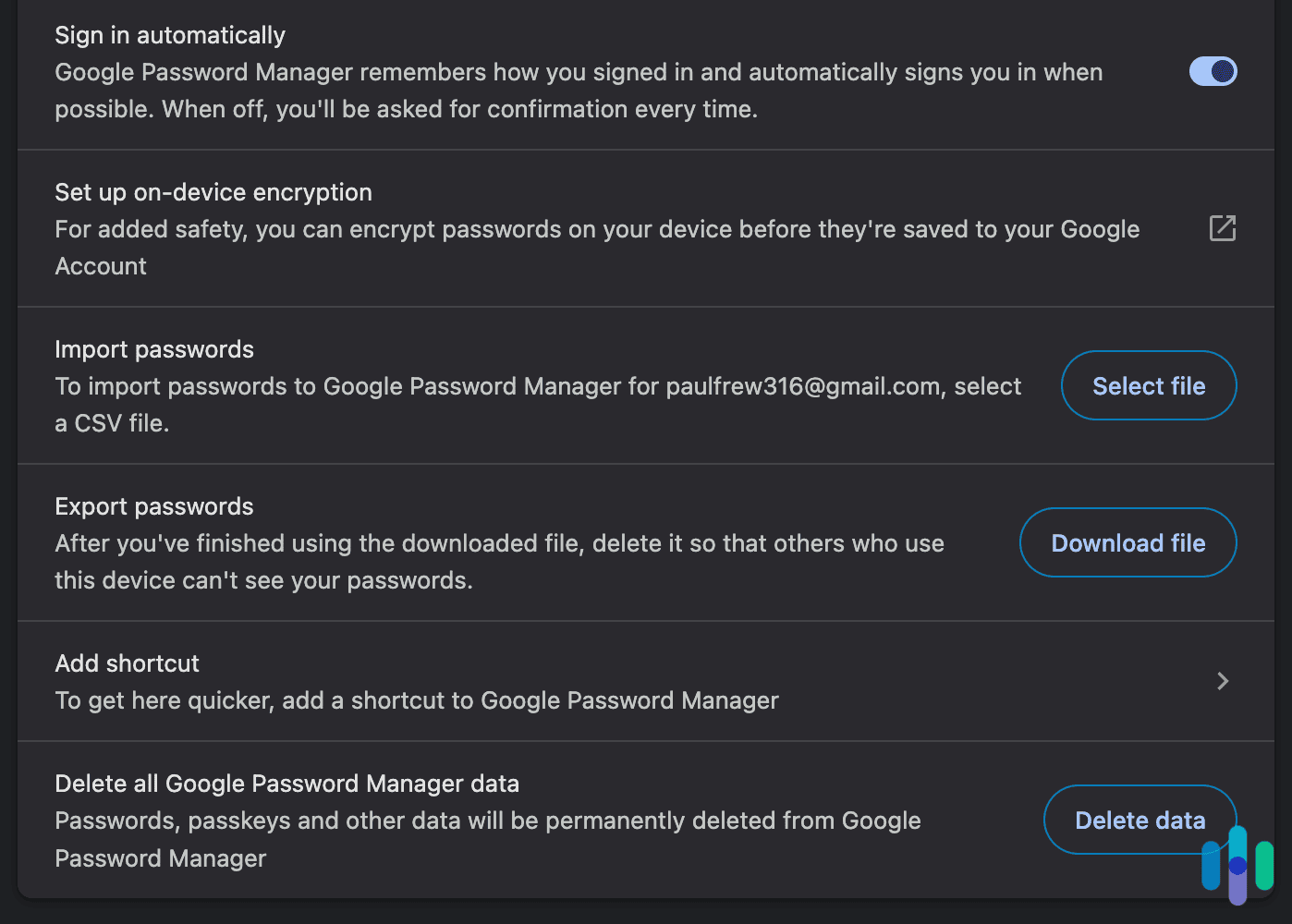
Chrome lets you export all saved passwords to a CSV file. This is useful if you’re switching to a dedicated password manager for your Android phone, desktop, or other device. Here’s what you need to do:
- Open Google Password Manager.
- Click Settings in the left sidebar.
- Next to Export passwords, click Download file.
- You may be prompted to enter your device password to confirm.
- Choose a save location and click Save.
Pro Tip: The exported file is a plain text CSV. This means anyone who opens it can read every password in it. We recommend importing the file into your password manager and deleting the CSV file permanently from your device.
How to Make Chrome Remember Passwords
- Open Chrome, click the three-dot menu, and go to Settings.
- Click Passwords and autofill, then Google Password Manager.
- Click Settings.
- Make sure Offer to save passwords and passkeys is toggled on.
Once enabled, Chrome will prompt you the next time you sign into a site. It will also offer to update your credentials if it notices you’ve changed them. You can even save a login manually. Just go to the Google Password Manager, click Add and fill in the site URL, username, and password yourself.
Chrome’s Password Checkup Tool
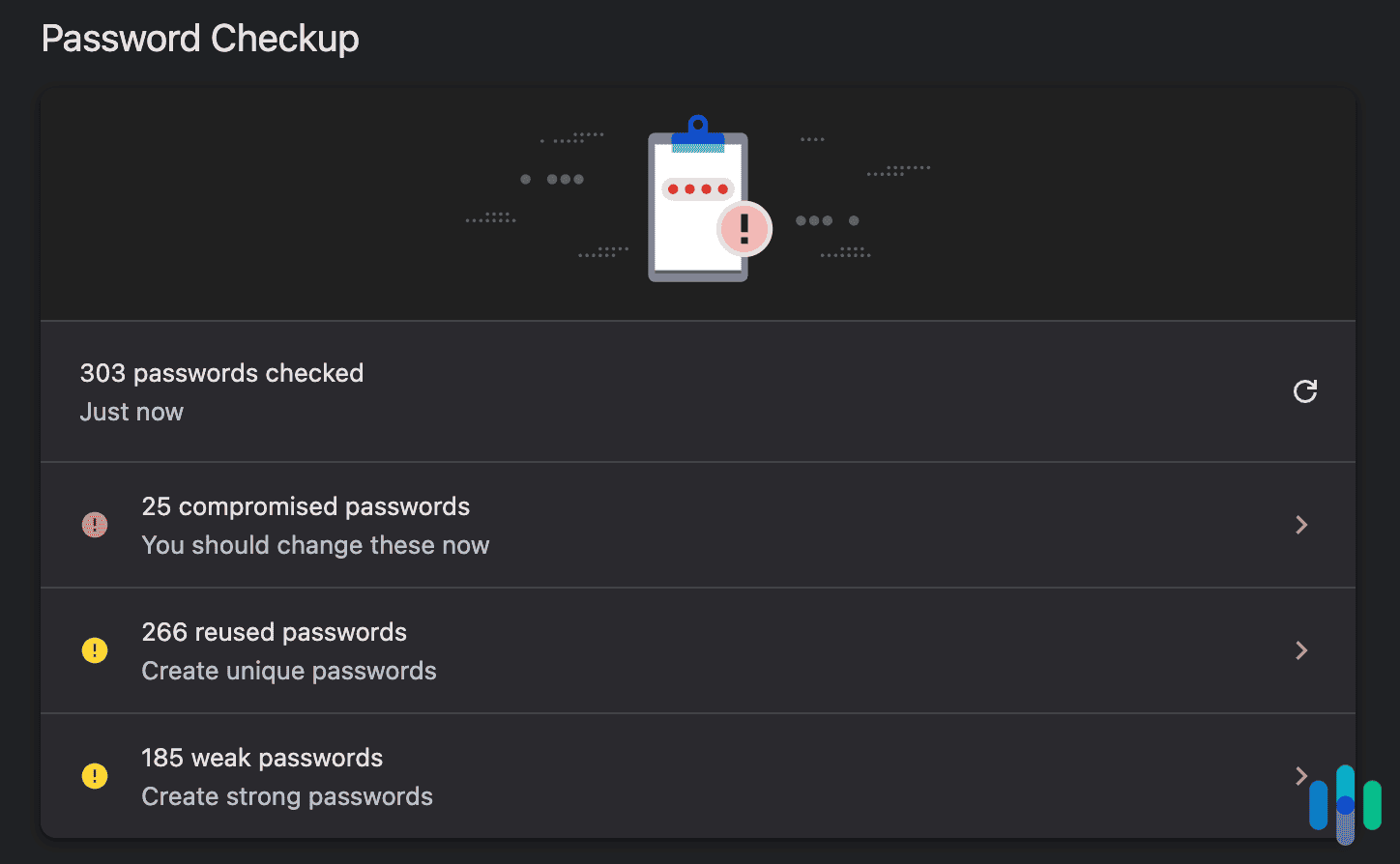
Google Password Manager includes a built-in Password Checkup that scans your saved credentials against known data breaches and flags any that have been exposed, reused across multiple sites, or are too weak to hold up against an attack.
To run it, open Google Password Manager and click Checkup in the left sidebar. Chrome will scan your saved passwords and sort any issues into three categories: compromised passwords (found in a breach), reused passwords (the same credential used on more than one site), and weak passwords (short, simple, or predictable).
Chrome can automatically update compromised passwords on supported sites. It’s not available everywhere, but where it works, Chrome will navigate to the site’s password change page and update the credential without you having to do it manually.
FYI: The Password Check tool is handy, but it won’t catch everything, and it’s not a substitute for a full breach monitoring service. If you’ve been using the password manager for a while without auditing your credentials, we recommend running a checkup as soon as possible.
Is Chrome’s Password Manager Safe?
Chrome’s password manager encrypts your credentials and ties them to your Google Account. For most personal use, it does the job. That said, it has a few limits worth knowing.
For starters, it’s only as secure as your Google Account. If someone gets into your Google Account, they get all your passwords. Enabling two-factor authentication on your Google Account is non-negotiable if you’re relying on Chrome to store passwords.
As we mentioned earlier, exported passwords are in plain text. If you export to CSV, that file is completely unencrypted until you delete it. Google Password Manager doesn’t work outside Chrome either. Passwords saved in Chrome aren’t accessible in Firefox, Edge, or Safari unless you’re also using the Google Password Manager app or website directly.
>> Check Out: The Best Password Managers for Safari in 2026
Recap
For most people managing personal accounts, Google Password Manager gets the job done. For anyone who needs cross-browser access, family sharing, secure notes, or business use, we recommend using a dedicated password manager instead.
Frequently Asked Questions
-
Where are Chrome passwords stored?
On desktop, Chrome passwords are stored in your Google Account if you’re signed in. They’re stored locally on your device if you’re not. Signed-in passwords sync automatically across devices. You can view them all at chrome://password-manager/passwords or at passwords.google.com.
-
Can I see my Chrome passwords on my phone?
Yes, if you’re signed into Chrome on your phone with the same Google Account. Open Chrome, tap the three-dot menu, go to Settings, and then Google Password Manager. You can also install the Google Password Manager app on Android.
-
Why isn't Chrome saving my passwords?
Either the “Offer to save passwords” toggle is turned off, or you previously selected “Never” for that specific site. You can check your settings at chrome://password-manager/passwords and look under the Declined sites section to see if a site was excluded.
-
Does deleting Chrome delete my passwords?
Deleting Chrome from your device does not automatically delete passwords saved to your Google Account because they are saved in the cloud. Passwords stored only locally on that device would be removed. To delete your saved passwords entirely, use the Delete all data option in Google Password Manager settings before uninstalling.
-
What's the difference between Google Password Manager and a regular password manager?
Google Password Manager is built into Chrome and works best within Google’s ecosystem. Standalone password managers like Bitwarden, 1Password, or Dashlane work across all browsers and operating systems, support secure sharing, and often include additional features like breach monitoring, secure notes, and family plans.