

the security.brief
Safari stores passwords through iCloud Keychain. Here's how to find, view, change, export, and delete them on Mac, iPhone, and iPad.
Safari doesn’t save passwords the same way as Chrome or Edge. Instead, Safari uses iCloud Keychain, Apple’s system-level credential storage that works across your Apple devices. When Safari saves a password, it goes into Keychain. When you ask Safari to autofill, it pulls the credentials from there.
The upside is that everything syncs automatically across your Mac, iPhone, and iPad as long as iCloud Keychain is enabled. The downside is that iCloud Keychain is only available on Apple devices. If you need to access a password on a Windows machine or an Android device, you’ll need an alternative, like a password manager. If you’re locked into the Apple ecosystem, this guide will teach you how to find and manage your saved passwords in Safari on Mac, iPhone, and iPad.
>> Check Out: The Best Password Managers of 2026
Where Safari Passwords Are Stored
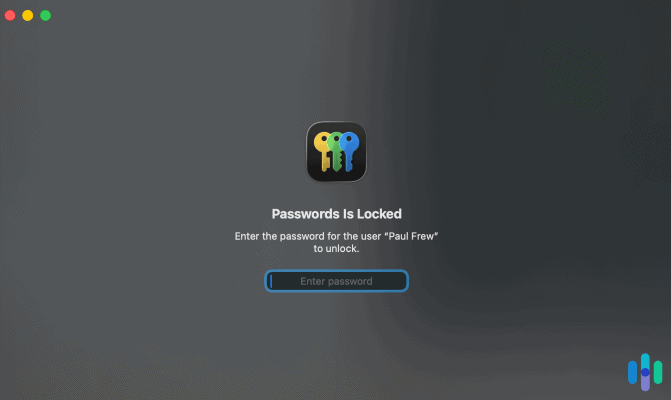
Passwords saved in Safari are stored in iCloud Keychain. On macOS Sequoia and later, Apple moved password management to a dedicated Passwords app, which you’ll find in your Applications folder or Launchpad. On macOS Sonoma and earlier, you’ll find your passwords under System Settings, then Passwords or directly in Safari’s settings.
FYI: On iPhone and iPad, you’ll find your passwords by going to Settings and then selecting Passwords.
How to Find Passwords on Safari (Mac)
The location of your passwords on a Mac will depend on what version of the operating system you’re running. Here are the steps for the latest macOS and older versions.
macOS Sequoia and later:
- Open the Passwords app from Launchpad or your Applications folder.
- Authenticate with Touch ID or your Mac login password.
- Browse the list or use the search bar to find a specific site.
- Click an entry to see the stored username and password.
macOS Sonoma and earlier:
- Open Safari.
- From the menu bar, click Settings and go to the Passwords tab.
- Authenticate with Touch ID or your login password.
- Find the site in the list and click it to see the saved credentials.
Alternative Method: Another way to access your credentials is to open System Settings, go to Passwords, authenticate with Touch ID or your login password, and select any entry.
How to Find Passwords on Safari (iPhone and iPad)
Accessing your credentials on your iPhone or iPad follows a similar process to Mac. Here are the steps:
- Open Settings, then go to Passwords.
- Authenticate with Face ID, Touch ID, or your passcode.
- Browse or search for the site you need.
- Tap any entry to reveal the stored username and password.
Alternative Method: You can also ask Siri: say “Show my passwords” or “Show my [site name] password” and Siri will open the Passwords section directly.
How to Change a Saved Password in Safari
Unlike the best password managers for iPhone or Mac, Safari requires a few extra steps to update your credentials. Follow these processes for your different devices:
On Mac (Sequoia):
- Open the Passwords app and authenticate.
- Find the site and click on it.
- Click Edit.
- Update the username or password as needed.
- Click Save.
On Mac (Sonoma and earlier):
- Open Safari Settings, go to Passwords, and authenticate.
- Select the site and click the Show Details button.
- Click Edit, update the fields, then click Save.
On iPhone:
- Go to Settings, then Passwords, and authenticate.
- Tap the site entry.
- Tap Edit, update the credentials, then tap Done.
Keep in mind that changing a password in iCloud Keychain only updates what Safari has stored. It doesn’t change the password on the website itself. We recommend updating it on the site first, then updating Safari’s saved entry to match.
How to Delete a Saved Password in Safari
Deleting a saved password in Safari follows a similar process as changing a password. Here’s what you need to do:
- On Mac (Sequoia): Open the Passwords app, find the site, click it, and select Delete Password.
- On Mac (Sonoma and earlier): Open Safari Settings, go to Passwords, authenticate, select the site, and click Delete Password.
- Delete all at once (Mac): In the Passwords list, press Cmd+A to select all entries, right-click, then select Delete. Confirm the deletion.
- On iPhone: Go to Settings, Passwords, find the entry, swipe left and tap Delete. You can also tap the entry, press Edit, and hit Delete Password.
When you delete a password from iCloud Keychain, it’s removed from all devices connected to the same Apple ID if sync is enabled.
How to Export Passwords from Safari
Safari lets you export passwords as a CSV file from the Mac. This is handy if you want to import them into one of the best password managers for Mac. Unfortunately, there’s no native export option on iPhone.
- Open Safari on your Mac.
- From the menu bar, click File, Export, and then Passwords.
- Click Export Passwords in the confirmation dialog.
- Name the file, choose a save location, and click Save.
- You may be prompted to enter your Mac account password.
The CSV file includes all your credentials in plain text. Anyone who opens this file can read your passwords. We recommend treating it like a sensitive document and deleting it immediately after importing it into a new password manager.
>> Learn More: Securing Confidential Personal Data Online and Offline
How to Make Safari Remember Passwords (AutoFill)
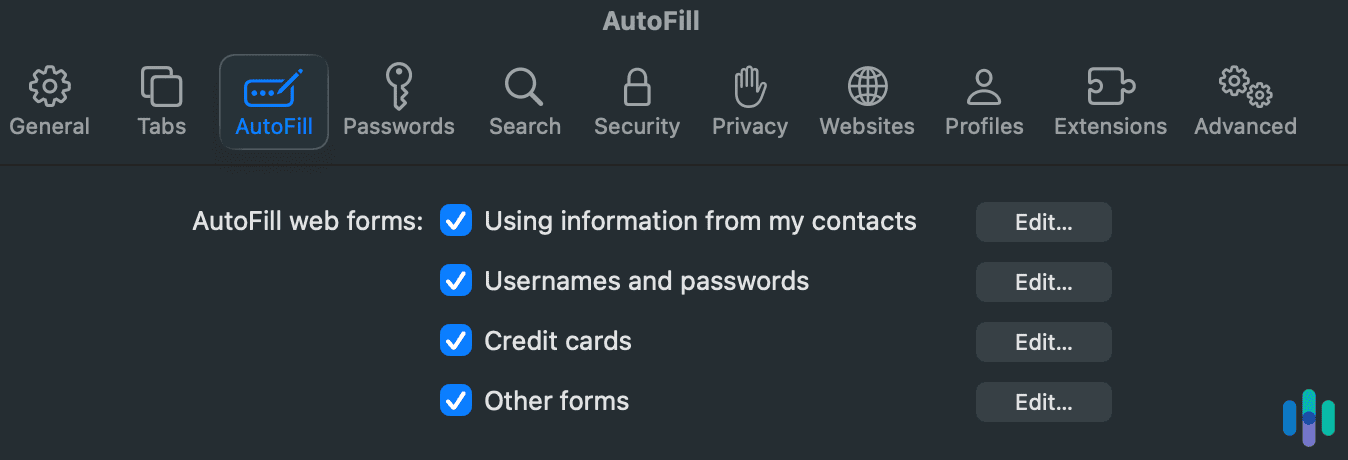
If you’ve noticed that Safari isn’t offering to save passwords, AutoFill may be turned off. This is what you’ll need to do to turn the feature on.
On Mac:
- Open Safari Settings and click the AutoFill tab.
- Check the box next to User names and passwords.
On iPhone:
- Go to Settings, Passwords, then Password Options.
- Toggle on AutoFill Passwords and Passkeys.
- Make sure iCloud Passwords & Keychain is selected as the source.
Once enabled, Safari will prompt you to save credentials the next time you sign in somewhere new. It will also offer to generate a strong password when you’re creating a new account. Before you save it, we recommend checking how secure it is by running it through our Password Strength Checker.
How Safari Flags Weak and Compromised Passwords
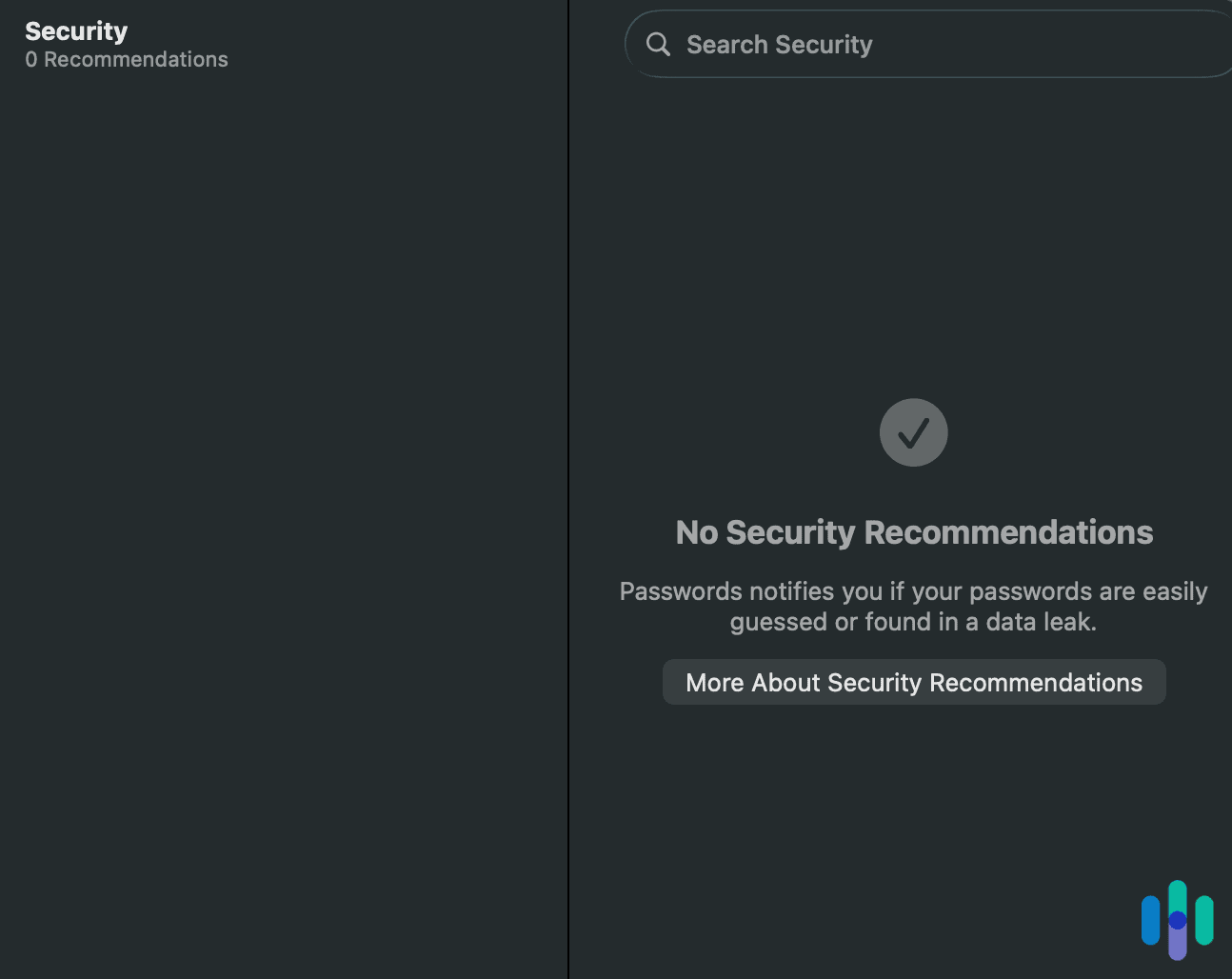
We like that Safari doesn’t just store passwords. Keychain also evaluates them to make sure they’re not a security risk. When you view your saved passwords in the Passwords app, any credentials that are weak, reused, or have appeared in a known data breach are flagged with a warning icon. Tapping or clicking a flagged entry gives you more detail so you can take action. Safari will also suggest a strong replacement password and, on supported sites, link you directly to the account’s password change page.
Monitoring runs automatically in the background, meaning you don’t need to trigger a manual scan. If a site you have credentials for appears in a publicly known breach, Safari will display a warning the next time you open your password list. We think it’s a useful safety net, but it only covers what’s saved in iCloud Keychain. Any credentials you’ve stored elsewhere won’t be monitored.
Pro Tip: When we reviewed NordPass, it would automatically scan the dark web for our credentials and alert us if it found anything. We recommend NordPass as a password manager for families with Apple and non-Apple devices in the household.
Recap: Is Safari’s Password Manager Safe?
iCloud Keychain is encrypted end-to-end, meaning Apple cannot see your passwords. Your credentials are protected both in transit and at rest. For anyone living entirely in the Apple ecosystem, it’s a solid option.
The main limitations you’ll face are that it only works on Apple devices, exported passwords are plain text, and sharing passwords is limited to other Apple devices only. You can share passwords with other Apple users through iCloud Keychain’s shared group feature, but not with anyone outside the ecosystem. If these are dealbreakers, we recommend using a dedicated password manager instead.
Frequently Asked Questions
-
Where are Safari passwords stored?
In iCloud Keychain. On macOS Sequoia and later, you can access them through the dedicated Passwords app. On earlier macOS versions, you’ll find them in Safari Settings, Passwords or System Settings, then Passwords. On iPhone, they’re under Settings, Passwords.
-
Can I see my Safari passwords on a Windows computer?
Yes, through iCloud for Windows. Install the app and enable iCloud Passwords. This gives you access to Keychain through a browser extension for Chrome or Edge. It’s functional but limited compared to a cross-platform password manager.
-
Why isn't Safari saving my passwords?
The AutoFill option is likely turned off. On Mac, check Safari Settings, then AutoFill. On iPhone, check Settings, Passwords, and Password Options. Make sure both AutoFill and iCloud Keychain are enabled.
-
What happens to my passwords if I stop using Apple devices?
Passwords in iCloud Keychain are tied to your Apple ID. If you leave the Apple ecosystem, export them to a CSV file and import them into a new password manager. Otherwise, they’ll remain in Keychain, inaccessible without an Apple device.
-
Does Safari password manager work on Android?
No. iCloud Keychain is Apple-only. If you need cross-platform password access, you’ll need a third-party password manager like Bitwarden or 1Password.