

the security.brief
Microsoft Edge's built-in password manager keeps your logins synced to your Microsoft Account. Here's how to find, change, export, and delete them.
Microsoft Edge has a built-in password manager called Microsoft Password Manager. It works a lot like Chrome’s password manager. It saves login credentials when you sign into sites, syncs them to your Microsoft Account, and autofills them wherever you’re signed into Edge.
If you’re a Windows user, Edge is installed by default. That means there’s a good chance you’ve got credentials saved there even if you don’t actively use it as your main browser. If you want to make changes or delete your credentials, you need to know where to find them. Follow these steps to locate your passwords and find out what you can do with the data.
>> Check Out: The Best Windows Password Managers of 2026
Where Edge Stores Your Passwords
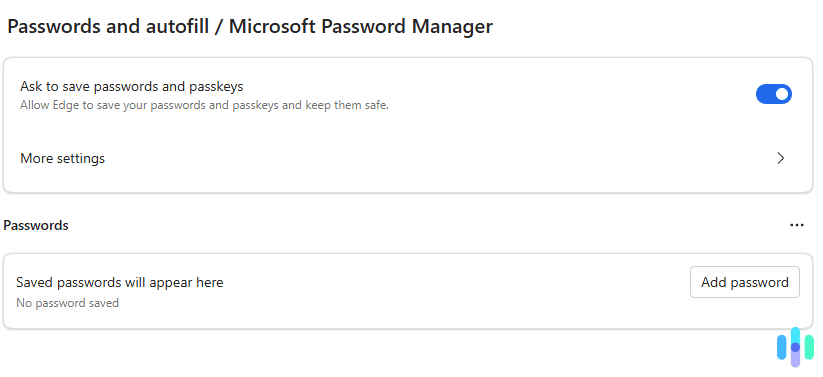
Edge passwords are stored in Microsoft Password Manager and synced to your Microsoft Account. You can access them from any device running Edge as long as you’re signed in with the same account. You can reach the password manager in a few ways:
- Type edge://settings/passwords directly into the address bar
- Click the three-dot menu in the top right, then go to Settings, Passwords and autofill, then Microsoft Password Manager
How to Find Passwords on Edge
Your passwords will be in different locations depending on where you’re using Edge. For desktops, you’ll need to follow these steps:
- Open Edge and go to edge://settings/passwords, or navigate through the three-dot menu to Settings, Passwords and autofill, and then Microsoft Password Manager.
- You’ll see a list of all saved logins. You can use the search bar to filter by site.
- Click the right arrow next to any entry to open it.
- Click the eye icon next to the password field to reveal the password.
- You’ll be prompted to enter your Windows or macOS account password (or PIN) to confirm.
If you’re using Edge on your iOS or Android mobile, you’ll need to do this:
- Open Edge and tap the menu button (three dots at the bottom right).
- Tap your profile icon, then go to Passwords.
- Authenticate with Face ID, Touch ID, PIN, or passcode.
- Tap any entry to view the saved credentials. Tap the eye icon to reveal the password.
How to Find Passwords on Edge
Your passwords will be in different locations depending on where you’re using Edge. For desktops, you’ll need to follow these steps:
- Open Edge and go to edge://settings/passwords, or navigate through the three-dot menu to Settings, Passwords and autofill, and then Microsoft Password Manager.
- You’ll see a list of all saved logins. You can use the search bar to filter by site.
- Click the right arrow next to any entry to open it.
- Click the eye icon next to the password field to reveal the password.
- You’ll be prompted to enter your Windows or macOS account password (or PIN) to confirm.
- Open Edge and tap the menu button (three dots at the bottom right).
- Tap your profile icon, then go to Passwords.
- Authenticate with Face ID, Touch ID, PIN, or passcode.
- Tap any entry to view the saved credentials. Tap the eye icon to reveal the password.
If you’re using Edge on your iOS or Android mobile, you’ll need to do this:
How to Change a Saved Password in Edge
Changing a password in Chrome updates what the browser has stored. It won’t change the password on the website itself. You’ll need to do that separately through the site’s account settings. To change a password:
- Open Google Password Manager via the address bar or menu.
- Find and click the site whose password you want to update.
- Click Edit.
- Update the username or password as needed.
- Click Save.
Before you save your credentials, we recommend checking them with our Password Strength Checker. It will compare it against databases of common and weak passwords. Once saved, Chrome will autofill the new credentials the next time you visit that site.
How to Delete a Saved Password in Chrome
Like Chrome’s password manager, updating a saved password in Edge only changes what the browser has stored. It won’t change the password on the website. We recommend updating your password on the site first, then fixing the Edge entry to match. When you want to change your password in Edge on a desktop:
- Go to edge://settings/passwords.
- Find the site and click the right arrow to open it.
- Authenticate if prompted.
- Click Edit.
- Update the username or password, then click Save.
For mobiles, you’ll want to:
- Go to Menu, Settings, then Password Manager.
- Authenticate.
- Tap the site entry.
- Tap Edit in the top right, update the fields, then Save.
How to Delete a Saved Password in Edge
- Go to edge://settings/passwords.
- Find the site and click the right arrow.
- Click Delete, then confirm.
Like changing a password, deleting your credentials only removes them from Microsoft Password Manager. We suggest deleting your account first, then removing it from Edge. To delete a single password on a desktop:
- Open Menu, Settings, Password Manager, and authenticate.
- Tap the entry you want to remove.
- Tap Edit, then Delete Password. Confirm the removal.
Alternatively, click the three-dot icon next to any entry in the password list and select Delete. For mobiles, you’ll need to:
- Go to edge://settings/passwords.
- Click the checkbox to select all entries (or select individually).
- Click Delete at the top right.
On iPhone, you’ll need to open the password list, swipe left on any entry, and tap Delete. If you want to delete all your credentials because you’re moving to one of the best password managers, follow these steps:
How to Export Passwords from Edge
Before you delete all your passwords, you should export your credentials to a CSV file. This way, you can import them into your new password manager. To get the file, you can use the shortcut Alt+F, Passwords, then Export passwords. Alternatively, follow these steps:
- Open Edge and click the three-dot menu.
- Go to Settings, Passwords and autofill, then Microsoft Password Manager.
- Click the Settings icon (gear icon) within the Password Manager.
- Under Export passwords, click Export.
- Click Export again in the confirmation dialog.
- Choose a save location and save the file.
FYI: Exported passwords are saved as an unencrypted CSV file. These files are not protected and will be visible to anyone who can open them. We recommend importing it into your password manager, then permanently deleting the file using Shift+Delete on Windows to skip the Recycle Bin entirely.
How to Make Edge Remember Passwords
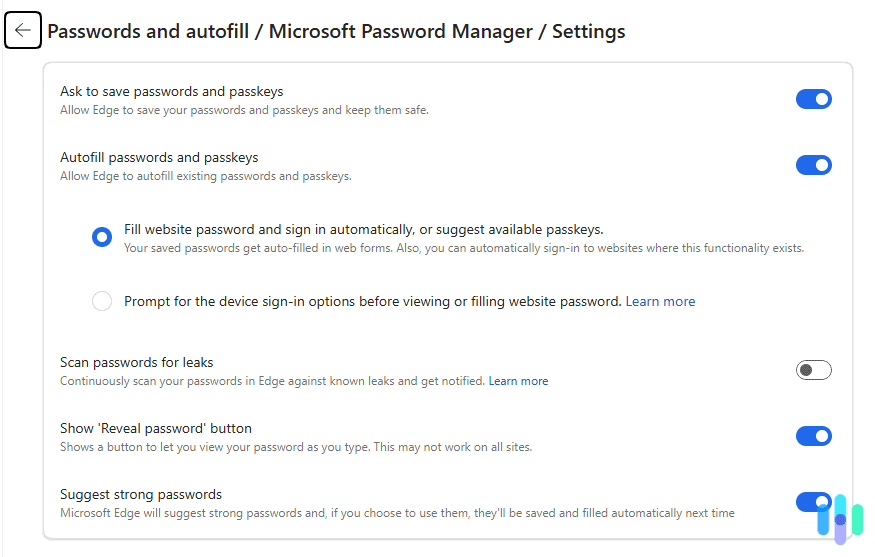
If Edge isn’t offering to save passwords, we suggest checking this setting:
- Open Edge and go to the three-dot menu.
- Click Settings, Passwords and autofill, then Microsoft Password Manager.
- Make sure Offer to save passwords is toggled on.
- Also check Sign in automatically if you want Edge to autofill without additional prompts.
Once enabled, Edge will prompt you to save your credentials the next time you log in somewhere.
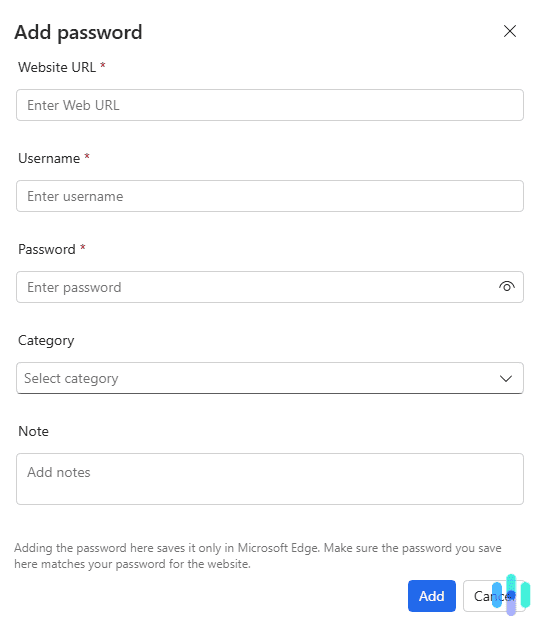
FYI: You can also add passwords manually. In Microsoft Password Manager, click Add password and fill in the site, username, and password.
How Edge Monitors Password Health
Beyond storing your passwords, Edge actively monitors them for security issues. Microsoft Password Manager includes a Password Monitor that checks your saved credentials against known data breach databases and alerts you if any have been exposed.
When a match is found, Edge displays a notification and takes you directly to the affected entries so you can update them. You can also run a manual check at any time by going to edge://settings/passwords and clicking Password health to see a breakdown of compromised, reused, and weak passwords across your saved logins.
The Password health view organizes issues into three categories. Compromised passwords are the most urgent. These are credentials that have appeared in a publicly known breach and should be changed immediately. Reused passwords flag cases where you’re using the same credential on more than one site, which means a breach on one site puts all of them at risk. Weak passwords are short, common, or predictable enough that a brute force or dictionary attack could crack them quickly. You can run your new password through our Password Strength Checker to see if it is secure enough.
To activate the Password Monitor, go to Settings, Passwords and autofill, Microsoft Password Manager, Settings, and make sure Show alerts when passwords are found in an online leak is toggled on. It’s usually on by default, but it’s worth double-checking.
>> Check Out: Random Password Generator
Recap: Is Edge’s Password Manager Safe?
Microsoft Password Manager comes with a few standout features. For example, it flags reused and weak passwords, warns about compromised credentials detected in breaches, and optionally lets you set a Primary Password. That last feature is worth enabling if you share a device.
The same limitations apply here as with any browser-based password manager, though. It’s only as secure as your Microsoft Account. We recommend enabling two-factor authentication on your Microsoft Account if you’re relying on Edge to hold your passwords. Cross-platform access is another drawback. Edge is available on Windows, Mac, iOS, and Android, which is broader than Safari. If your passwords sync to Edge only, they won’t be accessible in Chrome or Firefox.
Frequently Asked Questions
-
Where are Edge passwords stored?
Edge passwords are stored in Microsoft Password Manager, which is synced to your Microsoft Account. You can view them at edge://settings/passwords or at account.microsoft.com/security. Locally, the Edge password database is stored in your Windows user profile folder.
-
Can I see my Edge passwords on a different device?
Yes, as long as you’re signed into Edge with the same Microsoft Account and sync is enabled. Go to Settings, Profiles, Sync and make sure passwords are included in what’s being synced.
-
Why isn't Edge saving my passwords?
The “Offer to save passwords” toggle is probably off. Go to Settings, Passwords and autofill, Microsoft Password Manager and toggle it on. If Edge still isn’t saving passwords, check whether the site was previously added to a “Never saved” list.
-
What's the difference between Edge's password manager and Microsoft Authenticator?
Edge Password Manager stores website login credentials. Microsoft Authenticator is an authentication app used for two-factor authentication codes.
-
Does Edge Password Manager work on iPhone?
Yes, you can download Microsoft Edge from the App Store, sign in with your Microsoft Account, and your saved passwords will be available. You can also set Edge as your AutoFill provider in iOS settings to use Edge passwords across other apps.