

the security.brief
Find where Chrome saves passwords, so that you can update them, fix them, and make them more secure. Learn how to export and access Google’s checkup tool.
Like Edge and Chrome, Firefox has a built-in password manager that saves your login credentials, autofills them when you return to sites, and lets you view and manage them whenever you need to. It’s not as tightly integrated with a cloud ecosystem as Chrome or Safari, but it has one feature neither of those has by default: a master password.
This feature encrypts your stored credentials and locks them behind a master passphrase. It’s the same method all of the best password managers use to protect your logins. If you’re curious, here’s how to find and manage everything Firefox has saved.
>> Check Out: The Best Password Manager Extensions for Firefox in 2026
Where Firefox Stores Your Passwords
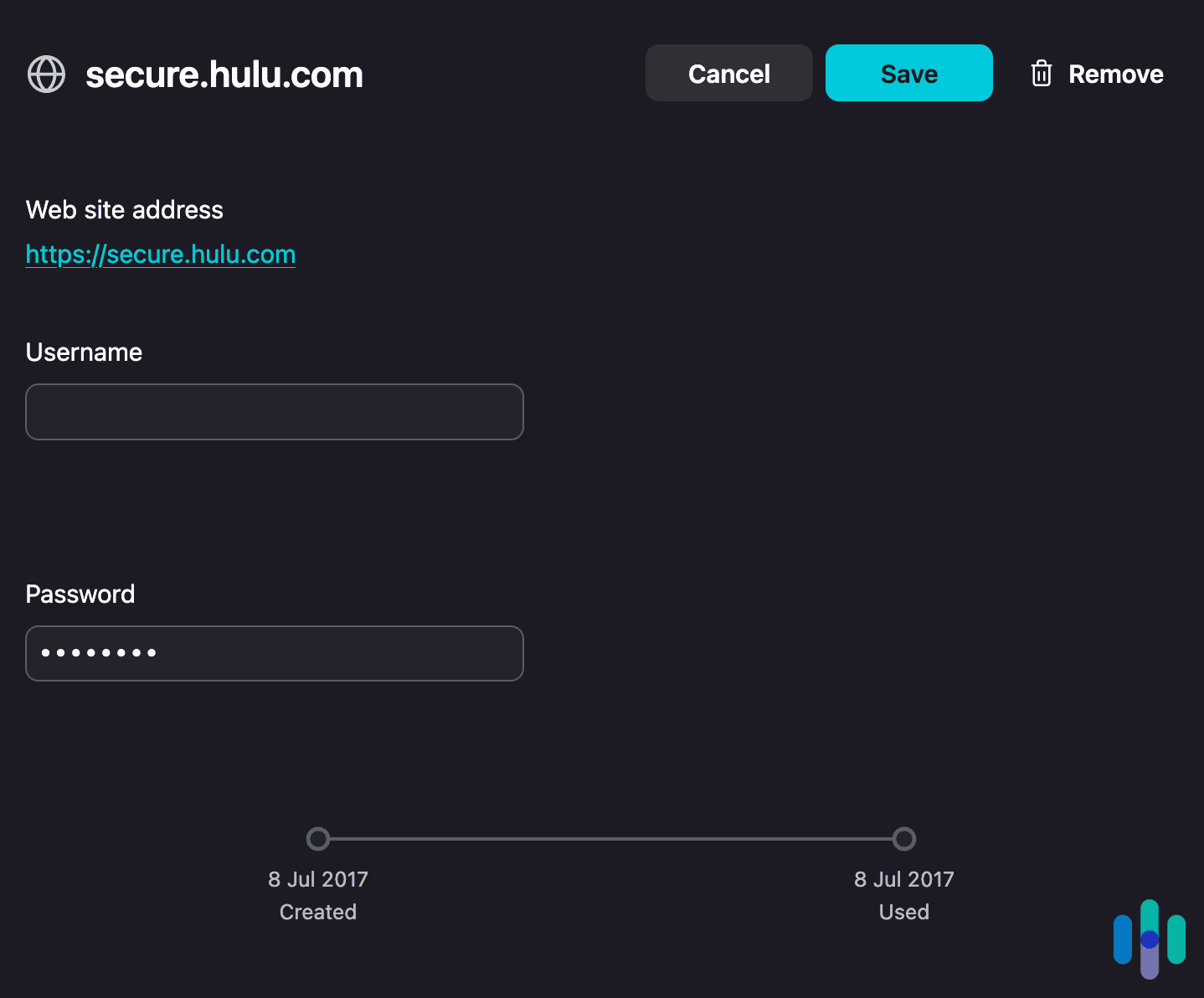
Firefox passwords are accessible by entering about:logins in the address bar. If you have a Mozilla account and sync enabled, passwords sync across all devices where you’re signed into Firefox. If you’re not using sync, passwords are stored locally on that device only.
To access your logins, you have a few options:
- Type about:logins in the address bar
- Click the hamburger menu (three lines, top right) and select Passwords
- Click the hamburger menu, go to Settings, then Privacy & Security, scroll to Logins and Passwords, and click Saved Logins
FYI: Firefox also has a Passwords sidebar. You can enable it from the Firefox tools menu. Once activated, a Passwords icon appears in the sidebar for quick access without leaving your current tab.
How to Find Passwords on Firefox
If you want to know what passwords Firefox has collected, here’s how to find them:
- Open Firefox and go to about:logins, or click the hamburger menu and go to Passwords.
- You’ll see a list of all saved logins on the left side.
- Click any entry to see the stored username and password on the right.
- Click the eye icon next to the password field to reveal it. On macOS and Windows, Firefox may prompt you to authenticate with your OS credentials or Primary Password before revealing it.
- Use the copy icon to copy without revealing.
Pro Tip: The average person has nearly 170 passwords.1 To save you time scrolling until you find the right one, use the search bar at the top to find a specific site by name.
How to Change a Saved Password in Firefox
As with Safari and Chrome password managers, updating a password in Firefox doesn’t change the password on the website. We recommend updating your actual account password on the site first, then following these steps to update it in Firefox.
- Open about: logins and find the site.
- Click the entry to select it.
- Click Edit.
- Update the username or password as needed.
- Click Save Changes.
>> Keep Reading: How to Find Your Passwords on Safari
How to Delete a Saved Password in Firefox
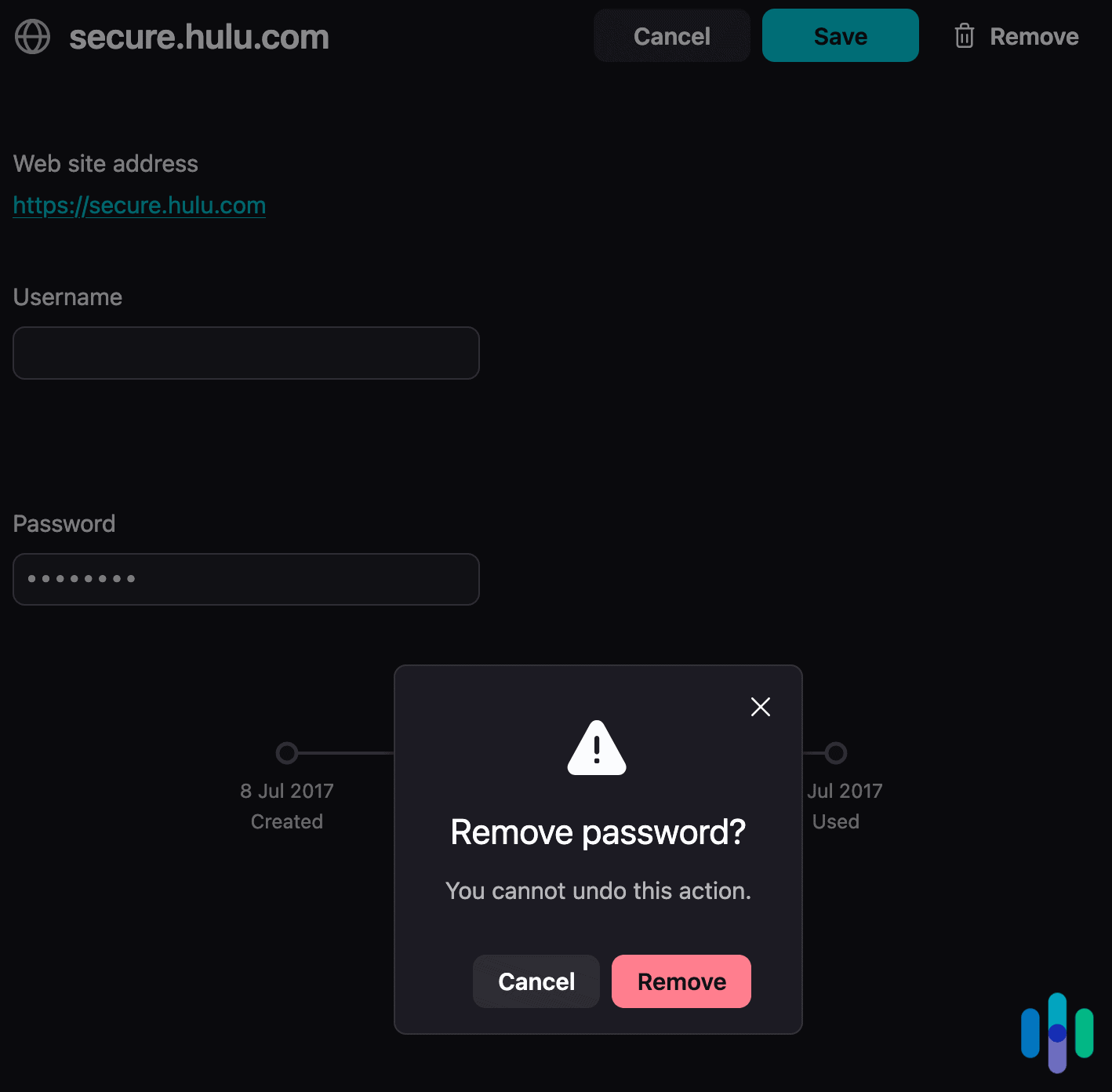
If you’ve closed an account, you’ll need to manually delete it from Firefox. Keep in mind that once it’s removed, the action can’t be undone. To delete a single password:
- Open about:logins.
- Click the entry you want to remove.
- Click the three-dot menu (top right of the entry view) and select Remove.
- Confirm deletion.
To delete all your saved passwords in Firefox:
- Open about:logins.
- Click the three-dot menu in the top right of the page (not an individual entry).
- Select Remove All Logins.
- Check the confirmation box and click Remove All.
FYI: To delete a password in Firefox on Android, tap the three-dot menu, go to Settings, then Passwords. Next, tap any login, press the three-dot menu in the upper right, and hit Delete.
How to Export Passwords from Firefox
Before you delete your passwords, we suggest exporting them from Firefox. Follow these steps to export your credentials:
- Open about:logins.
- Click the three-dot menu in the top right corner of the page.
- Select Export Logins.
- Click Continue with Export when Firefox warns you that passwords will be exported as readable text.
- You may be prompted for your Primary Password or OS authentication.
- Choose a file name and location, then click Save.
Firefox will download a .csv with all your credentials in plain text. Keep in mind that anyone who opens it will see all your passwords. We recommend importing it into your new password manager and deleting the file immediately.
How to Make Firefox Remember Passwords
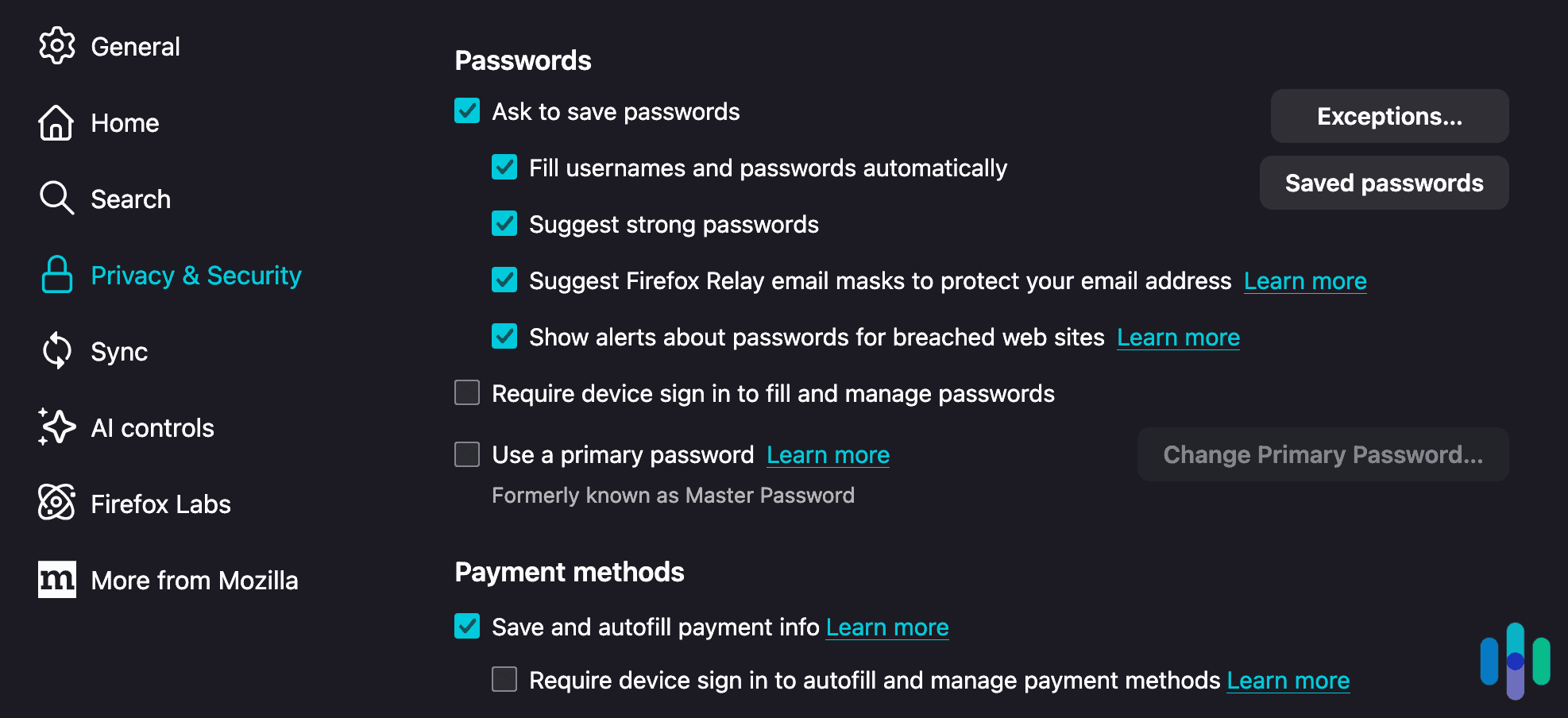
If Firefox isn’t offering to save passwords, the feature might be turned off. To fix it:
- Open Firefox, click the hamburger menu, go to Settings.
- Click Privacy & Security in the left panel.
- Scroll to Logins and Passwords.
- Check Ask to save logins and passwords for websites.
Once enabled, Firefox will prompt you the next time you log into a site. You can also add a password manually from about:logins by clicking Create New Login and filling in the details.
Pro Tip: If Firefox is supposed to save passwords for a site but the prompt never shows up, that site may be on your exceptions list. Check under Logins and Passwords, Exceptions to see if it was excluded.
Firefox’s Primary Password Feature
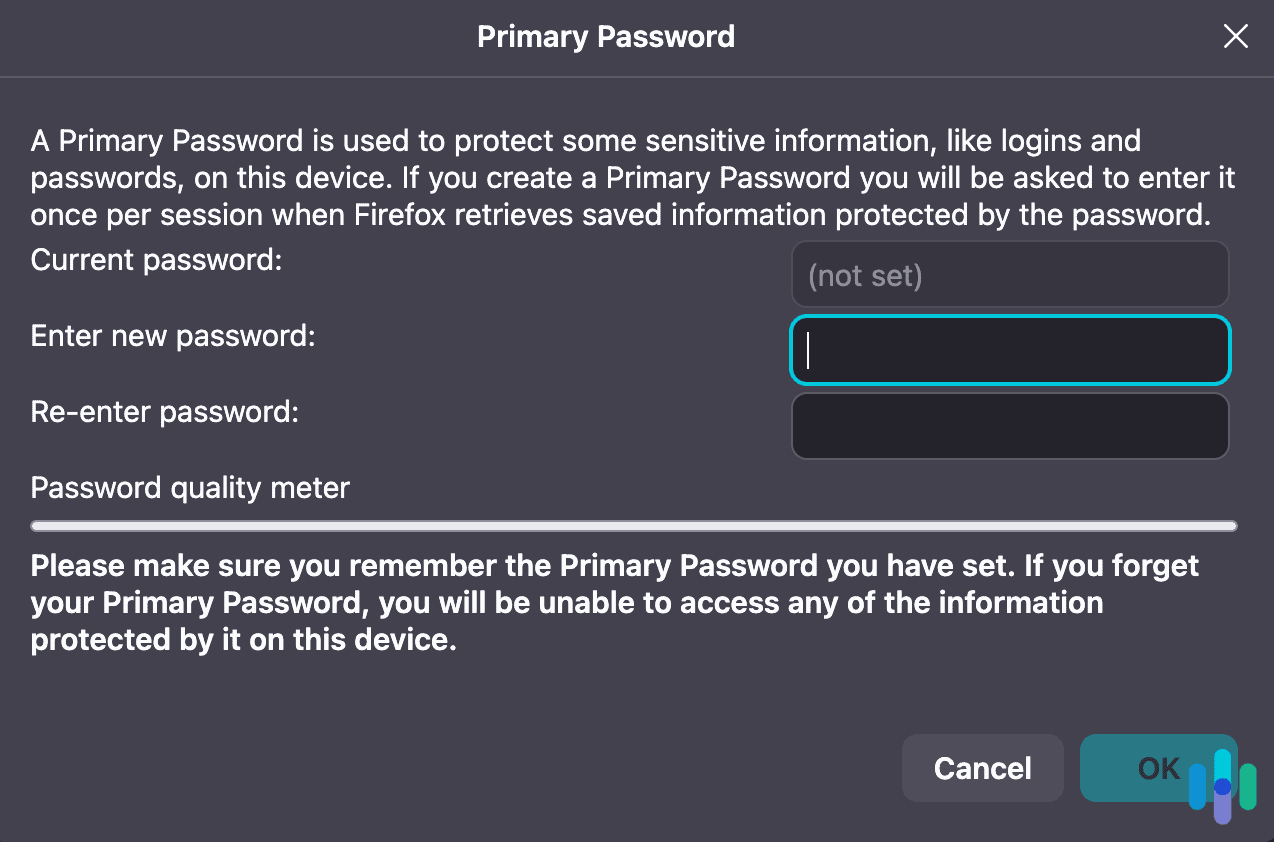
Unlike other browser password managers, Firefox lets you set a master passphrase that encrypts all your stored credentials. Once set, anyone who opens your browser will need to enter the Primary Password before they can view, copy, or export any saved logins. To set one:
- Open Firefox, go to Settings, then Privacy & Security.
- Scroll to Logins and Passwords.
- Check Use a Primary Password.
- Set your passphrase and confirm.
The downside is that this password is stored locally. This means if you forget it, you can’t recover your stored credentials. It also means the Primary Password only works on that device. You’ll need to set a separate Primary Password on every device where you use Firefox.
>> Check Out: Password Strength Checker
Recap: Is Firefox’s Password Manager Safe?
Firefox’s password manager is generally solid for personal use, and the Primary Password feature gives it a real security edge over Chrome and Edge for anyone who shares a device.
There are a few caveats, though. If you want passwords on your phone and your computer, you’ll need to be signed into the same Mozilla account on both. Fortunately, the sync feature is encrypted. Saved logins are also only available within Firefox. They don’t autofill in Chrome, Edge, or Safari. If you’re spread across browsers and devices, or need features like secure sharing or family plans, we recommend considering a dedicated password manager.
Frequently Asked Questions
-
Where are Firefox passwords stored?
Passwords are stored at about:logins in the browser, and synced to your Mozilla Account if you have one. Locally, passwords are stored in your Firefox profile folder in an encrypted file called logins.json.
-
Does Firefox have a master password?
Yes, it’s called the Primary Password. It encrypts all your stored credentials and requires a passphrase to unlock them. You can set it under Settings, Privacy & Security, Logins and Passwords. It’s optional but worth enabling, especially on shared computers.
-
Why isn't Firefox saving my passwords?
The “Ask to save logins and passwords” setting is likely turned off, or the site may be on your exceptions list. Check Settings, Privacy & Security, Logins and Passwords.
-
Can I see my Firefox passwords on my phone?
Yes, if you’re signed into the same Mozilla Account on both devices and sync is enabled. Passwords are one of the data types included in Firefox Sync. Open Firefox on your phone, sign into your Mozilla Account, and your saved logins will appear.
-
What's the difference between Firefox Sync and a password manager?
Firefox Sync keeps your Firefox data consistent across your Firefox installations. A standalone password manager works across all browsers and operating systems, not just Firefox. If you use multiple browsers or need to share credentials with others, a dedicated password manager is a better option.