


the security.brief
Learn how to change your location in Pokémon Go using VPNs or GPS apps like Dr.Fone, despite Niantic's restrictions. Be cautious to avoid bans.
If you’ve been stuck in your hometown chasing after the same Pokemon day after day, we get your frustration. Wouldn’t it be great if you could change your location to change up the game a little?
Well, you can.
Although Niantic doesn’t love when players change their locations artificially, sometimes you need to. Maybe you’re in a rural area with few Pokéstops, or you want to participate in regional events happening elsewhere. If that’s you, you’re in the right place. Here we’ll show you the safest ways to change your location in Pokemon Go while minimizing the risk of detection.
How Changing Virtual Locations Usually Work
There are several methods to change your location on Pokemon Go, though each comes with different levels of effectiveness and risk. One of the easiest ways is to use a virtual private network, or VPN for short. VPNs route your traffic through servers located in other places in the world. However, you'll typically need additional tools for this to work since Pokemon Go uses GPS data alongside IP addresses.



How To Change Location on Pokemon Go
The VPN method works with Pokemon Go, but it’s not foolproof. That is why, in addition to outlining how you can use a VPN to change your Pokemon Go location, we also included other options.
VPNs
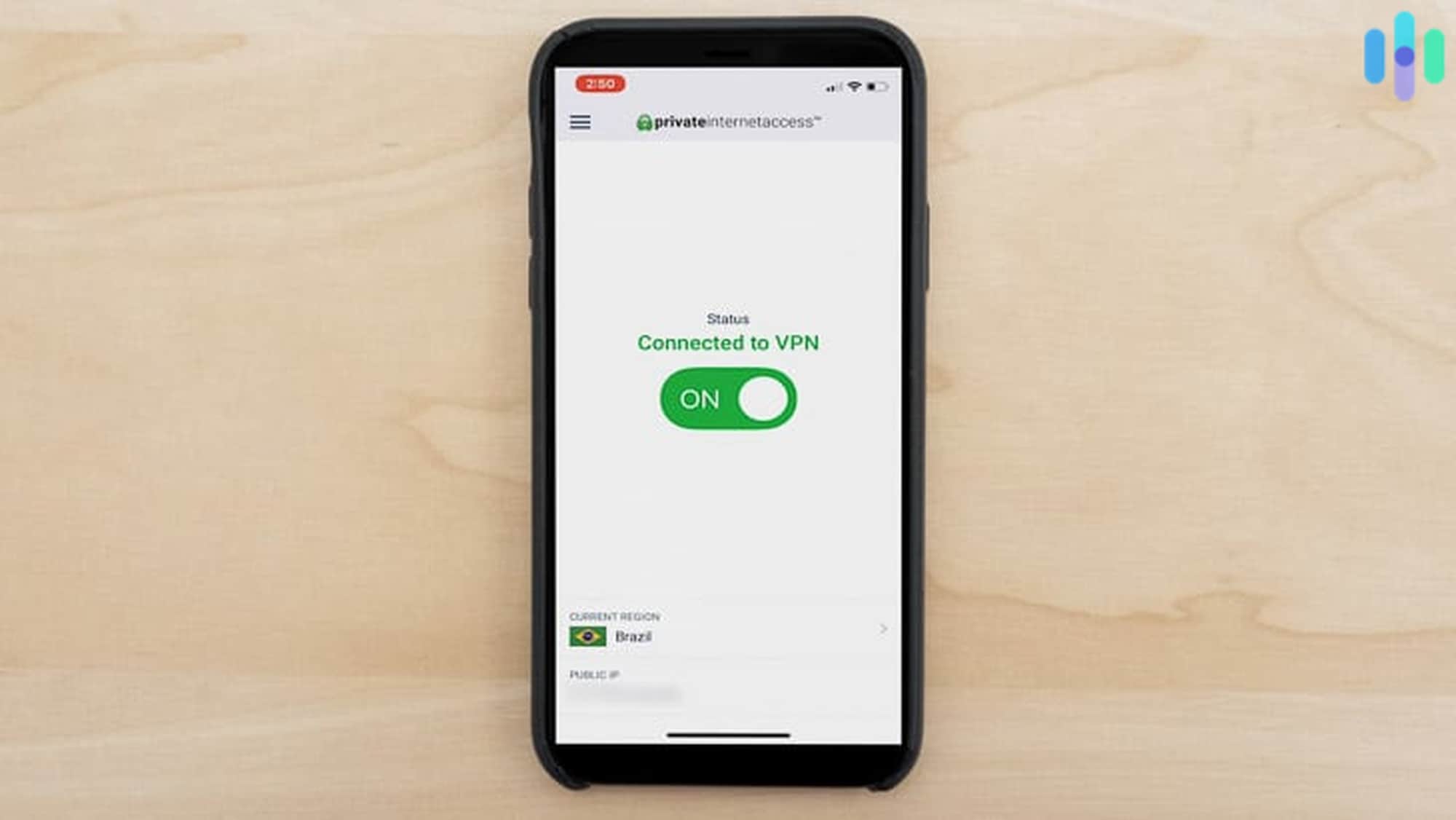
By hiding your IP address, VPNs change your IP address to that of one of their servers. Here’s how to set up a VPN:
Changing your Location on Pokemon Go
- Choose a VPN service. If you’re not sure which one, check out our list of the best VPN services. Make sure the VPN has servers in your preferred location.
- Sign up for a VPN subscription.
- Download the VPN app.
- Sign in.
- Connect to the VPN server(s) of your choice.
- Start playing Pokemon Go to see if the location change worked.
That said, a VPN alone typically won’t be enough. Pokemon Go uses multiple verification methods beyond just IP addresses. Don’t worry, though, there are a few other workarounds. Specifically downloading and installing a different third-party GPS app.
GPS Apps
Aside from setting up a VPN on your iPhone with one of the best iOS VPNs or setting up an Android VPN with one of the best Android VPNs, you can use GPS changing apps like Dr.Fone on either operating system.1 It modifies your actual GPS location, which is what Pokemon Go primarily relies on for player positioning.
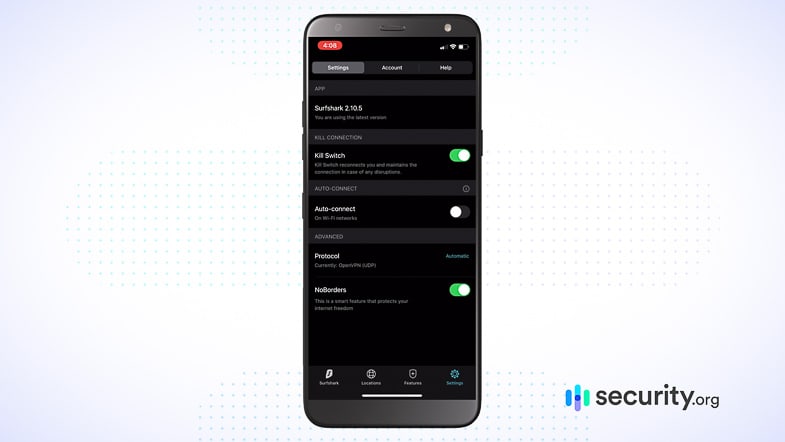
On Androids only, you can use a VPN and a GPS app in one with Surfshark, which we tested in our Surfshark review. This is the only app we’ve tested that changes both your GPS data and your IP address. Dive deep into Surfshark’s plans.
Pro Tip: When using GPS changing apps, move your location gradually rather than jumping across continents instantly. Sudden location changes are a red flag for Niantic’s detection systems.
Android Account Region
Google lets you change your account region on Androids, meant for people moving to a different country who want to access that country’s Google Play Store (content varies by country). However, you can only change your region once a year, and you’ll lose your current balance on the Google Play Store and access to some content, so consider that before you change your region willy-nilly.
To change your account region on your Android directly:
- Go to the Google Play Store.
- Click on your profile icon.
- Click “Settings.”
- Click “General.”
- Click “Account and Device Preferences.”
- Click “Country and Profiles.”
- Click the country you want to add.
- Add a payment method from that country. Your update should be complete within 48 hours.
You can also change your Android account region from your computer if you prefer:
- Open a web browser.
- Go to Pay.google.com.
- Click “Settings.”
- Scroll to the Payment Profile.
- Next to “Country/Region,” click “Edit.”
- Click “Create New Profile.”
- Follow the instructions to add payment methods. Changes could take up to 48 hours to process ully.2
NOTE: To set up a new account region, you’ll need a payment method from the country you’re changing your region to.
No Jailbreaking
Jailbreaking your phone, your iPhone in particular, may be a tempting option, as it lets you download apps outside of the App Store and tweak the iOS. However, as far as digital safety goes, jailbreaking is a terrible idea.
First, Niantic actively blocks jailbroken and rooted devices from accessing Pokemon Go, so you’ll likely be unable to play at all.
Second, jailbreaking removes critical security features from iOS, exposing your device to malware and data theft. The App Store’s strict vetting process is why iPhones and iPads don’t need antivirus protection. Jailbreaking makes it easier to hack into an iPhone, even if you download third-party antivirus software. In other words, try a VPN and a GPS changing app before you jailbreak your phone, if ever.
To learn more, read about how to change your iPhone location.
Why Change Your Pokemon Go Location?
Most players change their Pokemon Go location to access region-exclusive Pokemon like Pachirisu (Alaska/Canada) or Tropius (Africa/Southern Spain). You can also change your location to participate in location-specific events, or find more active gyms and raids in urban areas. Changing your Pokemon Go location also lets you access special events and gym-specific battles.
FYI: Niantic recently implemented stricter anti-spoofing measures, including shadow bans and permanent account suspensions. To minimize detection risk, avoid teleporting long distances instantly and respect cooldown periods between location changes.
Why Can’t I Access My Pokemon Go Location?
Did you get a notice that you’re experiencing location accuracy issues? It may be an issue with your GPS. The device knowing your location is essential to playing Pokemon Go, so troubleshoot possible culprits with us below.
Unsupported Devices
Not all devices work with Pokemon Go, such as tablets that lack GPS sensors. See the list of supported devices below.
| Features | Android | iPhone |
|---|---|---|
| Version | 9 or above | iPhone 6s or above running iOS 15+ |
| Preferred resolution | 720 x 1280 | N/A |
| Internet connection | Wi-Fi, 4G, 5G | Wi-Fi, 4G, 5G |
| GPS/location services | Yes | Yes |
| Unsupported devices | Rooted devices | Jailbroken devices |
Weak Signals
When multiple devices share the same network or you’re playing in a moving vehicle, weak Wi-Fi or cellular signals can disrupt location tracking. For best results, ensure you have at least 3 bars of signal strength.
Tall Buildings
Urban canyons created by tall buildings can cause GPS drift, making your avatar wander randomly. This is especially common in downtown areas with skyscrapers over 20 stories tall.
Location Accuracy Not Enabled
To get the most accurate location data from your Android device, it needs to use a combination of GPS, Wi-Fi, sensors, and mobile networks, which Google calls Location Accuracy. Without Location Accuracy enabled, your Android will only use GPS data, which tends to be slower and less accurate than the above sources.
To turn on Location Accuracy on your Android:
- Swipe down on your Android screen.
- Touch and hold “Location.”
- Click “Advanced.”
- Click “Google Location Accuracy.”
- Turn on “Improve Location Accuracy.”3
Mock Locations Enabled
If your notice says something like “failed to detect location,” you may need to turn off a setting called Mock Locations. To disable the Mock Locations app:
- Go to Settings.
- Click “Systems.”
- Click “Advanced.”
- Click “Developer Options.”
- Disable “Select Mock Location App.”4
Recap
Changing your Pokemon Go location requires careful planning and the right tools. While VPNs alone won’t cut it, combining them with GPS spoofing apps can help you explore new regions and catch exclusive Pokemon. Just remember to move realistically between locations and respect cooldown times to avoid detection.
FAQs
Still tinkering with your Pokemon Go location? We’re here to help.
-
How do you change your location on Pokemon Go?
You can change your location on Pokemon Go by connecting to a VPN or GPS changing app. If you’re on an Android, you can change your account region once a year. On your Android:
- Open the Google Play Store app.
- Click on your profile icon.
- Select “Settings.”
- Select “General.”
- Select “Account and Device Preferences.”
- Select “Country and Profiles.”
- Choose the place you want to change your account region to.
- Add a payment method from that location.
After a maximum of 48 hours, your account region will update.
-
How do you change your location on Pokemon Go on an iPhone?
To change your location on Pokemon Go on an iPhone, connect to a VPN app and a GPS changing app like Dr.Fone.
-
How can I change my location on Pokemon Go for free?
You can change your location on Pokemon Go for free by using Surfshark on your Android, which can change both your IP address and your GPS data. On an iPhone, free options are limited, but some GPS apps offer trial periods you can use temporarily.
-
Can you get banned for altering your GPS on Pokemon Go?
Yes, you can get banned for altering your GPS on Pokemon Go. Niantic uses sophisticated detection methods and can issue warnings, shadow bans (where rare Pokemon stop appearing), or permanent account suspensions for location changing violations.