



the security.brief
Learn how to set up a VPN on PlayStation using a VPN router or create a virtual router with your computer, since PS4/PS5 don’t support VPN apps.
You know what’s awesome? PlayStation. It’s the ultimate entertainment hub – one minute you’re playing Call of Duty, the next minute you’re chilling with Netflix. Here’s the thing, though: Whenever you connect a device to the internet, you’ve got to think about security and privacy. That’s where VPNs come in.

VPNs route your internet connection through an encrypted tunnel, and at the other end of that tunnel, assign you a new IP address so you can surf in complete anonymity. You get protection from DDoS attacks, shield yourself from hackers stealing your identity and keep your gaming activities private from the government tracking your browsing history. You can also get access to streaming content that’s only available in certain countries.
Sounds awesome, right? Here’s the problem: PlayStation 4 and 5 don’t support VPN apps. That means you can’t just download a VPN app to use a VPN on them. You need a workaround, and lucky for you, we have two proven and tested methods for connecting PlayStations to a VPN. You can either use a VPN router, or you can set up your computer as a virtual router for your PlayStation. We’ll explain how both methods work in this guide and cover the three best VPN options for PlayStation.
Comparison of the 3 Best VPNs for PlayStation
| ExpressVPN | NordVPN | Surfshark | |
|---|---|---|---|
| Ranking | 1st | 2nd | 3rd |
| Rating | 9.1/10 — Easiest to Set Up and Use | 9.7/10 — Best for Overseas Servers | 9.5/10 — Best for Competitive Gamers |
| In-game latency (closest server) | 25–40 ms | 40–60 ms | 30–70 ms |
| Download speed (closest server) | 223 Mbps | 212 Mbps | 207 Mbps |
| Upload speed (closest server) | 201 Mbps | 198 Mbps | 183 Mbps |
| Server locations | 105 countries | 130 countries | 100 countries |
| Set up via virtual router | Easy | Easy | Easy |
| Set up via SmartDNS | Easy | Easy (via SmartPlay) | Not Available |
| Set up as router VPN | Easy (Aircove) | Mid to high difficulty | Mid to high difficulty |
| PlayStation compatibility | PS3, PS4, PS5 | PS3, PS4, PS5 | PS3, PS4, PS5 |
| Minimum monthly fee | $2.44 | $3.39 | $1.99 |
| Money-back guarantee | 30 days | 30 days | 30 days |
| Read Review | ExpressVPN Review | NordVPN Review | Surfshark Review |
The Best 3 VPNs for PlayStation
#1 — ExpressVPN: Best for Setup and Ease of Use
Connect your PS4 or PS5 to ExpressVPN through the optional Aircove router for an easier VPN setup.

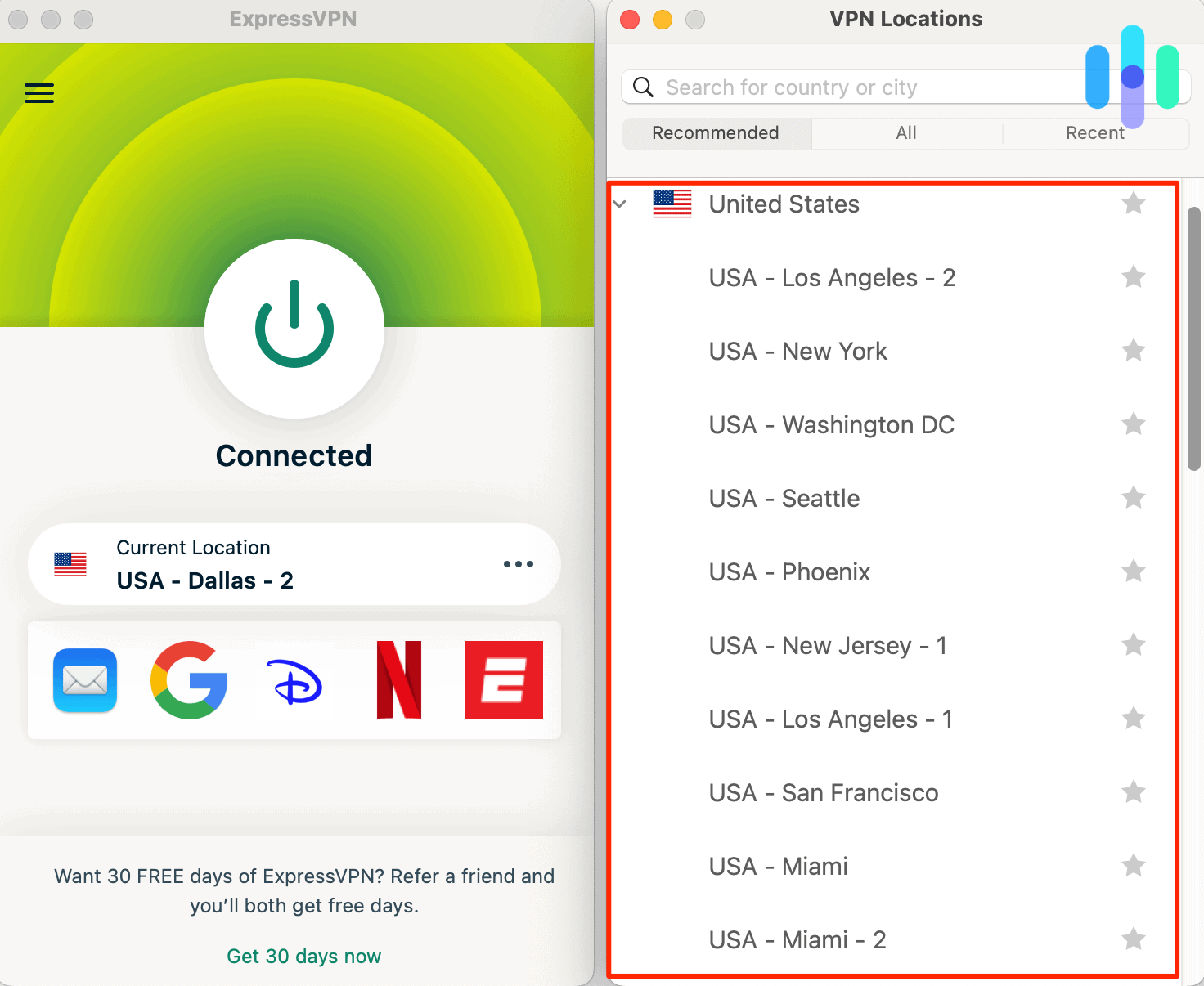
ExpressVPN is our top pick for PlayStation, and the main reason is setup. PlayStation doesn’t support native VPN apps, which means every other VPN on this list requires you to either configure a router or share a connection from a Windows or Mac machine. ExpressVPN’s Aircove VPN router eliminates that entirely. You plug it in, connect your PS4 or PS5 to its Wi-Fi network, and every device on that network routes through ExpressVPN automatically — no configuration, no hotspot sharing, no manual OpenVPN setup. We had a PS5 running through ExpressVPN in under 20 minutes using Aircove, faster than any other setup method we tested.
Performance backed that up. In our tests on a PS5 playing Apex Legends, ExpressVPN delivered the lowest latency of any VPN we tried — averaging 25 to 40 ms on the closest server. Download speeds hit 223 Mbps, which handles both competitive gaming and large game downloads without issue. For players who occasionally connect to overseas servers, ExpressVPN holds up well on long-distance connections too. SmartDNS is also included on all plans, giving you a lightweight option for region-switching without the full VPN overhead when you don’t need encryption.
The trade-off is price. Aircove routers cost significantly more than regular routers, starting at $169.90 plus an ExpressVPN subscription starting at $2.44 per month. If you already have a VPN-compatible router or are comfortable with the virtual router setup, you might not need Aircove. But if you want the simplest possible path to getting your PlayStation on a VPN — especially in a household with multiple devices — we recommend ExpressVPN.
Best for: Players who want the easiest PlayStation setup, households with multiple gaming devices, Aircove router users.
What We Like
- Aircove router comes with ExpressVPN pre-installed — no manual configuration required for PS3, PS4 or PS5
- Lowest latency in our PlayStation tests, averaging 25 to 40 ms on the closest server
- SmartDNS included on all plans for lightweight region-switching without full VPN overhead
- Works across all PlayStation models from PS3 through PS5
What We Don’t Like
- Basic plan only supports 10 simultaneous connections
- Aircove router is a separate hardware purchase on top of the subscription
- Smaller server network (105 countries) than NordVPN
#2 — NordVPN: Best for Overseas Gaming
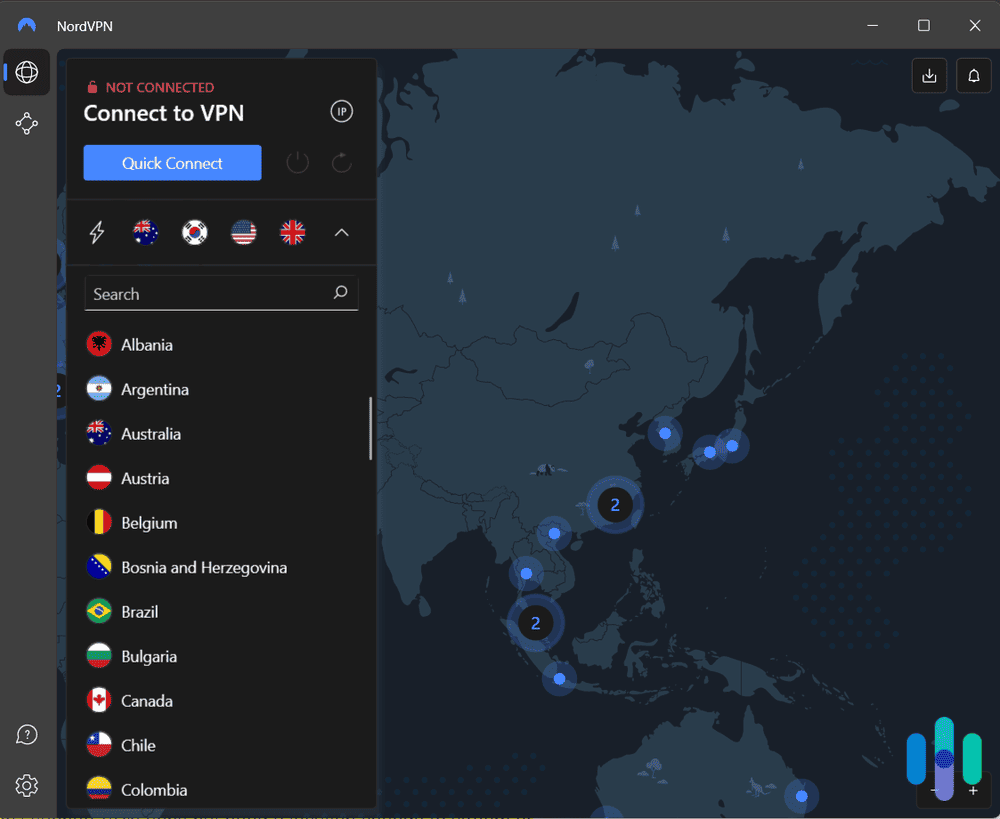
Explore overseas gaming servers with NordVPN’s broad network and stable long-distance connections.

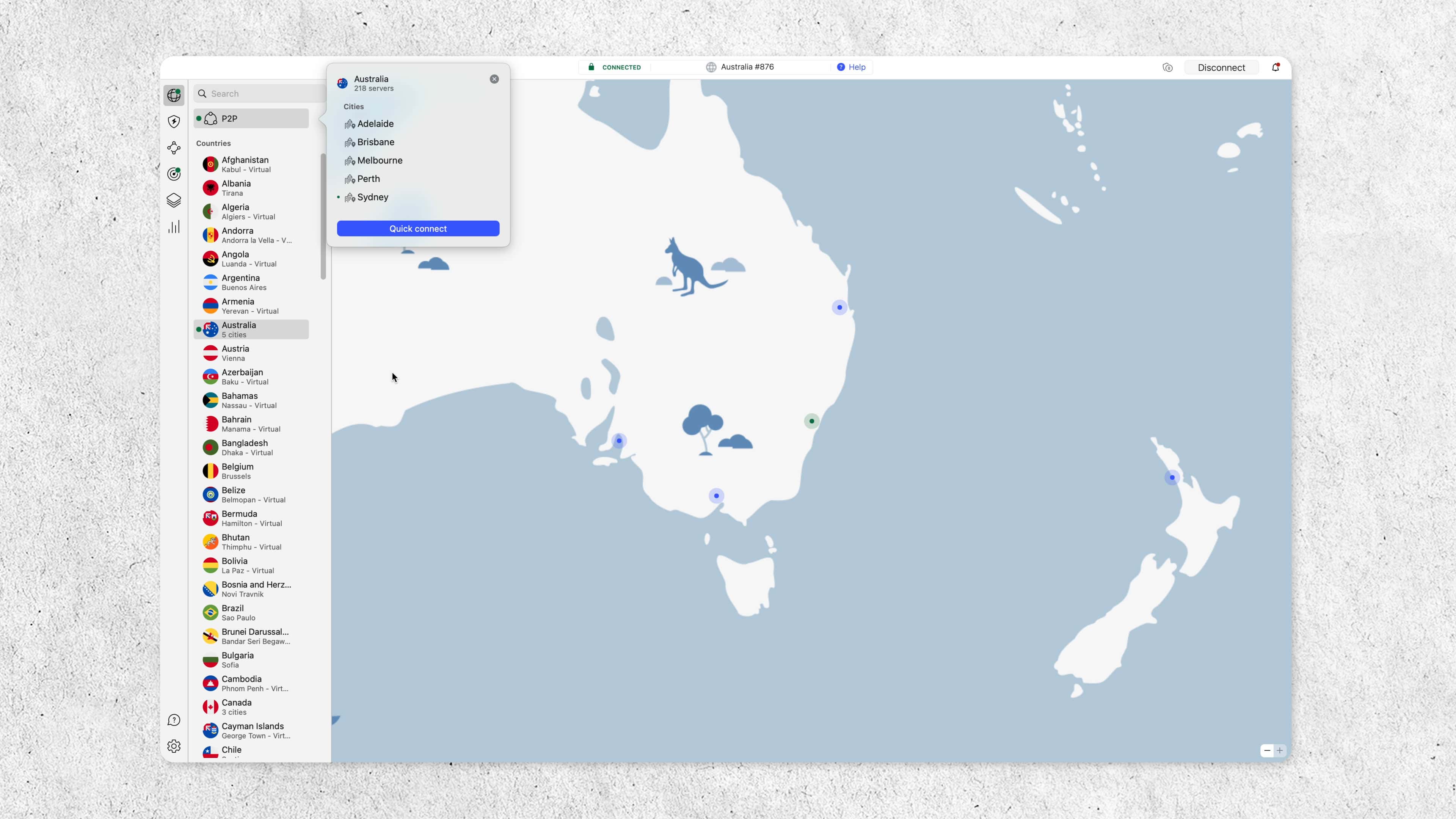
NordVPN ranked second in our PlayStation tests, and its real strength is cross-region gaming. Latency on close servers averaged 40 to 60 ms — slightly behind ExpressVPN, but consistent. Where NordVPN separated itself was on long-distance connections: when we tested Australian servers from North America, performance remained more stable than any other VPN we tried. That makes it the best option for players who game with friends in other regions or want to access early releases from markets like Japan. We discuss this difference further in our NordVPN vs ExpressVPN comparison.
NordVPN covers 130 server countries — the widest spread of any VPN on this list — which gives you more geographic options for regional matchmaking and early access titles. Setup on PlayStation runs through the virtual router method on Windows or Mac, or through a compatible router. NordVPN’s SmartPlay feature also makes SmartDNS configuration easier than most, requiring no separate setup — it activates automatically when you connect. Meshnet, NordVPN’s private network feature, is a bonus for players who want to create LAN-style game sessions with friends over the internet without third-party tools.
The only real drawback is the router setup experience. Unlike ExpressVPN’s Aircove, getting NordVPN running at the router level takes more effort and technical familiarity. That said, the virtual router method on Windows is well-documented and works reliably on PS4 and PS5. With NordVPN’s subscriptions starting at $3.39 per month, it hits a strong value-to-performance ratio, particularly for players who regularly game across regions.
Best for: Cross-region multiplayer, players who game with friends overseas, anyone who wants the widest server coverage.
What We Like
- Most stable performance on overseas and long-distance servers in our testing
- 130 server countries — the widest geographic spread on this list
- SmartPlay makes SmartDNS setup automatic — no manual configuration needed
- Meshnet enables private LAN-style gaming sessions with friends over the internet
What We Don’t Like
- Slightly higher latency on local servers than ExpressVPN (40 to 60 ms vs. 25 to 40 ms)
- Router-level setup is more involved than ExpressVPN’s Aircove solution
- No dedicated VPN router option — requires third-party compatible hardware
#3 — Surfshark: Best for Competitive Gamers
Protect your gaming connections with Surfshark’s unlimited device coverage through a compatible router or shared computer connection.

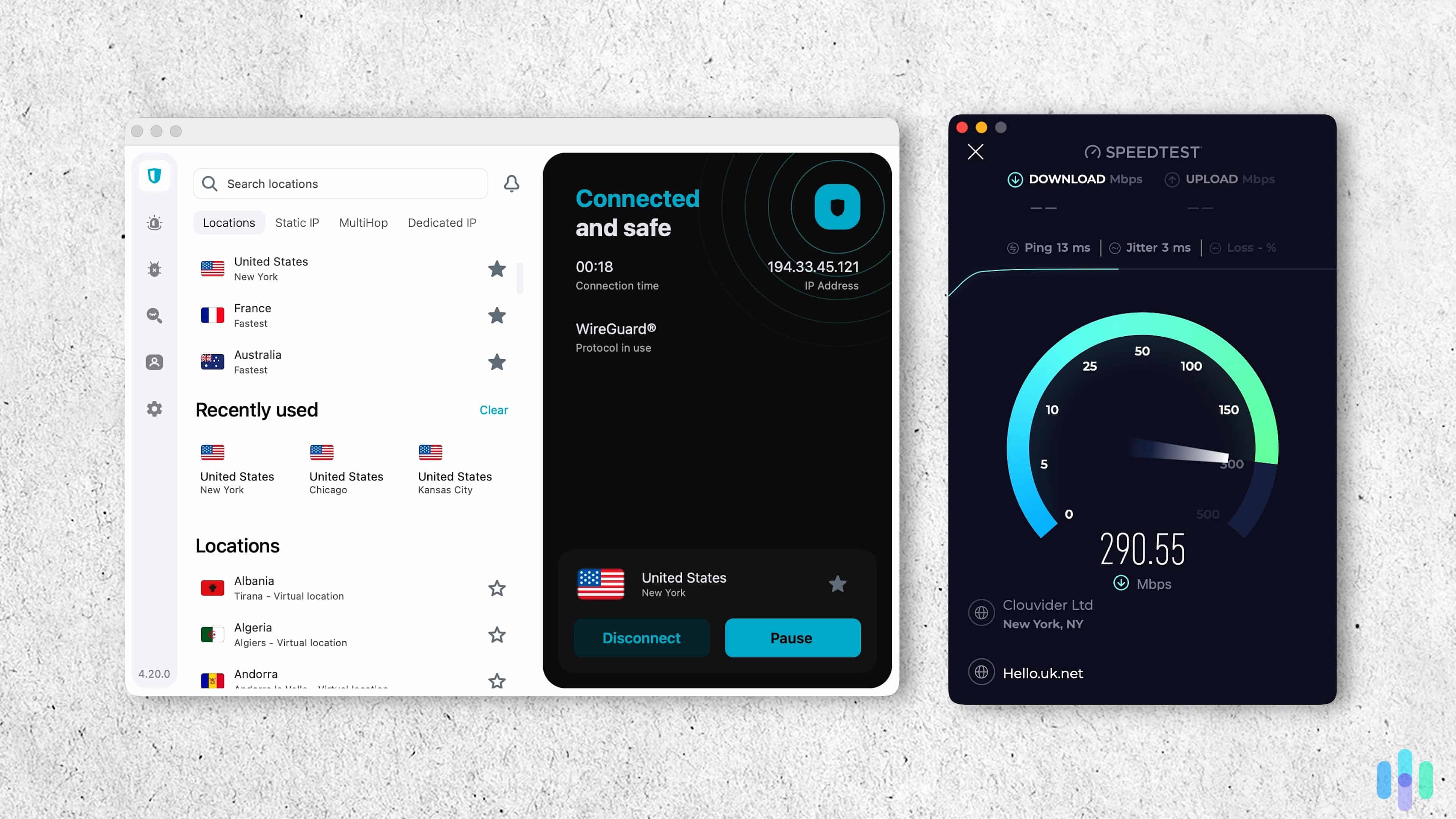
Surfshark is our pick for competitive players who want DDoS protection without paying a premium. Its network runs on 10 Gbps server ports — significantly higher capacity than most consumer VPNs. That allows it to absorb the kind of high-volume traffic floods used in DDoS attacks. If you play ranked or competitive titles where opponents target their competitors’ IP address for an easy win, Surfshark can protect you.
Gaming performance in our PS5 tests was solid. Latency averaged 30 to 70 ms on close servers. While that’s a wider range than ExpressVPN or NordVPN, reflecting some variability between individual servers, the median stays well within playable range for most game types. Head over to our ExpressVPN vs Surfshark comparison for a full breakdown. Download speeds came in at 207 Mbps, more than enough for gaming traffic and large patch downloads. Although Surfshark no longer offers SmartDNS, the virtual router setup worked well on PlayStation.
The biggest practical advantage is unlimited simultaneous connections. One Surfshark subscription covers every console, PC, phone, and tablet in your home — there’s no limit. For households running multiple PlayStations or a mix of gaming devices, that’s a meaningful difference from the 10 device cap with NordVPN, as we discuss in our Surfshark vs NordVPN comparison. At $1.99 per month with a two-year plan, Surfshark’s subscriptions are also the most affordable on this list. That makes it a strong choice for budget-conscious players who want uncompromising DDoS protection and performance.
Best for: Competitive players concerned about DDoS attacks, households with multiple gaming devices, budget-focused gamers.
What We Like
- 10 Gbps port infrastructure gives it the strongest DDoS resistance on this list
- Unlimited simultaneous connections — one subscription covers every device in your household
- Most affordable option at $1.99 per month with strong overall gaming performance
- 100 server countries gives solid regional coverage for matchmaking and early releases
What We Don’t Like
- Latency variability (30–70 ms) can spike during peak server load in competitive play
- No SmartDNS support — virtual router or router setup only on PlayStation
- No dedicated VPN router option like ExpressVPN’s Aircove
>> Read About: How to Set Up Parental Controls on Fortnite
How to Set Up a VPN on PlayStation
The easiest option for connecting your PlayStation 4 or 5 to a VPN, at least in terms of setup, is to install the VPN on your router. Doing this has the added benefit of providing VPN coverage for all your devices.

Keep in mind that every setup will be slightly different depending on the specific router you use and the specific VPN you choose. Here’s the general process that works for most routers and VPN providers.
Connecting Through a Router
- Choose a VPN and sign up for a subscription.
- On your internet-connected computer, open a browser and log-in to your router’s configuration dashboard by entering the router’s IP address.
- Reconfigure your router settings to include information about your VPN. How you do this will depend on your router. Some come with a built-in VPN client so you can make changes directly. Others allow you to download and install a client from your chosen VPN.
- Next, sign onto your PlayStation and go to Settings.
- Click on Network.
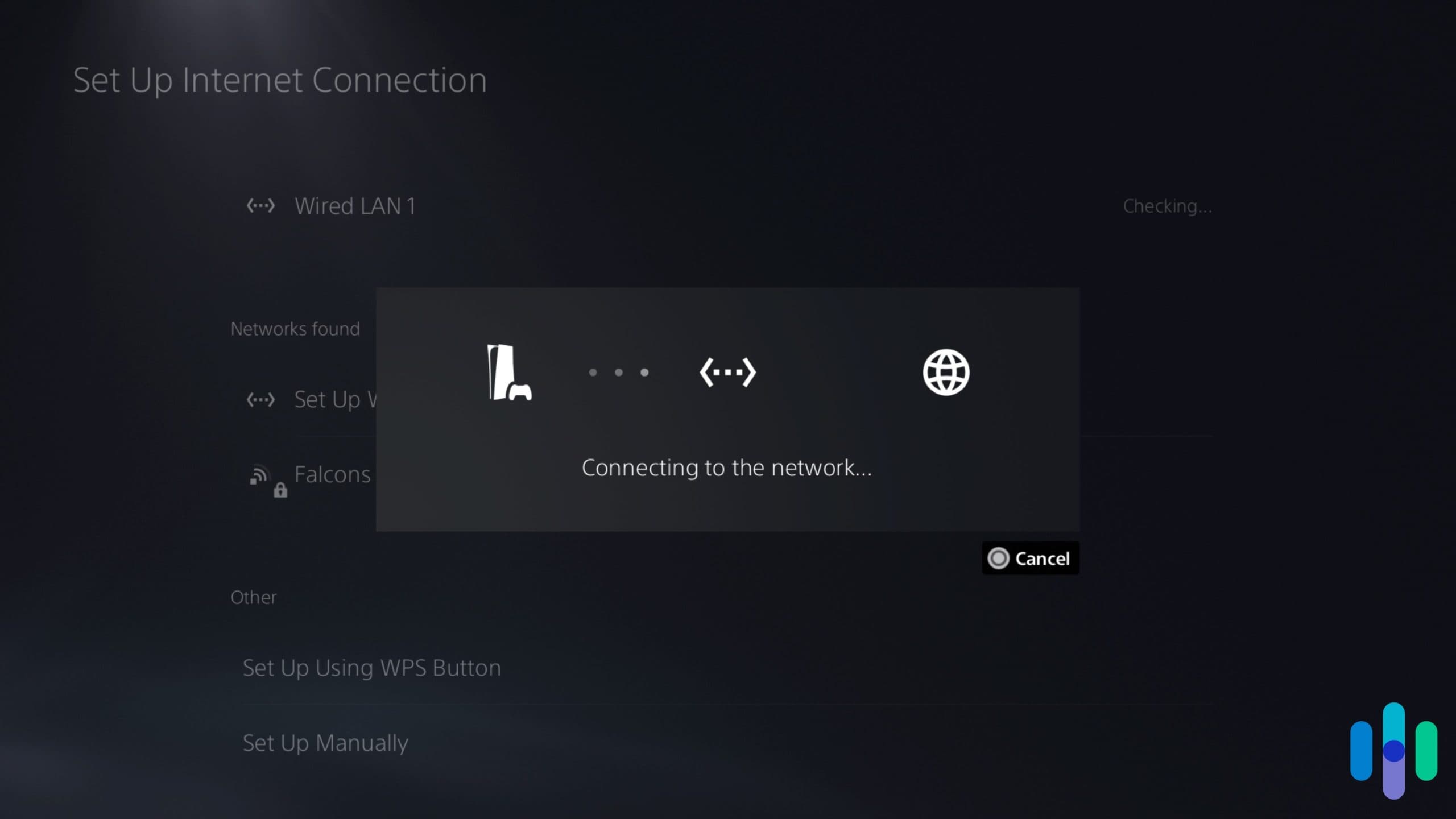
- Within the Network section, click on Settings and then Set Up Internet Connection.
- The PS4 or PS5 will take you through several prompts that will connect you to your router. Make sure to check the “Do Not Use a Proxy Server” box when you are asked.
That’s it. Every time you log on to the internet from your PS4, your connection will be protected by the VPN. Your data will be encrypted, and your actual IP address will be hidden behind an address assigned to you by the VPN.
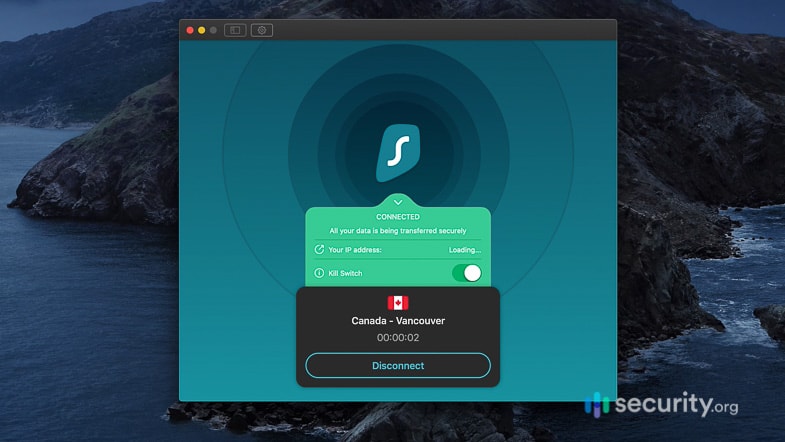
There is a downside to using this method, though. The VPN connection you set up will be the only VPN setup you’d use. You’d have to start over if you want to change the location of the VPN server you’re connected to. And also, once the VPN is set up, you can’t easily turn it off and on.
Here’s why that matters. One of the side effects of connecting to a VPN is that you get access to streaming options available in the server’s location. If you connect to Japan, for example, you get access to Netflix Japan. However, you also lose access to content available only in your country, and once you’ve watched all the Netflix Japan shows you like, you can’t easily switch to a different server location.
You can easily do those things – turn off the VPN or switch to a different server – if you’re using a VPN app on your smartphone or computer; not on a VPN router though.
Create a Virtual Windows Router
Our second workaround for connecting a PlayStation to a VPN is more user-friendly, at least in terms of switching server locations and turning the VPN on and off. It works the same way as a VPN router, but instead of a real router, you use your computer as a virtual router. That is, your PlayStation gets its internet connection from your laptop or desktop.
Before we dive in, let’s check if your device supports this feature. For Windows laptops and computers, check that your device supports a feature called Mobile Hotspot. For Macs, you need a Macbook with an extra Ethernet port, since Macs can’t receive and broadcast Wi-Fi signals at the same time.
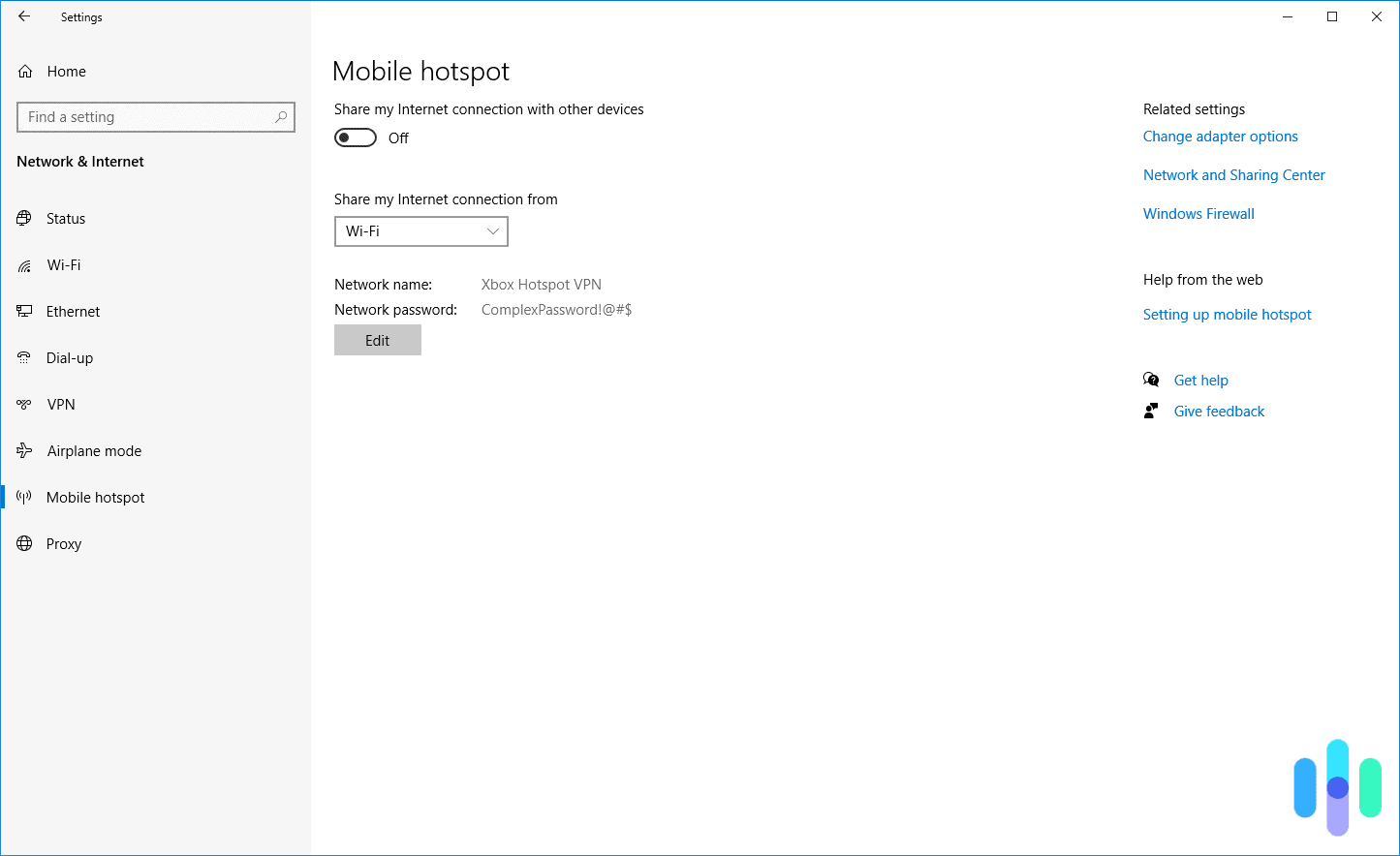
How-to: Creating a virtual router allows you to route your PlayStation’s internet traffic through your computer. You can connect either with an Ethernet cable or by turning your computer into a Wi-Fi hotspot.
Here are the instructions if you’re on a Windows computer:
- Choose a VPN. You might want to consider one of our best VPNs for Windows devices.
- Sign up for a subscription to the VPN.
- Download the VPN onto your computer and install the software.
- Log in to the VPN and choose a server.
- Once you’re connected to the VPN, navigate to Settings.
- Go to Network & Internet.
- Navigate to Mobile hotspot.
- Select Edit under the Network details.
- Enter your desired Network name and Network password.
- Click Save.
- Toggle on the Share my Internet connection with other devices setting.
- Log on to your PlayStation.
- Navigate to Settings.
- Then click on Network and then Set Up Internet Connection.
- Choose your computer’s new Wi-Fi hotspot.
- If asked, choose Easy as your connection method.
- If asked, choose Do Not Use Proxy Server.
Create a Virtual Mac Router
The instructions for using a Mac device as your virtual server are similar, except there’s no Wi-Fi option since Macs can’t send and receive Wi-Fi at the same time.
- Choose a VPN and sign up for a subscription.
- Install the VPN app on your Mac.
- Plug one end of your Ethernet cord into your Mac’s Ethernet port.
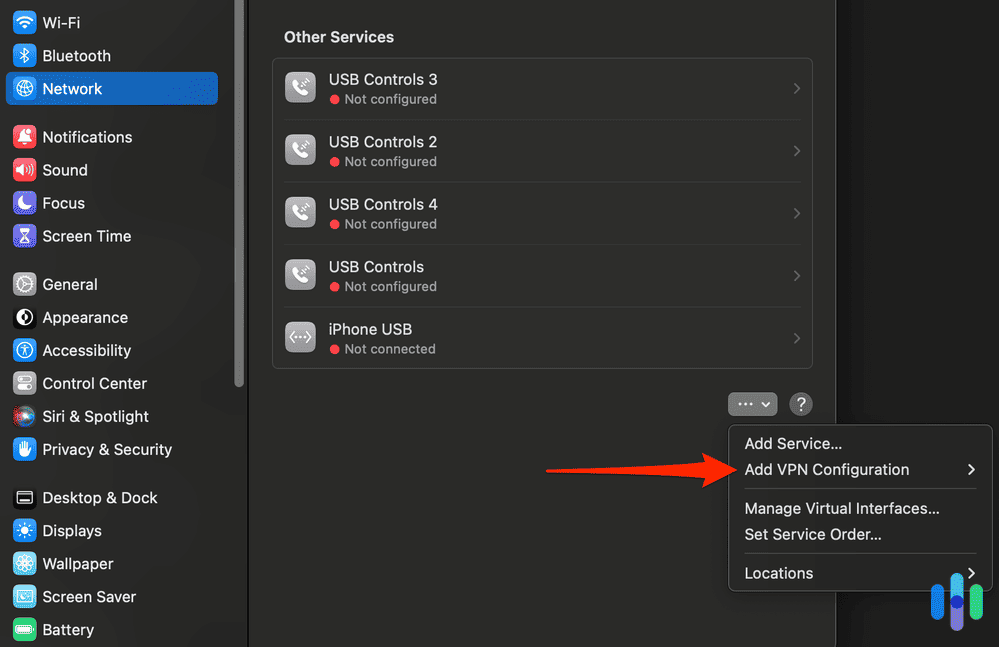
- Go to System Settings.
- Search for on “Sharing”.
- Click on “Sharing”.
- Scroll down to “Internet Sharing” and click on the lowercase “i”.
- Under Share Your Connection From, choose VPN.
- Under In To Computer Using, check the box for Wi-Fi.
- Create a password and a network name.
- Leave the channel as Default.
- Set the Security as WPA2 Personal.
- Click OK.
- Enable Internet Sharing.
- Turn your Wi-Fi network on.
- Plug the other end of your Ethernet cord into your PlayStation’s Ethernet port.
- Log on to your PlayStation.
- Go to “Settings”.
- Click on “Network”.
- Choose “Use a LAN Cable”.
- When asked, choose Easy as your connection method.
- When asked, choose Do Not Use Proxy Server.
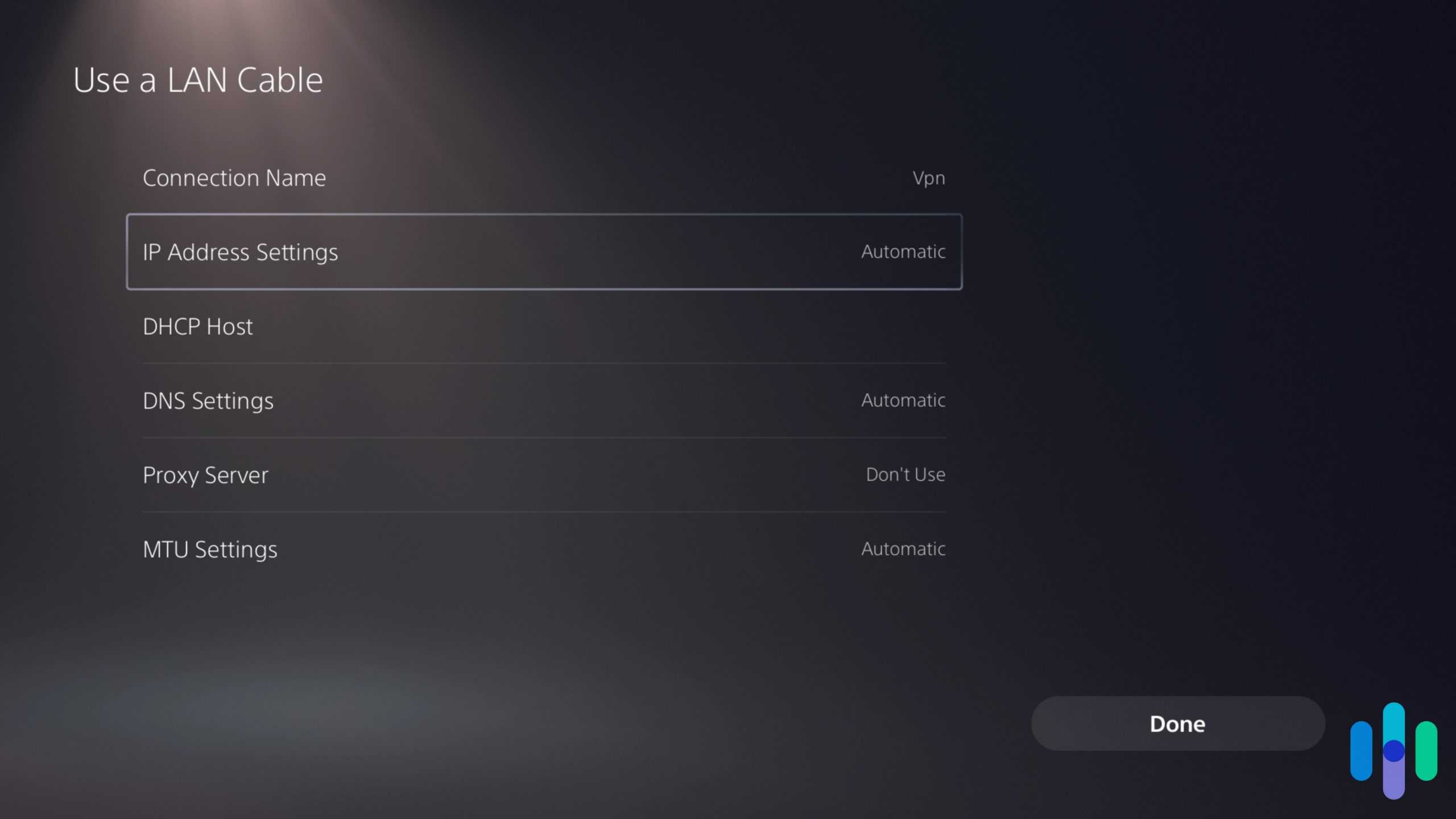
Whether you’re using a Windows device or a Mac, the advantage to the virtual modem method is that because you’re using your computer to access the VPN, you’ll be able to use the VPN’s app to adjust settings. This includes changing which servers you connect to.
» Multiple consoles: Learn how to install a VPN on the Xbox
Why You Need a VPN on PlayStation
Look, we get it. Setting up a VPN on your PlayStation isn’t exactly plug-and-play, but trust us. The benefits make it worth the extra effort.
- Security: With cyber threats increasing every year, a VPN shields you from malicious attacks, especially when gaming on public Wi-Fi or during online multiplayer sessions.1
- Privacy: Even if you’re using your PlayStation on your own home ISP, the government can access your browsing history just by subpoenaing your provider. A VPN conceals your IP address, so not even the government can track you.
- Less Lag: When you’re gaming, you want the lowest ping rate possible. Low latency means less lag and better gameplay. A VPN uses a more direct route to send data packets than an ISP. As a result, you get a better ping rate.
- More content: If you’re not using a VPN, you’re probably missing out on tons of content. Streaming services like Netflix, for instance, offer different shows and movies in different countries. To access that content, though, you’ll have to convince the service you’re in the country where it’s offered. To do that, you’ll need a VPN. In the same way, you can get extra gaming content as well.
- No throttling: If you happen to use an ISP that throttles your service each month, a VPN is the answer. A VPN hides your activities behind its own IP addresses, so your ISP can’t tell exactly what you’re doing online. You can surf anywhere and to your heart’s content.
FYI: Throttling is a method some ISPs use because they don’t have enough bandwidth and want to keep congestion low on their network servers. Typically, it involves slowing your connection once you’ve reached a certain data usage limit each month.
Learn More: How to Set Up Parental Controls on Minecraft
NordVPN’s stable long-distance connections make it a strong pick if you regularly game with friends overseas or want early access to regional game releases.
Choosing a PlayStation VPN
No VPN is right for everyone and every situation, but our complete VPN guide has all the information you need to make the perfect choice for your needs.

» Learn about: Installing a VPN on a Nintendo Switch
Recap
Let’s be real – we’d all prefer if Sony just added native VPN support to PlayStation. Gaming privacy shouldn’t require jumping through hoops. Until the company does, though, you now have a couple of options for solving the problem yourself.
We hope this guide will help you to connect to a VPN using alternative methods. There’s no reason you can’t enjoy gaming on PlayStation with ultra-fast speeds and anonymity.
FAQs
-
Can you use a VPN on a PlayStation?
No, you cannot put a VPN on PlayStation. Sony doesn’t provide a way to install a VPN natively and no VPN apps. However, there are workarounds for connecting a VPN to your PlayStation, including installing the VPN directly onto your router or turning your computer into a virtual router.
-
What are the best VPNs to use with PlayStation?
The best VPN for PlayStation is NordVPN. It’s among the most secure VPNs on the market, with dynamic IP addresses, AES-256 encryption, and multihop. It also offers a kill switch and a super-strict privacy policy. Other great VPN options for PlayStation include Surfshark, Private Internet Access, CyberGhost, and Windscribe.
-
Are there any free VPNs that work with PlayStation?
There are a number of free VPNs that work well with PlayStation. Probably the best of these is PrivadoVPN. Unlike other free VPNs that sell your data to make ends meet, PrivadoVPN has a privacy policy that states it never collects customer usage data. In addition, it doesn’t employ speed limits, and the data limit is a healthy 10 GB per month. Other free VPNs to check out if you have a PlayStation are Hotspot Shield, Atlas VPN, Surfshark, TunnelBear, and Windscribe.
-
How much does PlayStation 5 cost?
A Sony PlayStation 5 starts at $499 for the standard edition and $549 for the Slim Edition Retailers like Best Buy, Target, and GameStop regularly stock both versions. Bundle deals that include extra controllers or games usually range from $600 to $700.