
The Best VPNs for Samsung & LG Smart TVs in 2026
Neither Tizen nor webOS supports VPN apps, so we found the five best VPNs with easy router-level setups.
 &
&
 Last Updated on Oct 14, 2026

- Activating Smart DNS only takes a few clicks
- Robust documentation available for setting up NordVPN on a router
- Consistently bypasses VPN blockers used by popular streaming sites
- All plans support unlimited connections
- Can route traffic through Surfshark’s server by hotspotting Samsung or LG TV from a computer with Surfshark
- Low prices starting at $2.49 per month

- Offers pre-configured VPN routers that work out-of-the-box
- Innovative Device Group feature for routers that let you route different devices through different servers
- Proprietary Lightway protocol provides impressive speed
the security.brief
Tizen and webOS don't support VPN apps, so we tested Smart DNS and router setups across five VPNs to find what actually works on a Samsung or LG TV.
Samsung Smart TVs are some of the most popular TVs on the market, but VPN support is where they get frustrating. VPNs work with them, but the setup can get confusing, and a lot of the advice floating around online is either outdated or wrong. This guide cuts through that. We tested over 50 VPNs for Samsung TV compatibility and narrowed the list to the five best VPNs that actually deliver, along with step-by-step instructions for each of the three methods that work.
The core use case here is streaming. A VPN makes your Samsung TV appear to be in a different country, unlocking content libraries that licensing agreements would otherwise block. It also keeps your network traffic hidden from your ISP, preventing them from throttling video traffic and improving your privacy. Whether you’re after one or both of those things, the picks and setup guides below have you covered.
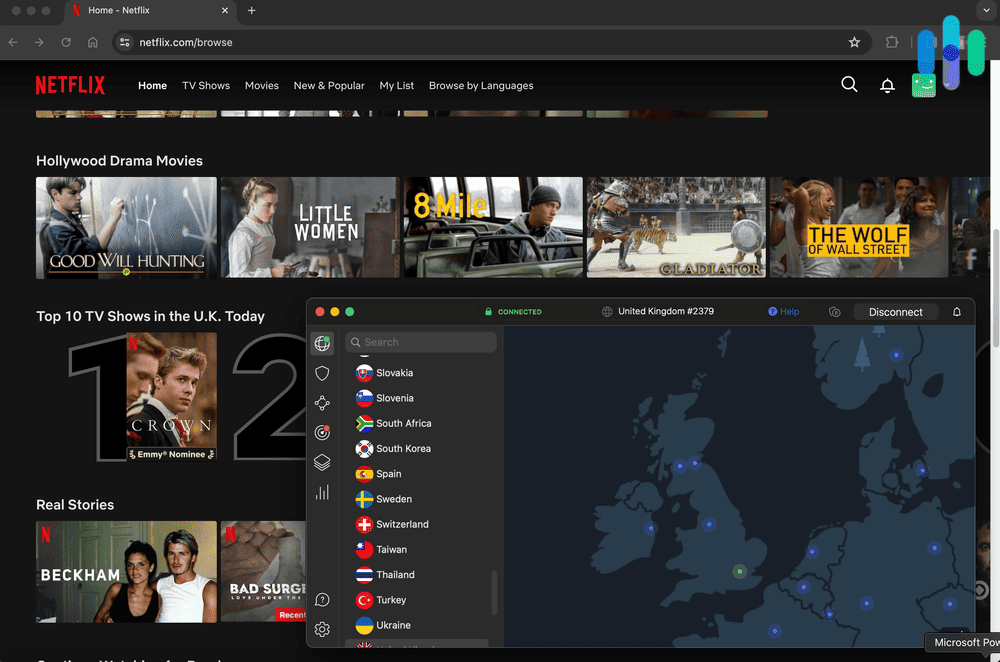
The Best VPNs for Samsung & LG Smart TVs: Our Top 5 Picks
- NordVPN - Best Smart DNS for Samsung and LG TVs
- Surfshark - Best for Protecting Every TV in the House
- ExpressVPN - Best Router Setup
- CyberGhost VPN - Best Dedicated Streaming Servers via Smart DNS
- Proton VPN - Best for a Privacy-First Router Setup
Comparing the Best VPNs for Samsung & LG Smart TVs
| System |
NordVPN
|
Surfshark
|
ExpressVPN
|
CyberGhost VPN

|
Proton VPN
|
|---|---|---|---|---|---|
| Ranking | 1st | 2nd | 3rd | 4th | 5th |
| Ratings | 9.7/10 | 9.5/10 | 9.1/10 | 8.9/10 | 9.3/10 |
| Smart DNS support? | Yes | No | Yes (MediaStreamer) | Yes | No |
| Router setup available? | Yes | Yes | Yes (Fortify preconfigured router) | Yes | Yes |
| Server locations | 137 countries | 100 countries | 105 countries | 100 countries | 149 countries |
| Lowest price | $3.49 per month | $2.49 per month | $2.99 per month | $2.19 per month | $2.99 per month |
| Read Review | NordVPN Review | Surfshark Review | ExpressVPN Review | CyberGhost VPN Review | Proton VPN Review |
The Best VPNs for Samsung & LG Smart TVs, Explained
-
1. NordVPN - Best Smart DNS for Samsung and LG TVs
Get NordVPN Links to NordVPN
Product Specs
Server locations 137 countries Average Speed Loss 6% download & 4% upload Apps Windows, MacOS, Linux, Android, iOS, Chrome, Firefox, Edge, Android TV, tvOS Best Monthly Rate $3.49/mo with a 2-year plan Money-Back Guarantee 30 days full refund
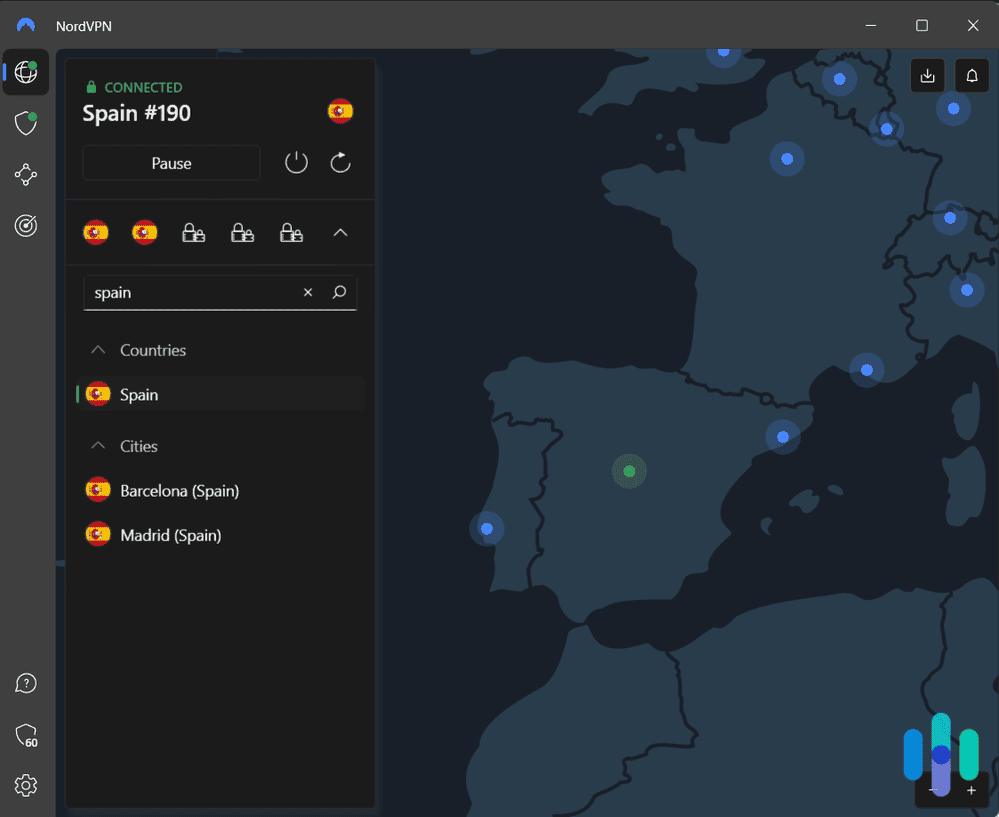
NordVPN’s Smart DNS feature is built directly into its SmartPlay system, so activating it takes a few clicks from your Nord Account dashboard rather than a separate setup process. Once it’s running, you route your TV’s connection through the Smart DNS addresses in the TV’s network settings. From there, Tizen or webOS treats your TV as though it’s browsing from wherever NordVPN’s DNS servers are located. That’s the setup we’d point most Samsung and LG owners toward first.
What We Like
- Smart DNS activates from the account dashboard, no separate app required
- Independently audited no-logs policy
- Detailed router setup guides across dozens of router models
- Consistent unblocking across major streaming apps in our testing
What We Don’t Like
- No dedicated router app, only manual configuration and partner routers
- Cap of 10 simultaneous connections
- No phone customer support
- Next-Gen Antivirus feature limited to the Complete and Prime tiers

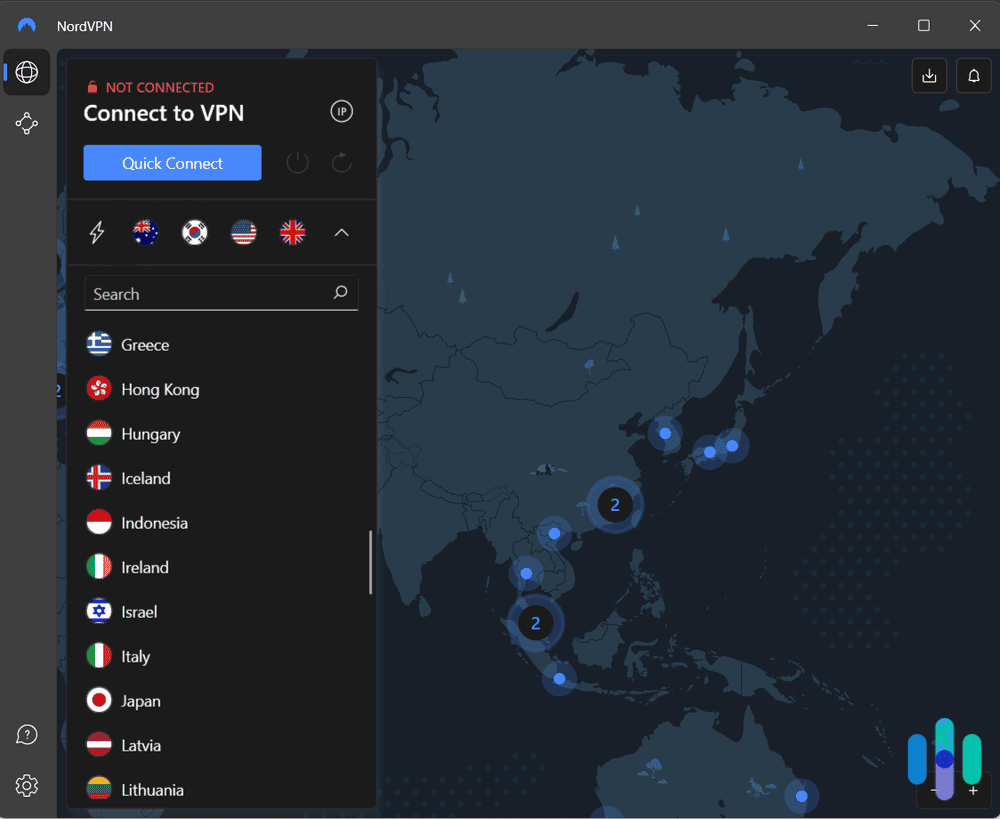
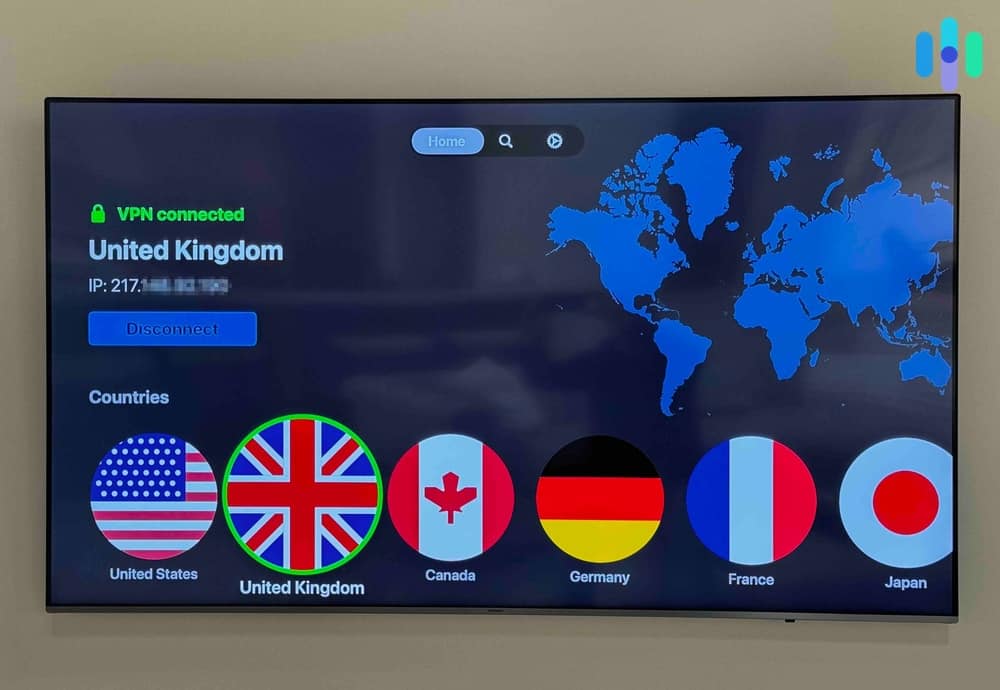
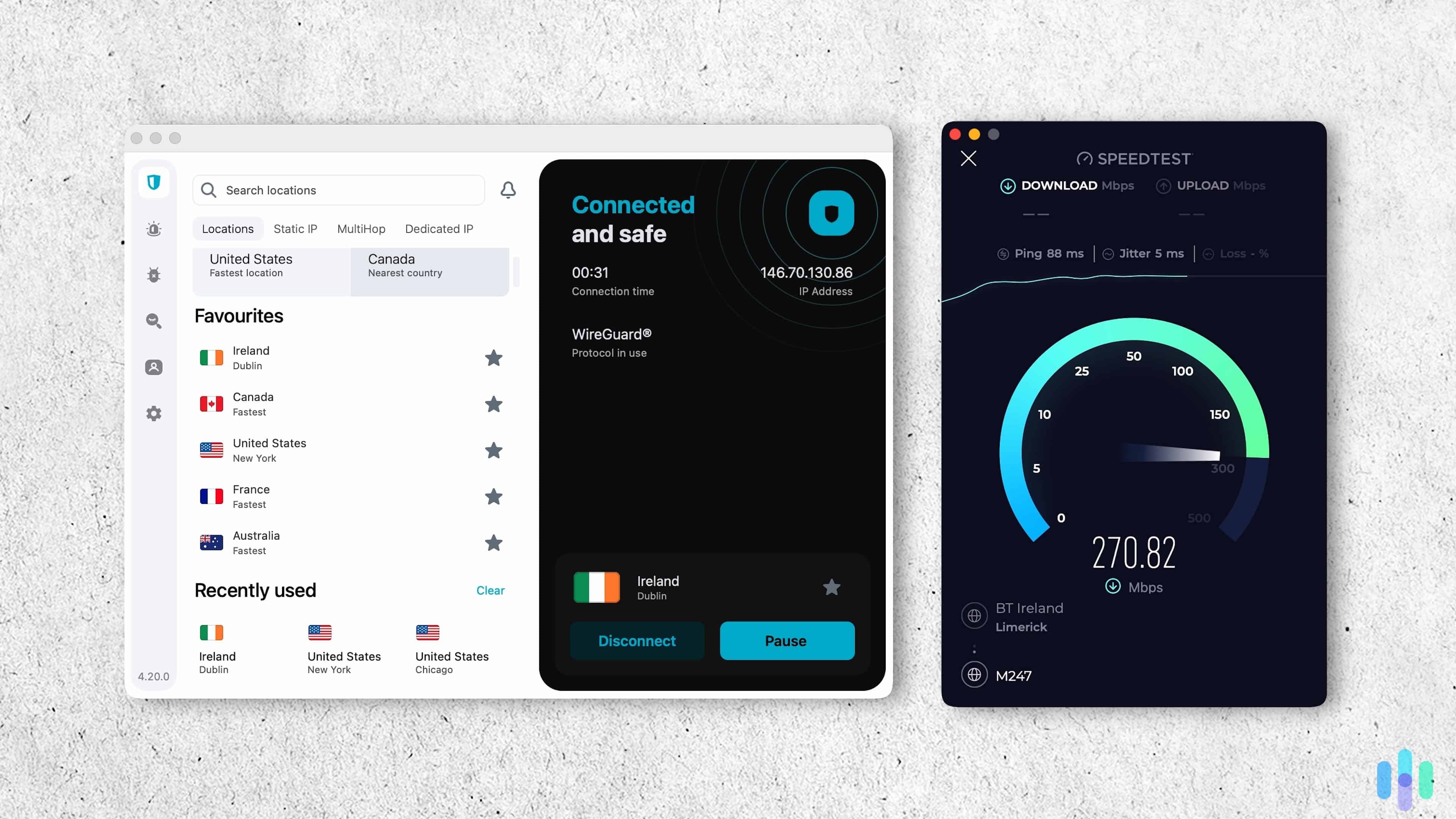
We also tested NordVPN on our Apple TV that supports the NordVPN app Because Smart DNS only reroutes your TV’s DNS requests rather than encrypting your traffic, it keeps your connection speeds closer to baseline. That’s a real advantage for a TV as it means you don’t need as fast of a network to watch videos in 4K. In our testing, NordVPN’s Smart DNS unblocked every major streaming platform we checked without the buffering that a full VPN connection can sometimes introduce during peak hours.
This smooth setup comes at a premium price, but the large server network and strong performance justify it in our opinion. Pricing starts at $3.49 per month on a two-year term. Here’s the full breakdown of NordVPN’s pricing:
NordVPN Plan Basic Complete Prime One month $14.99 $19.99 $29.99 One year $5.49 per month $6.49 per month $9.49 per month Two years $3.49 per month $4.49 per month $7.49 per month FYI: Smart DNS won’t encrypt what your TV sends over the network. If privacy is the priority rather than unblocking a specific library, set NordVPN up at the router instead. Its guides cover more router brands than any other provider we tested.
-
2. Surfshark - Best for Protecting Every TV in the House
Get Surfshark VPN Links to Surfshark.com
Product Specs
Server locations 100 countries countries Average Speed Loss 8% download & 50% upload Apps Windows, MacOS, Linux, Android, iOS, Chrome, Firefox, Edge, tvOS, Android TV, Fire TV Best Monthly Rate $2.49/mo with a 2-year plan Money-Back Guarantee 30 days full refund
Surfshark’s unlimited simultaneous connections let you connect through a Samsung TV in the living room, an LG TV in the bedroom, your phones and your laptops all on a single plan. However, its Smart DNS feature was discontinued at the beginning of 2026. That means we had to set up our computer as a hotspot with Surfshark running and connect our TV through that.
What We Like
- Unlimited simultaneous device connections
- Bundles with Surfshark VPN and Antivirus start at $2.79 per month
- Camouflage Mode helps bypass network restrictions
- 30-day money-back guarantee on every plan
What We Don’t Like
- Headquartered in the Netherlands, a Nine Eyes member country
- Fewer server locations than NordVPN, ExpressVPN, or Proton VPN
- Month-to-month plans are relatively expensive
- No phone support

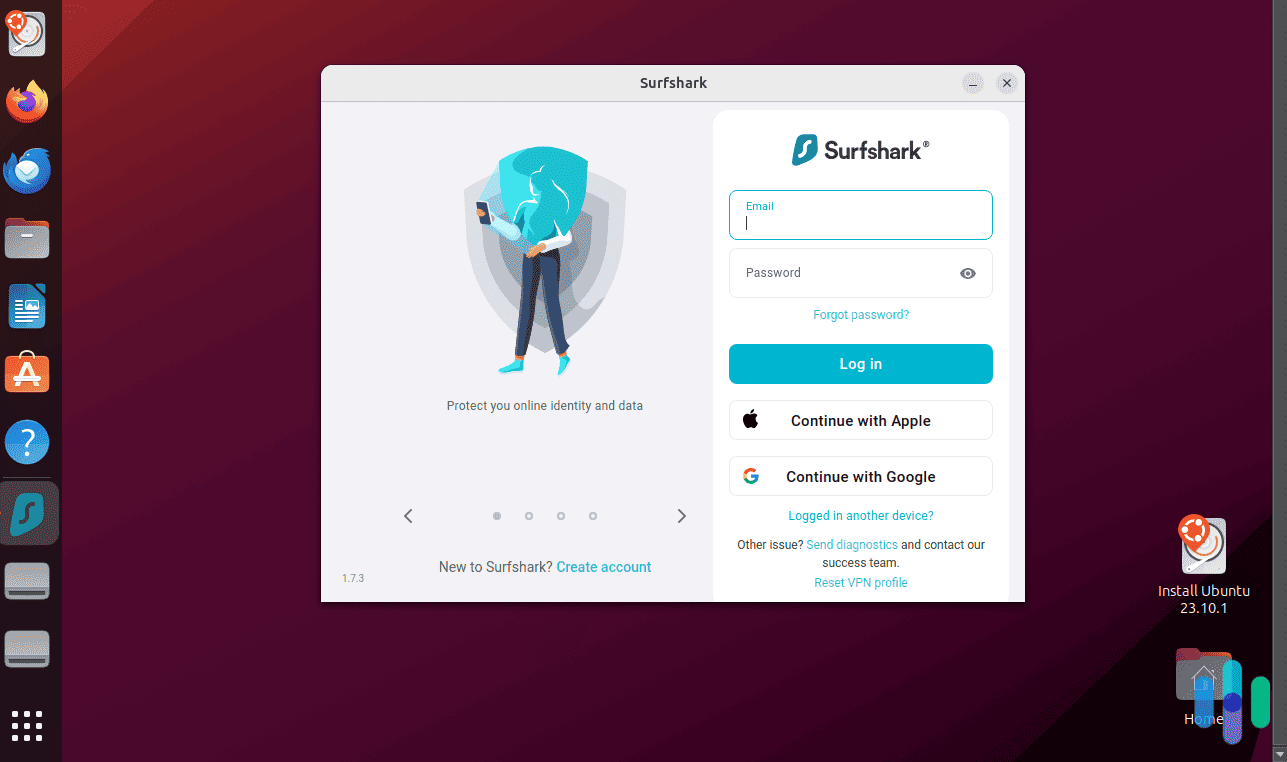
Our speed remained fast even when connecting to a Surfshark server in Europe from New York We set up Surfshark on our computer, turned it into a hotspot with our VPN adapter shared, then connected a second-generation Samsung TV and an older LG model to it. That’s more complicated than a Smart DNS setup, but it’s a worthwhile tradeoff if support for unlimited connections is important for your use-case. Plus, we find Surfshark reliably bypasses most streaming sites’ VPN blockers. As such, once we set the connection up through our computer, we rarely needed to change servers.
If you’re ready to commit for a year or more, Surfshark offers strong value with rates starting at $2.49 per month. We particularly like the One subscription for anyone who needs an antivirus as well. Here’s a breakdown of Surfshark’s pricing:
Surfshark Plan Starter One One+ One month $16.45 $18.95 $21.85 One year $3.39 per month $3.59 per month $7.49 per month Two years $2.49 per month $2.79 per month $4.49 per month Heads Up: Surfshark is based in the Netherlands, a Nine Eyes member. That said, its no-logs policy has been independently audited multiple times, and it remains one of our top no-logs VPNs regardless of jurisdiction.
-
3. ExpressVPN - Best Router Setup
Get ExpressVPN Links to ExpressVPN
Product Specs
Server locations 105 countries Average Speed Loss 7% download & 24% upload Apps Windows, MacOS, Linux, Android, iOS, Chrome, Firefox, Edge, Android TV, tvOS Best Monthly Rate $2.79/mo with a 2-year plan Money-Back Guarantee 30 days full refund
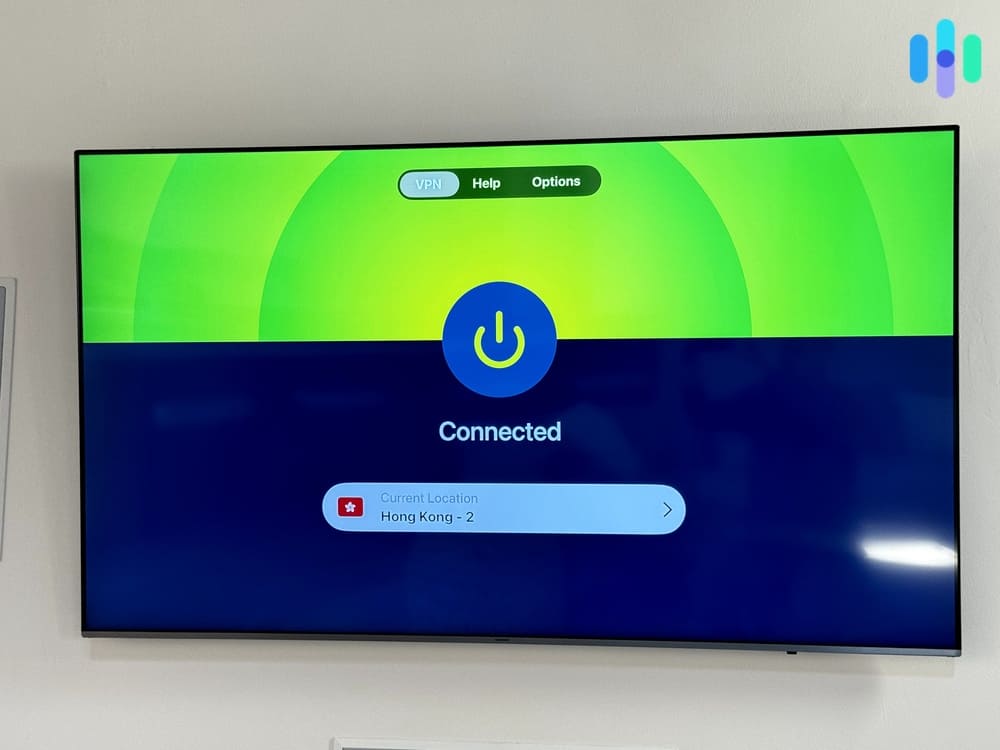
ExpressVPN sells its own Fortify router with the VPN already installed. That means you can just plug the router in, connect your Samsung or LG TV to it, and you’re all set. Every device that connects to Fortify’s Wi-Fi network, TV included, runs through ExpressVPN automatically. Its Device Groups feature even lets you assign a different server location to your TV than to your phone or laptop on the same network.
What We Like
- Fortify router ships with ExpressVPN preinstalled, no manual configuration
- Device Groups let your TV and other devices use different server locations at once
- Protects every device on the network under one connection
- Lightway protocol keeps router-level speeds competitive
What We Don’t Like
- Fortify costs roughly $199.99 as a separate purchase from your subscription
- More than 10 simultaneous connections requires a higher tier plan
- Fewer server locations than NordVPN or Proton VPN
- Large price increase at renewal
We set up Fortify by connecting it to our existing modem with the included Ethernet cable, then finished the rest of the process from expressvpnrouter.com. Both our Samsung and LG TVs were streaming through it in about half an hour. Most of that time was spent on the router’s own network setup rather than anything VPN-specific.
If you’d rather not buy dedicated hardware, ExpressVPN’s Smart DNS feature, MediaStreamer, covers the same TVs without encryption. It walks you through registering your IP address and entering a single DNS address, a reasonable fallback if Fortify isn’t in the budget. However, we find NordVPN’s Smart DNS feature easier to use. We cover more differences between these two providers in our comparison of NordVPN and ExpressVPN.
ExpressVPN lowered its prices significantly at the end of 2025, with plans now starting at $2.99 per month. Here’s the full breakdown of ExpressVPN’s pricing:
ExpressVPN Plan Basic Advanced Pro One month $14.99 $16.99 $22.99 One year $4.99 per month $5.99 per month $8.99 per month Two years $2.99 per month $4.49 per month $7.49 per month -
4. CyberGhost VPN - Best Dedicated Streaming Servers via Smart DNS
 Get Cyberghost VPN Links To CyberGhost
Product Specs
Multihop No Obfuscated Servers No Kill Switch Yes Split Tunneling Yes Netflix Yes Torrenting Yes
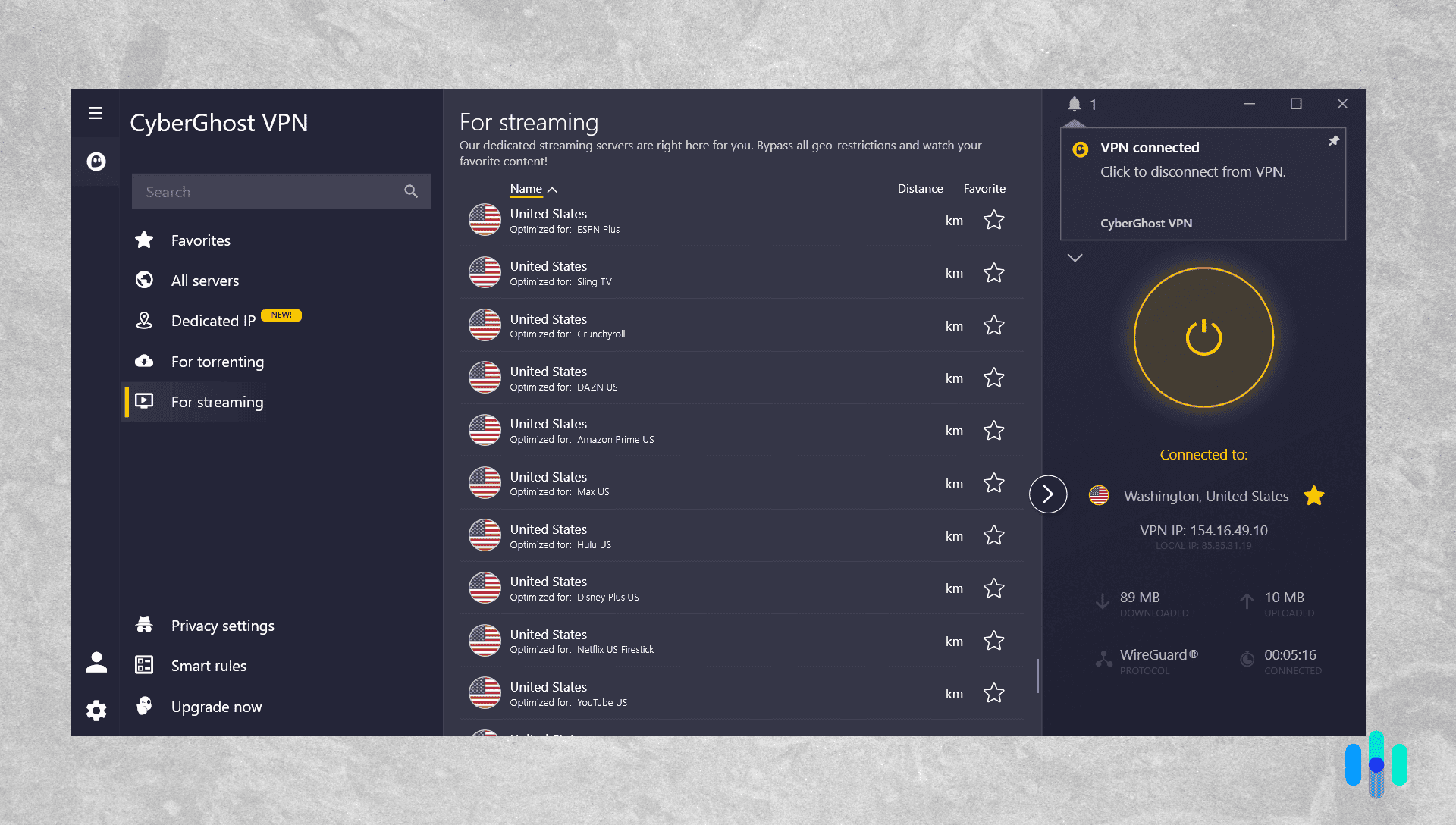
CyberGhost labels its servers by the streaming platform each one is optimized for. That same labeling carries over into its Smart DNS servers. Instead of guessing which region unlocks a given library, you pick the platform you want directly, and CyberGhost routes your TV’s DNS requests accordingly.
What We Like
- Smart DNS servers labeled by streaming platform
- More than 11,500 servers in 100 countries
- Based in Romania, outside major surveillance alliances
- 24/7 live chat support for troubleshooting Smart DNS set up
What We Don’t Like
- No dedicated router app, manual setup only
- Only one tier of service
- Expensive unless you commit for two years
- Fewer countries covered than NordVPN, ExpressVPN or Proton VPN

CyberGhost’s clearly labeled streaming servers made it easy to find the right server for us Picking a platform-labeled server made setup noticeably simpler on both the Samsung and LG TVs we tested. We didn’t have to guess which country’s servers actually carried the library we wanted. CyberGhost’s live chat team also walked us through a DNS entry error on our first Samsung attempt in a few minutes. We recommend asking the live chat team to walk you through the full setup if it’s your first time using Smart DNS. The agents are genuinely helpful.
With only one tier of service, CyberGhost’s pricing is simple. Here’s the current breakdown of CyberGhost’s pricing:
CyberGhost VPN Plan Length Price Per Month One month $12.99 Six months $6.99 Two years $2.19 >> Check Out: Best VPNs for Streaming in 2026
-
5. Proton VPN - Best for a Privacy-First Router Setup
 View Plans Links to Proton VPN
Product Specs
Server locations 129 countries countries Average Speed Loss 8% download & 4% upload Apps Windows, MacOS, Linux, Android, iOS, Chrome, Firefox, Android TV, tvOS, Firestick Best Monthly Rate $2.99/mo with a 2-year plan Money-Back Guarantee 30 days
Proton VPN skips Smart DNS entirely, so a Samsung or LG TV only connects through it once it’s set up on a router or through a computer hotspot. That’s more work upfront, but it means your TV’s entire connection is encrypted rather than just the DNS lookup that points it toward a streaming library.
What We Like
- Full encryption for every device on the router, TV included
- Independently audited, open-source apps
- Over 20,000 servers across 149 countries
- Based in Switzerland, a strong privacy jurisdiction
What We Don’t Like
- No Smart DNS option
- Free plan limits you to 10 randomly assigned countries
- Configuration guides vary in complexity depending on your router’s firmware
- More expensive than Surfshark, and CyberGhost VPN

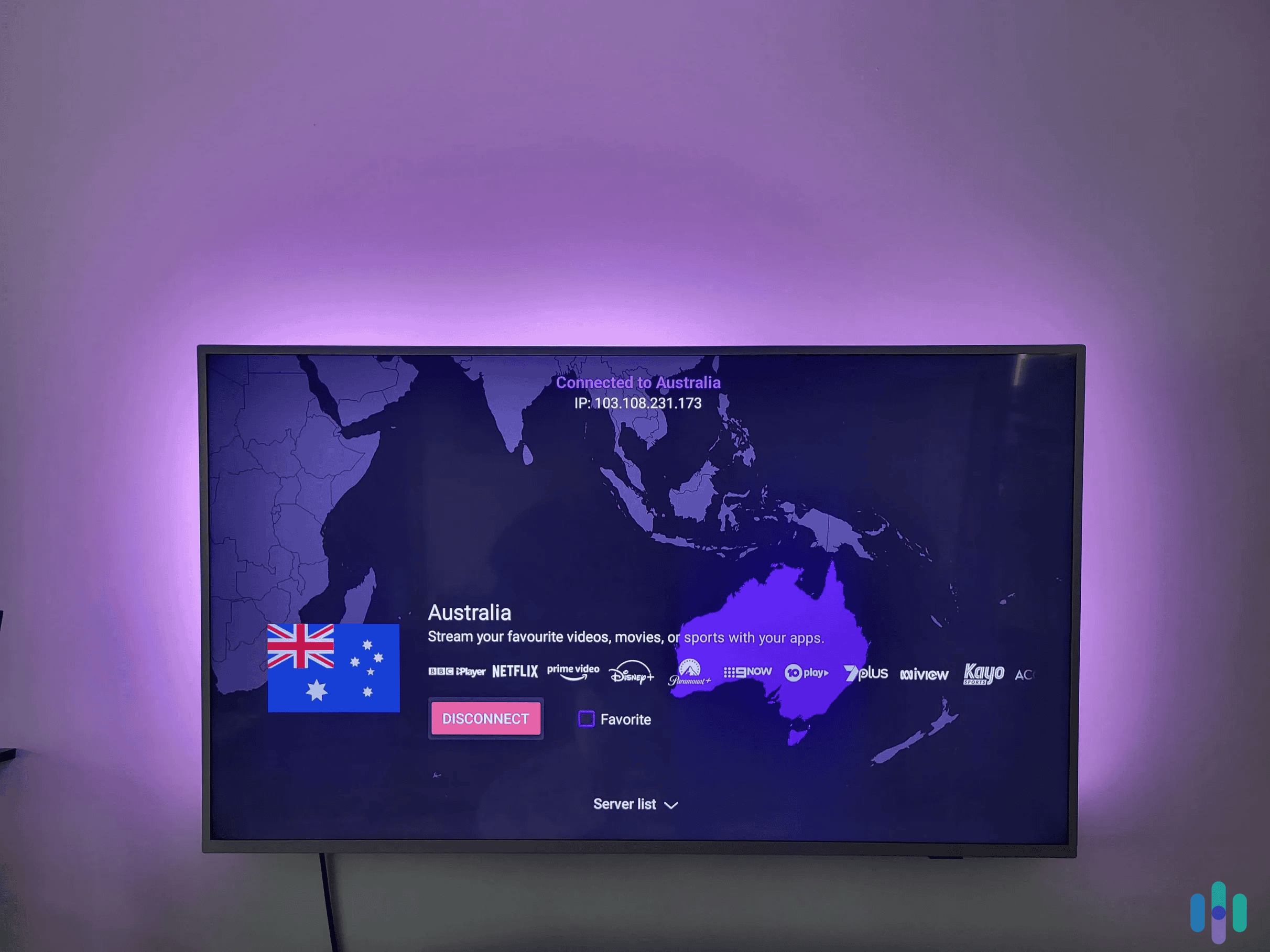
We also tested Proton VPN’s Android TV app and found it easy to navigate Because there’s no Smart DNS shortcut, we configured Proton VPN directly on a router and connected both a Samsung and an LG TV to that network to test it. Setup took longer than any Smart DNS activation on this list. It took about 30 minutes once we found the right firmware guide for our router model. However, the payoff is a TV connection that’s encrypted the same way a laptop or phone would be. It also means every device we connect to the router gets encrypted as well.
Here’s a breakdown of Proton VPN’s pricing, which starts at $2.99 per month:
Proton VPN Plan VPN Plus Proton Unlimited One month $9.99 $12.99 One year $3.99 per month $9.99 per month Two years $2.99 per month $7.99 per month Did You Know: Installing a VPN onto your router can break your router if done improperly. While the risk is fairly low, we still generally recommend purchasing a high-quality VPN router instead of setting one up yourself.
How We Tested the Best VPNs for Samsung & LG Smart TVs
How We Approached Testing
Every VPN on this list went through our full testing suite in accordance with our Editorial Guidelines before it earned a spot. We signed up for each provider directly, activated Smart DNS where it was available, and separately configured a connection for every service to compare them side by side. For our tests, we used real Samsung and LG hardware rather than an emulator, and collected data over several days of actual streaming rather than a single connection check. Beyond the TV-specific checks, we ran our standard privacy audit on every provider, reviewing its logging policy and confirming its kill switch actually cuts the connection when triggered.
What We Weighted Most
Samsung and LG TVs don’t natively support VPN apps. That means you need to use Smart DNS, route your connection through a computer, or set up the VPN on a router. We weighed the ease of setup heavily during our tests. Specifically, our five picks stand out from the field in three main ways:
- Smart DNS Reliability: We checked whether Smart DNS unblocked major streaming platforms consistently across several sessions. A setup that works once and fails the next day isn’t worth your time.
- Alternative Setup Quality: For providers without Smart DNS, we evaluated how clear their router setup guides are and tested workarounds like routing your connection through a computer.
- Connection Speeds: On top of collecting download speed results over several weeks, we also tested how well each provider held up over a real 4K stream of a two-hour movie.
Only providers that held up across these factors made our final list.
The Team Behind This Guide
Brett Cruz leads our VPN testing and reviewed every recommendation on this page, drawing on years of hands-on evaluation across both digital and physical security products.
He works alongside Security.org’s broader team of security experts, made up of specialists who log thousands of hours testing security products every year. The core team helping Brett Cruz with our VPN coverage includes:
- Gene Petrino: Retired S.W.A.T. commander who advises on our security testing standards.
- Corey Birnstengel: Editor who has produced hundreds of in-depth video reviews for our channel.
- Ozzie Enriquez: West Point graduate who advises on threat analysis and digital privacy.
- Cort Honey: Tester responsible for much of our hands-on product evaluation footage.
No VPN provider can pay for a spot on this list. Every ranking here reflects our own independent testing.
Why Samsung and LG Smart TVs Can’t Run a VPN App
Combined, Samsung and LG account for well over 40 percent of the television sets sold worldwide, more than any other two brands put together.1 Despite that reach, neither company’s smart TV platform supports VPN apps.
Tizen, Samsung’s operating system, and webOS, LG’s, are both built around each company’s own content hub rather than an open marketplace like Google’s Play Store. Every app on either platform goes through Samsung’s or LG’s own approval process, and a standalone VPN app has never made it through on either one. Some enthusiast communities have found ways to sideload apps onto older Tizen models through developer mode. That path isn’t officially supported, and it isn’t consistent across TV generations, so we wouldn’t recommend relying on it for privacy.
That leaves Smart DNS, hotspotting from your computer, screensharing and router-level setups as the only methods that actually work, covered in detail below.
Expert Insight: VPN routers protect every device connected to them, TV included, while only counting as a single connection against your VPN provider’s connection cap. That’s a real advantage if your household regularly connects 10+ devices through your VPN.
How to Set Up a VPN on Your Samsung or LG Smart TV
Because neither platform supports a VPN app, setup happens through your TV’s DNS settings or through your router instead of Samsung’s or LG’s own app store.
Method 1: Smart DNS
Smart DNS is the fastest way to get a Samsung or LG TV connected, since it only takes a few minutes and doesn’t require touching your router.
- Sign up for a VPN that offers Smart DNS, such as NordVPN, ExpressVPN, or CyberGhost VPN.
- Activate Smart DNS from your provider’s account dashboard and register your current IP address.
- On your TV, open Settings, then Network, and find the DNS or IP Settings menu.
- Switch DNS entry to Manual and enter the DNS addresses your provider gave you.
- Save the settings and restart your TV to confirm the new connection.
That’s the full process for either platform, and it typically takes under 10 minutes start to finish.
Encrypted Where It Counts NordVPN’s audited no-logs policy and always-on kill switch protect your router-level connection, while Smart DNS handles the fast path for everyday streaming.
Method 2: Router-Level VPN
A router-level VPN encrypts your TV’s entire connection rather than just its DNS requests, which makes it the stronger option when privacy is as important to you as unblocking a library.
- Confirm your router supports VPN configuration, or purchase a preconfigured router if your provider offers one.
- Log in to your router’s admin panel using its IP address, usually printed on the router itself.
- Follow your provider’s router setup guide to install the VPN client or configure OpenVPN or WireGuard manually.
- Connect to a server in your desired location and save the configuration.
- Once your Samsung or LG TV connects to that router’s Wi-Fi, its traffic routes through the VPN automatically.
See our VPN router setup guide for detailed, provider-specific instructions.
Method 3: Screen Mirroring From a Protected Device
If neither Smart DNS nor a router setup is an option, you can mirror your phone or laptop’s screen to your TV instead.
- Install and log in to your VPN app on your phone, tablet, or laptop.
- Connect to a server in your target country.
- Open the streaming app you want to watch and select your content.
- Use your TV’s built-in screen mirroring feature, or your device’s casting option, to send the picture to your TV.
Screen mirroring adds a small amount of lag between your device and your TV, so it’s better suited to a single viewing session than an everyday setup.
Pro Tip: You can also set up a computer as a hotspot while running your VPN. Then, you need to share your VPN adapter with the hotspot connection. When set up properly, this routes any device connected to your computer’s hotspot through your VPN.
How to Change Your Region
Changing your VPN or Smart DNS location isn’t enough on its own. Your streaming account’s region setting also needs to match wherever your connection is routed. Here’s how to change your streaming account’s region:
- Sign in to your streaming account on a browser, not the TV app.
- Locate your account or region settings, usually under Account or Preferences.
- Change your country or region to match the server or Smart DNS location you’re using.
- Restart the app on your Samsung or LG TV.
- Confirm your connection is active before opening the app again.
If you skip changing your account’s region setting, most streaming apps will still show your original country’s library regardless of where your connection is routed.
Region-Specific VPNs: Already know which country’s library you want? Check out our UK VPNs, India VPNs, or Netflix VPNs guides for providers with strong server infrastructure in your target region.
VPN Speed and Streaming Quality
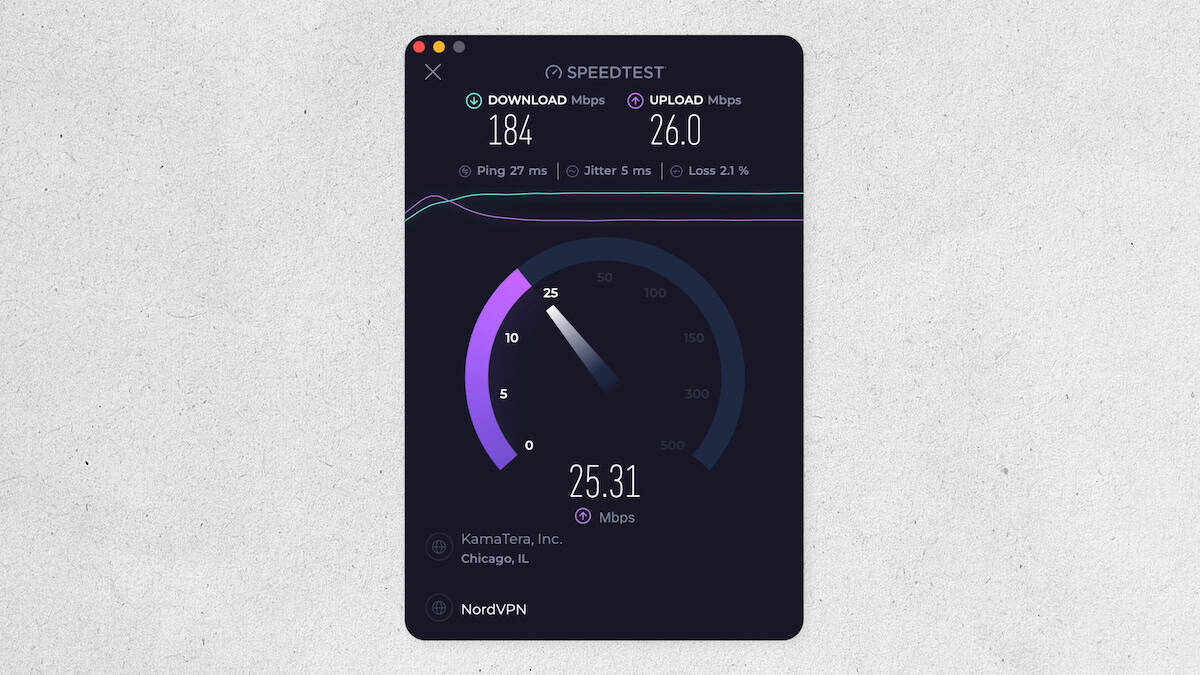
Router-level VPNs slow your connection to some degree, since encrypting your traffic and routing it through another server takes processing time. Smart DNS skips that trade-off entirely, since it only redirects DNS lookups rather than encrypting anything. Here’s how the two compare on the metrics that actually affect your TV.
- Download speed determines how quickly your TV receives data, the most relevant metric for streaming. You need around 25 Mbps for stable 4K and five to 10 Mbps for HD.
- Smart DNS speed impact is close to zero in our testing, since no encryption is involved. That makes it the better default for households that only care about unblocking a library.
- Router VPN speed impact varies by protocol. Providers using WireGuard-based protocols, like NordVPN’s NordLynx, kept download speed loss in the five to six percent range in our tests. We were still easily able to stream in 4K.
If speed is your top priority and privacy is secondary, Smart DNS is the better everyday choice. See our full list of the fastest VPNs for router-level speed comparisons across more providers.
Troubleshooting Your Connection
Most Smart DNS and router issues on a Samsung or LG TV have straightforward fixes. One of these five troubleshooting steps should resolve your connection issue:
- Re-register your IP address: Smart DNS is tied to your home’s current IP address, so if it stops working, check whether your provider’s automatic IP registration is still active.
- Restart your devices: Restart your TV, and if you’re using the router method, unplug your router for 30 seconds before plugging it back in.
- Check your DNS entries: A single mistyped digit in a manually entered DNS address is one of the most common reasons Smart DNS fails to activate.
- Switch protocols: For router setups, try switching between WireGuard and OpenVPN in your provider’s configuration. WireGuard is typically faster, but OpenVPN can help bypass stricter blockers.
- Check your router firmware: Confirm your router’s VPN configuration hasn’t been reset after a firmware update, which can silently disconnect the VPN.
If your TV still isn’t connecting, confirm it’s actually joined to the correct Wi-Fi network, since a router-level VPN only protects devices connected to that specific network.
Risks of Streaming Without a VPN on a Samsung or LG Smart TV
Streaming without any protection exposes more than most people realize. Here are a few privacy-related reasons it’s smart to use a VPN when streaming on your Samsung or LG smart TV:
- Smart TV tracking: Many connected TV platforms use automatic content recognition to log what you watch and share that data with advertisers, sometimes without clear consent, a practice that recently resulted in a class action lawsuit.2
- ISP visibility: Without a VPN, your internet provider can see what you’re streaming, when, and for how long. That data can be sold or shared with third parties.
- Public or shared network exposure: On a shared home network, unencrypted streaming traffic can be intercepted by anyone else with access to that connection.
- Geographic restrictions: If you’re traveling or in a region with a limited content library, a VPN or Smart DNS can add access, but only the VPN encrypts your connection.
For a broader look at your options beyond these five, see our list of the most affordable VPNs. If you’re managing your browsing history and privacy across more than just your TV, a VPN is one of the most effective tools available.
Recap
Samsung’s Tizen and LG’s webOS both skip VPN apps entirely. That leaves you with Smart DNS for a quick setup, a computer hotspot, screen casting, or a router-level VPN for full network encryption.
Our top pick overall is NordVPN. Its Smart DNS feature is simple to activate, and its setup guides cover more router models than any competitor we tested. Our second pick, Surfshark, works well if you plan to use the computer hotspot or screen casting method thanks to its support for unlimited connections. If you’re looking to go with a router VPN, we recommend our third pick, ExpressVPN’s Fortify router. It’s the simplest way to get network-level protection.
FAQs
-
Can you install a VPN app on a Samsung Smart TV?
No. Samsung’s Tizen operating system doesn’t include a VPN category in its app store, so there’s no VPN app to download directly. You’ll need to use Smart DNS, route your connection through another device, or set up a VPN at your router instead.
-
Does LG's webOS support VPN apps?
No. Like Tizen, webOS is a closed platform built around LG’s own content hub, and no major VPN provider publishes an app for it. The same Smart DNS and router-level methods that work for Samsung also work for LG.
-
What is Smart DNS, and is it safe to use?
Smart DNS changes which region your TV appears to be streaming from without encrypting your connection. It’s safe for streaming purposes, but it doesn’t protect your privacy the way a full VPN connection does, since your traffic itself isn’t encrypted.
-
Should I use Smart DNS or a router-level VPN?
Smart DNS is faster to set up and adds no speed penalty, making it the better choice if unblocking a streaming library is your main goal. A router-level VPN takes longer to configure but encrypts everything your TV sends, the better fit if privacy is your priority.
-
Is there a free VPN for Samsung or LG smart TVs?
Most free VPNs don’t offer Smart DNS and cap speeds in ways that make router-level streaming impractical. We recommend a low-cost premium plan from NordVPN, Surfshark, or ExpressVPN instead, with two-year pricing starting under $4 a month.
-
SamMobile. (2025). Samsung is on track to rule the global TV market for 20 years straight.
https://www.sammobile.com/news/samsung-on-track-to-rule-global-tv-market-for-20-years-straight/ -
Courthouse News Service. (2026). Samsung faces class action over privacy concerns with smart TVs.
https://www.courthousenews.com/samsung-faces-class-action-over-privacy-concerns-with-smart-tvs/