



the security.brief
NordVPN, Surfshark, and Private Internet Access are top VPNs for Kodi, offering easy setup and fast speeds for seamless streaming and privacy.
These days, many folks deal with subscription fatigue from all their streaming services. There’s Netflix, Hulu, Disney+ and Prime Video, and that’s just the popular ones. Managing it all is complicated and expensive. As an open-source entertainment hub, Kodi can help. It brings all your streaming services together in one interface. While it takes a few steps, you can use VPNs with Kodi to stream privately and access geo-restricted content. Let us walk you through it!
>> Read Next: Best VPNs for Streaming of 2024
NordVPN is one of the VPNs confirmed to work reliably with Kodi, with its NordLynx protocol keeping speed loss low enough for smooth 4K streaming.

How to Install a VPN on Kodi
The simplest approach is to install a VPN app directly on whatever device you’re using to run Kodi. Since Kodi’s flexibility is one of its best features, there are actually several ways to get this done. We’ll break down each method so you can pick what works best for your setup.
VPN App
Once you find a VPN that’s compatible with Kodi, here is what you need to do to set your VPN up:
Installing a VPN on Kodi
- Sign up either in the actual app or on the company’s website.
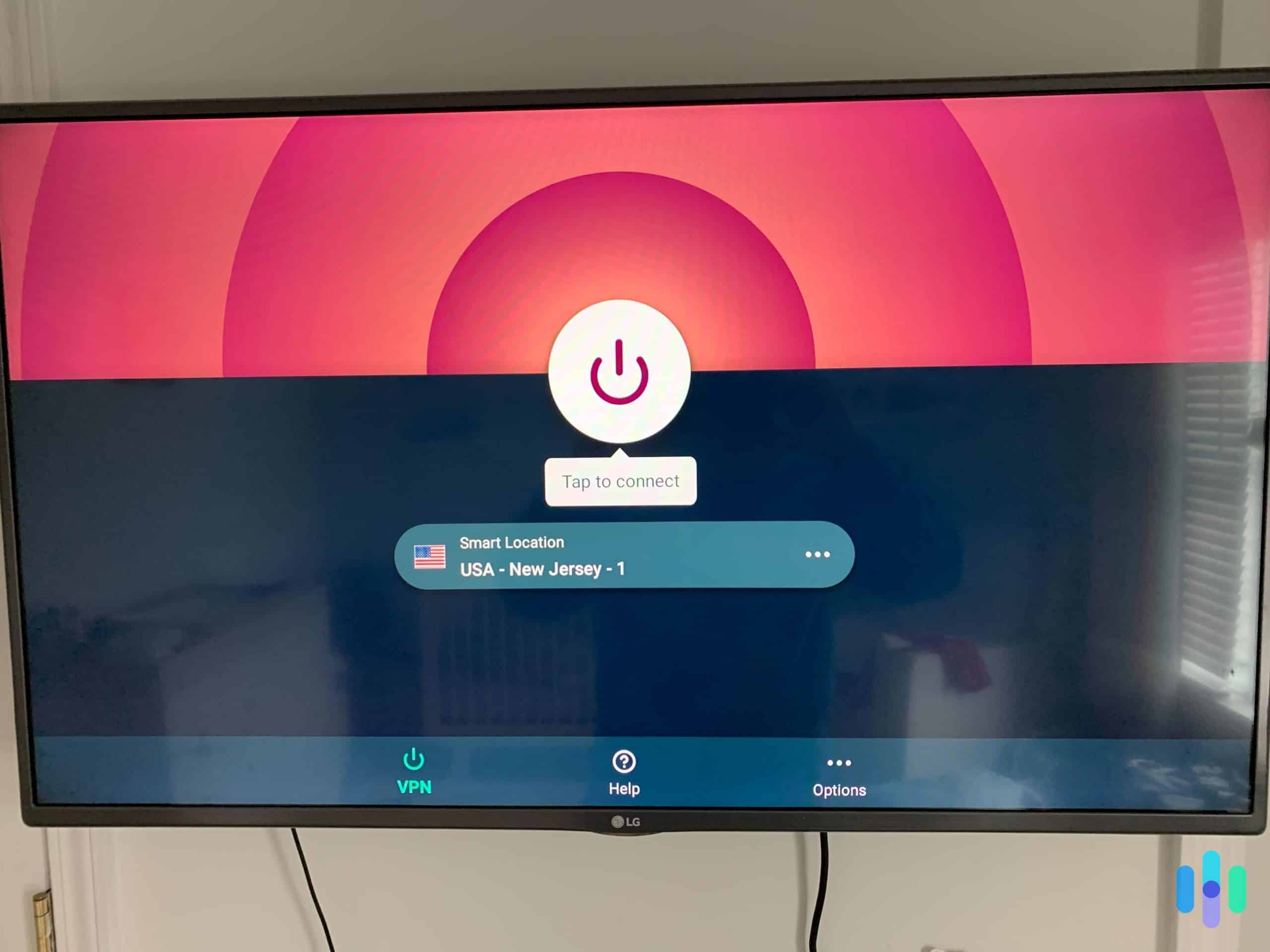
- Connect to the VPN on the device you’re controlling Kodi with.
The traffic will be encrypted automatically!
Kodi Add-On
- Install your VPN add-on to Kodi.
- Open it.
- Click on Configuring Your VPN.
- Login.
- Click Activate to start.
Another route is using a dedicated Kodi VPN add-on that runs inside Kodi itself. However, not every VPN provider offers these native add-ons, so you’ll have fewer options to choose from. If you want to go this route, here’s how:
By Router, Phone, Tablet or Computer
The exact setup varies depending on the device you use, so here’s an overview for each platform:
- Router: If you’ve got a router running DD-WRT or Tomato firmware, you can encrypt all Kodi traffic on your network. The setup process varies by router model, but once configured, every device on your network gets VPN protection automatically.
Note: Only routers with DD-WRT, Tomato, or similar custom firmware support VPN connections. Most stock router firmware won’t work.
- Windows:
- In the Microsoft store, download the Windows Kodi app.
- Choose your VPN.
- Sign in.
- Press Connect.
- Open Kodi.
Make sure you choose a good VPN for Windows, of course!
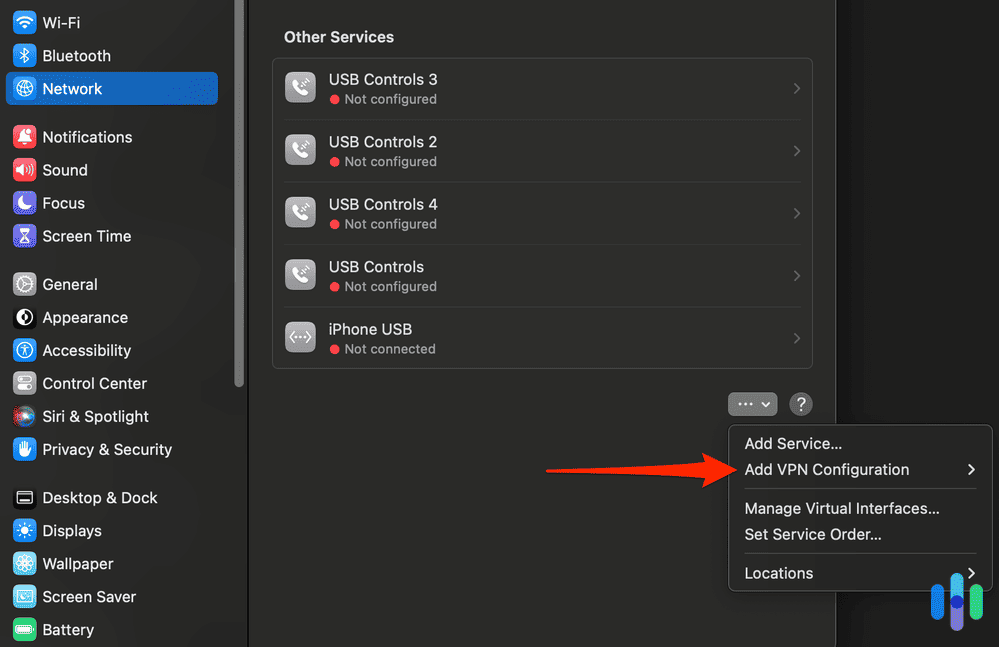
- Mac:
- In the Apple store, download your VPN.
- Click Login and Connect.
- Open Kodi on the Mac with the VPN.
Learn more about how to set up a VPN on Macs.
- Raspberry Pi:
- On your LibreELEC or OSMC installation, open Kodi’s Settings.
- Click File Manager.
- Click Add Source.
- Select None.
- Enter the URL of the Kodi VPN add-on.
- Click Done.
- Click Name Add-On.
- Click Done.
- Click OK.
- Back on the Kodi home screen click Add-Ons.
- Click Add-On Browser.
- Install it from your zip file.
- Once that add-on is installed, click Program Add-Ons.
- Click VPN.
- Click Add-On Settings.
- Sign in.
- Connect to your VPN.
- iOS: Getting a VPN for your iPhone is easy. To set up an iPhone VPN:
- Download a VPN from the Apple store.
- Log in.
- Connect to a server.
- Open Kodi.
- Android: To set up your Android VPN:
- Download a VPN for Android from the Google Play store.
- Log in.
- Connect to a server.
- Open Kodi.
By Streaming Device or Gaming Console
Kodi works as a central hub for your streaming devices and gaming consoles. Getting a VPN working on these platforms takes about 10 minutes once you know the steps.
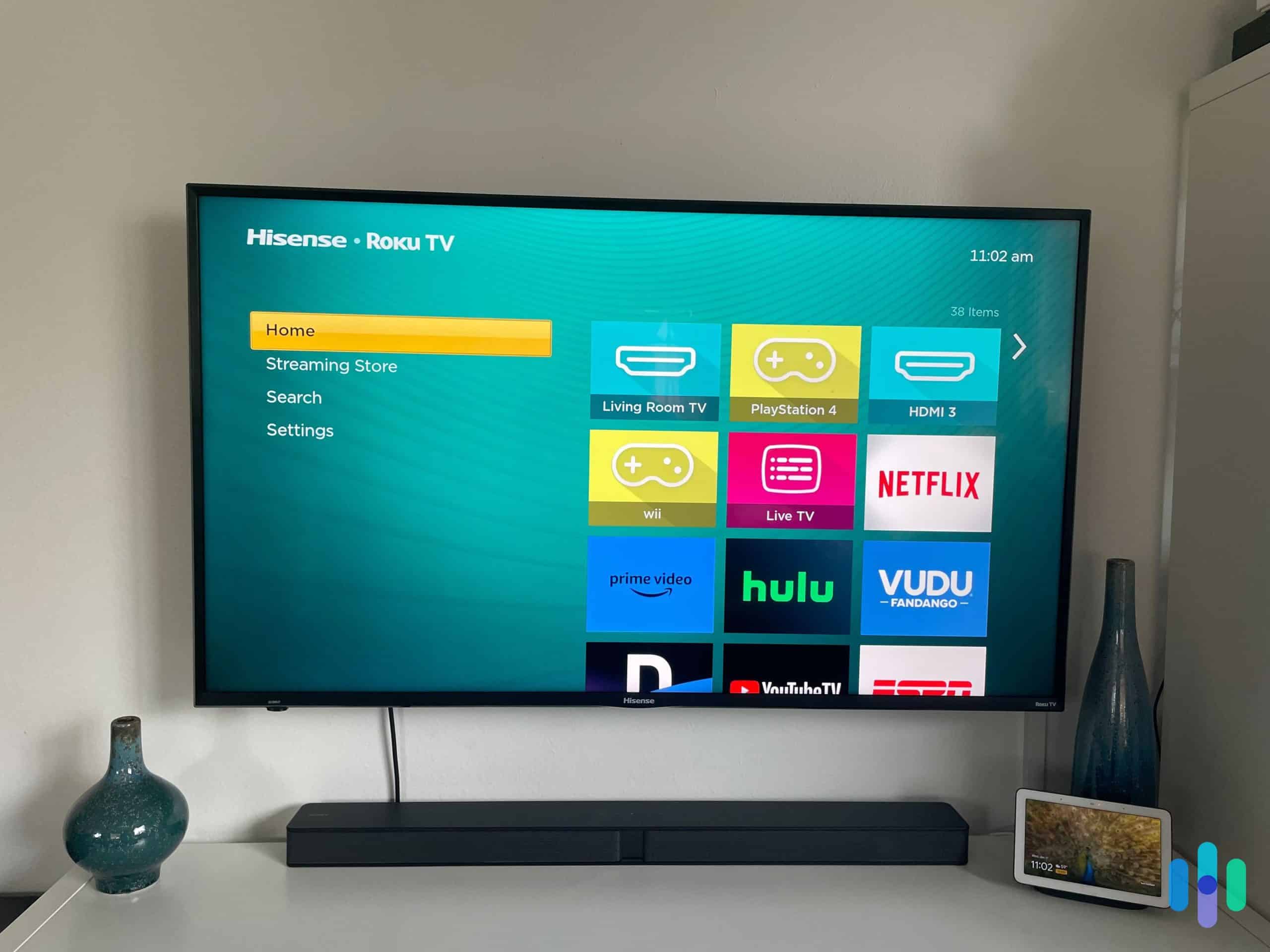
- Roku: Currently, Roku does not support Kodi, so the only way to use a VPN is to screen mirror from an Android. Here is how you do it:
- Using the Roku remote, click Home.
- Click on Settings.
- Click on System Update.
- Make sure you have the most updated software.
- Hit Settings.
- Click on Screen Mirroring.
- Click on Enable Screen Mirroring.
- Hit the OK button.
As long as your Android has a VPN connection, you will be protected when you open Kodi.
Tip: Since Roku doesn’t support Kodi, you’ll need to use Screen Mirroring from your Android phone to use a VPN on Roku.
- Fire TV Stick/ Fire TV: Set up Kodi on your Fire TV Stick or Fire TV by configuring the VPN on your router; just make sure you get a VPN that works with the Fire TV Stick.
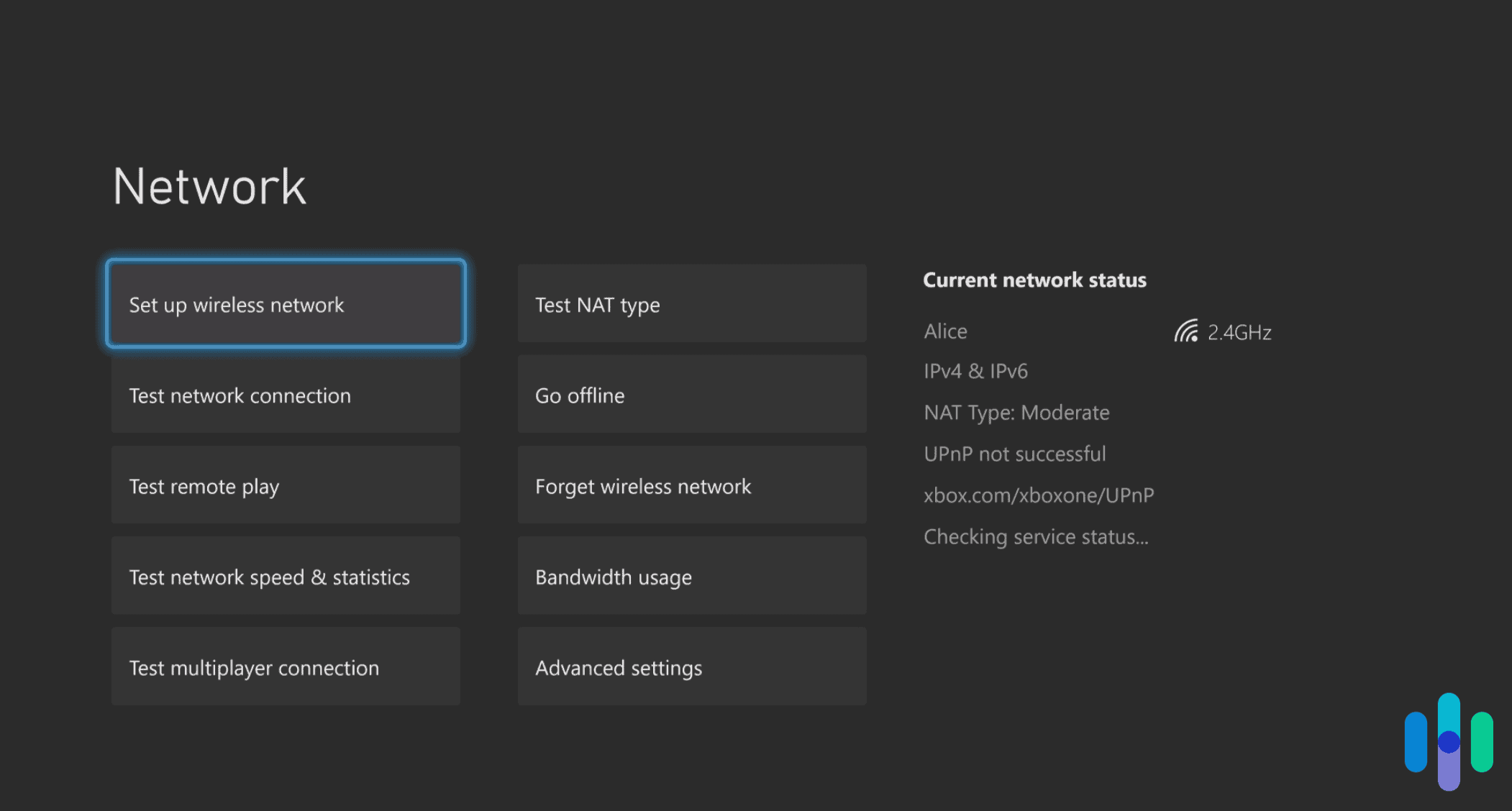
- Xbox One: To use Kodi on Xbox, you’ll need an Xbox One or newer (including Series X/S), an active internet connection, and an Xbox Live account. Like the Roku and Fire TV Stick, Xbox doesn’t natively support VPNs, you’ll need to route through a VPN-enabled router, Mac, or PC. Here’s the process:
- Select one of the best VPNs for Xbox.
- Set up your Xbox VPN.
- On the Xbox home screen, press Y on the controller to search.
- Type in Kodi.
- Select the Kodi app.
- Click Get.
- Launch it when you’re ready.
- Android TV:
- Install VPN on your Android TV.
- Connect to a server.
- Under Settings, click Security Menu.
- Click on the Unknown Sources option.
- Click on Enable.
- Download Kodi from the Google Play store.
- Install it.
- Sign in.
- Apple TV: Setting up Kodi on Apple TV requires some technical know-how, including an Apple Developer account (which costs $99 per year) and downloading these tools:
- Xcode app (free from the Mac App Store)1
- iOS App Signer utility2
- Kodi .deb file from the official repository4.
Once you have all of the above set up, here is what you do:
- Plug in your Apple TV to your Mac using a USB cable.
- Run the Xcode app.
- Select Create a New Xcode Project.
- Select Application.
- Click Single View Application.
- Click Next.
- Click Create a New Project.
- Fill out the app name as Kodi and the Bundle Identifier field as “com.arcarde.kodiappletv”.
- Fill out the rest of the fields.
- Click Next to save your project.
- Back on Xcode’s main window, there should be an error that says Matching Provisioning Profile Cannot Be Found.
- Click Fix Issue.
- Sign in with your Apple developer account.
- Click Choose and select your development team. Xcode will create a provisioning profile.
- Click the drop-down menu at the top left corner of the Xcode app.
- Select Choose Apple TV And Other Options.
- Open the iOS App Signer.
- Click your Signing Certificate and Provisioning Profile.
- As your input file, Select Kodi.deb.
- Enter the same app display name you gave to your project on Xcode.
- Click Start
- Install the .IPA file on your Apple TV.
- Back in Xcode, click the Windows Menu.
- Click on Devices.
- Click on Apple TV.
- Select your .IPA file.
- Install it on your Apple TV.
Now, you’ll be able to use Kodi with Apple TV. Finally! Just make sure you have the right VPN for your Apple TV set up in the first place.
- Chromecast: Since Chromecast doesn’t support Kodi directly, you’ll need to set up Kodi on another device and cast to your Chromecast:
- Android: Casting from Android is straightforward. Just be warned, this method will drain your battery pretty quickly, so keep your charger handy:
- Download the Google Cast app from the Google Play store.
- Open the app.
- Click the Cast icon.
- Select your Chromecast.
- Launch Kodi on your Android.
- PCs/Macs:
- In the Chrome browser, add the Chromecast extension.
- Install Kodi.
- Launch Kodi along with the Chrome browser.
- Within Chrome’s Settings (signified by three vertical dots), click Cast To.
- Click on Cast Desktop.
- Back in Kodi, select the video you want to stream and it will go to your Chromecast.
- Android: Casting from Android is straightforward. Just be warned, this method will drain your battery pretty quickly, so keep your charger handy:
- Chromebook:
- Connect to your Chrome VPN app.
- Download the Kodi app from the Google Play store.
- Install and launch Kodi.
- PlayStation: You can sideload Kodi onto your PS4 or PS5. The process varies depending on whether you’re using a VPN through your router, Windows, or Mac:
- Router:
- Connect your VPN to your router.
- On your PlayStation, go to the main menu.
- Go to Settings.
- Go to Network Settings.
- Click Set Up Internet Connection.
- Click on Use Wi-Fi.
- Set your connection method as Easy.
- Join your Wi-Fi network.
- Enter your password.
- Click Do Not Use A Proxy Server.
- Accept all settings.
- Windows:
- Connect to a Windows VPN.
- Connect your PlayStation to your Windows PC using an Ethernet cable.
- Slide over to your Windows Menu.
- Click Control Panel.
- Click Network and Sharing Center.
- Click Change Adapter Settings.
- Click VPN Properties.
- Click Sharing.
- Select Allow Other Network Users to Connect.
- On your Home Networking Connection, click on the Wi-Fi network that your PC is already on.
- Select OK.
- Open the VPN.
- Connect to a server.
- Back on the PlayStation, go to the main menu.
- Hit Settings.
- Click on Network Settings.
- Click on Set Up Internet Connection.
- Click Use a LAN Cable.
- Under Select Connection Method, choose Easy.
- Click Do Not Use Proxy Server.
- Accept and test your connection.
- Mac: Once you have your Mac VPN going, follow these steps:
- Connect the Mac to your PlayStation using an Ethernet cable.
- On your Mac, go into System Settings.
- Click on Sharing.
- Click on Internet Sharing.
- Share Your Connection From.
- Select either Ethernet, AirPort or Wireless from the drop-down menu.
- Under To Computers Using, choose the same connection you’re on.
- Check the box next to Internet Sharing; its status should turn green.
- Back in the VPN app, connect to a server.
- On your PlayStation’s main menu, click Settings.
- Click on Network Settings.
- Click on Set Up Internet Connection.
- Choose Use a LAN Cable.
- Choose Easy for Your Connection Method.
- Your Ethernet connection will be scanned.
- Click Do Not Use a Proxy Server.
- Accept all settings.
- Test your connection.
- Router:
Why Use a VPN for Kodi?
Now that you’ve gotten a very detailed rundown of how to use a VPN on Kodi, let’s go over why you would want to in the first place.
Can You Use Kodi Without a VPN?
Yes, you can absolutely use Kodi without a VPN, but here’s what you’re missing out on:
- Internet service provider surveillance. Your ISP can see everything you stream on Kodi – what you watched, when you watched it, and for how long. Some ISPs even throttle streaming traffic during peak hours.
- Foreign streaming libraries blocked. Different countries have different content libraries on streaming services. Without a VPN to change your IP address, you’re stuck with whatever’s available in your physical location.
- Insecurity of public Wi-Fi networks. Using Kodi on public Wi-Fi without a VPN leaves your device vulnerable to snooping and potential attacks from other users on the same network.
Reasons to Use a VPN on Kodi
People have different reasons for using VPNs, including but not limited to:
- Stream international content. Hiding your real IP address means that you can change your region on Netflix and other streaming services, opening up new libraries of shows and movies.
- Privacy from ISP. VPNs hide the websites and web apps you use, along with your device’s real IP address, so your ISP will have no idea you’re using Kodi.
- Protection against hackers. VPNs add an extra layer of security that makes you a harder target for cybercriminals. According to recent VPN statistics, this security is a main driver for most users. 4
- Better streaming experience. VPNs can actually improve your streaming quality by preventing ISP throttling. Some ISPs slow down streaming traffic during peak hours (typically 7-11 PM). With a VPN, your ISP won’t be able to tell that you’re streaming.
- Malware protection. Since Kodi allows third-party add-ons, some malicious actors create fake add-ons to compromise devices. A VPN adds a security layer between your device and potential threats.
- Accessing restricted networks. Many schools, offices, and hotels block streaming services. A VPN masks your traffic, making it appear as regular encrypted data rather than streaming content.
Why Use a VPN for Kodi?
Now that you’ve gotten a very detailed rundown of how to use a VPN on Kodi, let’s go over why you would want to in the first place.
Can You Use Kodi Without a VPN?
Yes, you can absolutely use Kodi without a VPN, but here’s what you’re missing out on:
- Internet service provider surveillance. Your ISP can see everything you stream on Kodi – what you watched, when you watched it, and for how long. Some ISPs even throttle streaming traffic during peak hours.
- Foreign streaming libraries blocked. Different countries have different content libraries on streaming services. Without a VPN to change your IP address, you’re stuck with whatever’s available in your physical location.
- Insecurity of public Wi-Fi networks. Using Kodi on public Wi-Fi without a VPN leaves your device vulnerable to snooping and potential attacks from other users on the same network.
Reasons to Use a VPN on Kodi
People have different reasons for using VPNs, including but not limited to:
- Stream international content. Hiding your real IP address means that you can change your region on Netflix and other streaming services, opening up new libraries of shows and movies.
- Privacy from ISP. VPNs hide the websites and web apps you use, along with your device’s real IP address, so your ISP will have no idea you’re using Kodi.
- Protection against hackers. VPNs add an extra layer of security that makes you a harder target for cybercriminals. According to recent VPN statistics, this security is a main driver for most users. 4
- Better streaming experience. VPNs can actually improve your streaming quality by preventing ISP throttling. Some ISPs slow down streaming traffic during peak hours (typically 7-11 PM). With a VPN, your ISP won’t be able to tell that you’re streaming.
- Malware protection. Since Kodi allows third-party add-ons, some malicious actors create fake add-ons to compromise devices. A VPN adds a security layer between your device and potential threats.
- Accessing restricted networks. Many schools, offices, and hotels block streaming services. A VPN masks your traffic, making it appear as regular encrypted data rather than streaming content.
What is Kodi?
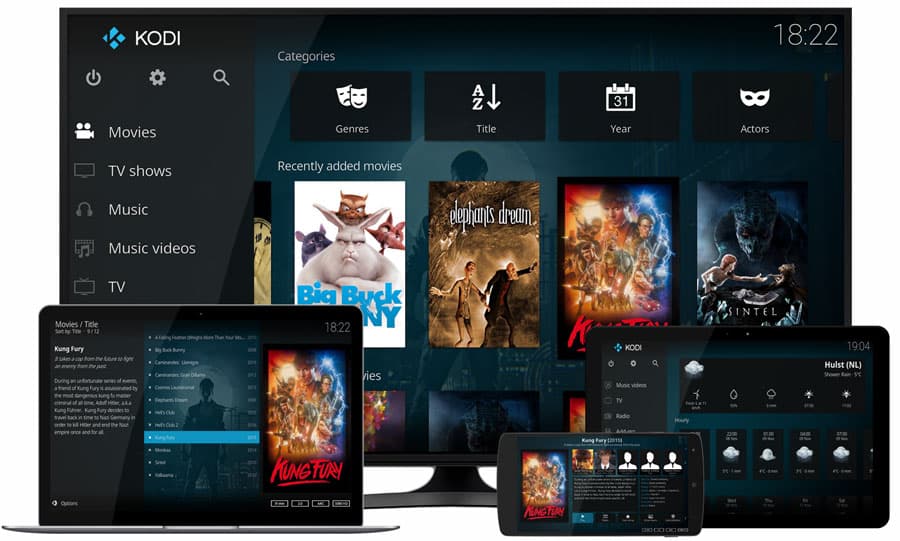
If you’ve made it this far, you probably already know Kodi pretty well, but let’s cover the basics. Kodi is a free, open-source media player that acts as a unified entertainment center for all your content – local files, streaming services, live TV, and more. It works across:
- Android
- iOS
- Windows
- Mac
- Linux
- Smart TVs and streaming devices
At last count, Kodi’s been installed by over 50 million people through the Google Play Store alone.5
What is a VPN?
A VPN (Virtual Private Network) creates an encrypted tunnel between your device and the internet. This hides your online activity and replaces your IP address with one from the VPN server. Think of it as a secure, private highway for your data.
What is a Kodi VPN?
A Kodi VPN is simply a VPN service that works with Kodi – either through a standalone app on your device or as an integrated Kodi add-on. It encrypts all your Kodi streaming activity, hiding what you watch from your ISP and allowing you to access geo-restricted content.
Is Kodi Legal?
Yes, Kodi itself is legal software. It’s officially available in app stores and has been around since 2003. However, the way you use it matters. Streaming content you own or have legal access to is perfectly fine. Using unofficial add-ons to access pirated content is illegal, just like torrenting copyrighted material would be. Think of Kodi like YouTube – the platform is legal, but users can potentially upload or access illegal content.
How to Add Channels on Kodi
Adding channels to Kodi typically involves installing add-ons from official repositories. Here’s a general process for adding legitimate content sources:
- Go to the official Kodi Add-on Repository.6
- In Kodi’s System Settings, click File Manager.
- Click Add Source.
- Click on None.
- Insert the repository URL and give it a memorable name.
- Click OK.
- Click on Main Menu.
- Click on Add-Ons.
- Click the Add-On Package Installer icon in the top left-hand corner.
- Click Install From Zip File.
- Select your repository.
- Click on the repository zip file.
- Select Install From Repository.
- Select your chosen repository.
- Click Video Add-Ons.
- Click your desired channel/add-on.
- Hit Install.
- Click on OK.
It’s a lot of steps, but once you’ve done it once or twice, it becomes second nature!
Can I Get a Free VPN for Kodi?
While free VPNs for Kodi exist, they come with significant trade-offs. Even the best free VPNs limit your data (usually 500MB-10GB per month), restrict server locations, throttle speeds, or display ads. You can avoid that with a free premium VPN trial, although it won’t last forever. For streaming on Kodi, where a single HD movie can use 3GB of data, free VPNs aren’t practical for regular use.
Free VPNs for Kodi
- Surfshark: While not free forever, Surfshark offers a 30-day money-back guarantee and works excellently with Kodi. Plans start at $1.99 per month for a 2-year commitment. Learn more about Surfshark’s pricing.
- Windscribe: Offers a genuinely free tier with 10GB monthly data and access to 10 server locations. The free version works with Kodi on Android and Linux devices. For unlimited data, paid plans start at $5.75 per month. Read more about the costs of Windscribe.
- ProtonVPN: Has a free tier with unlimited data but only 3 server locations and one device connection. The free servers can get congested, leading to slower speeds. Paid plans start at $2.99 per month for better performance and more servers.
How to Choose a VPN for Kodi
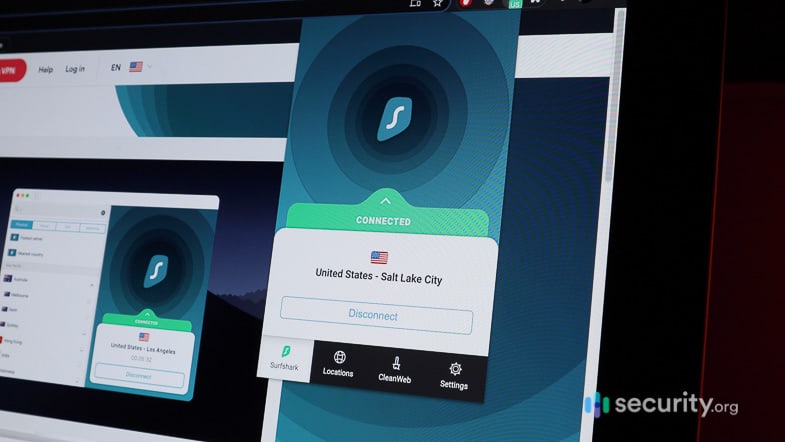
Since not all VPNs play nice with Kodi, your first priority is finding one that’s actually compatible. Here are the top contenders that consistently work well:
- NordVPN
- Proton VPN
- Private Internet Access (PIA)
- Surfshark
- Ivacy VPN
More Factors to Consider
Once you’ve narrowed down to Kodi-compatible options, here’s how to choose a VPN for streaming:
- Privacy: Look for VPNs based outside the Five Eyes, Nine Eyes, and Fourteen Eyes surveillance alliances. They should have a strict no-logs policy (ideally audited by a third party) and use AES-256 encryption as the standard.
- Streaming: Make sure your VPN can reliably unblock major streaming services. Netflix and others actively block VPN IP addresses, so you need a provider that stays ahead of the cat-and-mouse game.
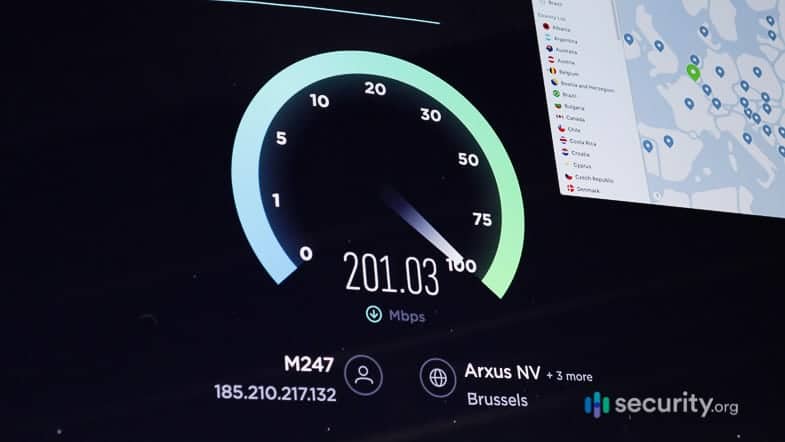
- Speed: For 4K streaming, you need about 15 Mbps download speed. Look for VPNs with WireGuard or proprietary protocols that minimize speed loss – ideally keeping 80 percent or more of your base speed.
- Security: Features like a kill switch (cuts internet if VPN drops), DNS leak protection, and split tunneling add extra security layers. Some VPNs also offer multi-hop connections for maximum privacy.
- Cost: Quality VPNs typically range from $2 to $12 per month, depending on commitment length. Annual plans usually offer the best value, often 50 to 70 percent cheaper than monthly billing.
FAQs
Since Kodi flies under the mainstream radar, we get tons of questions about it. Here are the ones that come up most often.
-
What is the best Kodi VPN?
The best VPNs for Kodi include NordVPN for security features, Surfshark for unlimited device connections and affordability, and ProtonVPN for privacy.
-
How can I stream with a Kodi VPN?
How you stream with a Kodi VPN depends on your device, but you’ll either use a VPN app or a Kodi add-on. You can also connect your VPN to the router, and if Kodi is on the same network, it’ll be encrypted as well.
-
What is Kodi used for?
Kodi is primarily used for organizing and streaming media content – including local files, streaming services, live TV, podcasts, and even retro gaming through emulators.
-
What is a Kodi add-on?
A Kodi add-on is a plugin that extends Kodi’s functionality. They can add streaming services, enhance the interface, provide live TV access, or integrate other features like weather forecasts or subtitle downloads.
-
Should I use a VPN when using Kodi?
Using a VPN with Kodi is highly recommended if you want to access geo-restricted content, maintain privacy from your ISP, or protect your device from potentially malicious third-party add-ons. It’s especially important on public Wi-Fi networks.