



the security.brief
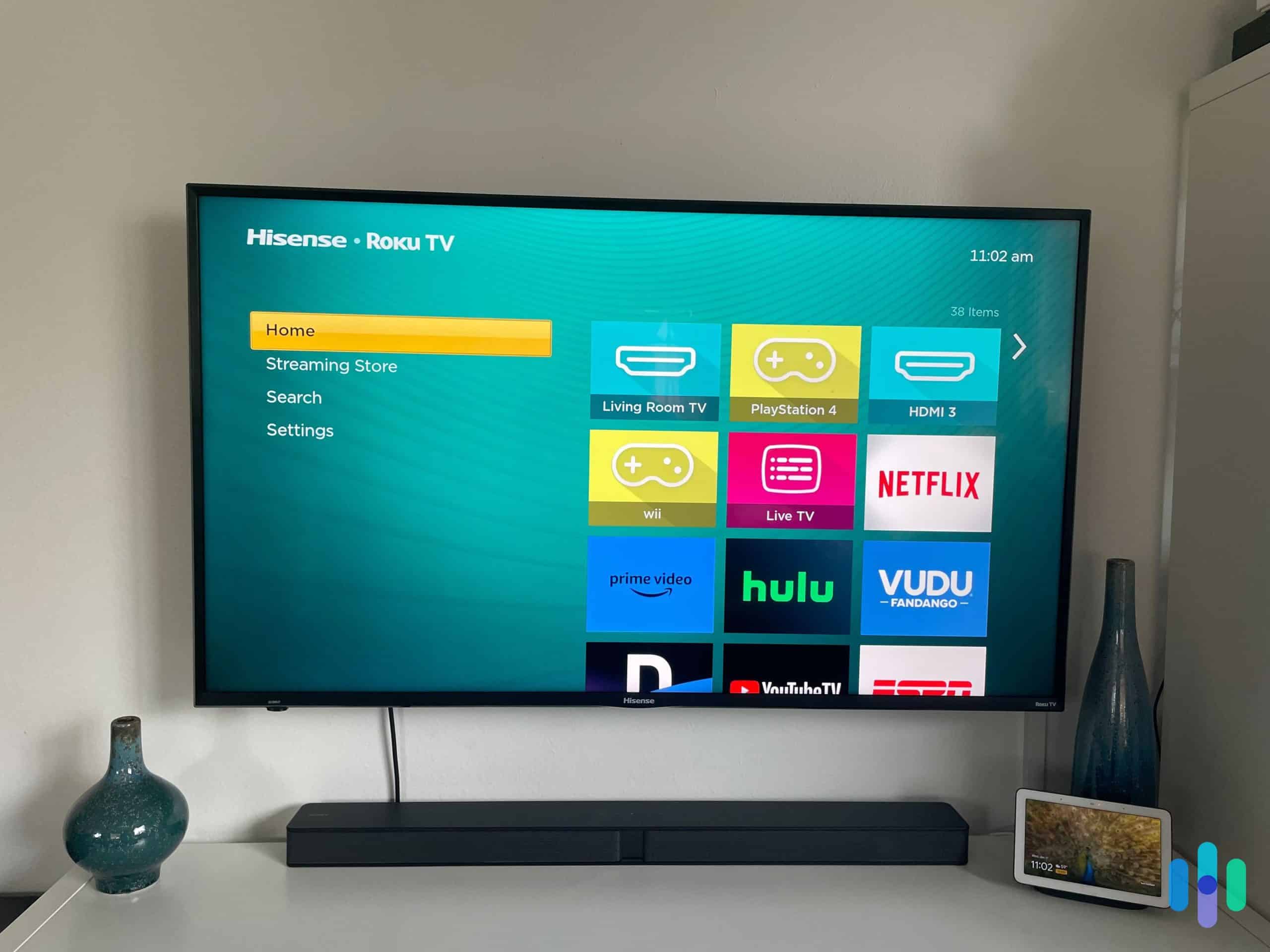
Xbox doesn't support native VPN apps, but you can connect via a router, Windows PC, Mac, or SmartDNS. See our top-tested VPN picks that support these methods.
Xbox doesn’t support native VPN apps, so there’s no install from the game store. Instead, you’ll need to connect through a VPN-enabled router, share a VPN connection from a Windows or Mac computer, use SmartDNS, or route via a proxy. All four methods work across Xbox One, Xbox Series S, and Xbox Series X.
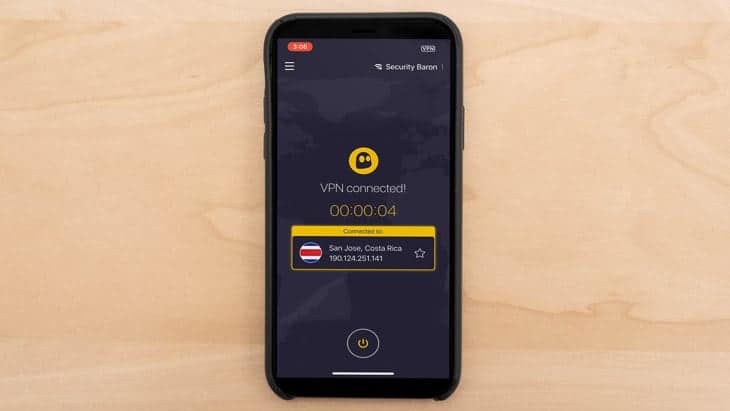
Once connected, a VPN shields your gaming sessions from DDoS attacks, prevents your ISP from throttling your connection, unlocks game servers and streaming libraries in other regions, and lets you play new titles days before they release in your country. Our VPN experts spent hundreds of hours testing the best VPNs, specifically the proven and tested VPNs for gaming to find the top options for Xbox. ExpressVPN, NordVPN, Surfshark, Proton VPN, and Private Internet Access are our picks. Let’s find out why.
Setup Methods: How to Connect Xbox to a VPN
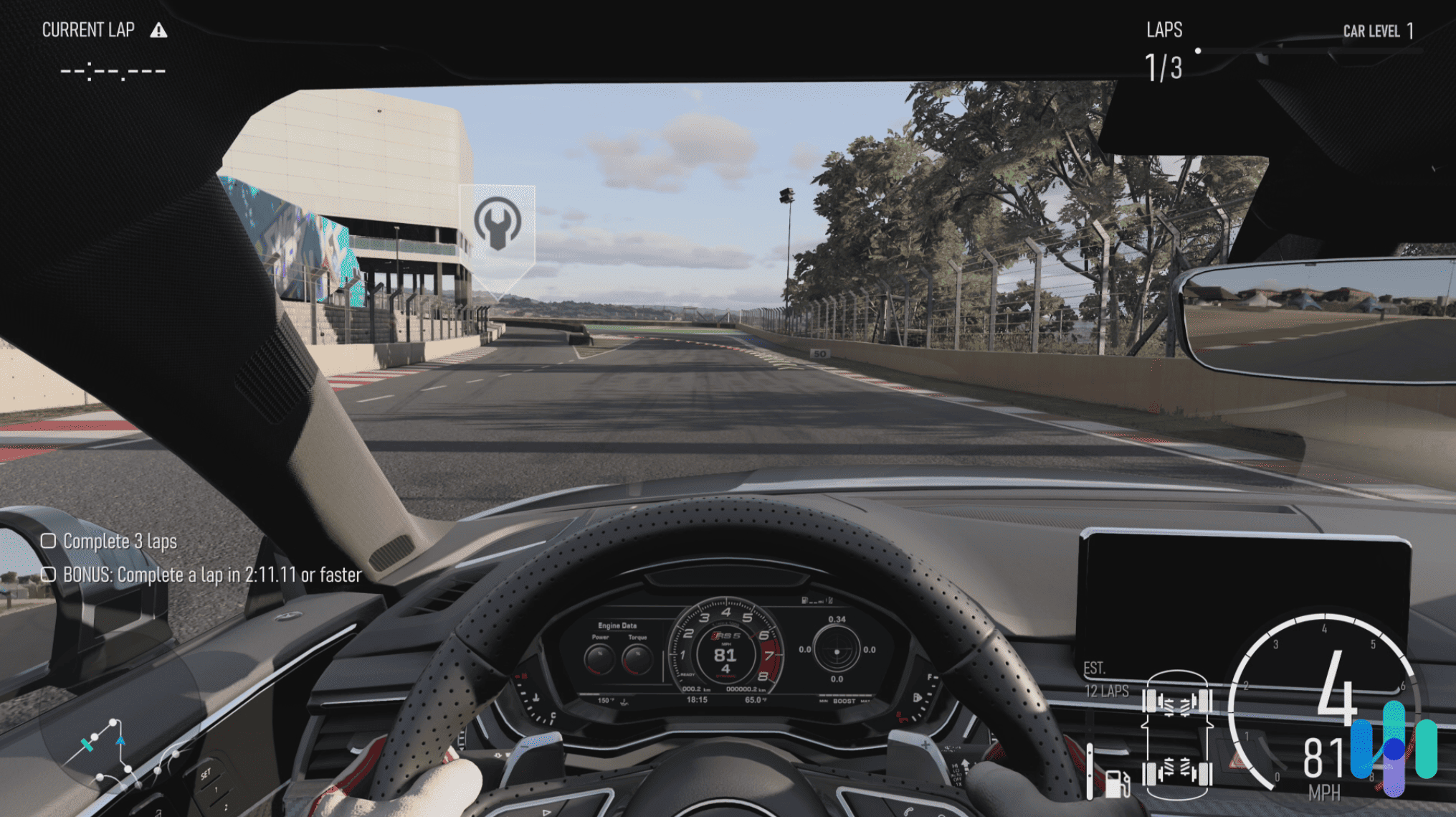
We tested four different methods to connect our Xbox to a VPN. Each one has its pros and cons. While some methods are simpler than others, this step-by-step guide will help you decide which setup fits your needs.
Method 1: Virtual Router (Windows 11)
This is the setup method we recommend for Windows users, as it doesn’t require any special router hardware. Your PC acts as a VPN-protected hotspot that your Xbox connects to over Wi-Fi. There are two ways you can set it up, both of which require that you have a Windows VPN.
Option A: Mobile Hotspot (simpler)
- Connect your Windows 11 PC to the internet via Ethernet or Wi-Fi.
- Connect your VPN on the PC and keep it active.
- Go to Settings > Network & Internet > Mobile Hotspot.
- Toggle Share my internet connection to On.
- Note the network name and password shown on screen.
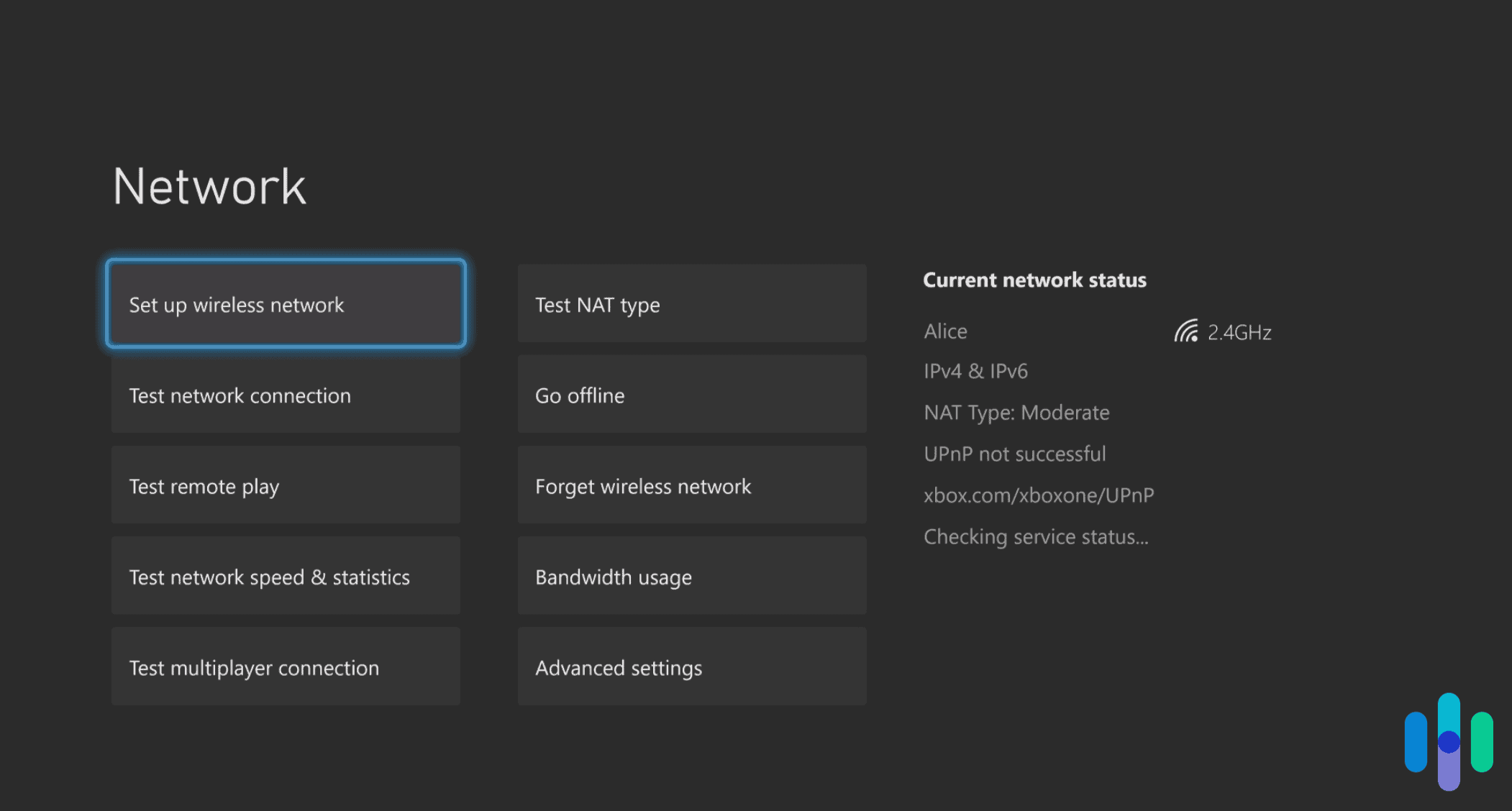
- On your Xbox, go to Settings > General > Network settings.
- Select Set up wireless network and connect to the hotspot you just created.
Option B: Adapter Sharing (more control)
- Open Settings > Network & Internet > Mobile Hotspot on Windows and enable it with a network name and password.
- Connect your VPN on the Windows device.
- Go to Settings > Network & Internet > Wi-Fi > Change adapter options.
- Right-click your VPN adapter, choose Properties > Sharing, and enable internet connection sharing to the hotspot adapter.
- Connect your Xbox to the Windows hotspot.
Both methods tunnel your console’s traffic through the PC’s active VPN connection. If your Xbox doesn’t connect after setup, try disabling and re-enabling the hotspot to refresh the adapter sharing. For more on the security implications of hotspot sharing, see our guide on whether mobile hotspots are safe.
Difficulty: Moderate (5 to 10 minutes to set up)
Method 2: Virtual Router on Mac
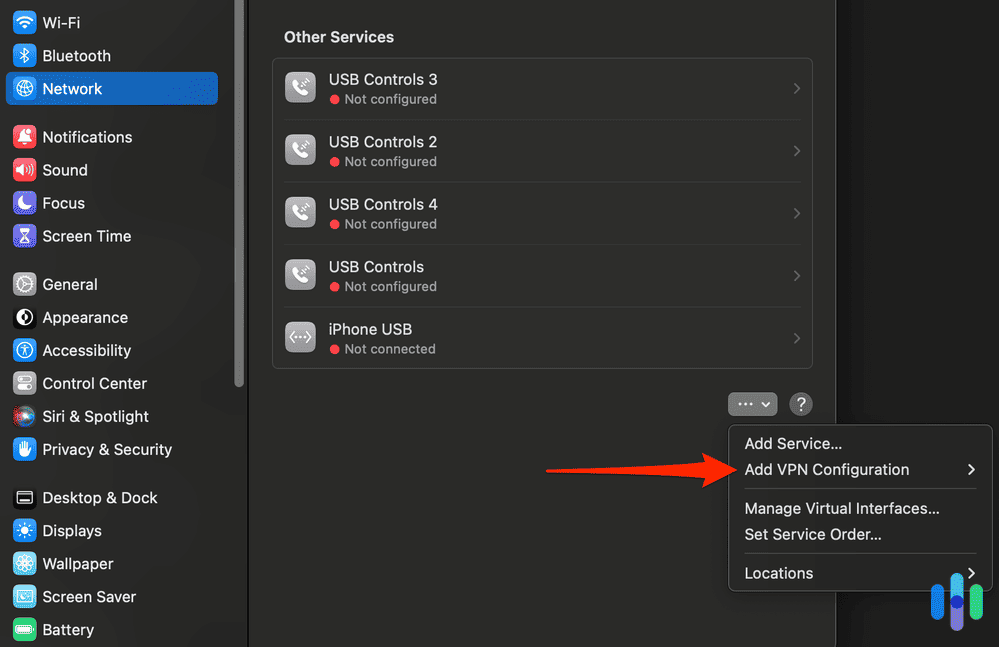
If you own a Mac, you can share a VPN connection to your Xbox using the built-in Internet Sharing feature. You’ll need your Mac connected to the internet via Ethernet or Wi-Fi before starting, and you’ll also need an active Mac VPN.
- Connect your Mac to the internet and activate your VPN.
- Go to System Settings > Sharing.
- Select Internet Sharing from the left sidebar.
- Under Share Your Connection From, choose the VPN connection.
- Under To Computers Using, check Wi-Fi.
- Click Wi-Fi Options to set a network name and password.
- Check the Internet Sharing checkbox to start sharing.
- On your Xbox, connect to the new hotspot under Network settings.
Once you’re connected, your Xbox traffic will pass through the VPN on your Mac. Just keep in mind that the hotspot only works while your Mac stays awake and the VPN remains active.
Difficulty: Moderate (5 to 10 minutes to set up)
Method 3: VPN on Router
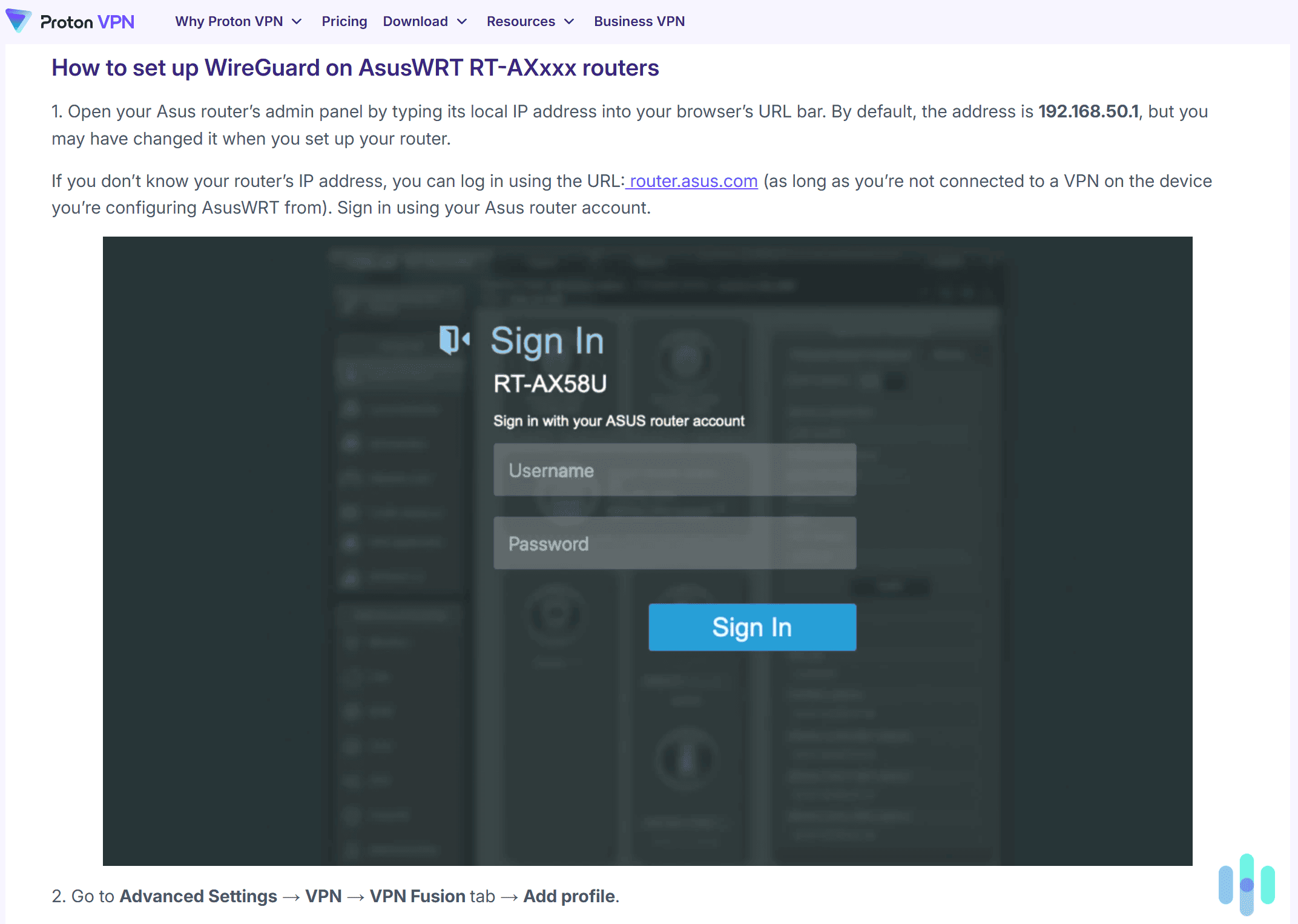
Setting up a VPN on your router protects every device on your home network. That includes the Xbox. It also doesn’t require any device configuration. This is the most seamless long-term option, but not all routers support it. Compatible hardware and firmware include Asus routers with native OpenVPN support, as well as DD-WRT and Tomato. Before you start changing settings, check with your VPN provider that your router is supported.
- Log in to your router’s admin panel (typically 192.168.1.1 or 192.168.0.1).
- Find the VPN or OpenVPN section (varies by router model — check your VPN provider’s router setup guide).
- Enter your VPN credentials and server details.
- Save and apply settings.
Once the router is configured, your Xbox is protected the moment it connects to your network. The VPN protection applies automatically whenever the console connects to your home network. If you want to skip the configuration, our top pick for Xbox, ExpressVPN, offers a dedicated VPN router called Aircove. This router comes with ExpressVPN built in. Simply plug it in, connect to your network, and every device on it is automatically protected. It’s the easiest way to get a router-level VPN without any of the technical setup.
Difficulty: Hard (20 to 45 minutes to set up)
>> Related Reading: VPN Routers
Method 4: SmartDNS
SmartDNS is the simplest way to configure your Xbox directly without needing a PC or router modifications. We use it to access game servers in other regions and download Game Pass titles that launched earlier in other countries. Just note that it’s not a full VPN connection. It changes where you appear to be connecting from by modifying your DNS settings, but it doesn’t offer encryption and doesn’t actually reroute your traffic.
- Log in to your VPN account dashboard and locate the SmartDNS settings. Note the primary and secondary DNS server addresses provided.
- On your Xbox, go to Settings > General > Network settings > Advanced settings > DNS settings.
- Switch to Manual and enter the SmartDNS server addresses from your VPN provider.
- Restart your Xbox for the settings to take effect.
Since SmartDNS doesn’t encrypt your traffic, it adds virtually no latency. Just note that it won’t protect you against DDoS attacks or ISP throttling. If you need those security features, stick with a virtual or VPN-enabled router.
Difficulty: Easy (2 to 5 minutes to set up)
Can You Install A VPN on Xbox?
Let me save you some time – no, you can't download a VPN app directly onto your Xbox Series X, Series S, or Xbox One like you would on your phone. Microsoft's console doesn't support native VPN apps. But don't worry, we've tested several workarounds using leading VPN services that actually work. Keep reading, and I'll walk you through exactly how to get your Xbox protected.



VPN Comparison Table
| System |
ExpressVPN
|
NordVPN
|
Surfshark
|
Proton VPN
|
Private Internet Access
|
|---|---|---|---|---|---|
| Ranking | 1st | 2nd | 3rd | 4th | 5th |
| Ratings | 9.1/10 | 9.7/10 | 9.5/10 | 9.3/10 | 9.4/10 |
| In-game latency on closest server | 25-40 ms | 40-60 m | 30-70 ms | 39-63 ms | 25-40 ms |
| Download speed on closest server | 223 Mbps | 212 Mbps | 207 Mbps | 204 Mbps | 239 Mbps |
| Upload speed on closest server | 201 Mbps | 198 Mbps | 183 Mbps | 234 Mbps | 231 Mbps |
| Server locations | 105 countries | 129 countries | 100 countries | 127 countries | 91 countries |
| Set up via virtual router | Easy | Easy | Easy | Easy | Easy |
| Set up via Smart DNS | Easy | Easy (via SmartPlay) | Not Available | Not Available | Easy |
| Set up as router VPN | Easy | Mid to high difficulty | Mid to high difficulty | Mid to high difficulty | Mid to high difficulty |
| Set up as proxy | N/A | N/A | N/A | N/A | N/A |
| Xbox compatibility | Xbox One, Series S, Series X | Xbox One, Series S, Series X | Xbox One, Series S, Series X | Xbox One, Series S, Series X | Xbox One, Series S, Series X |
| Minimum monthly fee | $2.44 | $3.39 | $1.99 | $2.99 | $2.03 |
| Read Review | ExpressVPN Review | NordVPN Review | Surfshark Review | Proton VPN Review | Private Internet Access Review |
1. ExpressVPN – Easiest to Set Up and Use
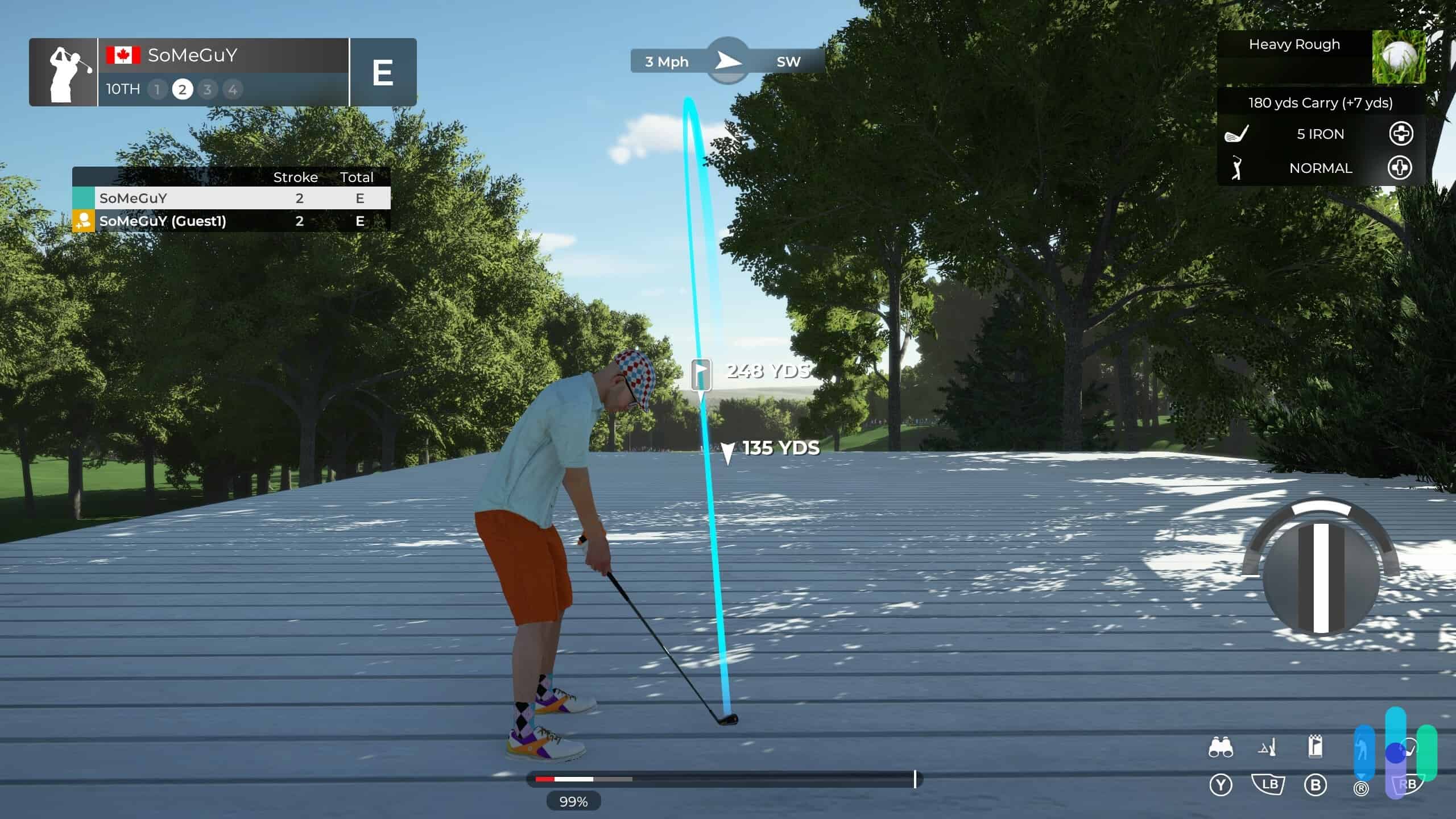
ExpressVPN is our top pick for Xbox owners, and latency is the main reason. In our tests on an Xbox Series X playing Apex Legends, it delivered the lowest ping of any VPN we tried, averaging 25 to 40 ms on the closest server. That kind of consistency matters in games like Apex Legends and Fortnite, where 20 extra milliseconds can mean the difference between landing a shot and eating one. Our download speeds came in at 223 Mbps, and performance held up well on overseas servers too, making it a reliable option if you regularly play with friends in other regions or want to access foreign game servers.
The setup experience also sets ExpressVPN apart from other providers on our list. We found it to be the easiest VPN on this list to get running. The virtual router setup on Windows is straightforward, SmartDNS is included on all plans for quick DNS-level region switching, and ExpressVPN’s Aircove router comes with the VPN pre-installed if you want a no-config hardware solution. Xbox compatibility spans every model from the 360 to the Series X.
ExpressVPN’s plans are not the most expensive on this list, but the Aircove router adds an additional hardware purchase on top of the subscription. If low latency and easy setup are your priorities, we think it earns the extra cost. There’s always the 30-day money-back guarantee if you change your mind.
Best For: If you’re a competitive Call of Duty, Apex Legends, or Rocket League player looking for the simplest Xbox setup, ExpressVPN is your best bet.
What We Like
- Lowest latency in our Xbox tests (25–40 ms)
- SmartDNS included on all plans for quick region switching
- Aircove router option eliminates all manual configuration
- Works across all Xbox models from 360 to Series X
What We Don’t Like
- The ExpressVPN app limits simultaneous connections
- Aircove router requires an additional hardware purchase
- Fewer server countries than NordVPN or Proton VPN
>> Also See: NordVPN vs. ExpressVPN
2. NordVPN – Best for Overseas Servers
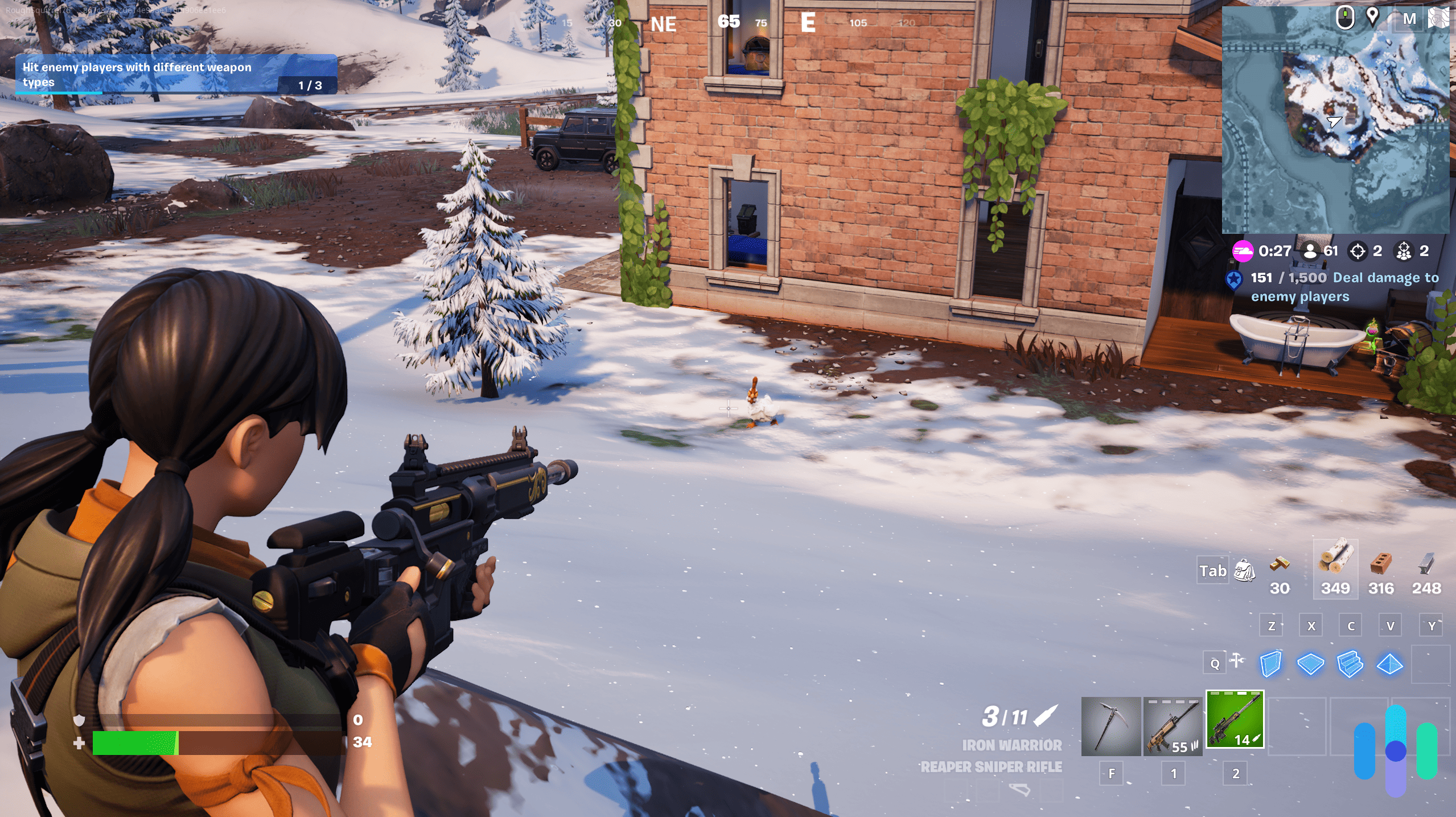
NordVPN’s latency on close servers averaged 40 to 60 ms, which was slightly behind ExpressVPN, but still solid. Where NordVPN pulled ahead was on long-distance connections. We tried out an Australian VPN server, and the performance was more consistent than most of the competition, making it the best choice for gamers who play cross-region regularly.
NordVPN has a few bonuses worth noting. Its Meshnet feature lets you create encrypted private networks, perfect for hosting virtual LAN parties without extra software. NordVPN also covers 129 server countries, the widest spread on this list, which gives you more options for matchmaking in specific regional pools or grabbing early game releases from markets like Japan or the UK.
You can set up your Xbox using the virtual router, SmartDNS via NordVPN’s SmartPlay feature, or on a compatible router. Router-level configuration is more complex than ExpressVPN, but NordVPN’s guides can walk you through the process. Despite NordVPN plans being more expensive than ExpressVPN, we think you get a good bang for your buck with the server selection, low latency, and Meshnet feature.
Best For: If you frequently play with international friends or need the widest possible server coverage for cross-region matches, NordVPN is the way to go.
What We Like
- Most stable performance on overseas and long-distance servers
- 129 server countries
- Meshnet for private cross-internet LAN gaming with friends
- SmartDNS available via SmartPlay feature
What We Don’t Like
- Slightly higher latency on close servers than ExpressVPN
- Router-level setup is more involved than most competitors
- Meshnet requires some technical knowledge to configure
>> More Recommended Picks: VPNs for Fortnite
3. Surfshark – Best for Pro Gamers

Surfshark is our pick for competitive gamers who want DDoS protection without spending a fortune. Its network infrastructure runs on 10 Gbps ports, which are significantly faster than those used by most VPNs. This helps Surfshark absorb the massive traffic spikes typical of DDoS attacks. If you play competitive titles like Overwatch, Rainbow Six Siege, or Helldivers 2, where opponents might target your connection to knock you offline, Surfshark can protect you from that threat.
Latency averaged between 30 and 70 ms on close Surfshark servers. Its performance varied slightly between servers during testing, but it remained fast enough for most games. Our download speeds hit 207 Mbps, which is plenty for any gaming workload, including large patch downloads. Just keep in mind that Surfshark only covers 100 server countries, which should be enough of a spread for regional matchmaking and early release access.
One standout perk is unlimited simultaneous connections. One subscription covers every console, PC, and mobile device in your home. The main downside we saw is latency variability, meaning you may occasionally hit the higher end during peak server load. If you play fast-twitch competitive titles, that could be an issue. Also keep in mind that you can only set up Surfshark on your Xbox via a virtual router or a VPN-compatible router; it no longer offers SmartDNS. Surfshark plans start at $1.99 a month on a two-year plan, but we suggest checking out our Surfshark vs. NordVPN breakdown to see if the savings are worth it.
Best For: Surfshark is our choice for competitive players concerned about DDoS attacks or households that need to protect multiple gaming devices at once.
What We Like
- 10 Gbps port infrastructure for strong DDoS attack resistance
- Unlimited simultaneous connections on one subscription
- Most affordable pick with strong gaming performance at $1.99/mo
- 100 server countries with good regional spread
What We Don’t Like
- Latency variability can hit higher values during peak server load
- Virtual router or router setup only on Xbox
- Upload speeds are the lowest of the five VPNs tested
4. Proton VPN – Best Xbox VPN for Streaming
We found Proton VPN to be the best option for gamers who use their Xbox for gaming and streaming. We had no trouble watching 4K content on apps like Netflix or Disney+ on the Xbox. Proton is also a great VPN for Apple TV and other streaming devices. Our latency averaged 39 to 63 ms on close servers. That latency is fine for casual games like Sea of Thieves and Forza Horizon 5. It’s not quite at the level of ExpressVPN or PIA for fast-twitch competitive titles like Call of Duty: Black Ops 7 or Battlefield 6.
With 127 server countries, Proton VPN offers plenty of options for regional matchmaking and early game access. It doesn’t support SmartDNS, though. You’ll need to use the virtual router or router configuration methods. We found the router setup process a bit more involved than ExpressVPN, but Proton’s documentation is thorough. You can see how it compares in our Surfshark vs. Proton VPN and Proton VPN vs. NordVPN guides.
Proton VPN is also the only option here with a usable free tier. The plan offers unlimited data and no speed cap, but it is limited to three server locations and lacks streaming support. It’s a great way to test a VPN on your Xbox before committing to a premium plan, which starts at $2.99 a month on a two-year subscription.
Best For: Proton VPN is the best choice for those who switch between gaming with streaming, privacy-conscious players, and anyone who wants a reliable free tier for testing.
What We Like
- Highest upload speeds in our tests
- 127 server countries with strong regional reach
- Free tier with unlimited data (no credit card required)
- Strong no-logs privacy policy for privacy-conscious players
What We Don’t Like
- Free tier only includes three server locations
- No SmartDNS support
- Router setup is complex
- Latency not ideal for competitive gaming
5. Private Internet Access – Best Price and Value
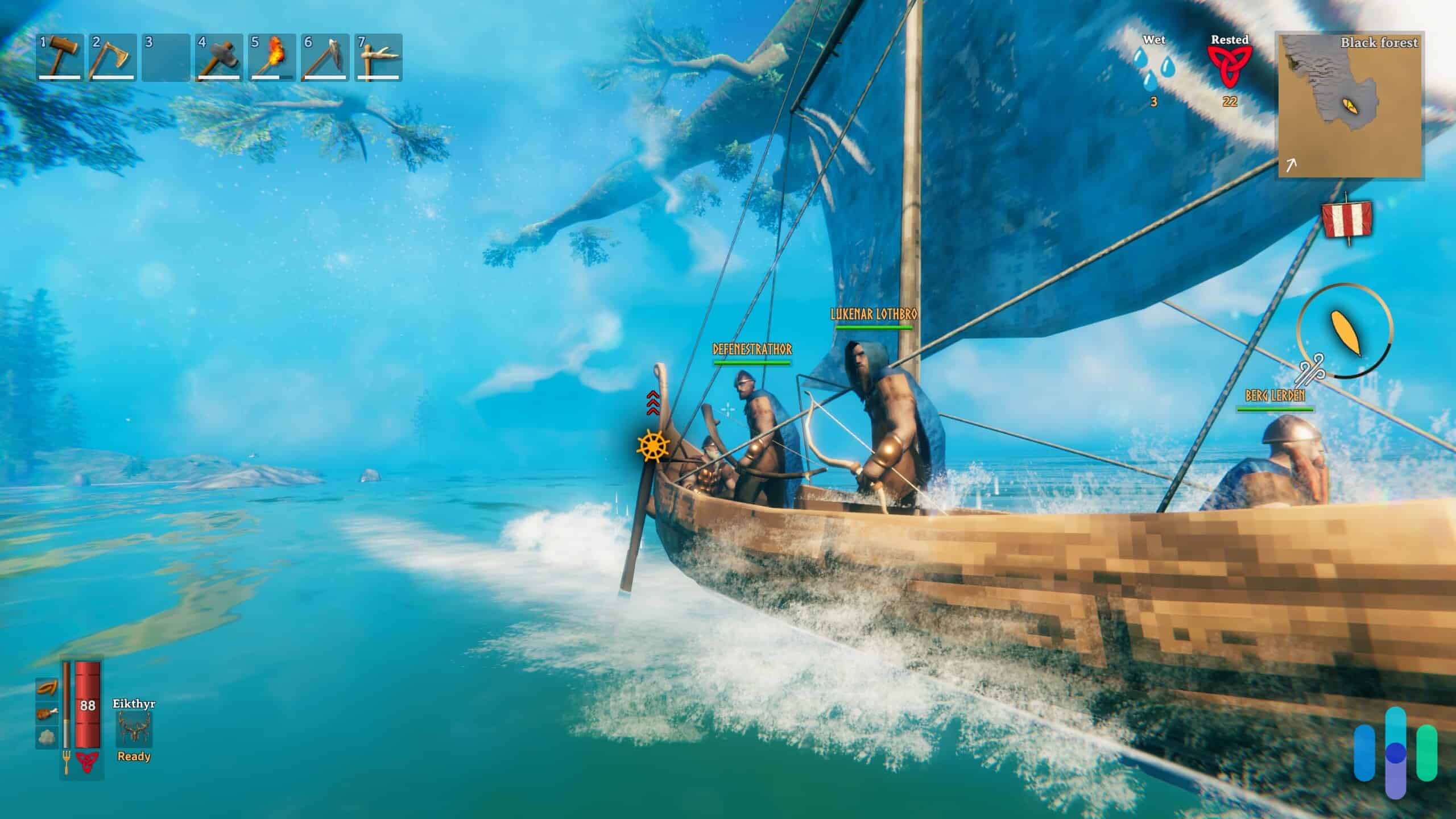
Private Internet Access posted the fastest download speeds in our Xbox tests. PIA also matched ExpressVPN on latency, averaging 25 to 40 ms on close servers. That combination of speed and low ping makes it a top performer for gaming. Plus, at $2.03 a month, PIA plans are the most affordable option on this list by a notable margin. See how it stacks up in our PIA vs. ExpressVPN comparison.
PIA also offers the most setup flexibility of any VPN here. On Xbox, you can connect via virtual router, router VPN, SmartDNS, or SOCKS5 proxy. The proxy option routes your traffic through PIA’s servers without full encryption overhead. This is how PIA hit its peak speeds in our testing. Proxy mode is your best bet if you want maximum throughput for downloading large game files or patches. The virtual router method also lets you get a UK IP address or connect to other regional servers to access geo-restricted content on your Xbox.
PIA only covers 91 server countries, so regional variety is more limited than NordVPN or Proton, which could be a factor if you game on Asian or Oceanic servers. We also found the interface is more technical than ExpressVPN or Surfshark, which can make initial setup less intuitive if you’re not tech-savvy. That said, PIA’s configuration guides walk through each Xbox setup method clearly.
Best For: PIA is the go-to for speed-focused gamers and budget-conscious players, especially those who want the flexibility of a proxy setup.
What We Like
- Fastest download speeds in our tests
- Most setup flexibility
- Lowest price on this list at $2.03/mo
- Low latency matching ExpressVPN
What We Don’t Like
- Smallest server footprint on this list
- Interface is more technical and less beginner-friendly
- Peak speeds require proxy mode, which doesn’t provide full VPN encryption
>> Also See: Best Proxy Servers
What Can You Do With a VPN on Xbox?
Using a VPN on Xbox goes beyond basic privacy protection. Here are some other gaming-specific reasons to use one:
Access Game Servers in Other Regions
Many games use region-locked server pools, but you can bypass these restrictions by connecting to a VPN server in your target country. We switch servers when we want to play with friends overseas, practice against different player pools, or avoid high-ping servers in our local region during peak hours. For example, connecting to Singapore or Hong Kong servers opens up Asia-Pacific matchmaking pools.
Get Early Access to New Game Releases
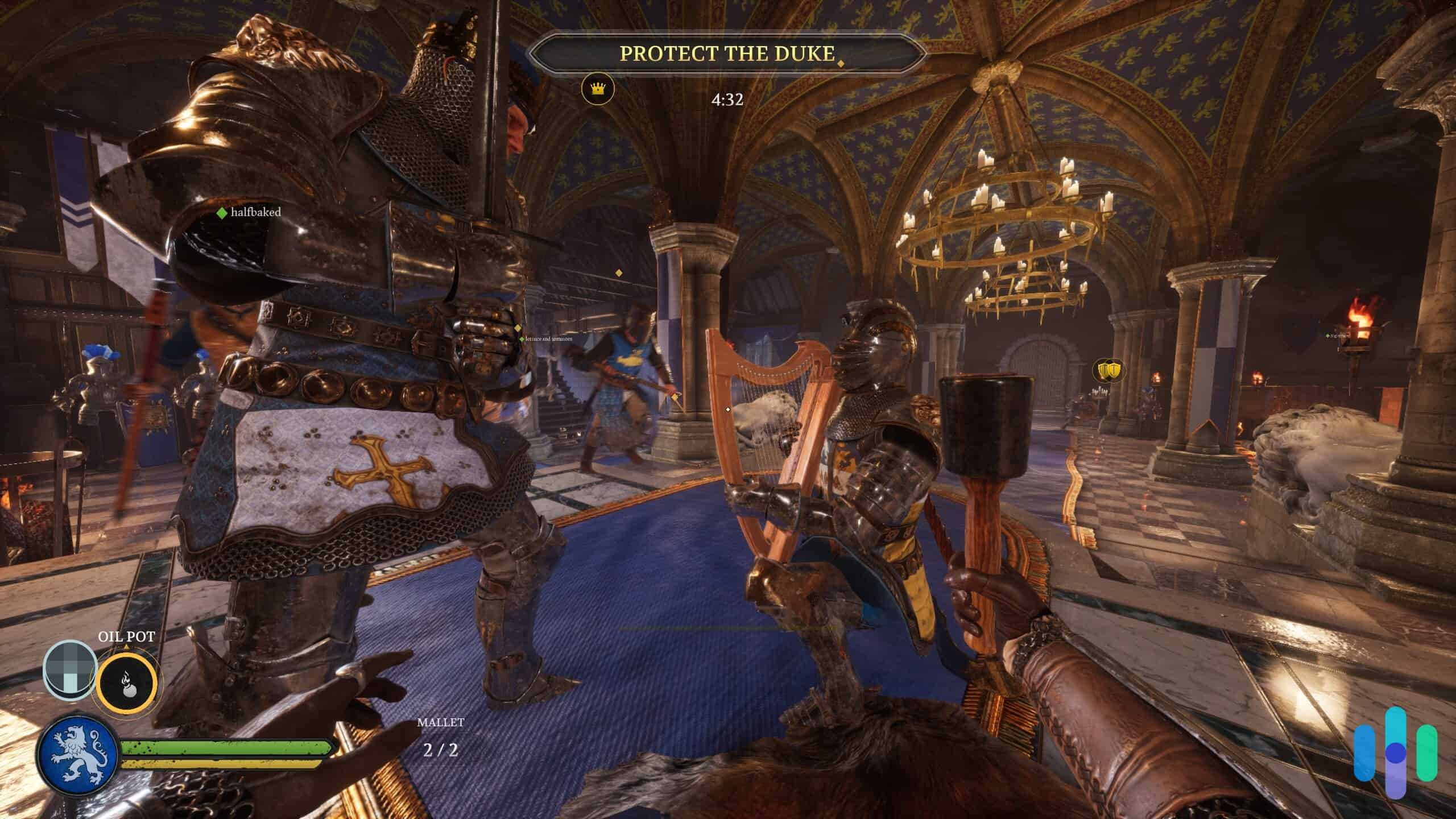
Some games launch in Asian and European markets before North America. Connecting to a VPN server in Japan or the UK can let you download and play a new release days before it’s officially available in your region. We found ExpressVPN and NordVPN to be the most reliable for this, as their high-speed servers handle large Day 1 patches with ease. If you need access to servers in restricted regions, our guide on VPNs for China covers the most capable options for heavily filtered networks.
Protect Against DDoS Attacks
In competitive multiplayer, some players use DDoS attacks to knock opponents offline. A VPN masks your real IP address, so attackers can’t target your connection directly. Surfshark’s 10 Gbps infrastructure is designed to handle massive traffic spikes that would normally crash a standard connection.
Unlock Streaming Libraries on Xbox
If you use streaming apps like Netflix, Disney+, or BBC iPlayer on your Xbox, a VPN can let you access content libraries from other countries. You can also change your Netflix region to unlock titles not available in your area. In our testing, Proton VPN and ExpressVPN handled 4K streams, with no buffering mid-show.
Avoid ISP Throttling
Some ISPs throttle bandwidth during peak hours or for specific traffic like gaming and torrenting. A VPN encrypts your traffic so your ISP can’t identify and throttle it, which can improve connection consistency during high-traffic periods.
How to Choose a VPN for Xbox
While there are other VPNs that work on Xbox, the performance varies. Here’s what we recommend testing before choosing one:
Latency Matters More Than Raw Speed
For gaming, latency (ping) is more important than download or upload speed. A VPN that delivers 300 Mbps but adds 100 ms of latency is worse for competitive gaming than one that caps at 150 Mbps with only 20 to 30 ms of lag. We recommend looking for a VPN with servers in your region that provides consistently low latency.
Pro Tip: Most games feel noticeably laggy once you cross 120 ms. You’ll want a VPN that keeps your total latency well under that threshold.
Server Network: Count and Location
The size and geographic spread of a VPN’s server network determines where you can connect and how reliably you can do it. More server countries means more options for geo-unlocking game servers or accessing regional early releases. It also means better odds of finding a nearby server that minimizes latency. NordVPN (129 countries) and ExpressVPN (105 countries) led our tested group on this metric.
Setup Method Compatibility
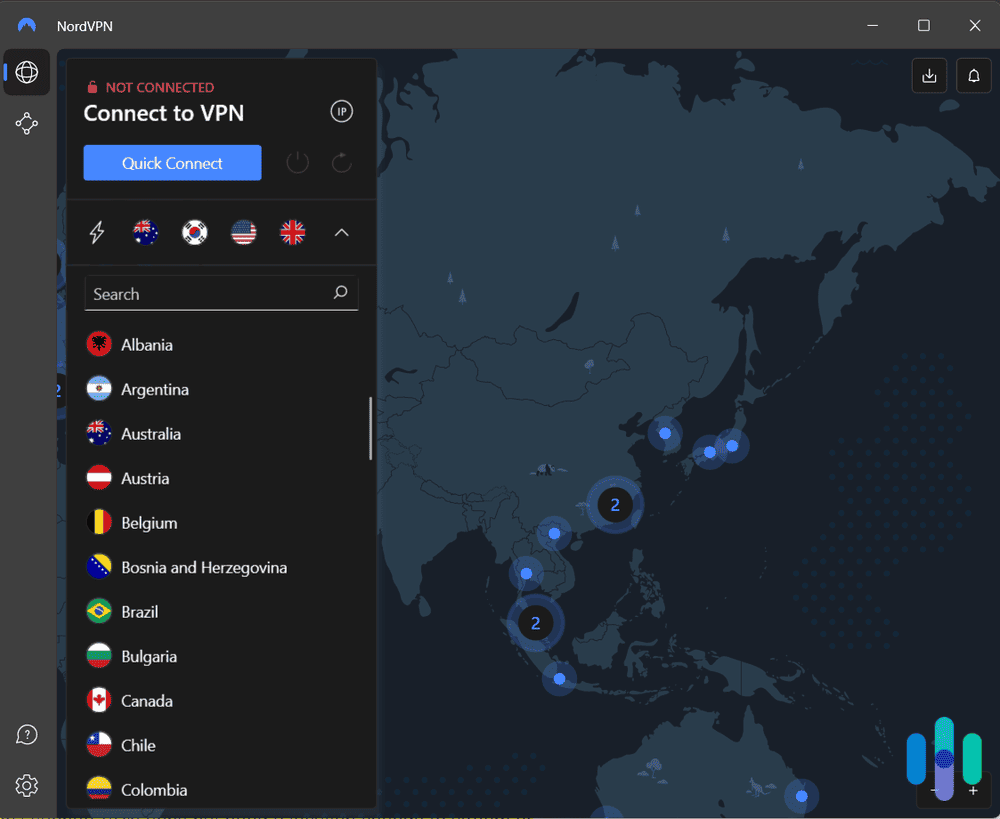
Pick a VPN that matches the setup method you can actually use. Setting up a VPN on a router is the most seamless option. That way, every device on your network is protected without any extra steps. If your router doesn’t support it, setting up a Windows virtual router or hotspot is your next best bet. Switching servers on your PC will change your virtual location on the Xbox.
If you aren’t worried about encryption and just want to bypass geo-restrictions, SmartDNS is the easiest way to go. PIA supports all four methods (router, virtual router, SmartDNS, and proxy). If you want to learn more about these methods, check out our guides on how to set up a VPN and VPN apps.
Gaming-Specific Features
Features like DDoS protection, SmartDNS availability, proxy support, and split tunneling can improve your gaming experience. Surfshark’s DDoS resistance and NordVPN’s Meshnet are examples of features that go beyond standard VPN functionality and are useful for gamers. You should also consider whether you need to change your IP address for specific regions or hide your IP from other players.
NordVPN’s Meshnet feature lets you host encrypted private LAN parties with friends anywhere, without extra software.
Gaming Port Forwarding on Xbox
Port forwarding lets incoming connections hit your Xbox directly, which helps with matchmaking and cuts down on NAT-related lag. If you’ve got your VPN on your router, you’ll likely need to set up port forwarding inside the router’s admin settings.
The following ports are used by Xbox Live and should be forwarded for the best connectivity:
| Protocol | Port | Purpose |
|---|---|---|
| TCP | 3074 | Xbox Live primary |
| UDP | 88 | Kerberos authentication |
| UDP | 500 | IPSec VPN |
| UDP | 3074 | Xbox Live primary |
| UDP | 3544 | Teredo tunneling |
| UDP | 4500 | NAT traversal |
How to Set Up Port Forwarding on Xbox One
- Log in to your router admin panel (usually at 192.168.1.1 or 192.168.0.1).
- Find the Port Forwarding or Virtual Servers section.
- Create a new rule and enter your Xbox’s local IP address. You can find this under Xbox Settings > General > Network settings > Advanced settings.
- Enter the port numbers listed above, one rule per port.
- Set the protocol to match (TCP or UDP as specified).
- Save and restart your router.
- Verify the NAT type improved by checking Network settings > Test NAT type on Xbox.
>> Also See: How to Set Up a VPN on PlayStation
Free VPNs for Xbox
Free VPNs are rarely a good choice for gaming. They typically have speed caps, data limits, or small server networks that make you want to rage quit. There are a few legitimate options worth knowing about, though.
- Proton VPN Free Tier: Proton’s free plan doesn’t have data caps, but it restricts you to three server locations (U.S., Netherlands, and Japan). You can’t use the free tier for streaming, either. It’s functional, but we suggest upgrading to a paid plan for full server access.
- Surfshark (30-day money-back guarantee): Surfshark’s 30-day money-back guarantee lets you try the full service at no cost, just like a free trial VPN. Sign up, test it on your Xbox using the setup method of your choice, and request a refund if it doesn’t meet your needs.
- Trust.Zone (7-day free trial): This VPN offers a 7-day trial with no credit card required. Limited server locations are available, but it’s functional for short-term testing or casual use. See our guide to Trust.Zone’s subscription options for more info on its paid plans.
We suggest avoiding free VPNs not on this list. Many log and sell user data, have slow speeds for gaming, or lack the server infrastructure needed for reliable Xbox use. If you’re setting up via mobile hotspot, also check our picks for iPhone VPNs.
>> Also See: 2026 Free VPNs
Methodology
To keep things fair, we tested every VPN on an Xbox Series X using a Windows virtual router to get an apples-to-apples comparison. We measured performance by playing Apex Legends, Fortnite, and Forza Motorsport while keeping an eye on the in-game network diagnostics. We also ran speed tests using the Xbox’s built-in network speed test tool before and after VPN activation. Take a look at this guide if you want to learn more about the fastest VPNs we’ve tested.
We tested speeds and latency on both the closest servers and distant overseas locations to see how they handled long-range gaming. Each VPN was tested across three separate sessions and results were averaged to account for network variability. Our evaluation framework covered three criteria:
- Performance: We only picked VPNs that kept in-game latency between 25 and 70 ms on our local servers. Download speeds had to be under 240 Mbps, with uploads lower than 235 Mbps.
- Server availability: We looked at total server counts and how many countries were covered. Regional coverage was also an important factor.
- Setup process: We didn’t want to waste time in the settings, so we timed how long it took us to set up each VPN for the Xbox.
We also looked at things like Xbox model compatibility, price, and gaming perks like DDoS protection or SmartDNS. Our team has conducted over 2,500 hours of VPN research, reviewed more than 50 VPN services, run 300+ speed tests, and consulted six experts in cybersecurity and gaming networking to inform our recommendations.
>> Read More: VPN Speed Tests
Is a VPN for Xbox Really Necessary?
Using a VPN on Xbox isn’t necessary for most gamers. Microsoft already encrypts your Xbox Live connection, so you don’t really need an extra layer of privacy for basic gaming. That said, a VPN can still come in handy. We think it’s worth it if you’re a competitive player worried about DDoS attacks, want to hop onto servers in other regions, or trying to unlock geo-restricted streaming apps on your console.
If you do decide to use one, the setup process is more involved than on a PC or phone, but it’s manageable once you’re up and running. We found that using a Windows virtual router is the easiest way to go if you don’t have a VPN-compatible router.
Frequently Asked Questions
-
Do you need a VPN for Xbox?
Not necessarily. Xbox Live already encrypts your gaming traffic. A VPN adds value for protecting against DDoS attacks, accessing game servers or streaming content in other regions, and preventing ISP throttling.
-
Can you install a VPN directly on Xbox?
No. Xbox does not support native VPN client apps. You can’t install a VPN through the Xbox Store. Instead, you’ll need to share a VPN connection from a Windows PC or Mac, or set the VPN up at the router level.
-
What are the best VPNs for Xbox?
From what we’ve seen in our tests, the top picks are ExpressVPN for low latency, NordVPN for overseas servers, Surfshark for DDoS protection, Proton VPN for 4K streaming, and PIA for the best speeds at a great price.
-
Are VPNs allowed on Xbox?
Yes, they are. Microsoft does not prohibit VPN use on Xbox. Some individual game publishers may restrict VPN use in their terms of service, particularly if using one to gain a competitive advantage through regional server hopping. We suggest checking the terms for the specific game you’re playing.
-
Do VPNs work on all Xbox models?
The setup methods covered in this gProton VPN’s free tier gives you unlimited data, making it your best bet if you don’t want to pay. Keep in mind that it limits you to three server locations and doesn’t support streaming. Surfshark and most other paid VPNs offer 30-day money-back guarantees you can use to try the service risk-free. Trust.Zone has a seven-day free trial with no credit card required.uide work across all Xbox models, including Xbox 360, Xbox One, Xbox One S, Xbox One X, Xbox Series S, and Xbox Series X. The connection is made at the network level, not through the console itself, so the Xbox model doesn’t affect compatibility.
-
Can I get a free VPN for Xbox?
Proton VPN’s free tier gives you unlimited data, making it your best bet if you don’t want to pay. Keep in mind that it limits you to three server locations and doesn’t support streaming. Surfshark and most other paid VPNs offer 30-day money-back guarantees you can use to try the service risk-free. Trust.Zone has a seven-day free trial with no credit card required.
-
How much does a VPN for Xbox cost?
Prices range from $2 to $5 a month when billed annually. Monthly billing is more expensive, so annual plans are almost always the better value if you plan to use the VPN long-term.
-
Can I use NordVPN on Xbox?
Yes. NordVPN works on Xbox via virtual router, router, or SmartDNS (via SmartPlay). It doesn’t have a native Xbox app, but all three setup methods function reliably.